
 1 MIN READ
 UPDATED OCT 30, 2026
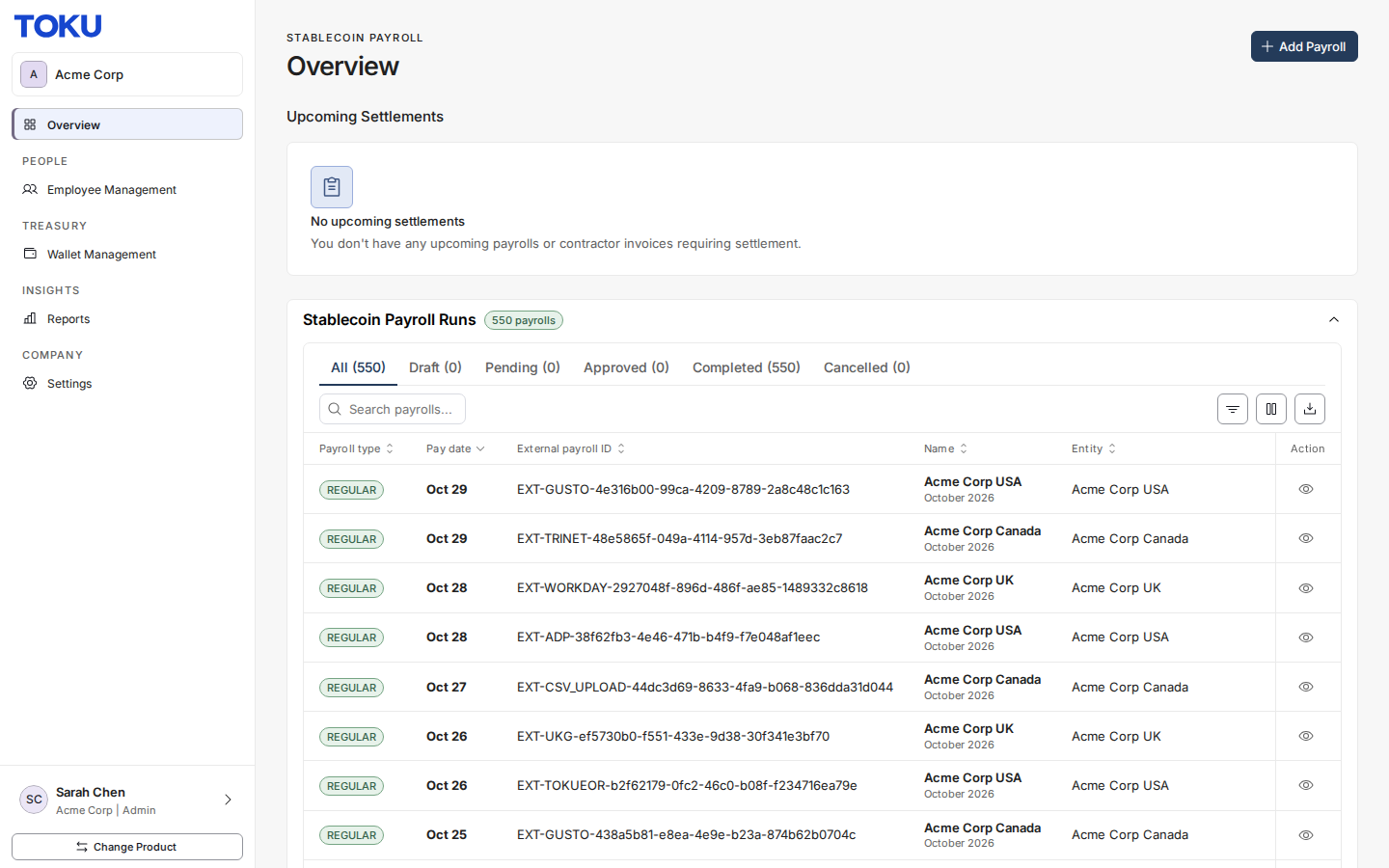
Step 1. Navigate to Dashboard
Step 2. Open Employee Management
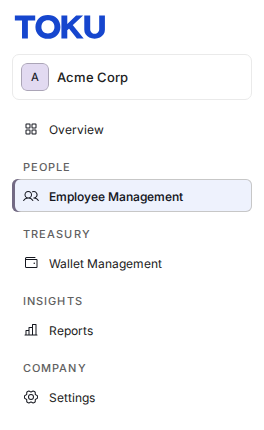
- On the left sidebar, under PEOPLE, click Employee Management.
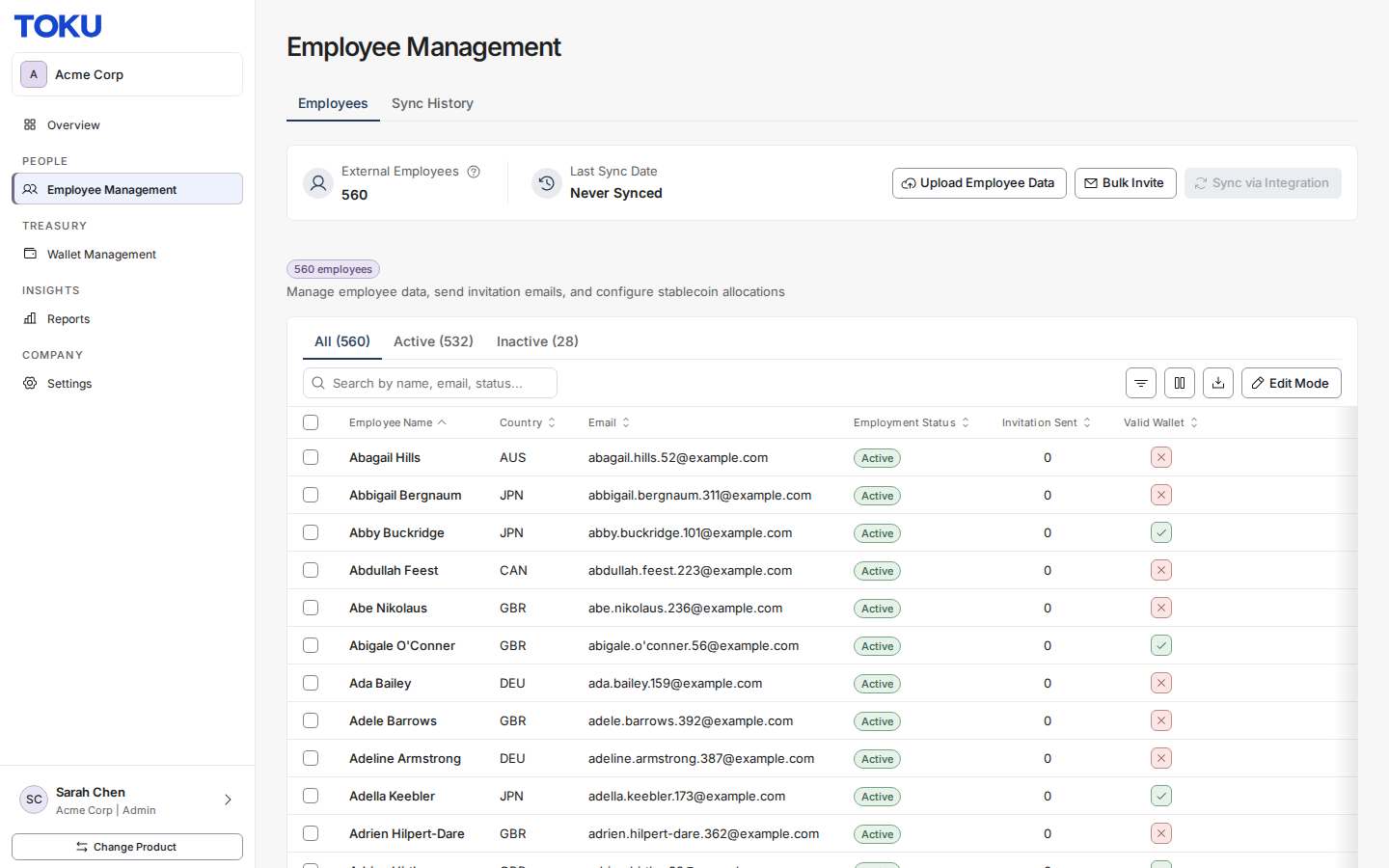
- The Employee Management page opens on the Employees tab.
Step 3. Prepare CSV Template
- Click Upload Employee Data.

- In the popup window, click Download Template.
- This will download a CSV file pre-filled with sample data.
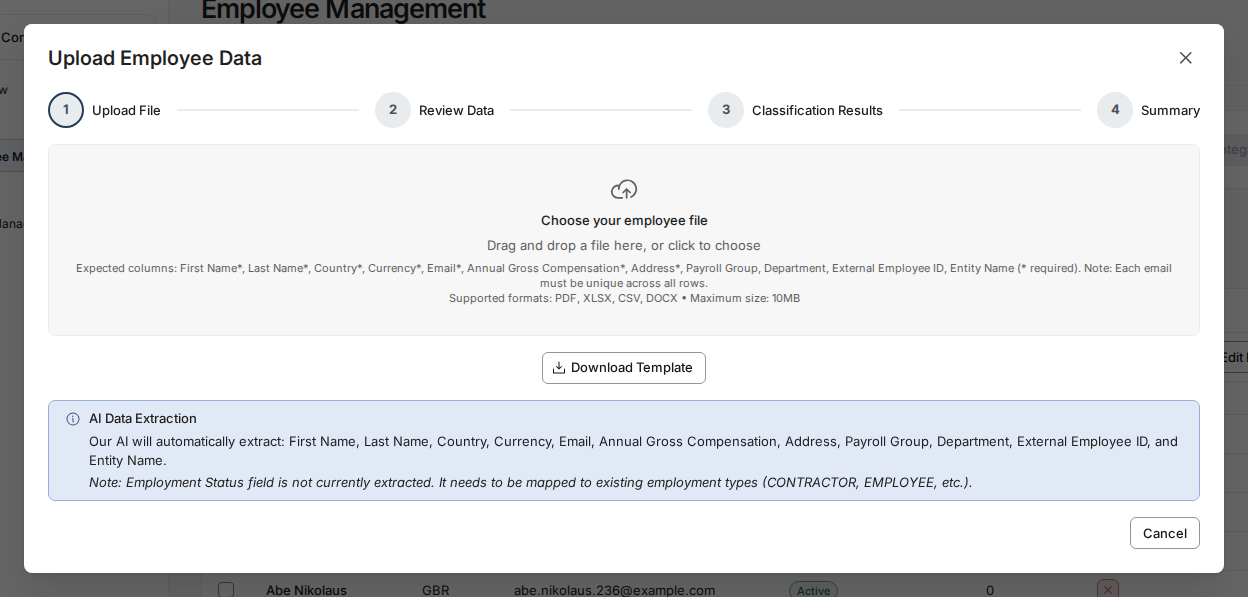
- Open the file, delete the sample data, and start filling in your employee details.
- Use the first row as the column headers reference.
- Once all employee information is added, save the file.
Step 4. Upload CSV File
- Return to the popup screen and click Choose your employee file (or drag and drop the file onto it).
- Upload the file you just saved.

- The Review Data step shows a preview of your data.
- Review carefully to ensure all details are correct.
- To fix a value, double-click the cell and edit it.
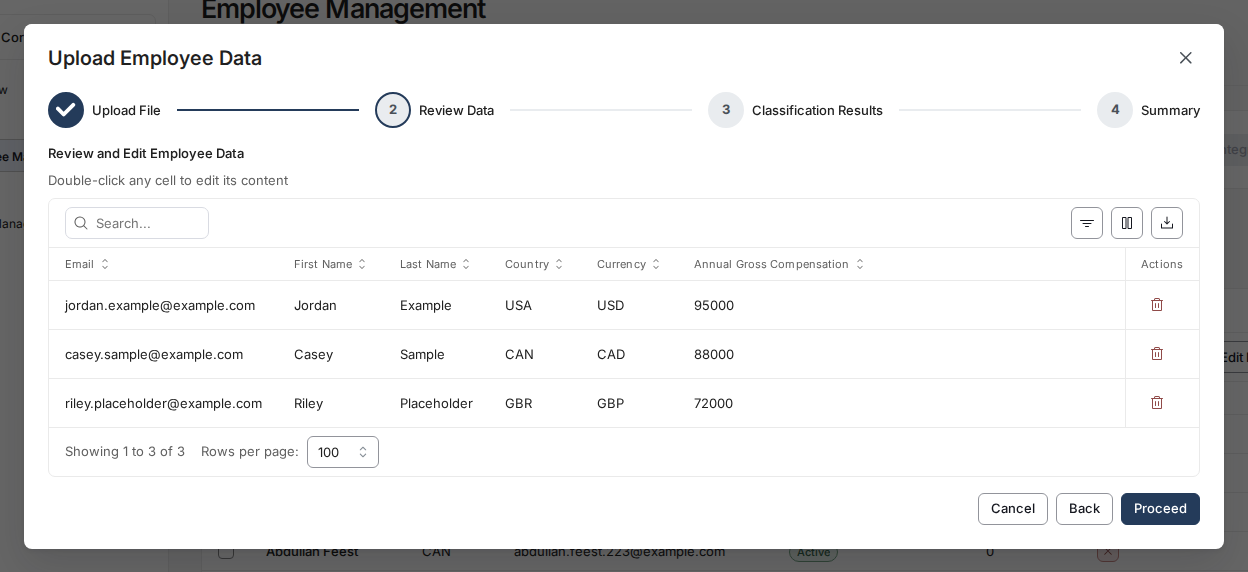
Step 5. Finalize Upload
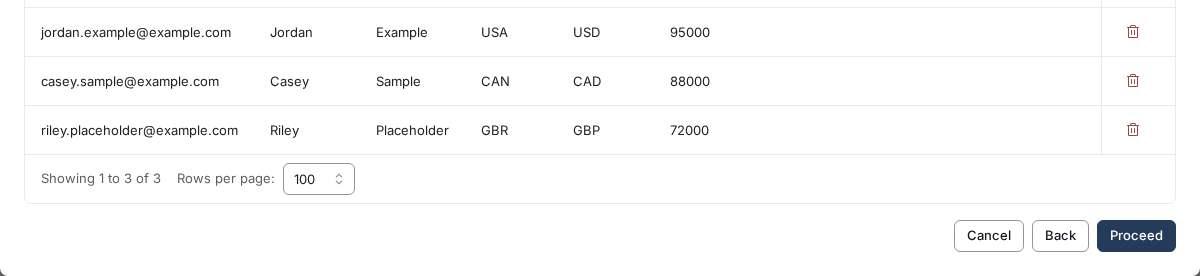
- Click Proceed to upload the employee data. Toku then shows the Classification Results and a Summary of the upload.
To send an invitation to this employee you can follow these steps.
✅ Tip: Always double-check spelling, email formats, and required fields in the CSV before uploading to avoid errors.