
 4 MIN READ
 UPDATED OCT 30, 2026
Toku + Gusto Integration: Stablecoin Payroll Setup Guide
Overview
This guide outlines how to manually connect your Gusto account with Toku’s Stablecoin Payroll platform without direct API keys. You will need to utilize this method if you do not have a direct developer account at Gusto.
In this guide you will learn how to export your employee data from Gusto, import it into Toku, invite employees to onboard, and process Stablecoin payments alongside regular payroll.
Step-by-Step Setup Process
1. Export All Employees from Gusto
- Log in to your Gusto Admin Dashboard.
- Navigate to: Reports → Custom Reports → Columns.
- Choose the following fields for your custom report:
- Employee ID
- Full Name
- Email Address
- Gross Annual Income / Annual Salary
- Currency
- Country
- Address
- Department (optional)
- Employment Type (optional)
- Select “Download”
Save this file as
Gusto_Employee_Export.csv.
2. Prepare CSV for Import into Toku
- Open your exported file in Excel or Google Sheets.
- Ensure the following headers are correctly labeled:
employee_idemployee_nameemailannual_gross_income
- Confirm there are no blank rows or duplicate emails.
- Save the cleaned file as
Toku_Employee_Import.csv.
3. Import Employees into Toku
- Log into your Toku Admin Dashboard.
- Go to Employee Management (under PEOPLE in the left menu).
- Click Upload Employee Data and select your
Toku_Employee_Import.csvfile.
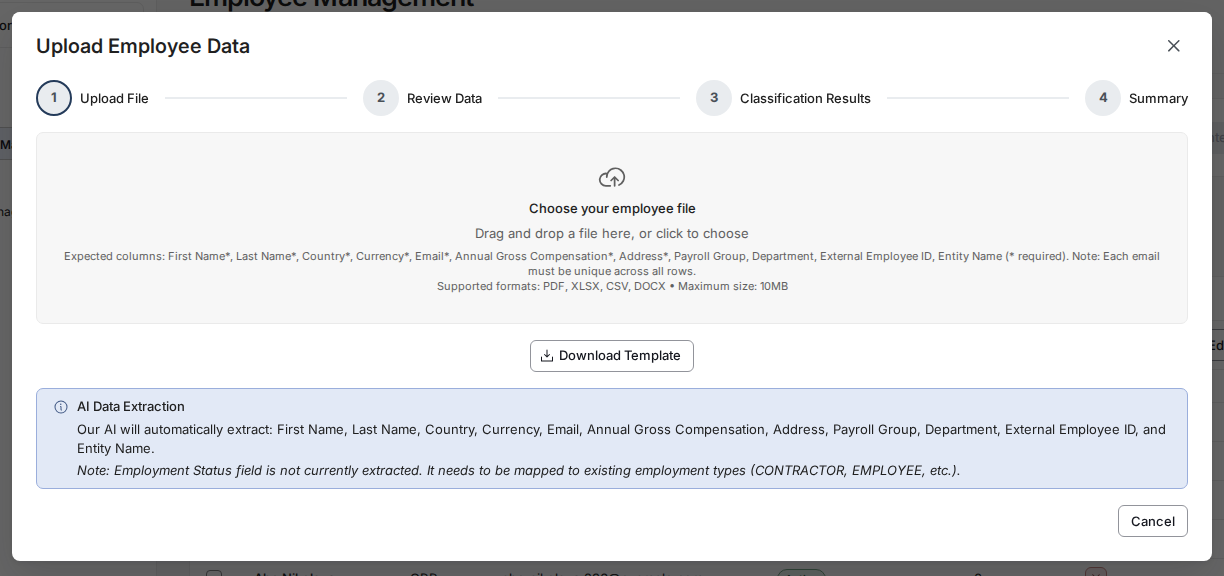
- Review the preview table and confirm all fields map correctly.
- Click Proceed to import the employees. Once complete, Toku will automatically create employee profiles.
4. Send Employee Invitations
- In Toku, go to Employee Management and select the employees to invite (or click Bulk Invite to paste or upload their email addresses).
- Click Send Invitations.
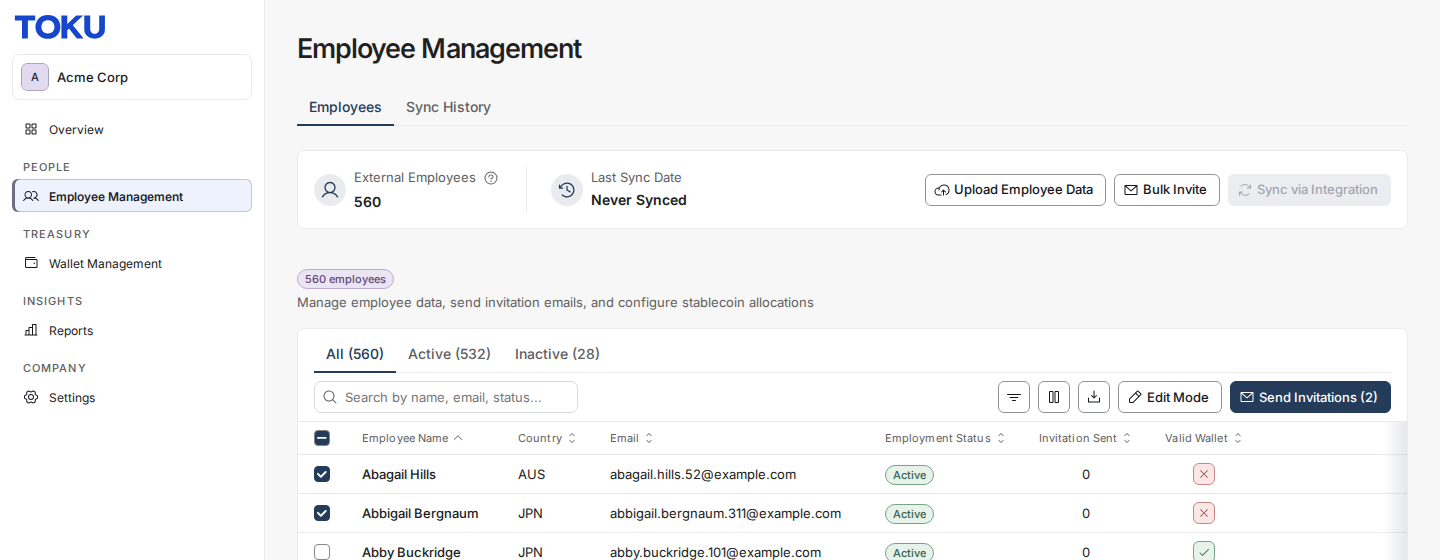
- Each employee will receive an email to onboard to the Toku platform.
5. Employee Onboarding & Stablecoin Setup
- Employees log in to Toku via the invite email.
- During onboarding, each employee will:
- Add their Stablecoin Wallet Address.
- Choose their preferred network (e.g., Ethereum, Solana, Polygon).
- Select their token type (e.g., USDC).
- Set a Stablecoin allocation (e.g., $100 or $200 per pay period). These elections are securely stored and connected to the upcoming payroll cycle.
6. Download Payroll Register from Gusto
- Before each pay run, go to Payroll → Past Payrolls → Export Payroll Register.
- Export in CSV format.
- Include columns for:
- Employee ID
- Gross Pay
- Net Pay
Save this file as
Gusto_Payroll_Register.csv.
7. Process Stablecoin Payments in Toku
- Upload your payroll register into Toku:
- Go to Overview, click Add Payroll, choose Regular Payroll and click Next.
- Upload
Gusto_Payroll_Register.csv.
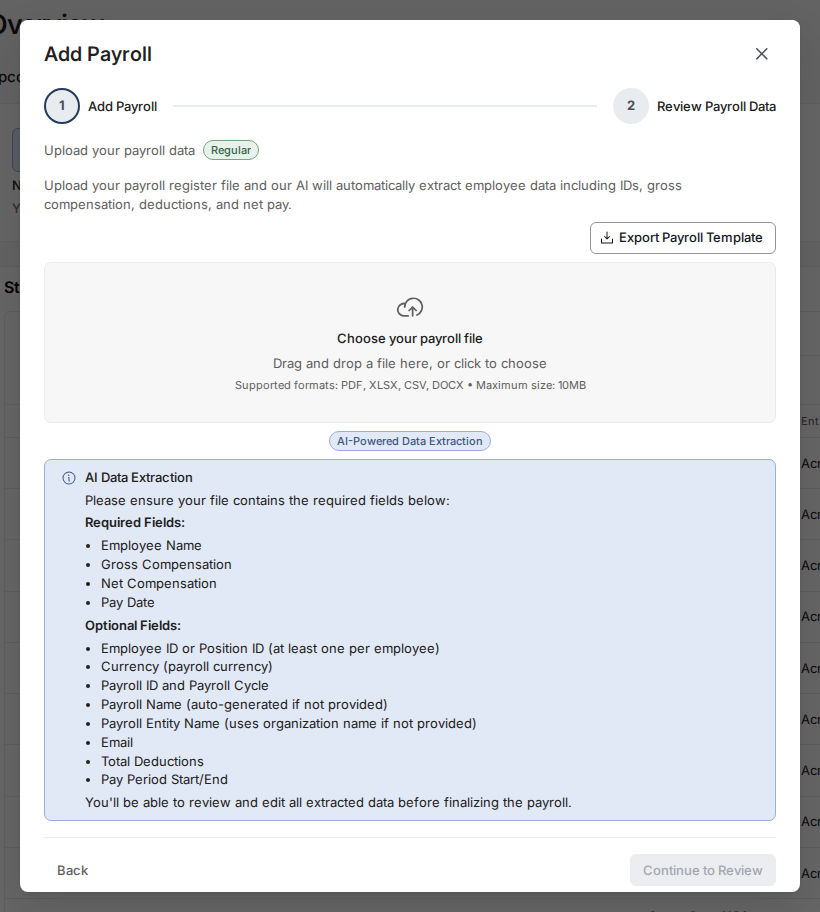
- Toku automatically matches employees and deducts the elected Stablecoin amounts.
- Review and approve transactions.
- Once approved, Toku executes the Stablecoin payments to each employee’s wallet.
8. Export Stablecoin Deductions File from Toku
- Open the payroll from Overview. In the Settle Stablecoin Payroll step, under Export Deductions, click Export (or Re-export) → CSV Export.
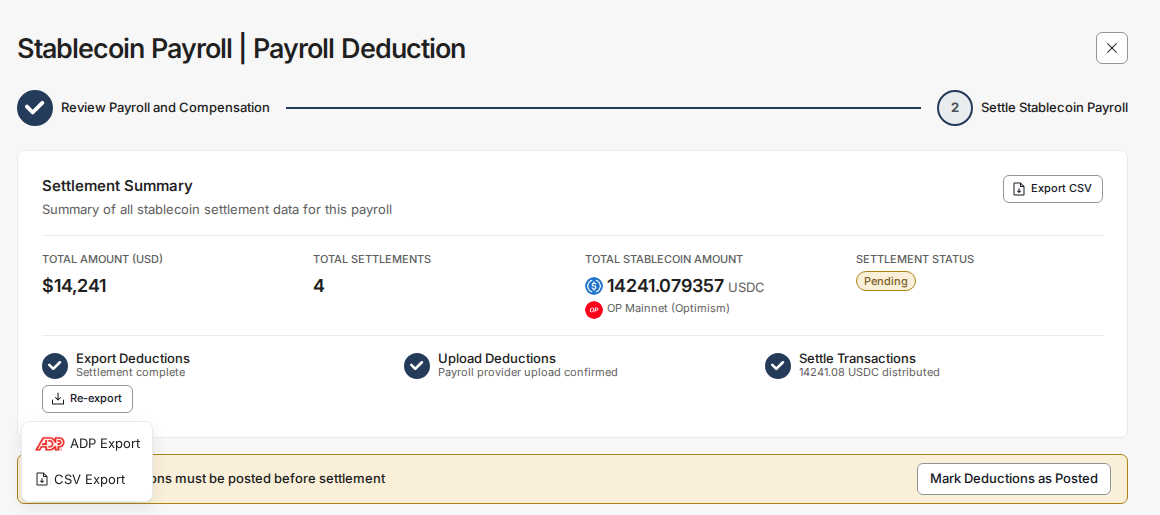
- Save the downloaded file as
Toku_Deduction_Export.csv. - This file includes:
- Employee Name
- Employee ID
- Deduction Type (Post-Tax)
- Deduction Amount
9. Add Post-Tax Deductions in Gusto
⚠️ Note: Gusto currently does not support bulk importing of post-tax deductions.
You’ll need to manually enter each deduction:
- Go to People → [Employee Name] → Deductions & Contributions.
- Click Add Deduction.
- Select Post-Tax Deduction.
- Enter the amount shown in your
Toku_Deduction_Export.csv. - Save and repeat for each employee. Detailed steps can be found in Gusto’s Help Center link under “add a one-time, post tax deduction while running payroll”.
10. Finalize Payroll
- Once all deductions are entered, run your payroll in Gusto as usual.
- Toku will handle the Stablecoin settlements, and Gusto will process the fiat portion.
Frequently Asked Questions
Q: Can Toku automatically sync post-tax deductions with Gusto?
A: Not yet. Gusto does not currently allow bulk imports or API-based post-tax deduction updates. Each deduction must be added manually.
Q: What file formats does Toku support for imports and exports?
A: CSV format is required for all imports and exports.
Q: Can employees change their Stablecoin elections?
A: Yes, employees can update their allocations or wallet information directly from their Toku dashboard at any time. Changes apply to the next payroll cycle.
Q: Which Stablecoins and networks are supported?
A: Toku currently supports USDC, USDG, and other major stablecoins across Ethereum, Solana, and Polygon networks.
CONFIDENTIALITY NOTICE: resource and any attachments are only for the use of the intended recipient and may contain information that is privileged, confidential or exempt from disclosure under applicable law. If you are not the intended recipient, any disclosure, distribution or other use of this resource or attachments is prohibited. If you have received this resource in error, please delete and notify the sender immediately. Thank you.