
 8 MIN READ
 UPDATED OCT 30, 2026
⚠️ Contractor invoice and payment deadlines: late action means late payment
- Contractors: submit invoices by the 19th of each month. A saved draft is not a submitted invoice.
- Admins: approve invoices by the 21st of each month. Submission alone does not authorize payment.
- Funding: Toku must receive cleared funds 4 - 5 business days before payout. Initiating a transfer or sending proof of payment does not meet the deadline.
- Standard monthly payout: the last day of the month, provided submission, approval, and funding deadlines are met. Late submission, approval, or funding will delay payment. Every day of delay pushes payment back by at least one day. A missed payment cycle can cause a longer delay; the invoice due date is not a guarantee of payment.
Automation does not remove these deadlines. Earlier published holiday deadlines take precedence; see Toku: 2026 End-of-Year Payroll & Payment Guide.
Welcome to Toku! When you're added to the Toku platform by your employer or client, you'll receive a welcome email with a link to activate your account and complete onboarding. This article walks you through what to expect - from activating your account and submitting your information, to signing your agreement and accessing your full Toku dashboard. The onboarding form takes about 10 - 15 minutes to complete.
It's important to finish it as quickly as possible so your start date isn't delayed.
What is Toku?
Toku is the platform where you'll manage your employment or contractor relationship - including payslips, documents, time off, expenses, and more. Before you get full access, you'll need to complete a short onboarding process so Toku can register you correctly for payroll and taxes in your region.
Invoice automation is chosen by your administrator
When your administrator adds you as a contractor through People → Add People, they can choose automatic invoice creation, submission, and approval after Contract and before Review. These choices belong to the administrator’s setup, so you do not need to find an invoice automation step in your own onboarding form.
Complete your onboarding and payment details as requested. Automatic creation waits until onboarding is complete and the first cycle is eligible; ask your administrator which invoice tasks you need to handle manually.
See the illustrated contractor onboarding walkthrough.
Step 1: Check Your Inbox for Your Activation Email
Once your employer or client adds you to Toku, you'll receive a welcome email from the Toku Team. The subject line will reference either the organization you're joining or the Toku product you've been added to.
Click the Activate My Account button in the email to get started. If the button doesn't work, you can copy and paste the activation link directly into your browser.
Can't find the email? Check your spam or junk folder. If it's not there, reach out to your employer or the Toku team.
Step 2: Set Up Your Password & Two-Factor Authentication (2FA)
When you activate your account, you'll be prompted to create a password and set up two-factor authentication (2FA).
2FA is required because your Toku account contains sensitive personal information, including payslips, tax documents, identification records, and employment agreements. This extra layer of security helps keep your data protected.
Keep your 2FA app or method accessible - you'll need it each time you log in.
Step 3: Complete Your Onboarding Form
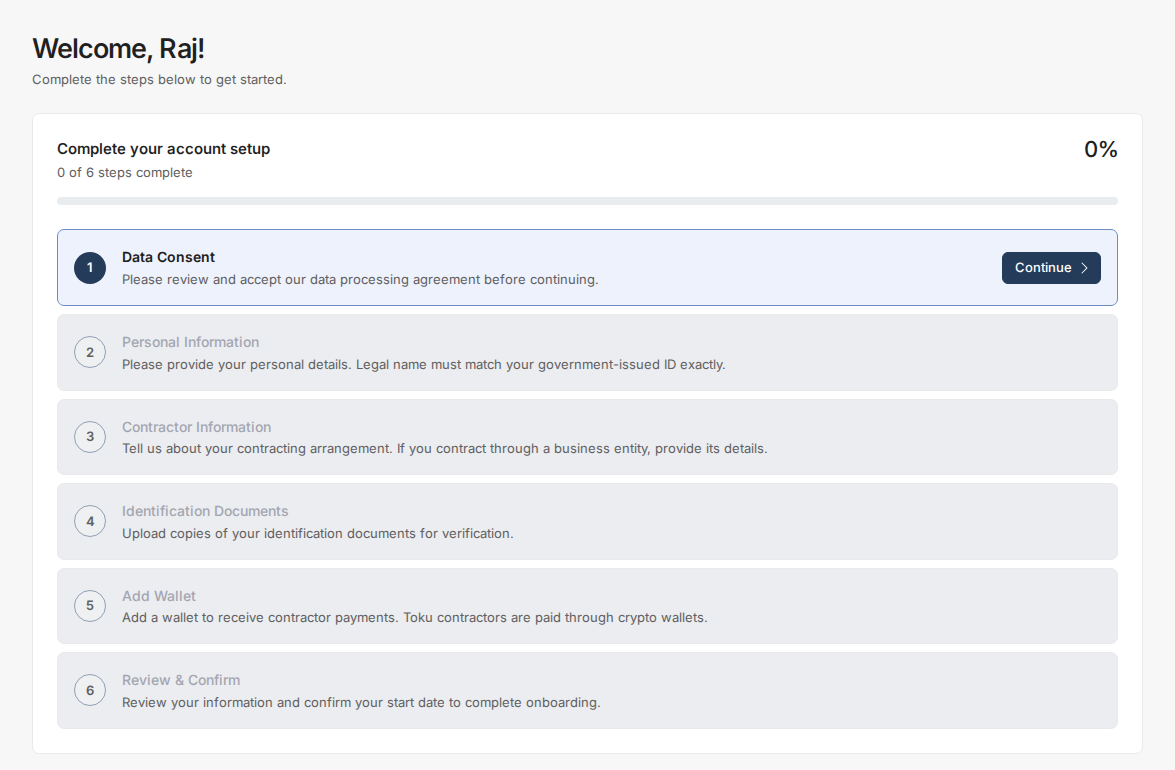
Once you're in, you'll work through a short onboarding form. Here's what each step covers:
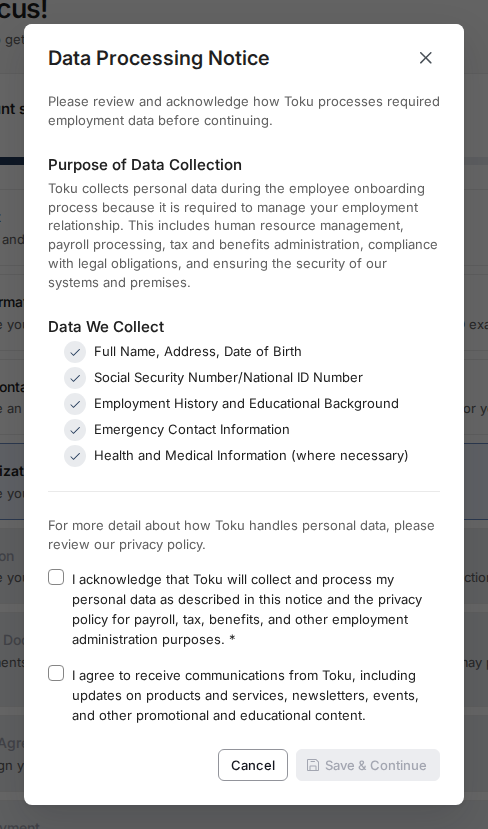
1. Data Consent
You'll first be asked to review and agree to Toku's Data Processing Notice. This ensures your personal information is securely handled in line with local requirements.
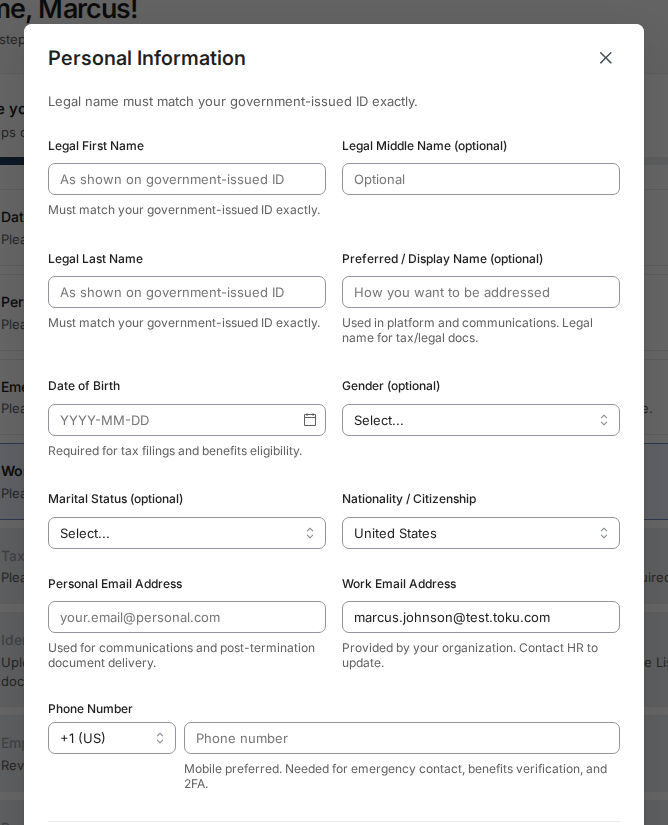
2. Personal Information
Enter your basic details, including your name, date of birth, marital status, citizenship(s), and contact information, as well as your home address and emergency contact details. This information is needed to create your employment agreement and to comply with local labor regulations.
🌍 Work Rights Documentation (Some Countries Only)
In certain countries, you'll be asked to confirm your legal right to work where you're being hired. If prompted, you'll need to answer questions about your residence status (Citizen, Permanent Resident, Work Visa holder, etc.) and upload supporting documentation.
Acceptable documents include a passport, national ID card, permanent residency card, valid work visa and/or visa grant notice, residence permit, or a spouse/dependent visa if applicable.
🔒 All documents are handled securely and used only for compliance verification.
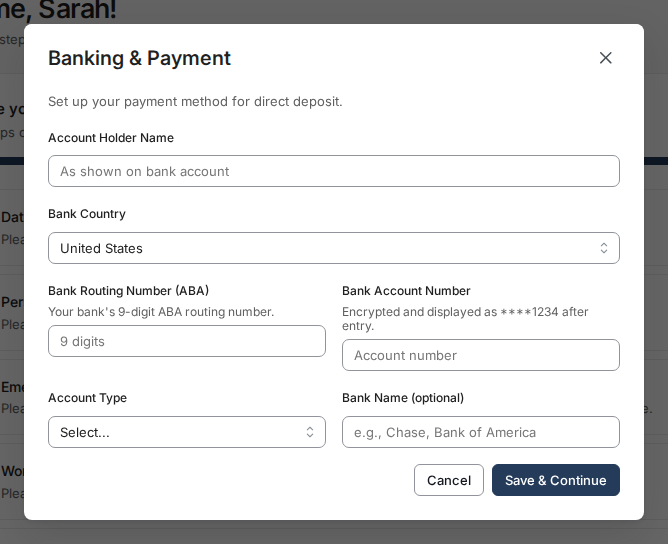
3. Banking Information
Provide your bank account details, including your bank country, bank name, account number, account type, and routing/IBAN/SWIFT information as applicable. You'll also enter your payment currency and full bank address. If applicable, you may enter wallet details for digital payments.
4. Comments
If you have questions or run into any issues while completing the form, you can leave a comment at the end of your onboarding form. The Toku Customer Success team will review it and reach out to assist if needed.
5. Review & Confirm
Before submitting, you'll have the opportunity to review all the information you've entered. Confirm everything is accurate and complete, then select Submit Onboarding.
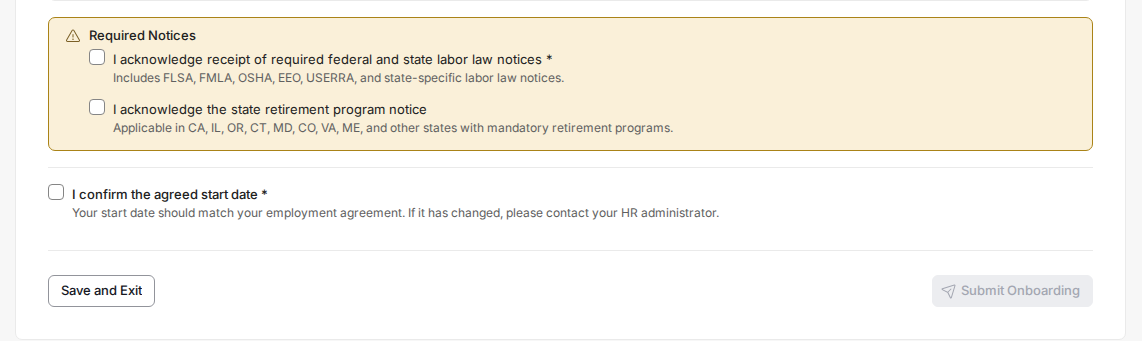
⚠️ Complete this as soon as possible. Many countries require employee information at least 5 business days before your start date so Toku can register you for taxes and payroll in your area. Delays in onboarding may push back your start date.
Step 4: Sign Your Agreement
After Toku reviews your submitted information, your employment or consulting agreement will be prepared and sent to you for e-signature. Review it carefully and sign it to move forward.
At the same time, you'll receive a welcome email with links to any relevant benefits programs for your country (such as health insurance or retirement plans like 401(k)), along with helpful tips for navigating the platform.
💡 Contractors: All contractor agreements will be with WorkCo Global LLC, a US entity.
ℹ️ Additional note: Depending on your country, our team may follow up to request additional documentation such as a national ID or tax forms. If this is needed, we'll reach out directly and guide you through the process.
Step 5: Access Your Full Toku Account
Once your agreement is signed by all parties, you'll receive an invite to the full Toku platform. From there, you're officially set up for payroll and ready to go. Here's what you'll find in your account:
- Payslips — your pay history, available to download anytime
- Documents — your employment agreement and any other key paperwork
- Time Off — submit and track PTO requests
- Expenses — submit expense claims for reimbursement
- Personal Information — update your contact details, bank account, and more
Using Token Payroll or Token Grant Administration (TGA)?
If you've been added to Toku Token Payroll or Token Grant Administration (TGA), you'll receive a slightly different welcome email with a blue Activate Your Account button. The onboarding process is the same - just click the button and follow the steps.
Once set up, you'll have access to the Token Grant platform, which is separate from the main Toku platform. You can use the same email address and password to log in, but you'll have a unique 2FA code for this account - that's how the system differentiates between the two.
On the Token platform, you'll be able to view upcoming token payments and compensation dates, manage your wallet address, set token allocation preferences, and track your full payment history.
Have Questions?
The Toku Help Center has articles covering everything you can do in the platform. If you're not sure how to complete a task or find something in your account, search the Help Center first - there's an article for it.
Still Need Support? We’re Here for you!
📩 Team Contact Information:
Customer Success: [email protected]
Payroll Team: [email protected]
Token Grant Administration: [email protected]
Immigration or Visa: [email protected]
Benefits: [email protected]
CONFIDENTIALITY NOTICE: resource and any attachments are only for the use of the intended recipient and may contain information that is privileged, confidential or exempt from disclosure under applicable law. If you are not the intended recipient, any disclosure, distribution or other use of these resources or attachments is prohibited. If you have received this resource in error, please delete and notify the sender immediately. Thank you.
Last updated: October 2026