
 6 MIN READ
 UPDATED OCT 30, 2026
⚠️ Contractor invoice and payment deadlines: late action means late payment
- Contractors: submit invoices by the 19th of each month. A saved draft is not a submitted invoice.
- Admins: approve invoices by the 21st of each month. Submission alone does not authorize payment.
- Funding: Toku must receive cleared funds 4 - 5 business days before payout. Initiating a transfer or sending proof of payment does not meet the deadline.
- Standard monthly payout: the last day of the month, provided submission, approval, and funding deadlines are met. Late submission, approval, or funding will delay payment. Every day of delay pushes payment back by at least one day. A missed payment cycle can cause a longer delay; the invoice due date is not a guarantee of payment.
Automation does not remove these deadlines. Earlier published holiday deadlines take precedence; see Toku: 2026 End-of-Year Payroll & Payment Guide.
📘 For organization administrators managing client-managed contractors on Toku. Last updated October 30, 2026.
Client-managed contractors are hired directly by you, not by Toku. Your team owns onboarding; Toku provides the platform and releases payments once you approve.
Before you start
- You are responsible for contracting the contractor directly under your own agreement
- Toku invites the contractor to the platform to complete their onboarding information and tax forms
- Review the contractor's submitted details and confirm all required information before finalizing
Your role vs. Toku's role
| You (the organization admin) | Toku |
|---|---|
| Contract the contractor directly under your own agreement | Provide the platform |
| Review submitted details and complete onboarding | Invite the contractor to the platform |
| Review and approve invoices and expenses | Generate the consolidated invoice |
| Fund payments on time | Release payment to the contractor |
| Manage contractor relationship and terminations | Provide technical and platform support |
How onboarding works
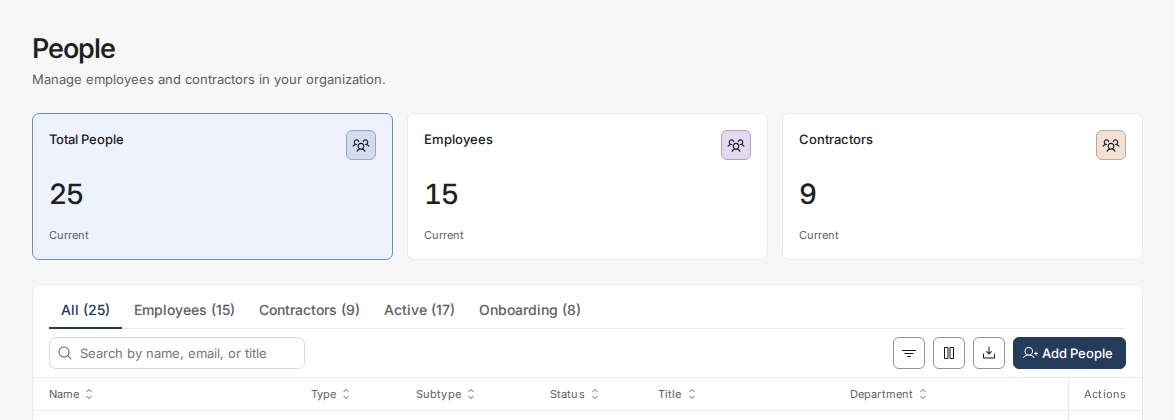
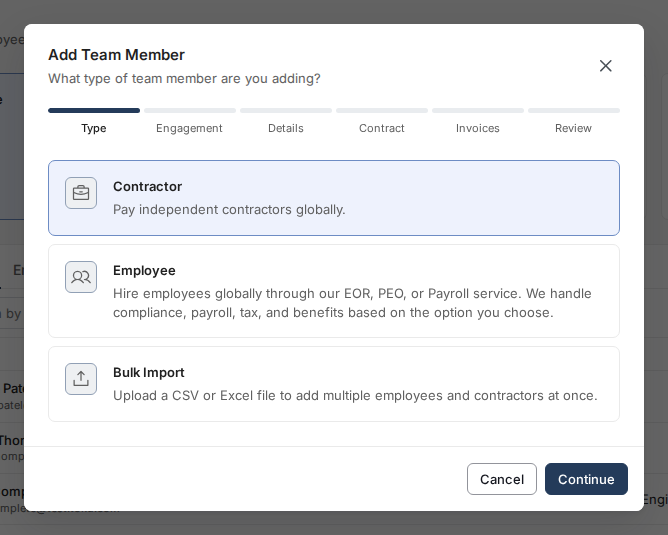
- Open the onboarding window. Open People in the left-hand menu and click Add People. In Add Team Member, select Contractor, then click Continue.
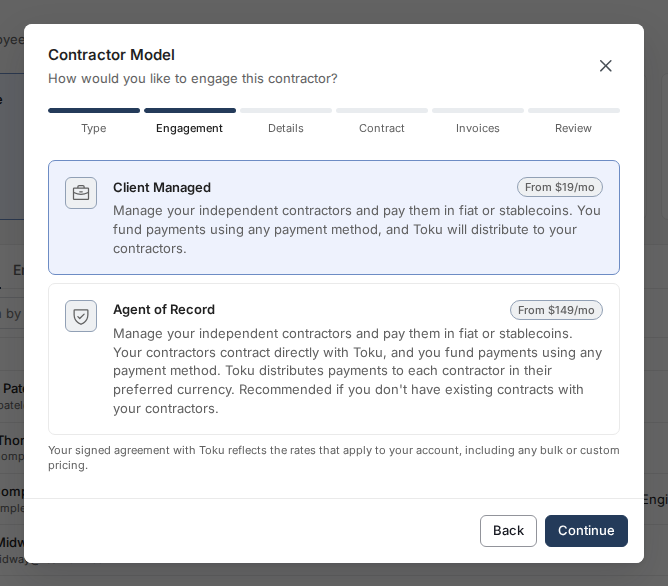
- Choose the engagement model. Select Client Managed, then click Continue.
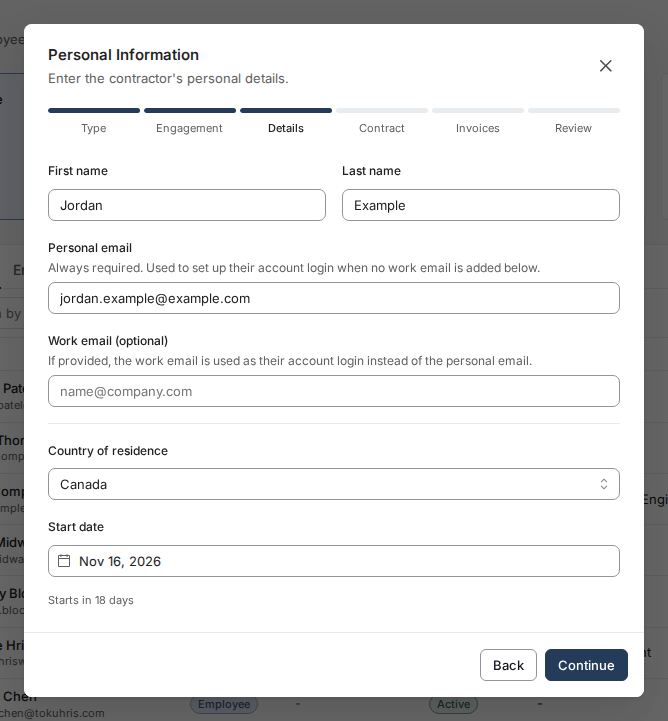
- Enter the contractor’s details. Enter First name, Last name, Personal email, Country of residence, and Start date; Work email (optional) can be left blank. Click Continue.
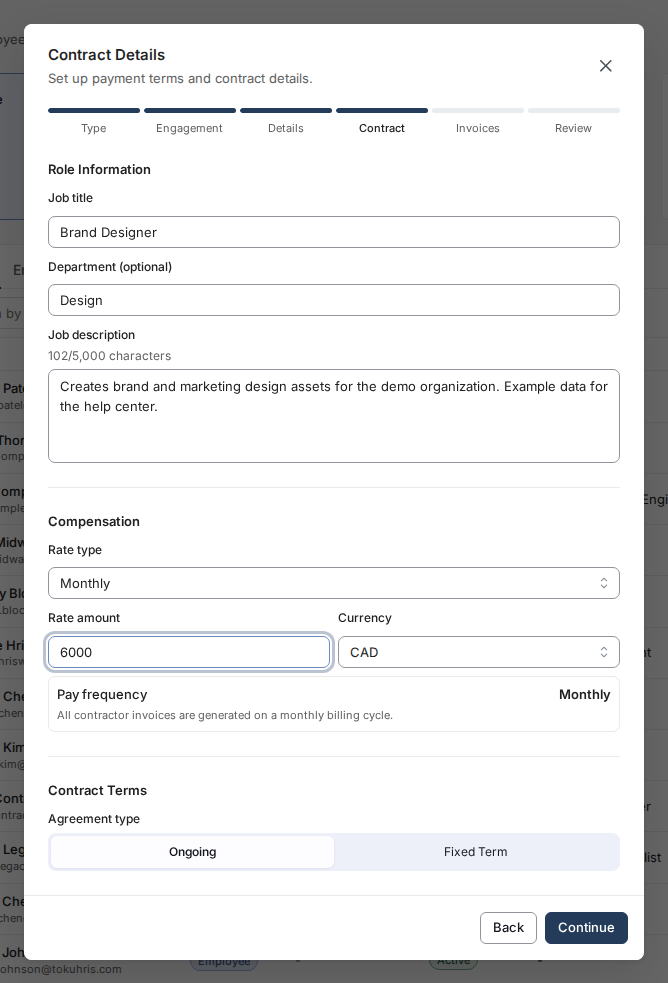
- Set up the contract. Complete the role information, agreed rate, currency, and contract terms in Contract Details. Click Continue to open Set up invoice automation before Review.
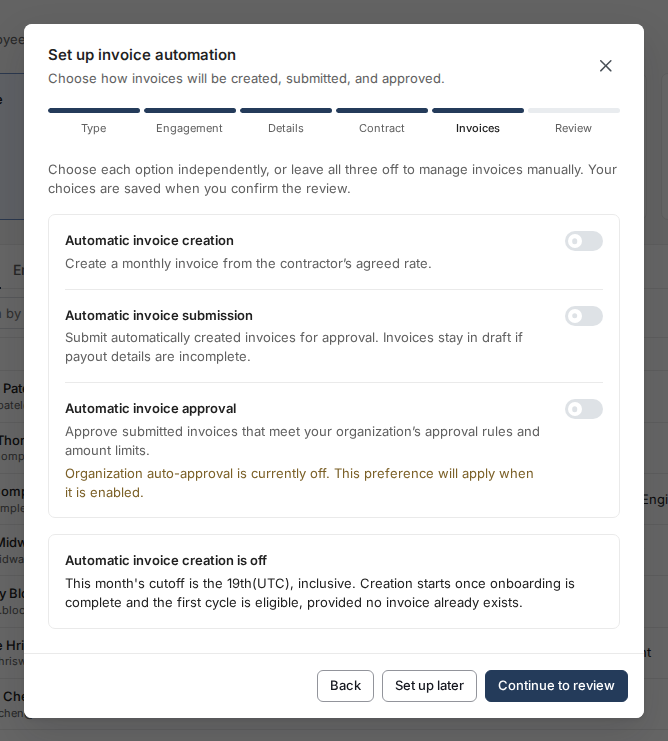
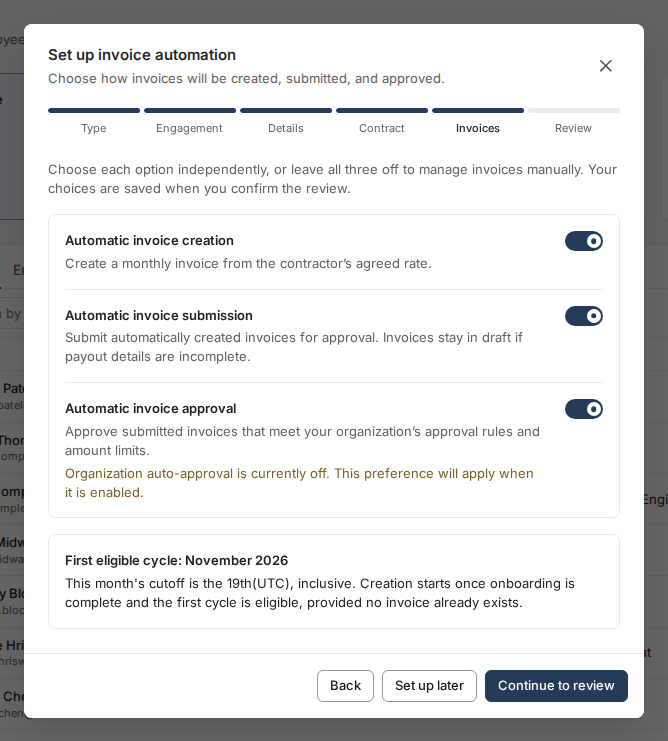
- Choose invoice settings. Choose each invoice setting independently, then click Continue to review. To decide later, click Set up later instead.
- Automatic invoice creation: Creates a monthly invoice from the contractor’s agreed rate when the contractor and organization are eligible.
- Automatic invoice submission: Submits automatically created invoices for approval; invoices stay in draft if payout details are incomplete.
- Automatic invoice approval: Approves submitted invoices that meet your organization’s approval rules and amount limits.
- Review the contract and invoice preferences. Check Invoice preferences and Contractor Summary on Review & Confirm. Use Edit invoice preferences to change the settings or Back to return to an earlier step; your entries are preserved.
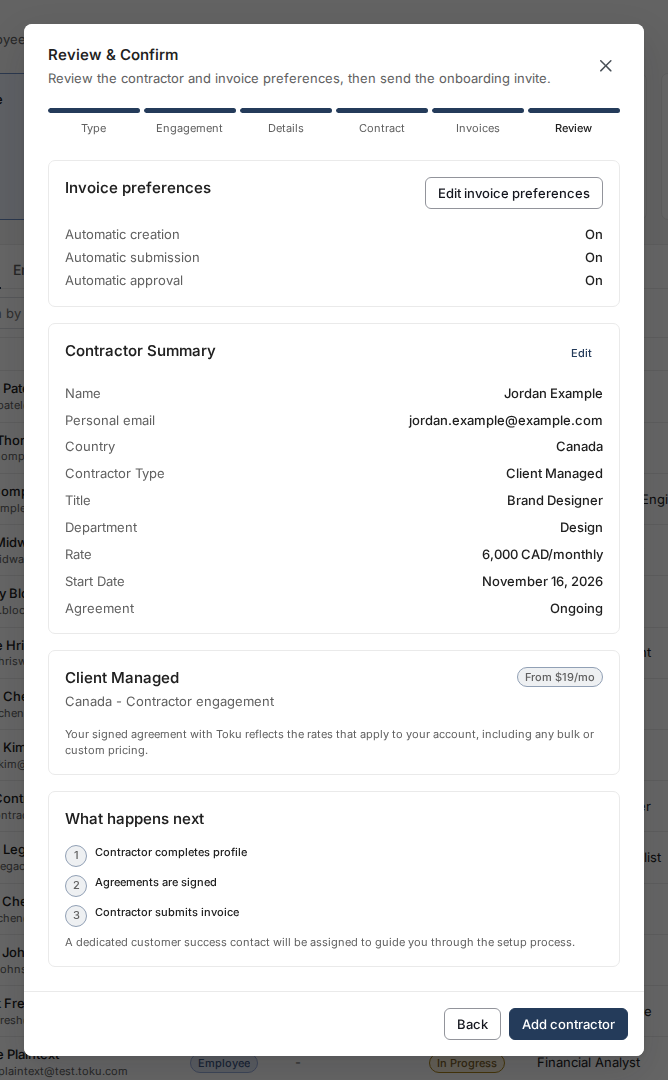
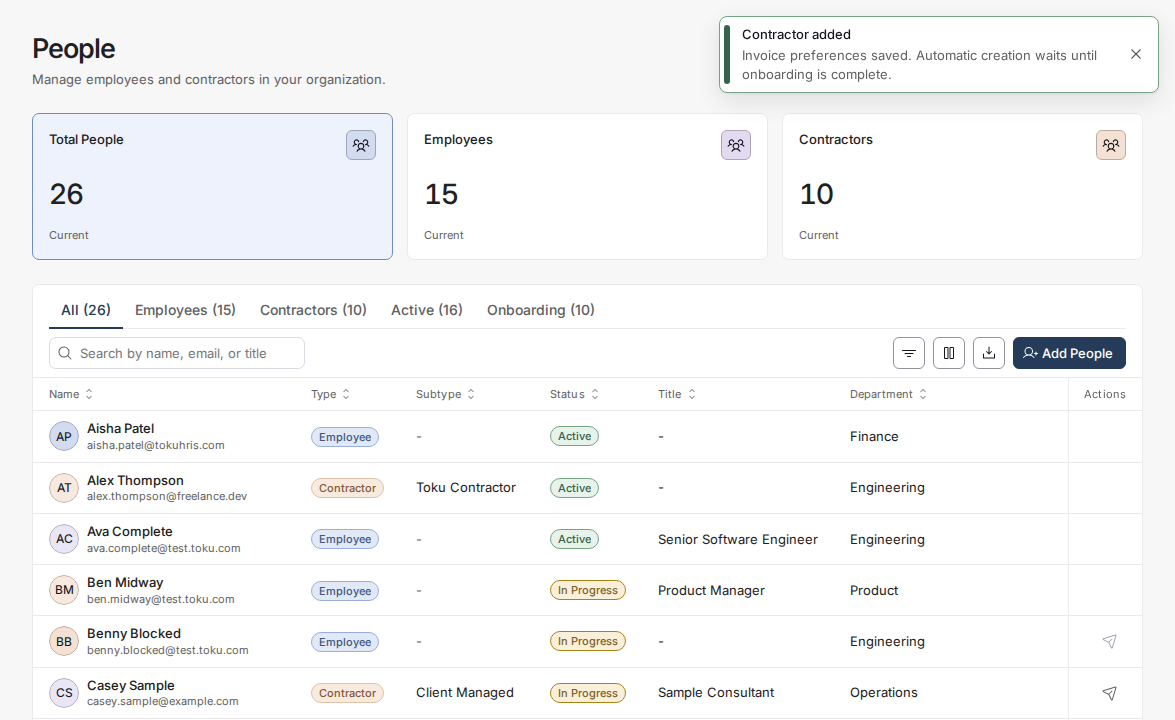
- Add the contractor. Click Add contractor to save the contractor and the invoice preferences you selected. The Contractor added confirmation appears on People; automatic invoice creation waits until onboarding is complete.
- The contractor completes their own onboarding checklist: personal details, address, banking or wallet information, and tax forms (all required before Toku can process payments).
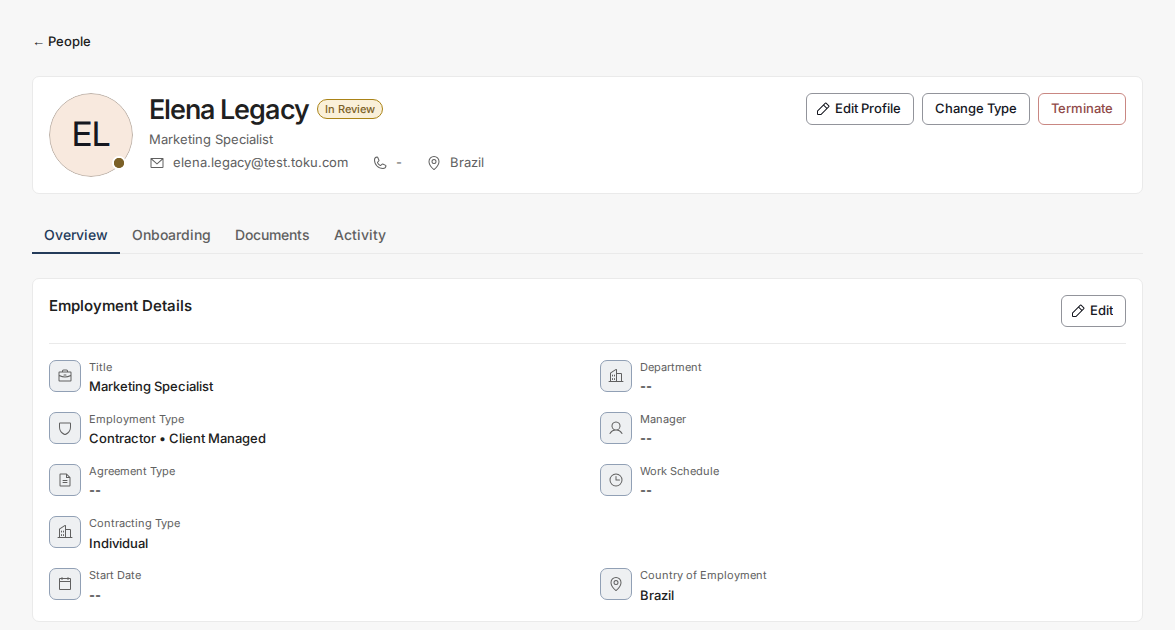
- Open the contractor's profile from the Onboarding or People page. On the Overview tab, confirm their employment type shows Contractor • Client Managed and review their submitted details; on the Onboarding tab, check their step-by-step progress.
- Once the contractor's checklist reaches 100%, their status automatically changes to Completed on the Onboarding page - there is no separate button for you to click. Completed contractors can now proceed to invoicing.
Onboarding is complete once these are on file
✓ Banking or wallet details are on file
✓ An address is on file
✓ The tax form has been completed and signed
Handling contractor agreements
If you want the contractor to sign your own contract, they can sign it and upload it to their Documents section in the platform. This is entirely optional and managed by you - Toku does not require it.
Key point about support
Client-managed contractors do not receive HR support from Toku. Because you manage them directly, your team owns the contractor relationship. Toku provides technical and platform support only - reach out if you have questions about the onboarding process or platform functionality.
Good to know
- Leave all three settings off and choose Continue to review if you want to save manual invoice preferences.
- Set up later defers configuration and preserves your organization’s existing defaults. It is different from explicitly saving all three settings off.
- Use Back from invoice setup to revisit the contract; you can return to invoice setup with your entries preserved.
- Hourly invoices require hours to be entered manually. Automatic creation can also be unavailable because of your organization’s settings.
- The monthly cutoff is the 19th (UTC), inclusive. The first eligible cycle depends on the start date and cutoff; creation waits until onboarding is complete and does not create another invoice when one already exists.
⚠️ Selecting automatic approval does not turn on organization-wide approval. If the window says “Organization auto-approval is currently off. This preference will apply when it is enabled.”, your selection applies when that organization setting is enabled.
- Contractors cannot proceed to the invoicing stage until onboarding is marked complete
- If someone is not going ahead, you can remove them from onboarding. Draft invoices no longer block the removal and are cancelled automatically when the person is removed.
- If the removal message says the person has invoices awaiting approval or payment, open Invoices, reject or cancel each of that person's open invoices, then try the removal again.
- A person who has already been paid cannot be removed from onboarding. Their record is kept for audit.
- Tax forms and banking details are required before Toku can process payments
- You can upload the contractor's own contract to their Documents section for your records
Still stuck?
You can email [email protected] to reach our support team. Please include your email address, organization name, and a description of what happened. Screenshots and videos are always welcome to speed up the troubleshooting process. Feel free to reach out any time for further assistance.