
 1 MIN READ
 UPDATED JUL 27, 2026
Why this change is needed: The TOKU_PAYROLL_REPORTS report currently uses "All Active Employees" as its Data Source. This means the report excludes terminated/inactive workers at the source - before any data is even generated. If an employee becomes inactive in Workday while they still have a pending payroll amount owed (e.g., an off-cycle bonus approved after their status changed), that payroll data will never appear in the report and will never sync to Toku, with no error or warning on either side.
Steps:
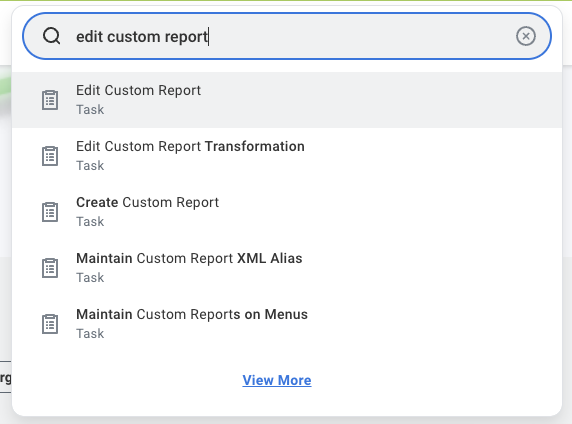
- Open the Edit Custom Report task. In Workday's search bar, type "edit custom report" and select the Edit Custom Report task from the results.
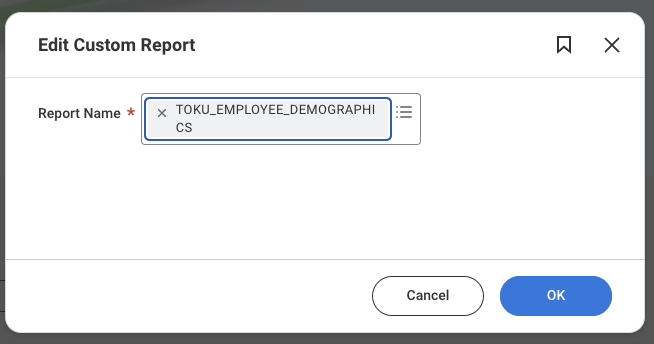
- Select the report. In the Report Name field, search for and select TOKU_PAYROLL_REPORTS, then click OK.
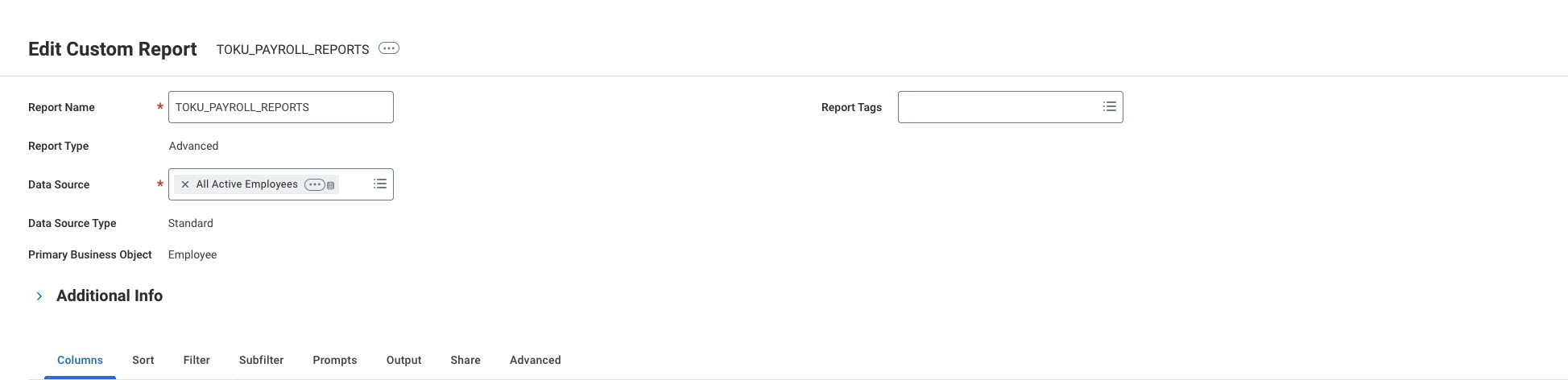
- Confirm you're on the correct report. You should see:
- Report Name: TOKU_PAYROLL_REPORTS
- Report Type: Advanced
- Data Source: All Active Employees
- Primary Business Object: Employee
- Remove the current Data Source. Click the x next to "All Active Employees" in the Data Source field to clear it.
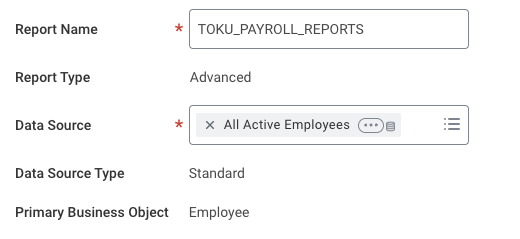
- Set the new Data Source. Click into the now-empty Data Source field and search for "All Active and Terminated Workers". Select it.

- Leave everything else unchanged, including:
- Data Source Type
- Primary Business Object
- Report Owned By (ISU_Toku_Payments_API)
- Share tab settings (currently "Share with all authorized users")
- Save the change. Click OK to save the updated report definition.