
 5 MIN READ
 UPDATED OCT 30, 2026
This is a complete guide for setting up your Stablecoin Payroll in ADP
These steps are required to establish the initial connection to Toku.
Setup required on ADP portal
- Login to https://api-central.adp.com/ and go to Projects
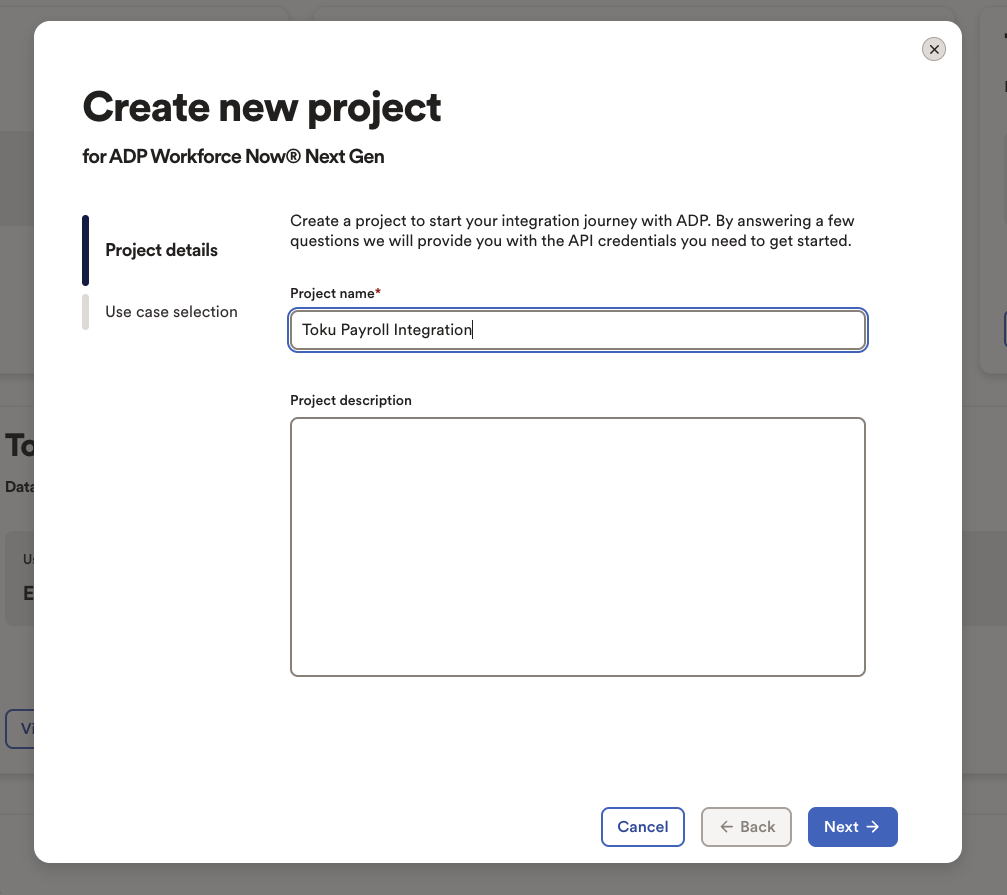
- Click on “Create a project”

- Add Project name of your choice.
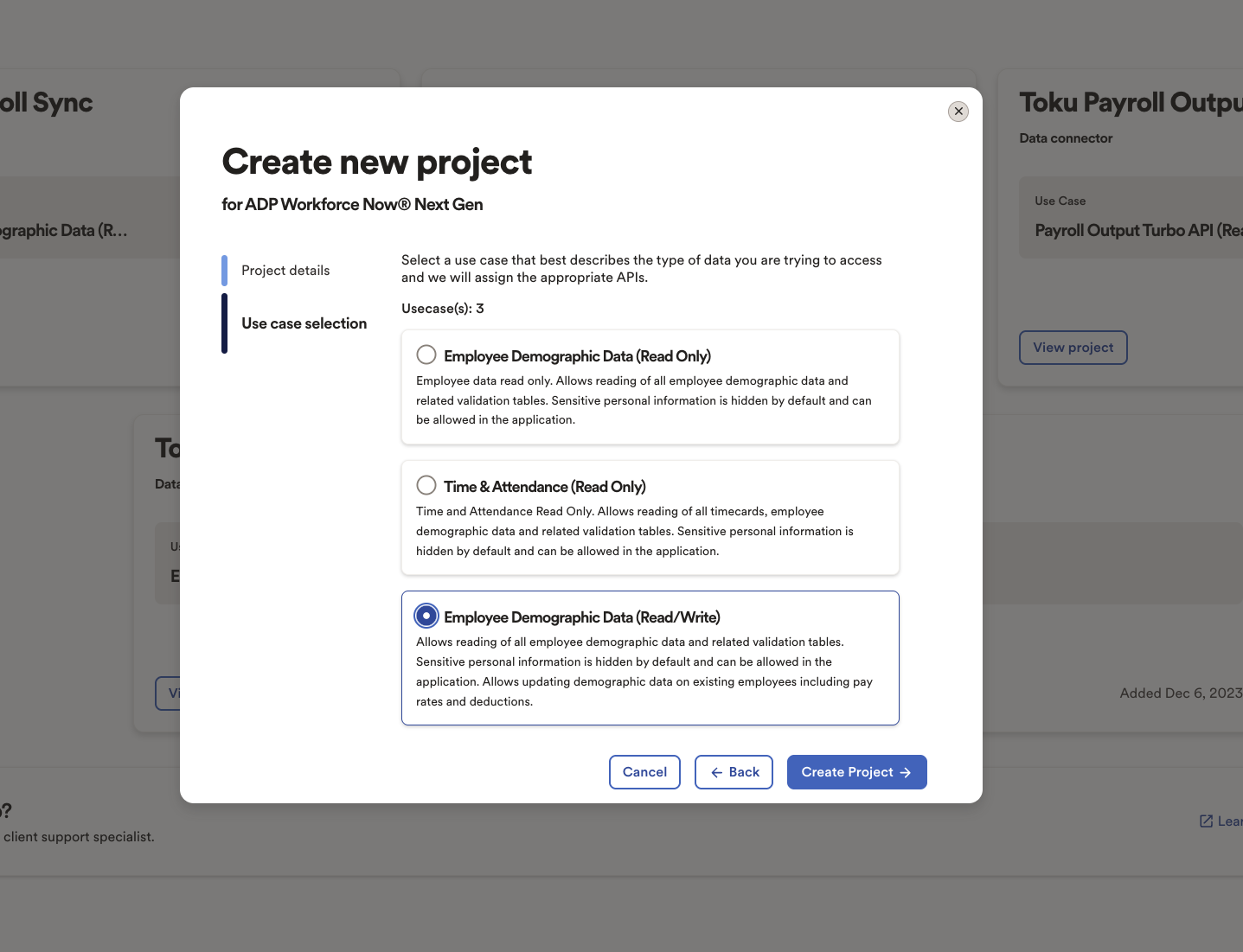
- Select: Employee Demographic Data (Read/Write)
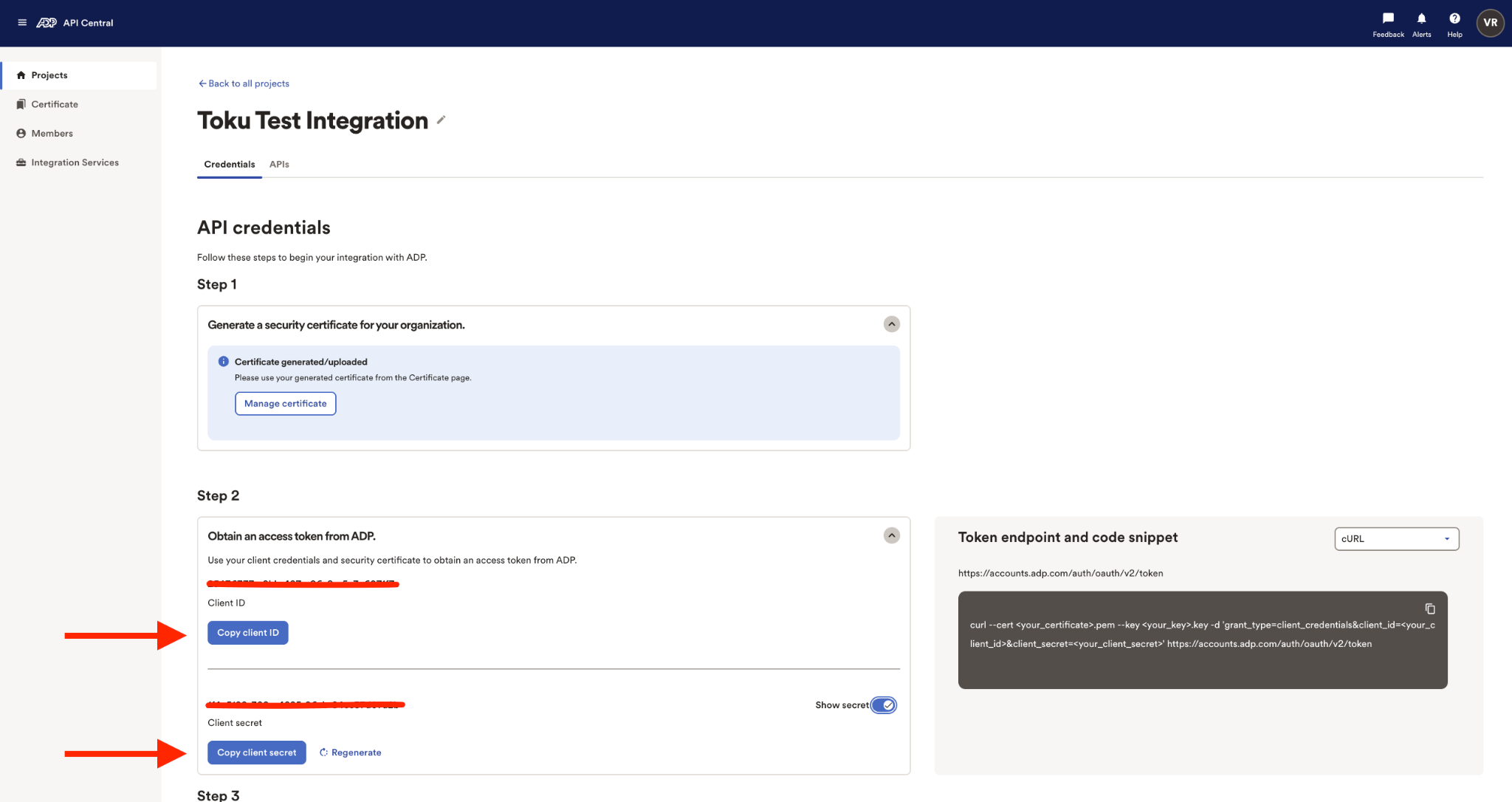
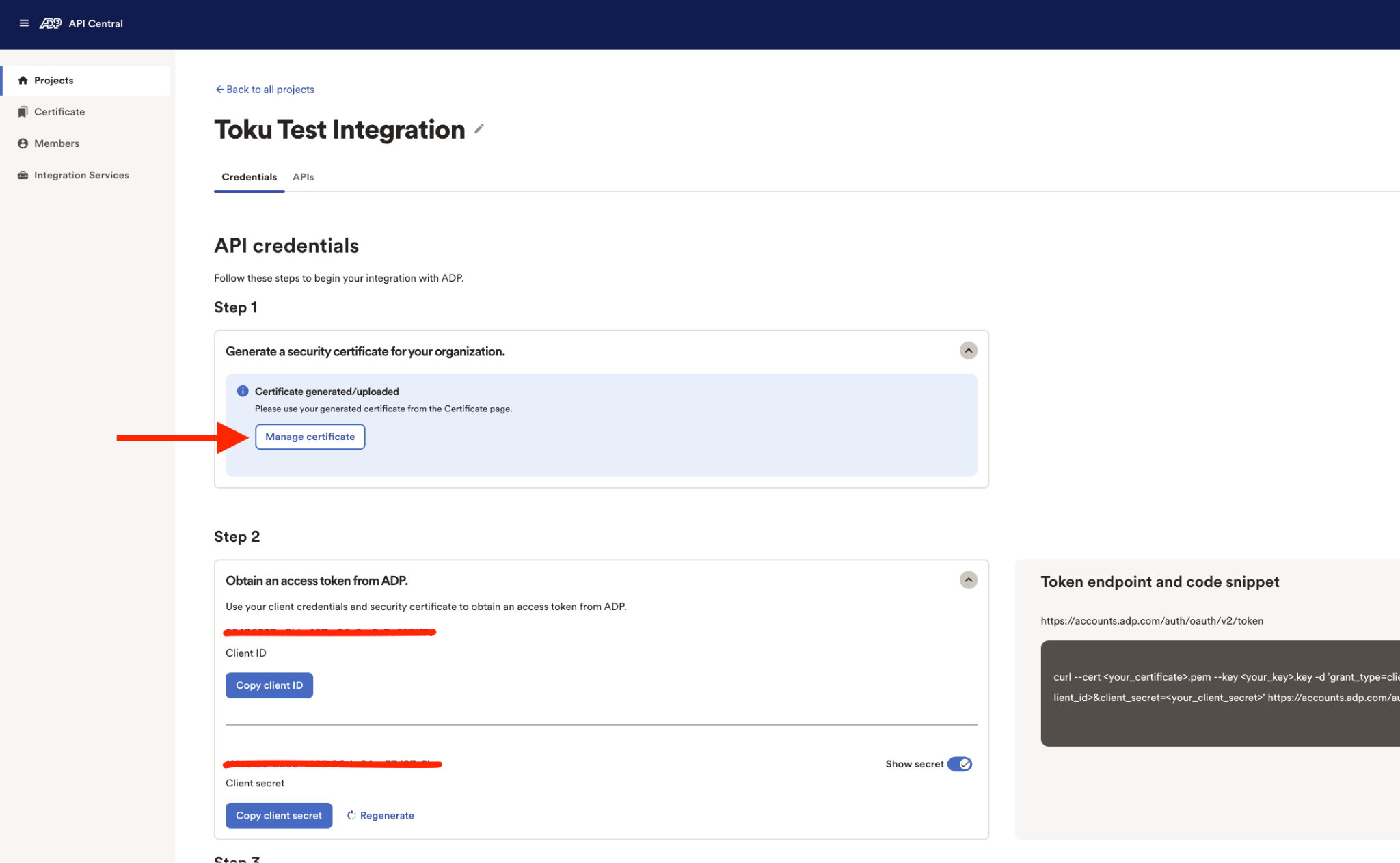
- Once the project is created, you will find the client id and client secret in the project:
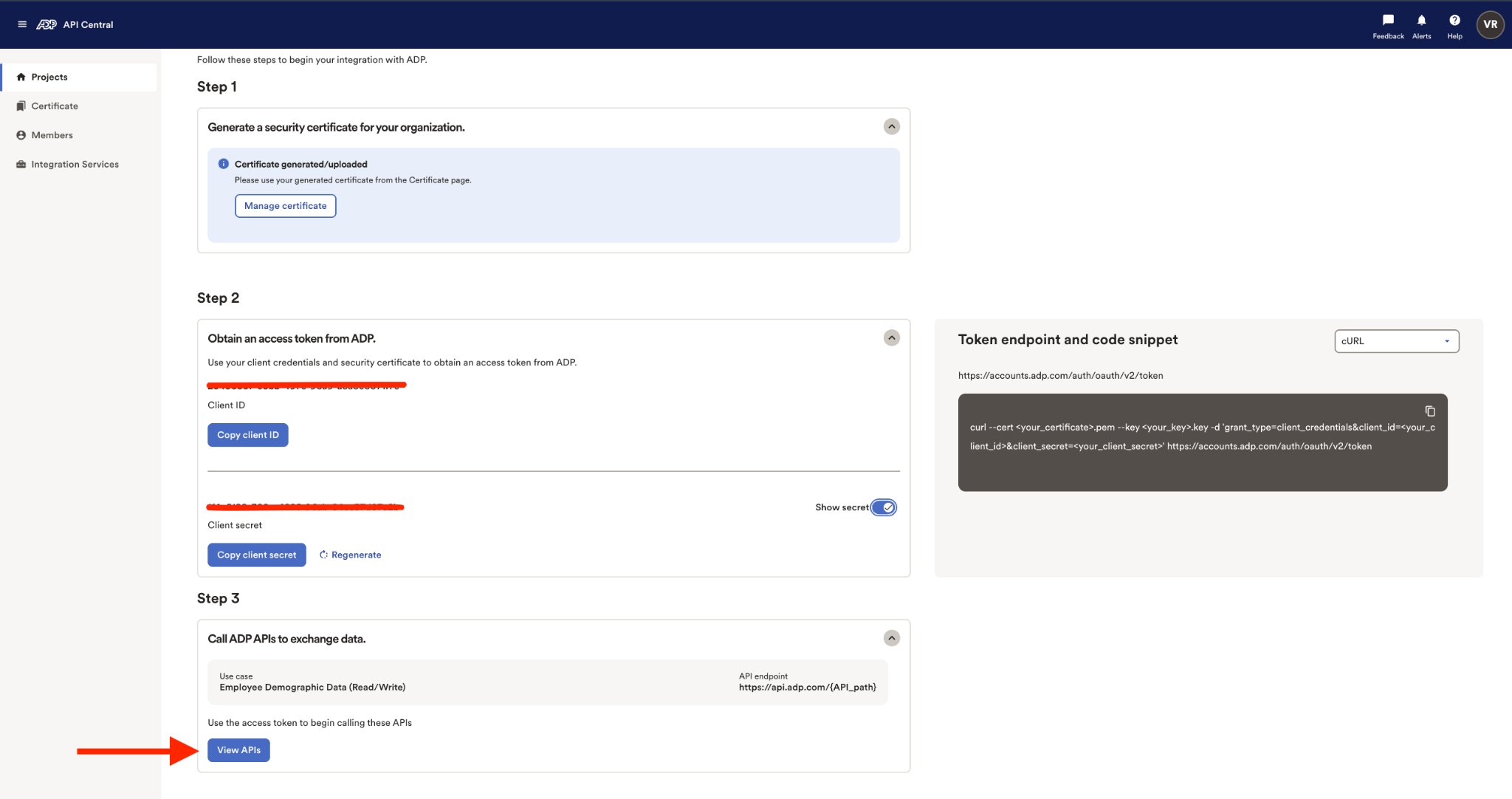
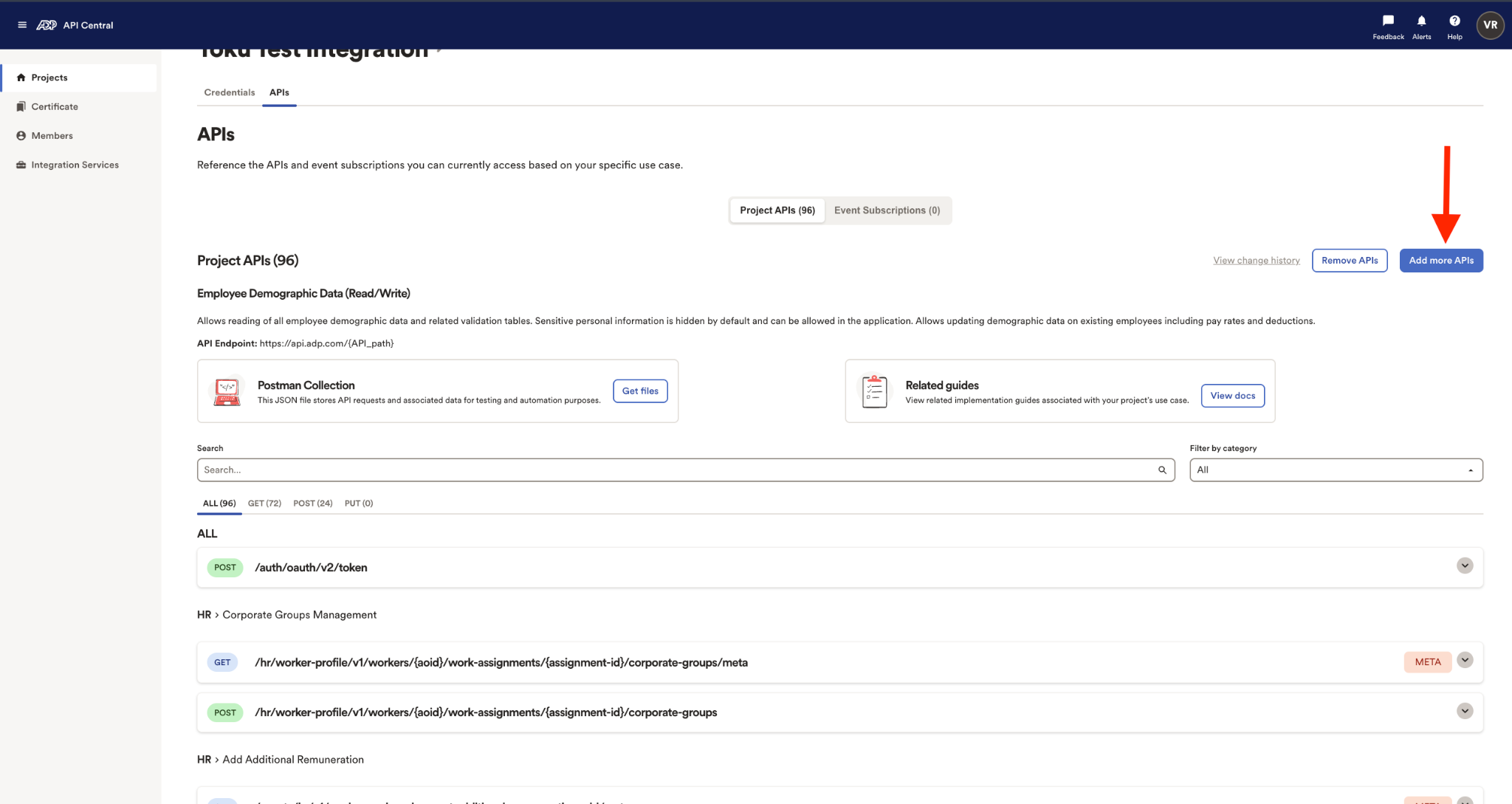
- Click on “View APIs” in Step 3
- Click “Add more apis”
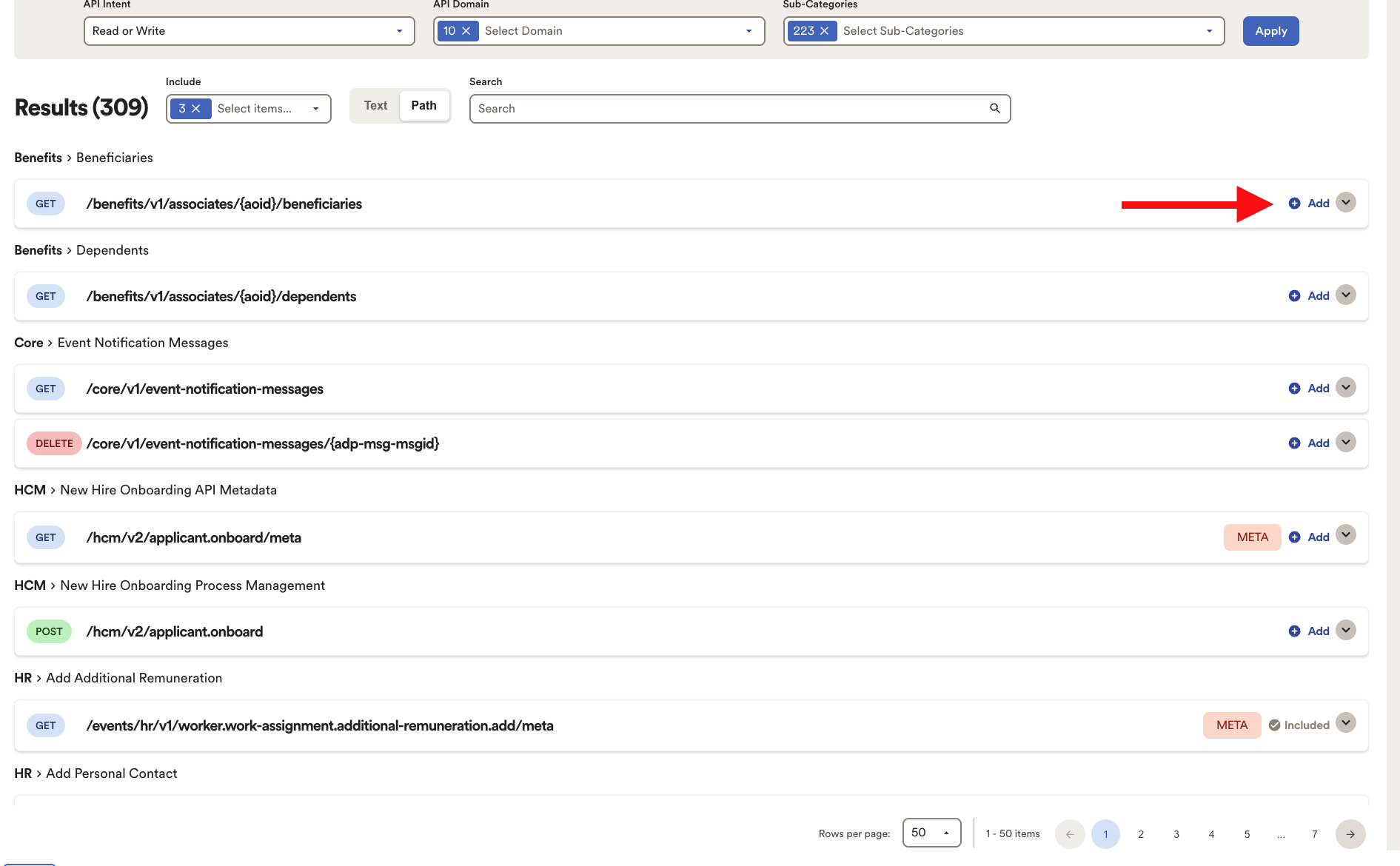
- Add the following APIs
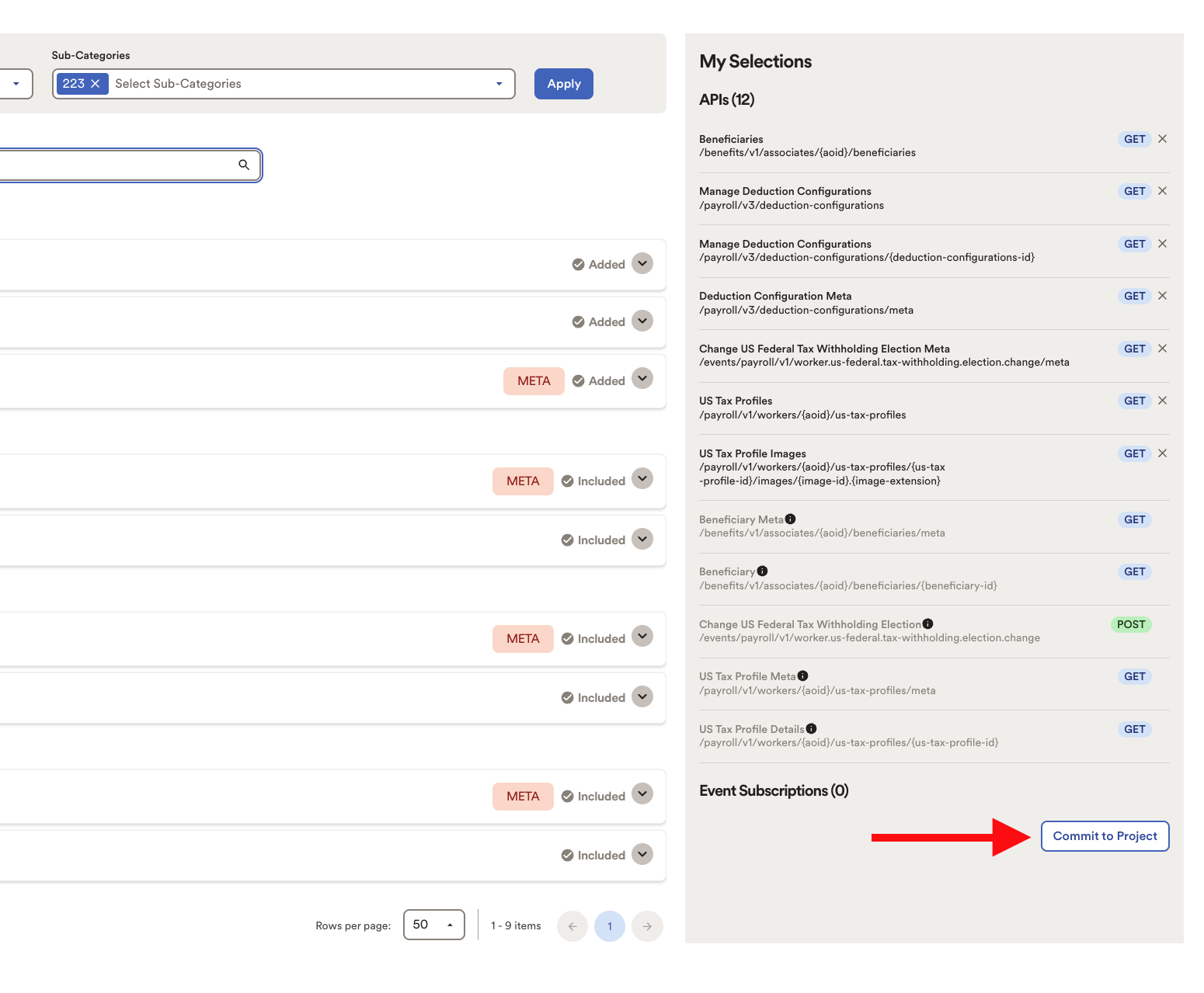
- Once all the relevant api’s are added, hit “Commit Changes”: Mandatory APIs required:
- GET /hr/v2/workers
- GET /events/payroll/v1/pay-data-input.modify/meta
- POST /events/payroll/v1/pay-data-input.modify
- POST /auth/oauth2/token
- Under Step 1 Click, “Manage Certificate”:
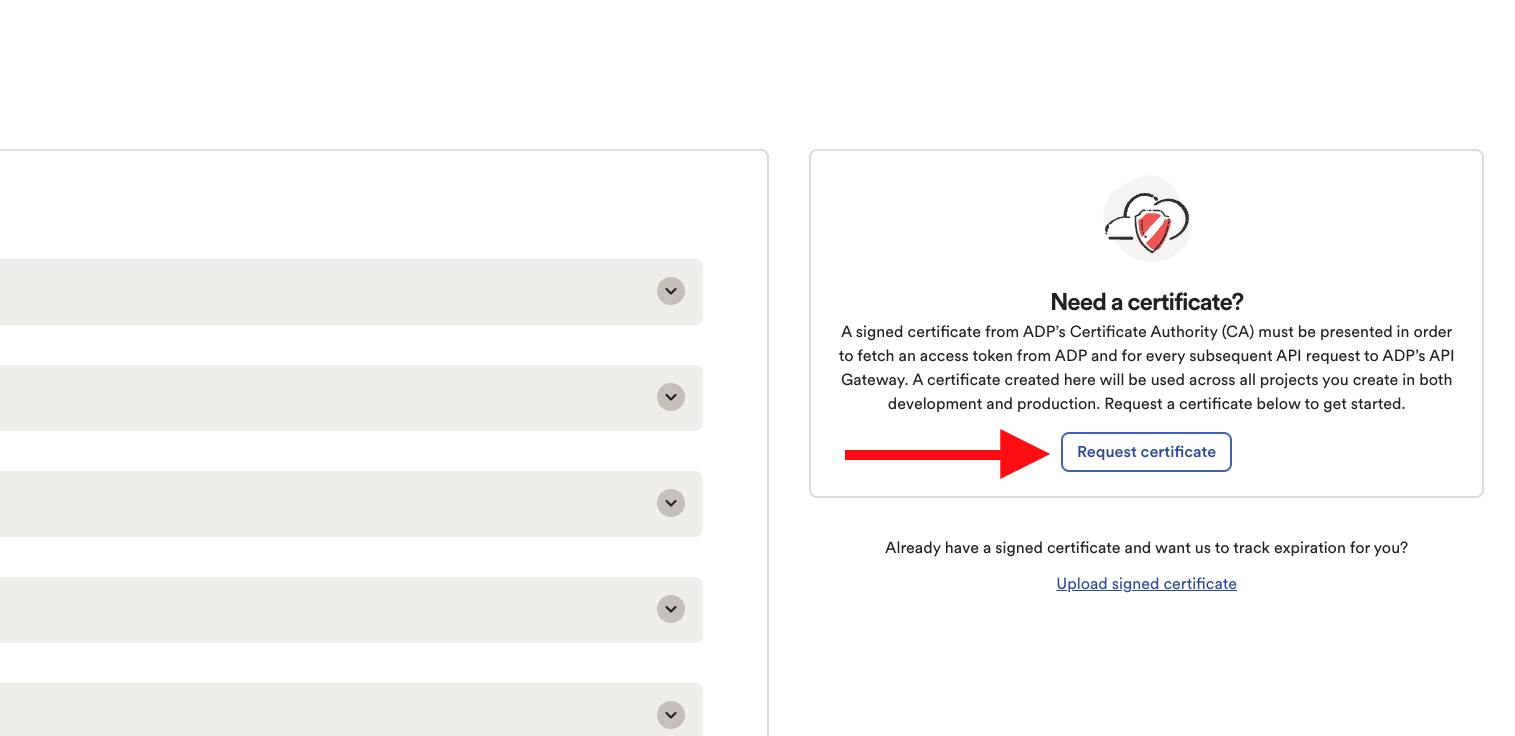
- Click on “Request Certificate”:
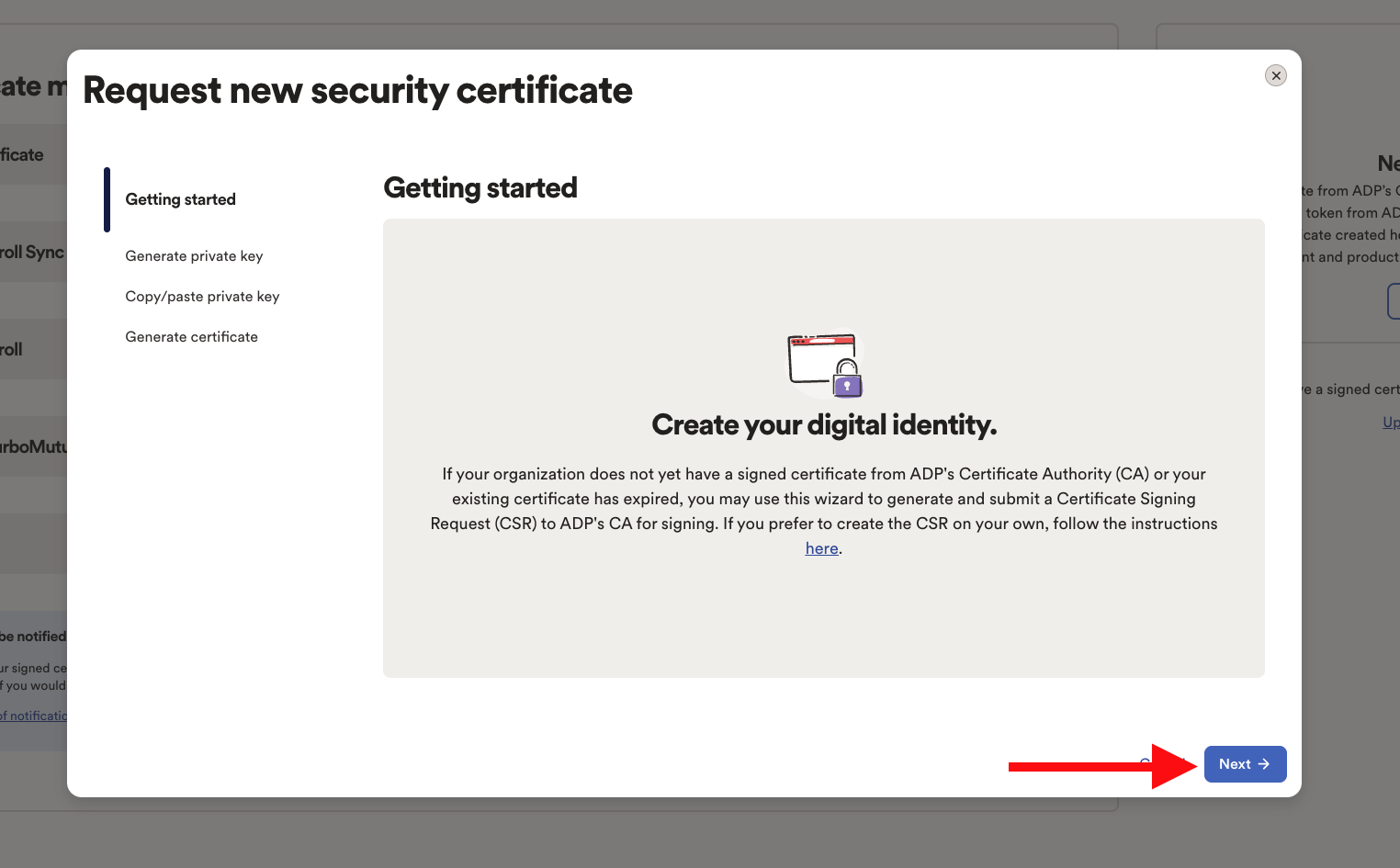
- Click Next on the following Screen:
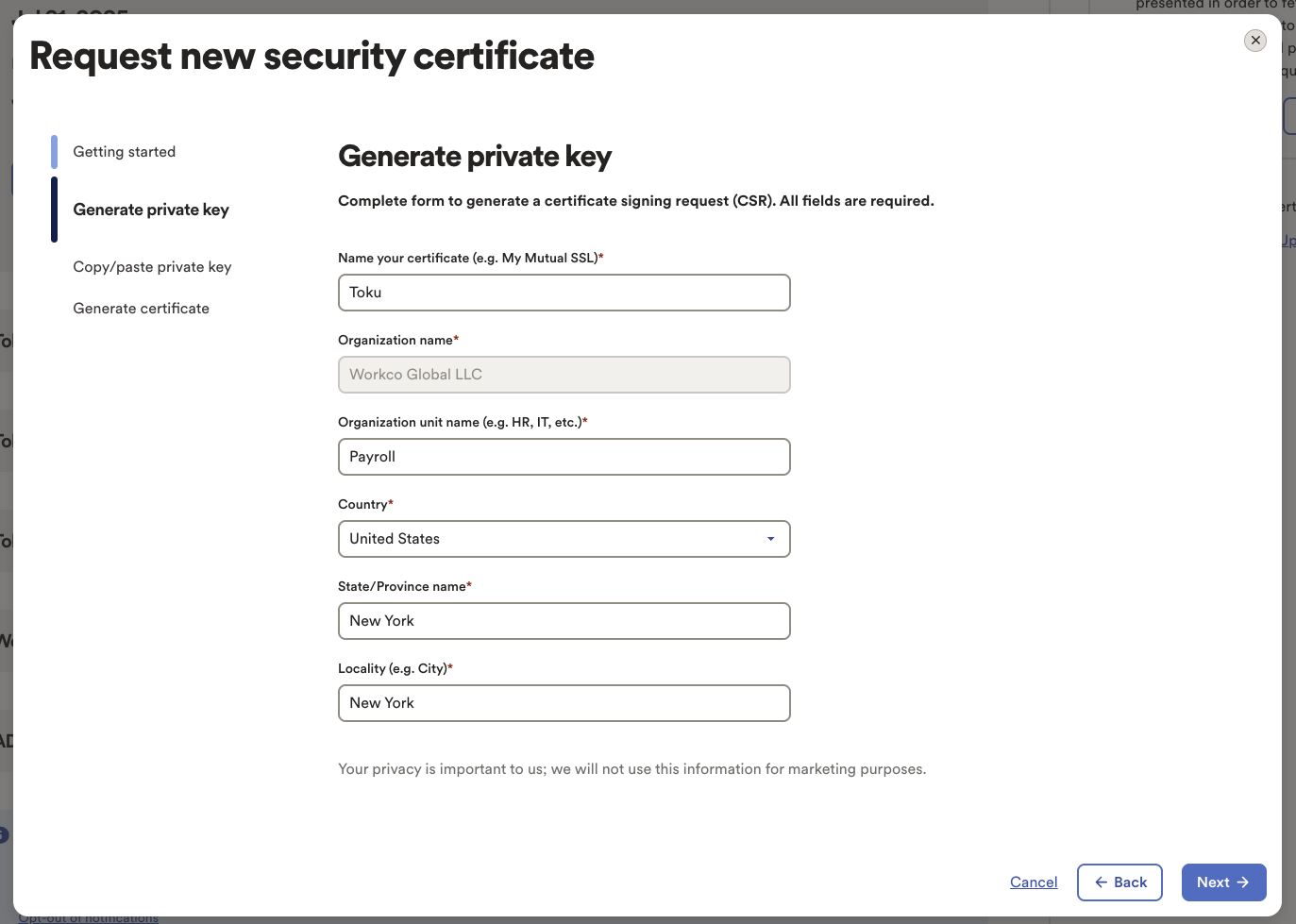
- Input the following details to generate the private key
- Name your certificate (e.g. My Mutual SSL): Toku
- Organization name: Pre-populated
- Organization unit name (e.g. HR, IT, etc.): Payroll
- Country: United States
- State: New York
- Locality: New York
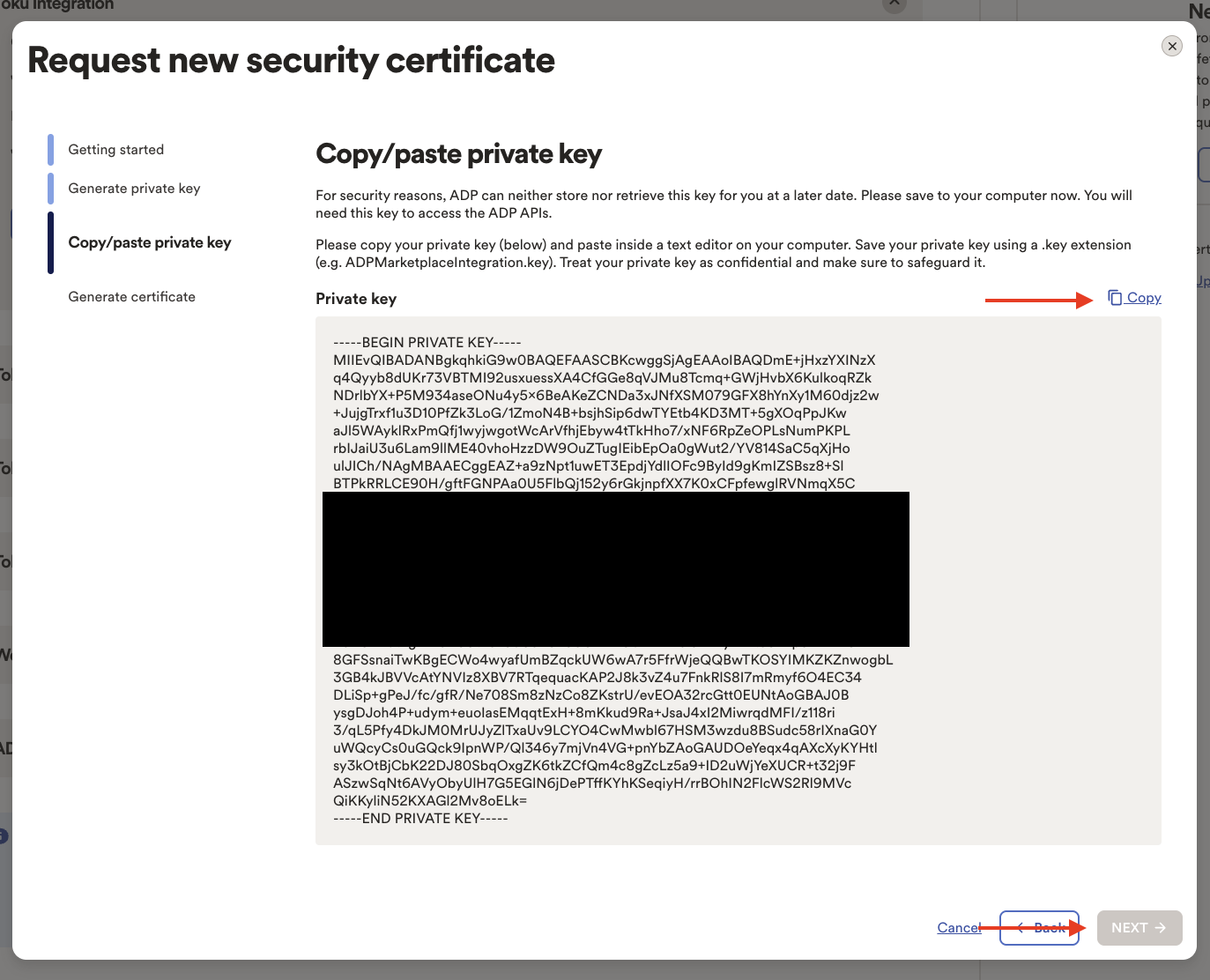
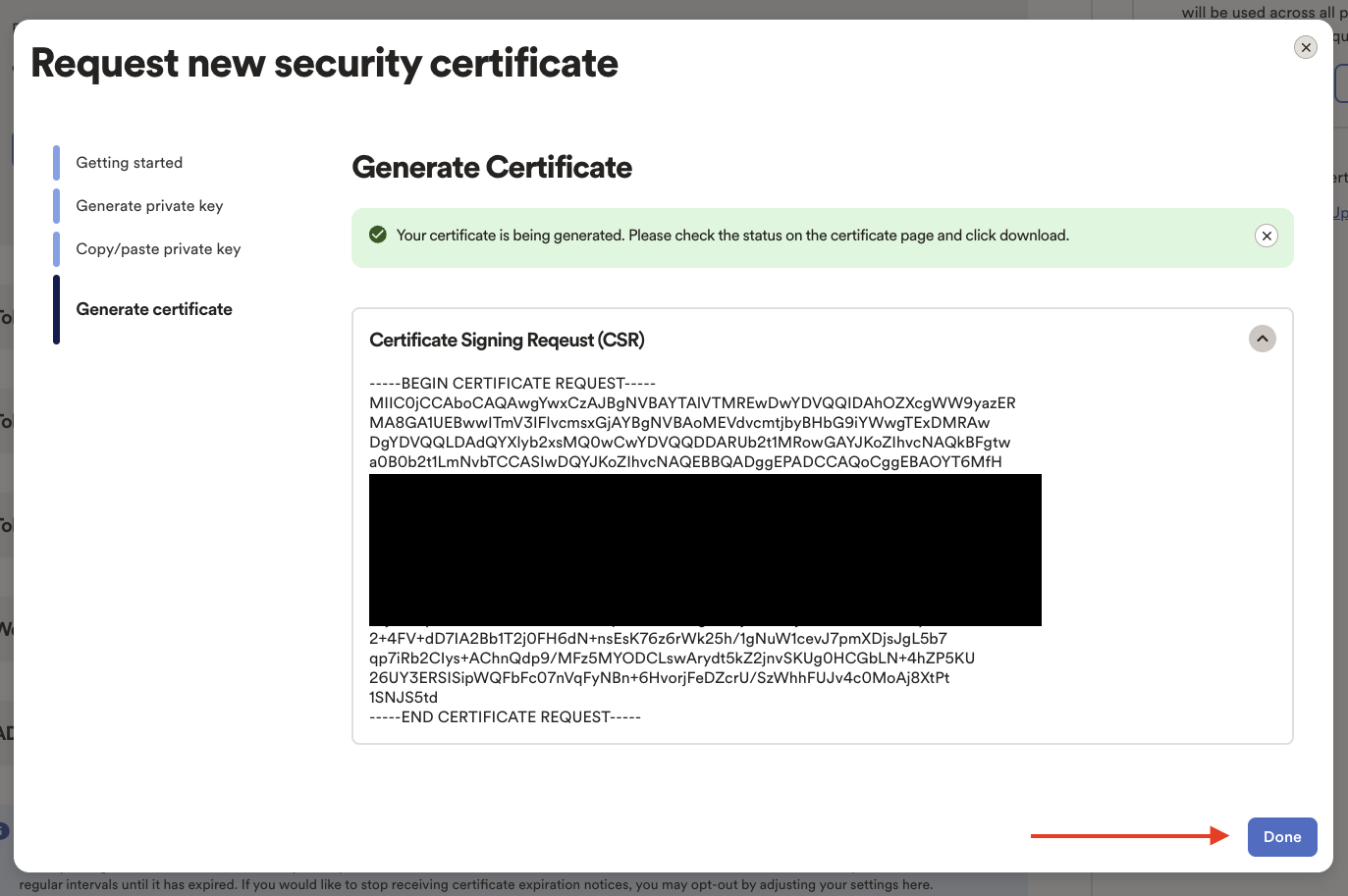
- Copy the Private Key generated on this step and save it somewhere secure to later add it to Toku, and hit next:
- Click on “Done”:
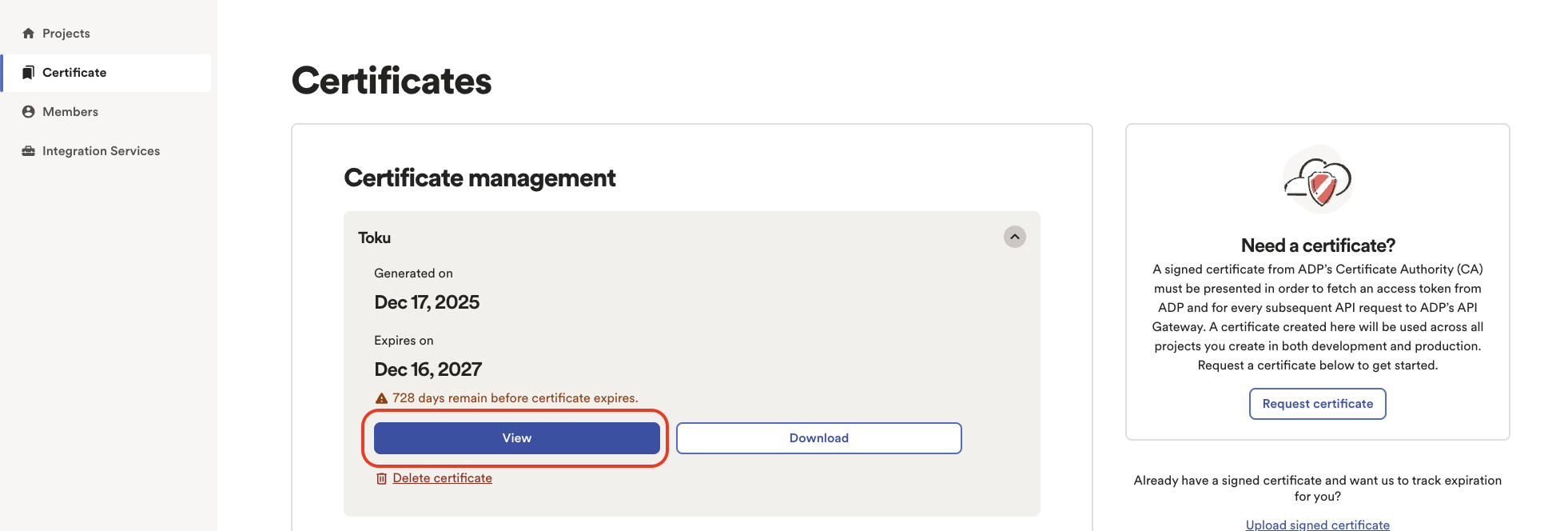
- Click On “Certificate” then select the dropdown of the certificate you created above named “Toku” then click “View”.
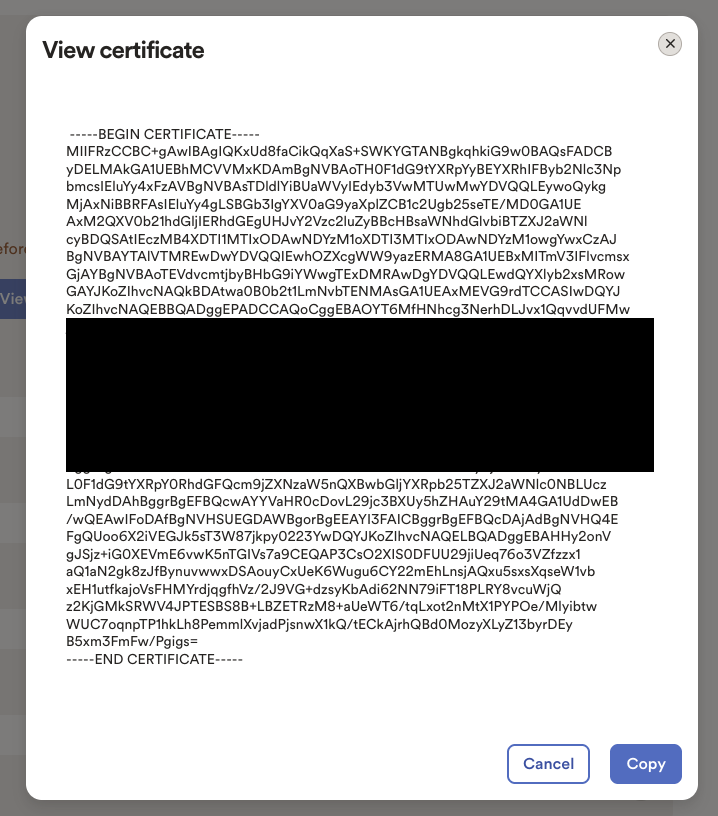
- Copy the Certificate and save to be pasted into Toku:
One time set up:
Permission access configuration
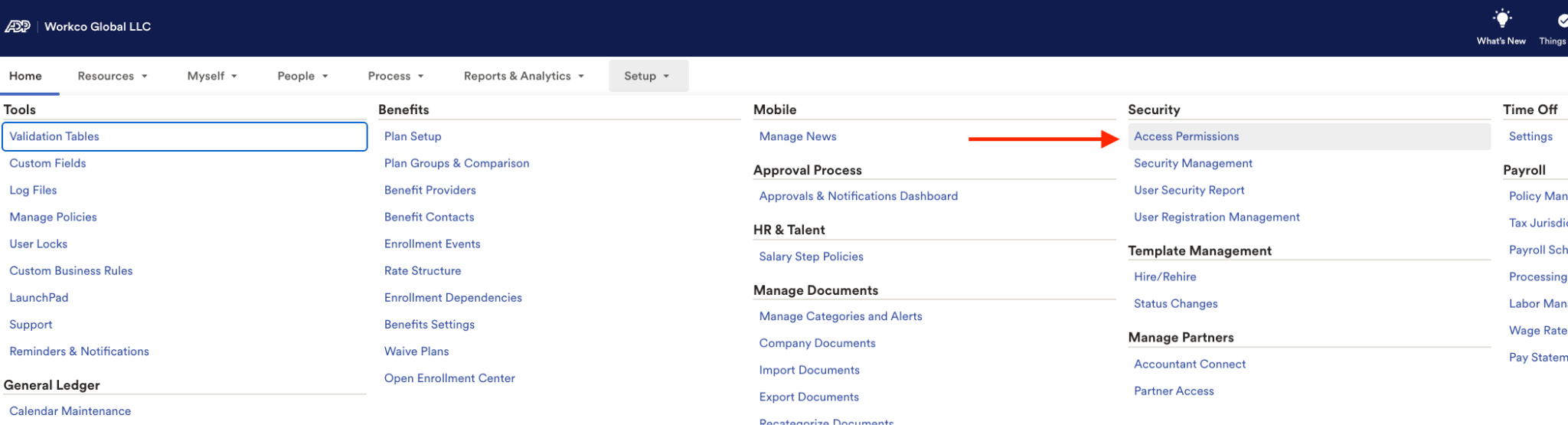
- Go to https://workforcenow.cloud.adp.com/ , and click on setup:
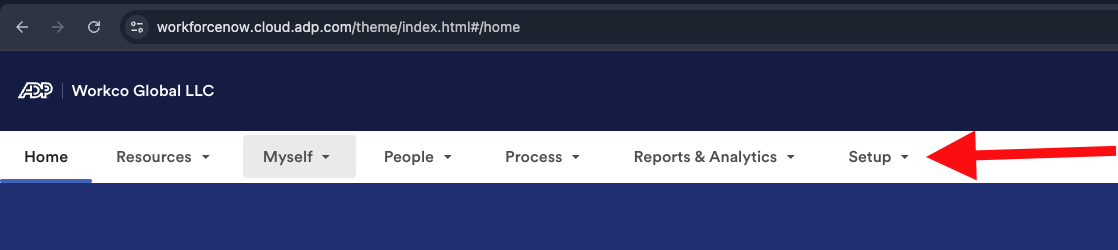
- Click on “Access Permission”:
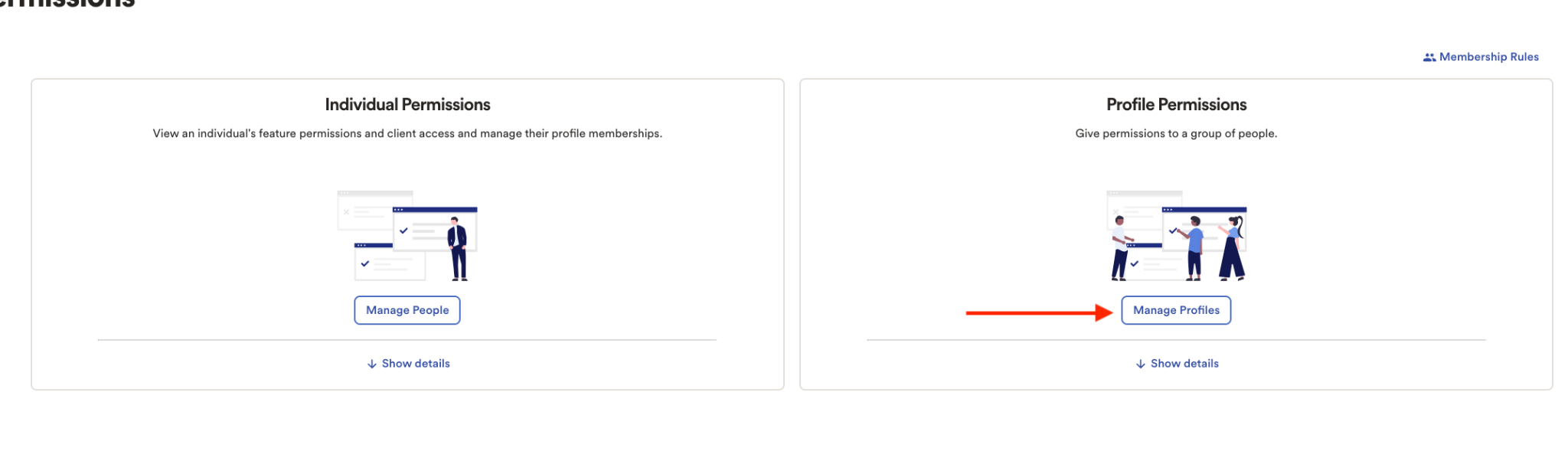
- Click on “Manage Profiles”
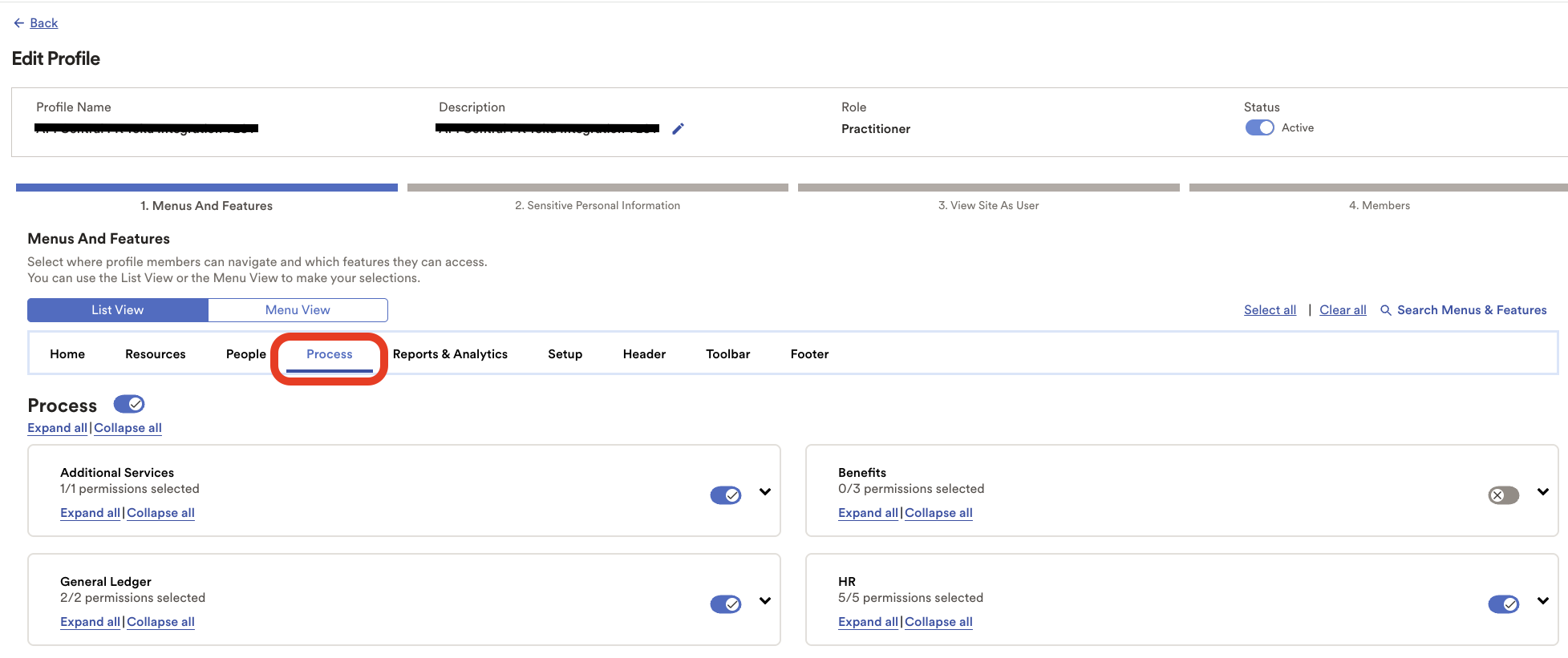
- Select the Project we just created in “API Central” from Step 3:

- Select “Process”
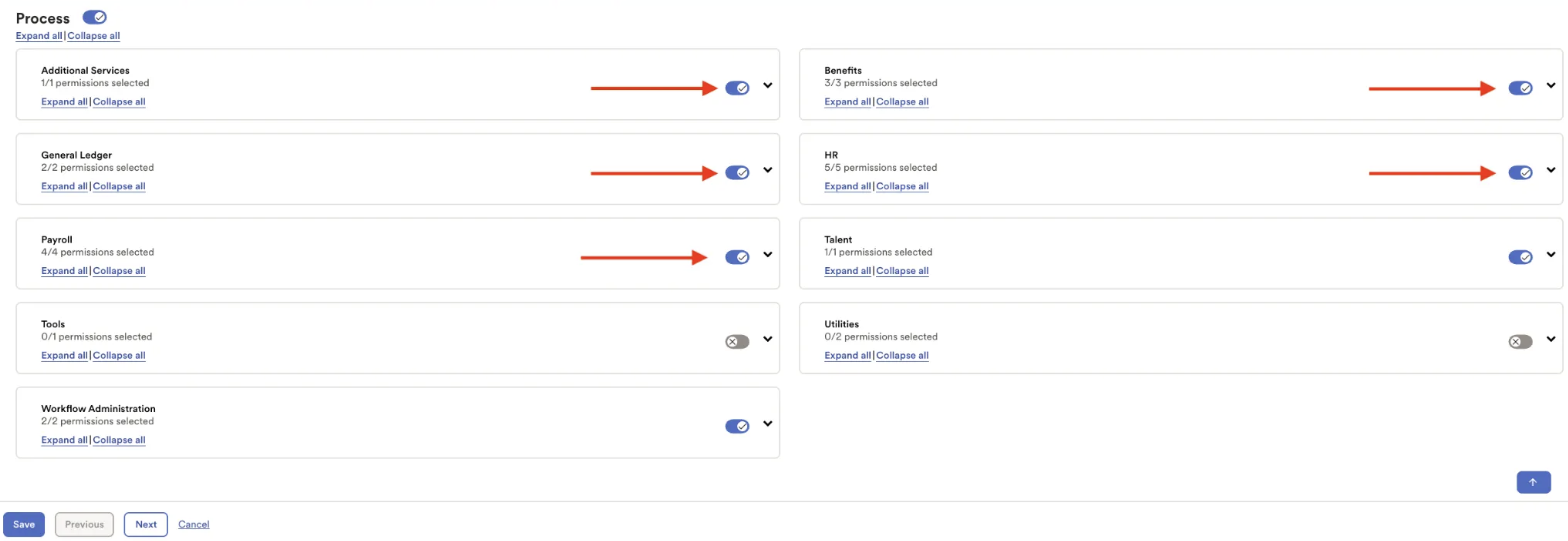
- Enable the following toggles, on each tab and hit “Save”:
- Additional Services
- General Ledger
- Payroll
- Workflow Administrator
- Benefits
- HR
- Talent
- Select “Reports & Analytics”
- Enable the following toggles, on each tab and hit “Save”: 1. Custom Reports 1. My Reports 1. Standard Reports 1. View 1. Analytics 1. General Ledger 1. Reports Dashboard 1. Tax & Reporting 1. iReports
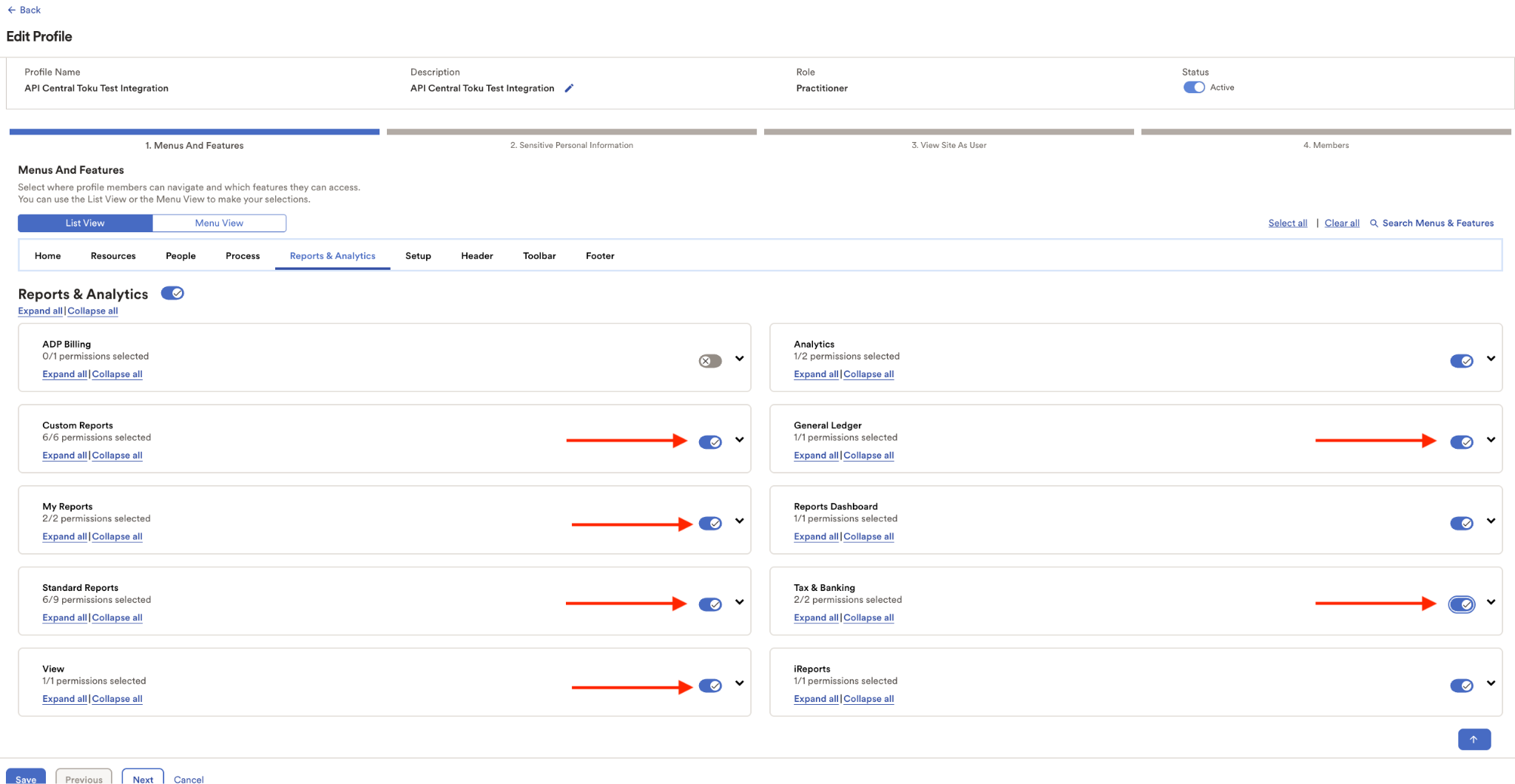
- Select “Setup”
- Enable the following toggles, on each tab and hit “Save”: 1. Approval Process 1. General Ledger 1. Manage Documents 1. Mobile 1. Security 1. Benefits 1. HR & Talent 1. Manage Partners 1. Payroll 1. Template Management 1. Tools
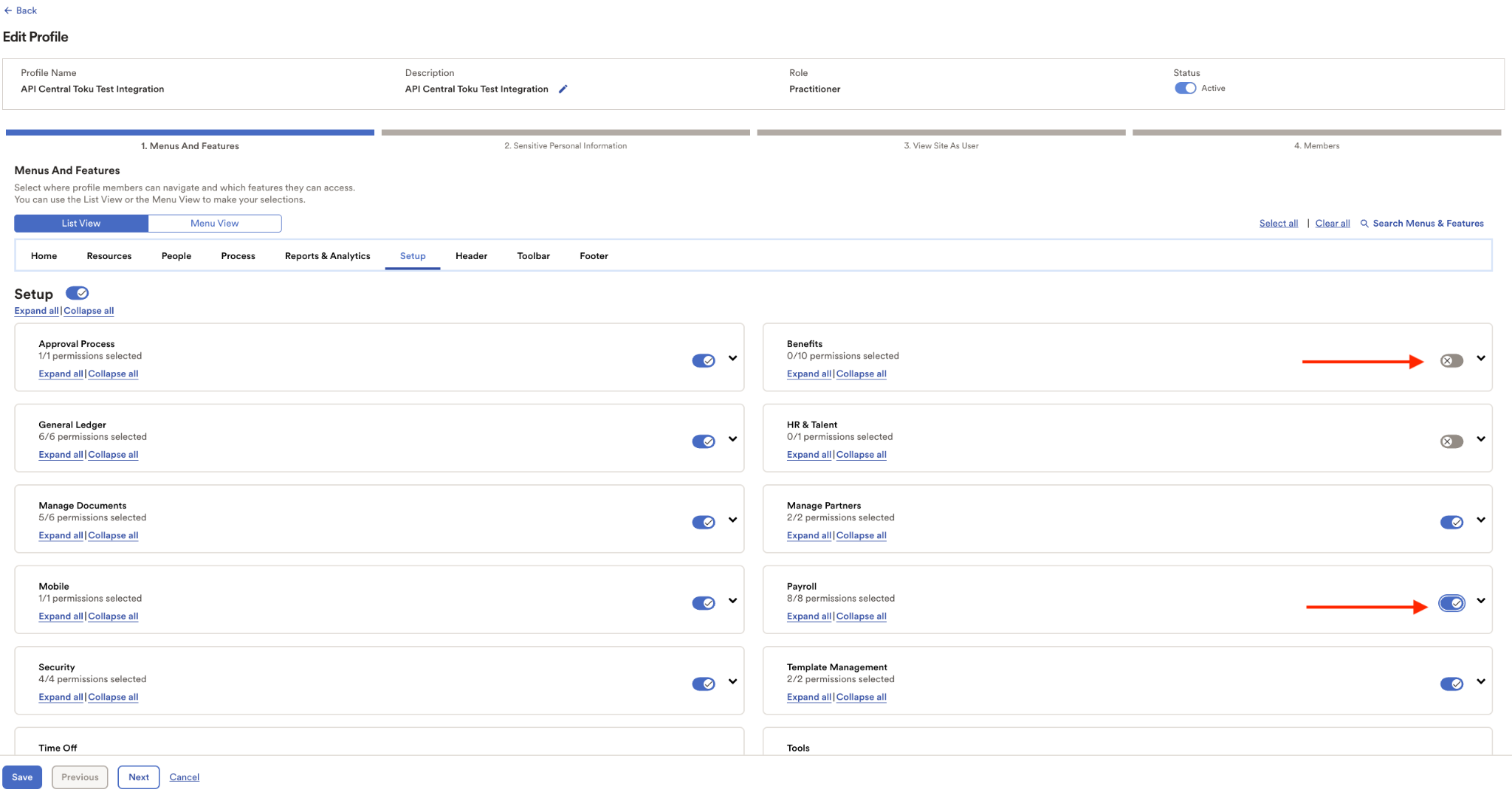
- Select “People”
- Enable the following toggles, on each tab and hit “Save”: 1. Benefits 1. Pay 1. Time & Attendance 1. Employment 1. Personal Information
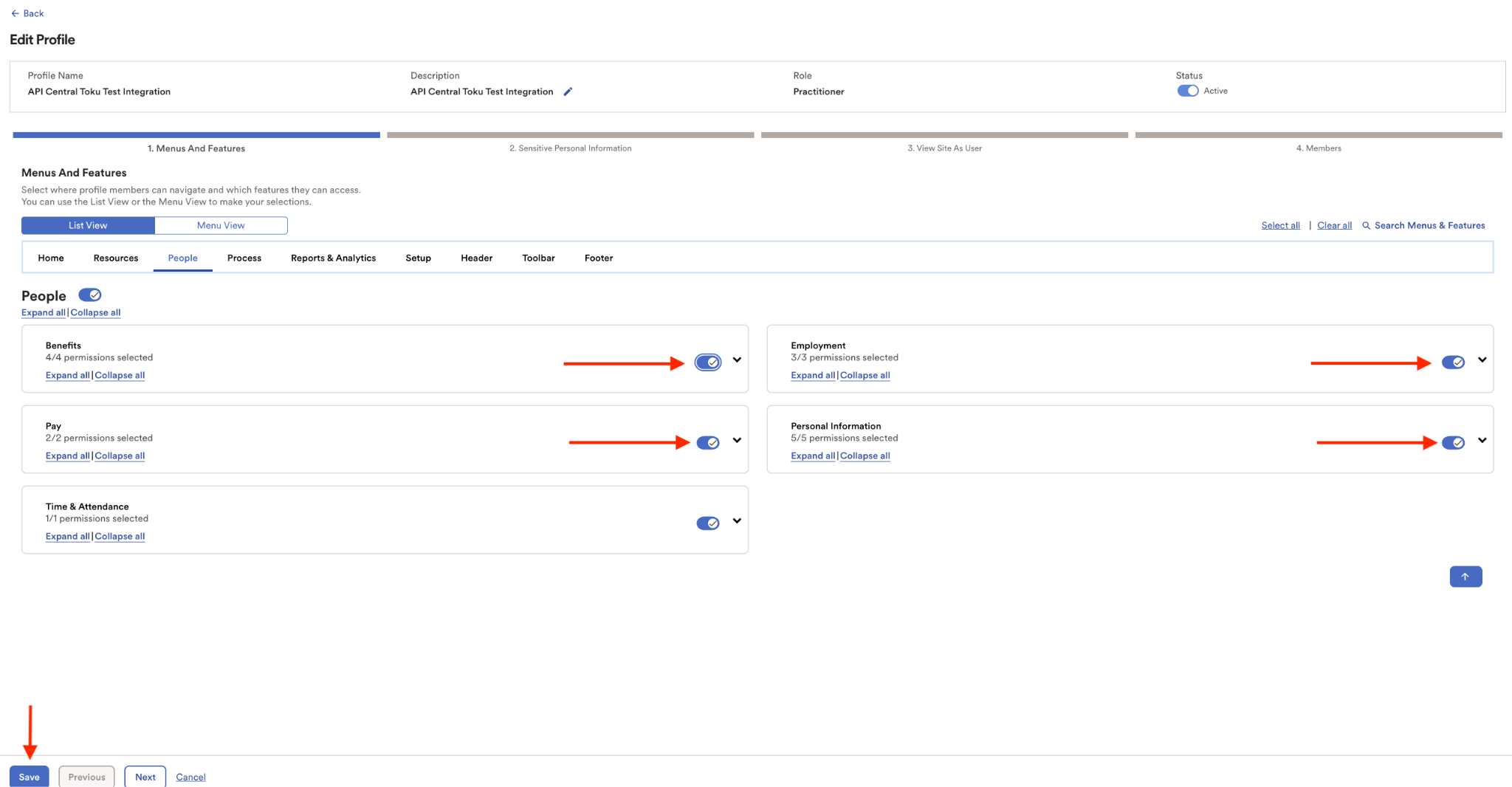
Create Post-Tax Net Deduction
- Go to https://workforcenow.cloud.adp.com/ , and click on Setup > Payroll > Policy Manager
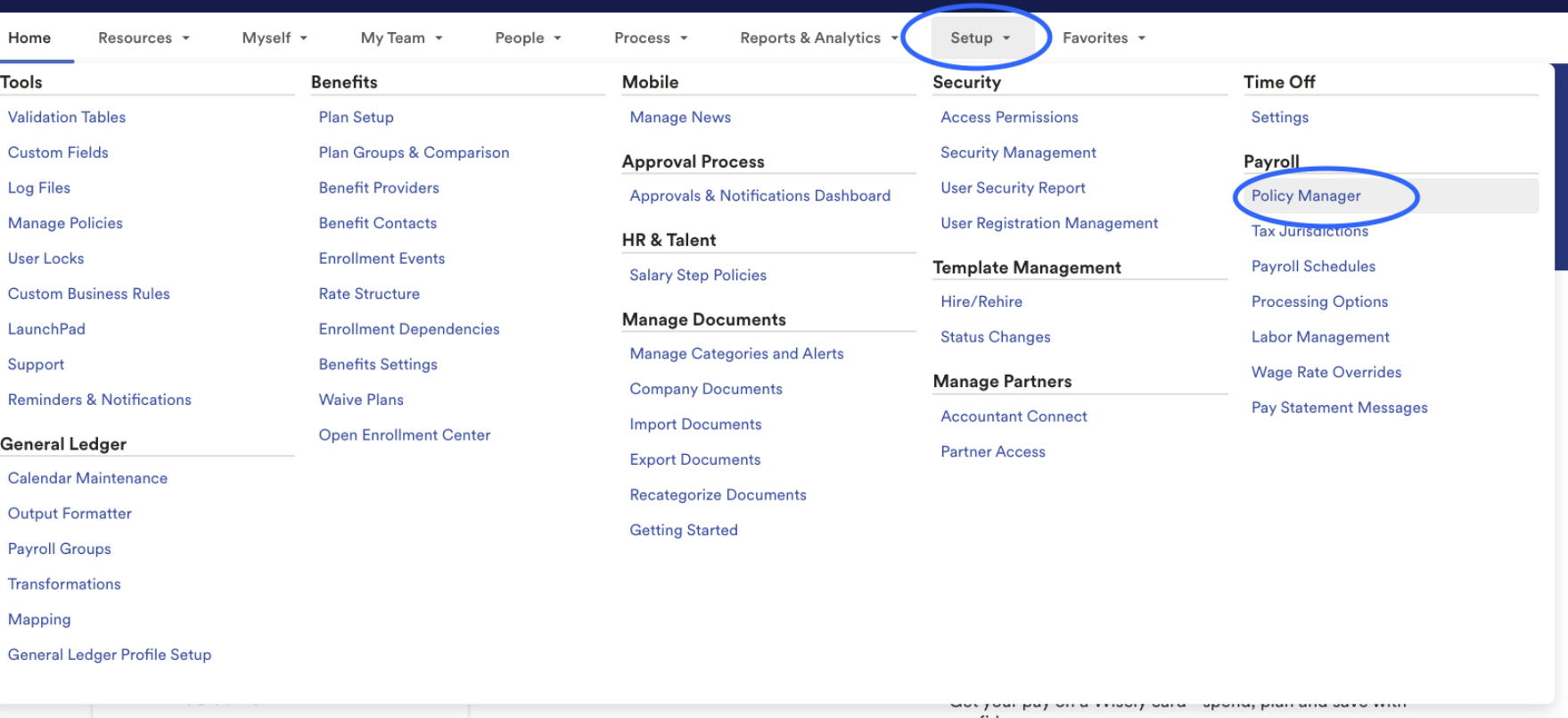
- Click Set Up New

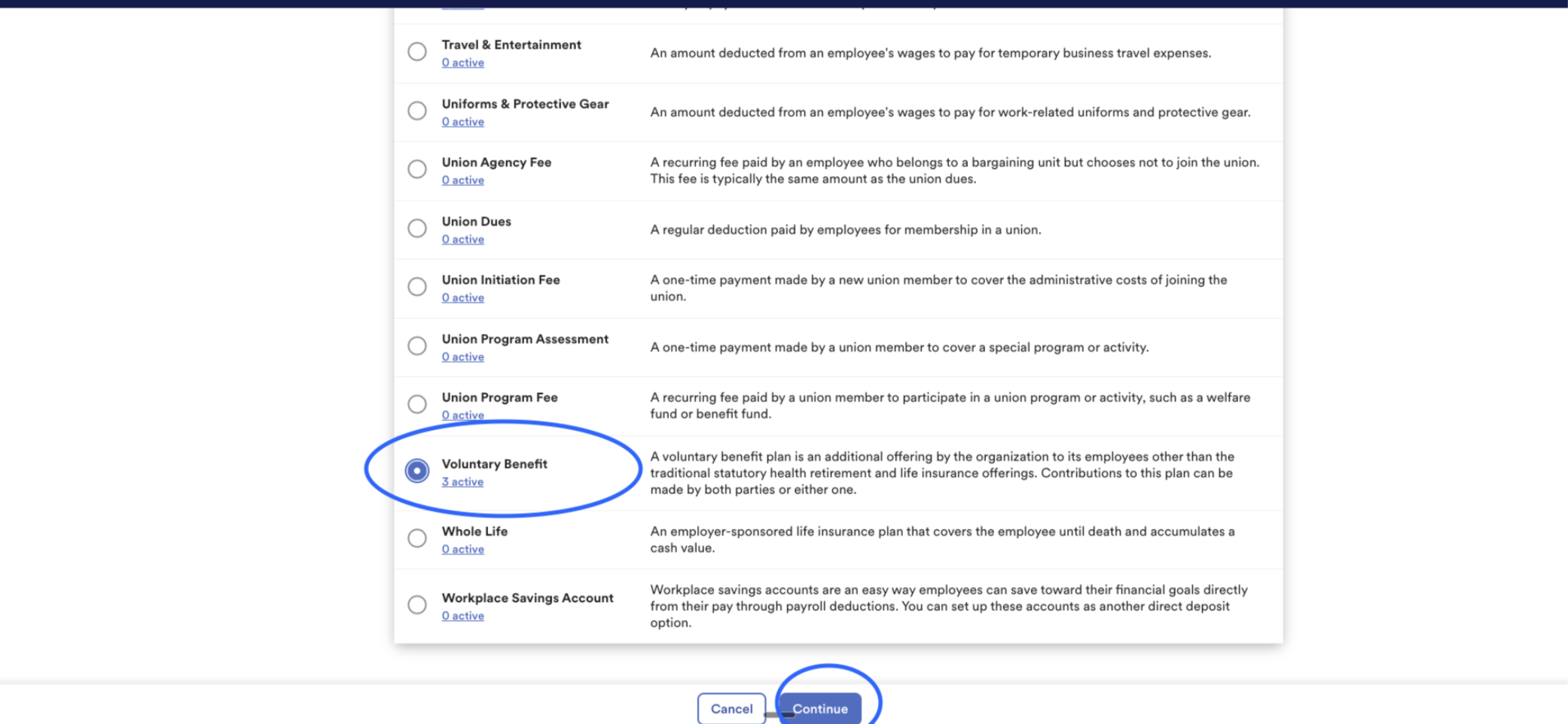
- Select the radio button for Voluntary Benefit > Continue
- Enter the policy info as shown here, and select relevant pay groups, and for "how is this policy processed" select policy be processed in every pay period. This will ensure the codes are set up correctly, and that its applicable to the correct groups, and that it's applicable for all pay periods.
- Policy Name: “Token Deduction”
- Short Name: “Token Deduction”
- Policy ID: “TokenDeduc”
- Pay Statement Label 1. Turn off toggle “Use default pay statement label” 1. Voluntary Benefit (Post-Tax): “Token Deduction”
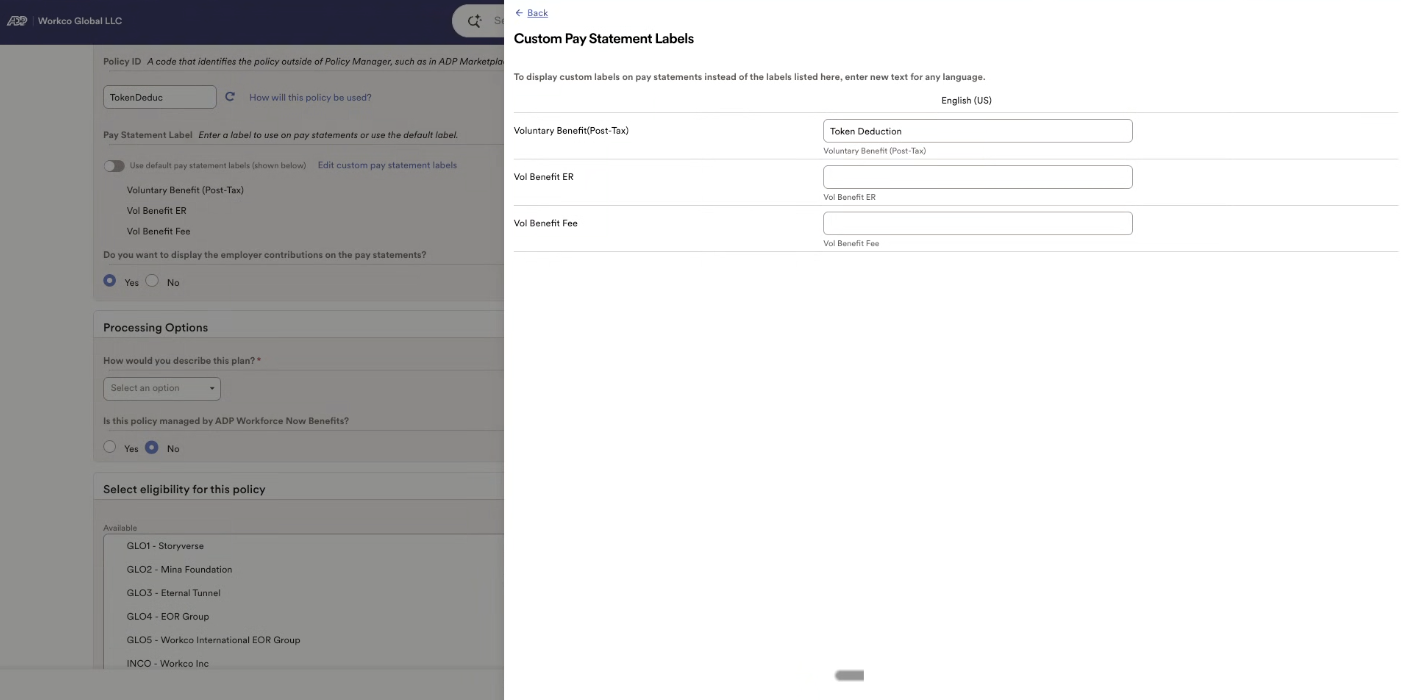
- How would you describe this plan? 1. Other 1. Please Specify: “Post-Tax Token Deduction” 1. Is this policy managed by ADP Workforce Now Benefits? “No”

- Pay Groups 1. Select the applicable pay groups for your business
- How is this policy processed 1. select “In every pay period”

1. Select “Submit”
Setup on Toku platform
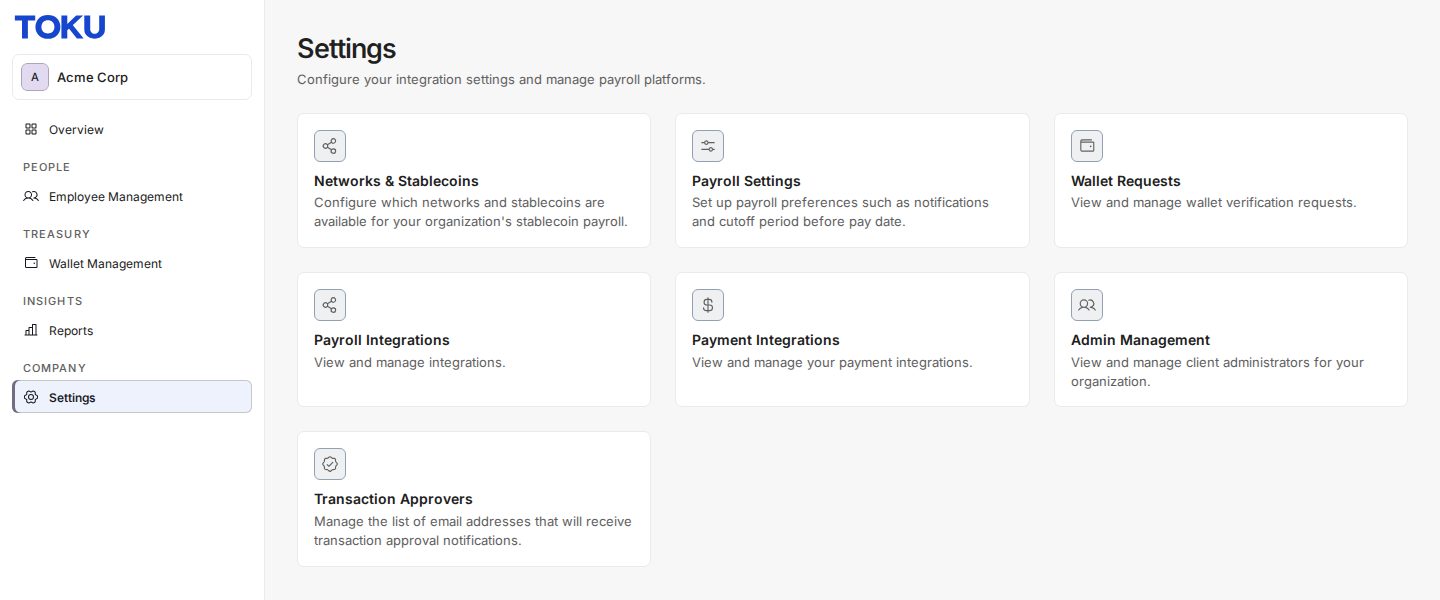
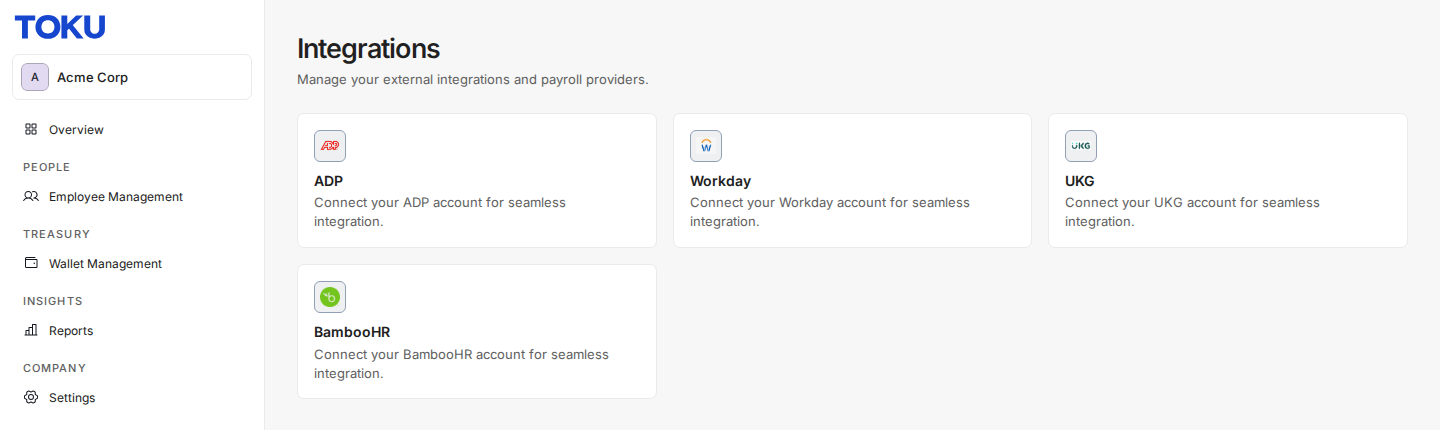
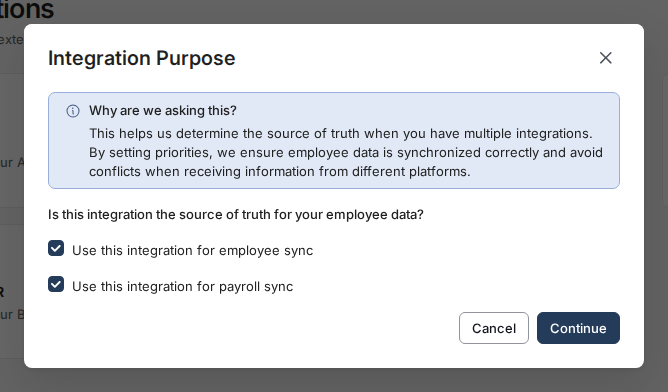
- Go to Toku, and under Settings -> Payroll Integrations -> Click “ADP” -> choose whether to use it for employee sync and/or payroll sync -> Click “Continue”
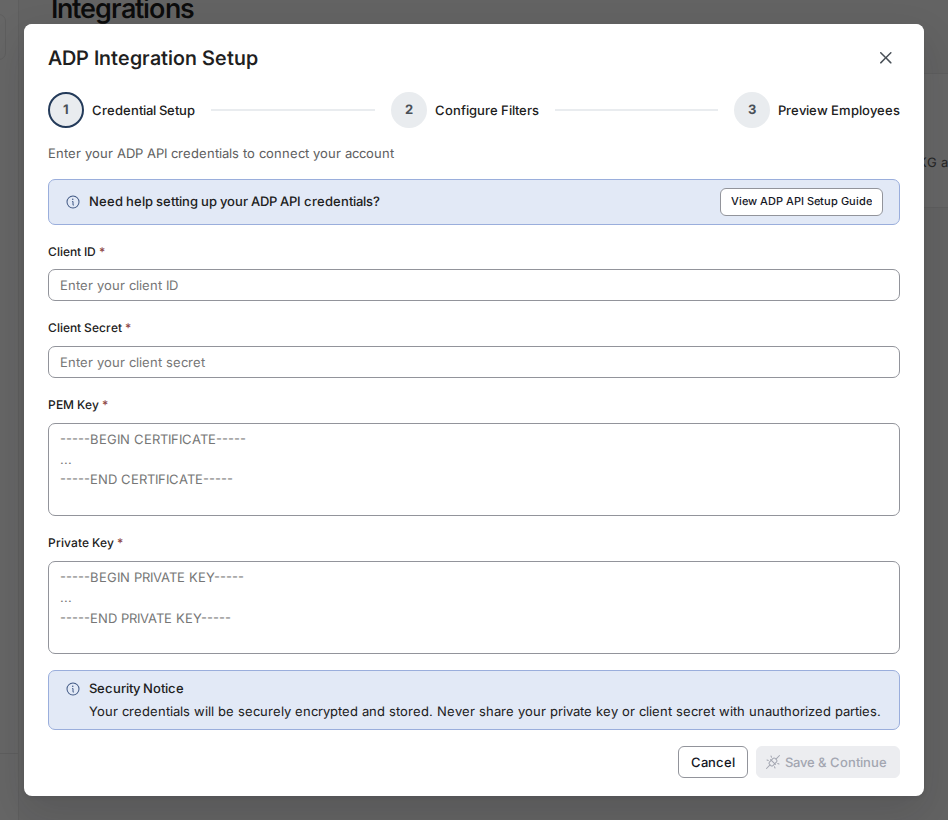
- Add Details from: Step #5: Client ID, Client Secret,
Step #14: Private Key,
Step #16: PEM File Content
To the following modal form (the certificate goes in “PEM Key”), and hit “Save & Continue”
Reoccurring Payroll Process
Employee and Payroll sync process
- Sync employees from Toku platform from employee management
- Sync payrolls:
Screens for walkthrough:
- Export Payroll Register from ADP
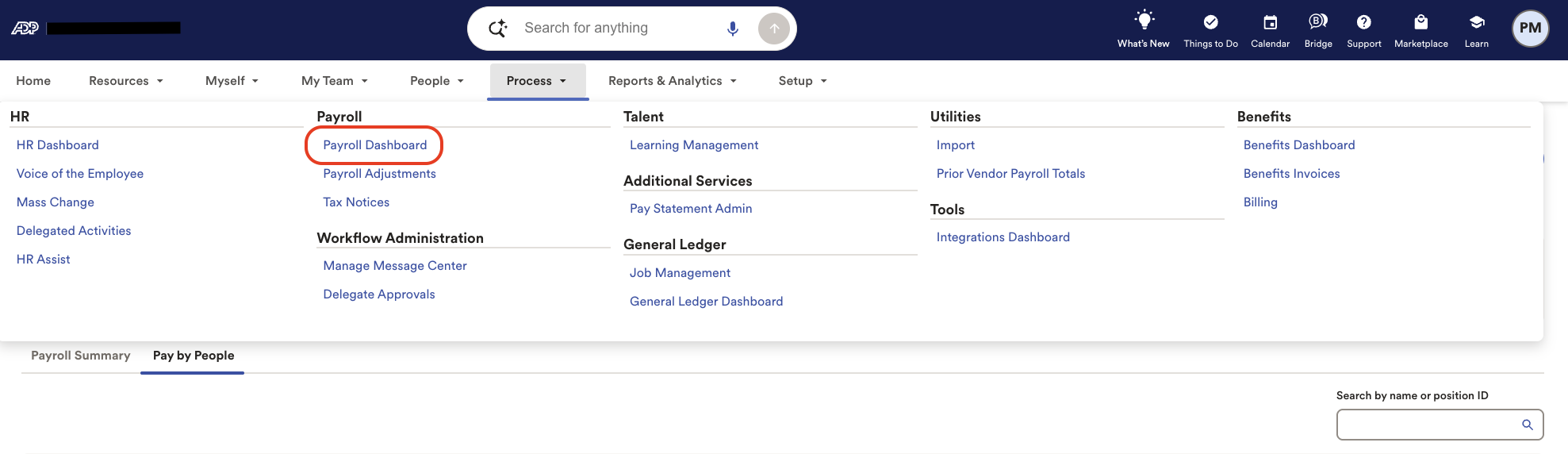
- Select View Payroll
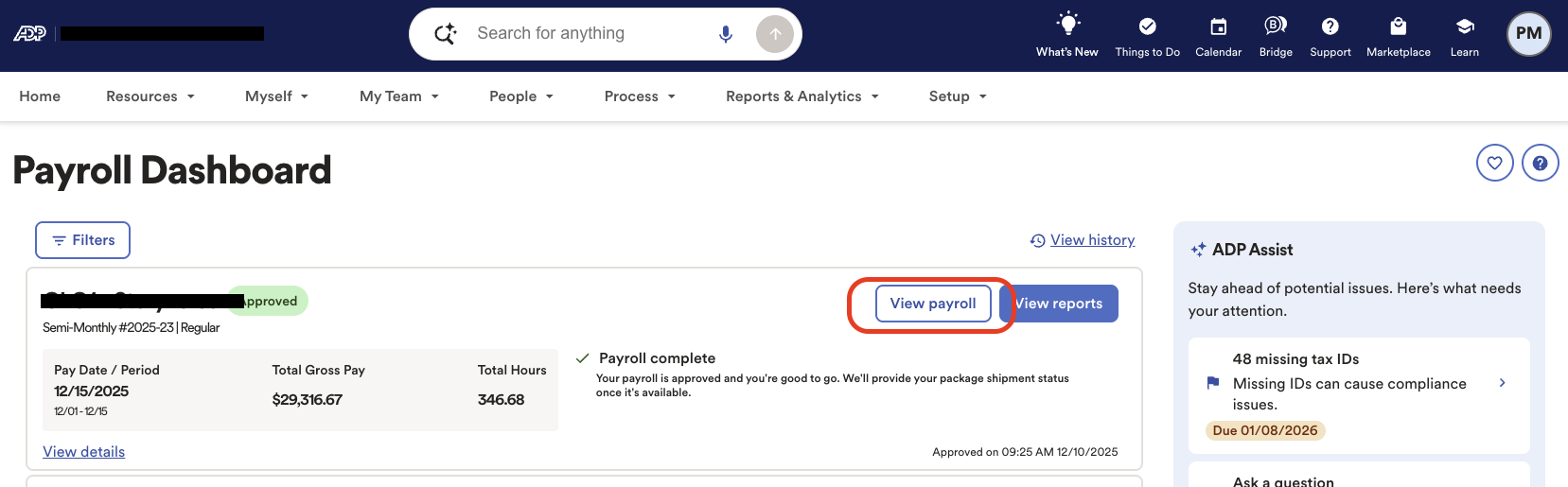
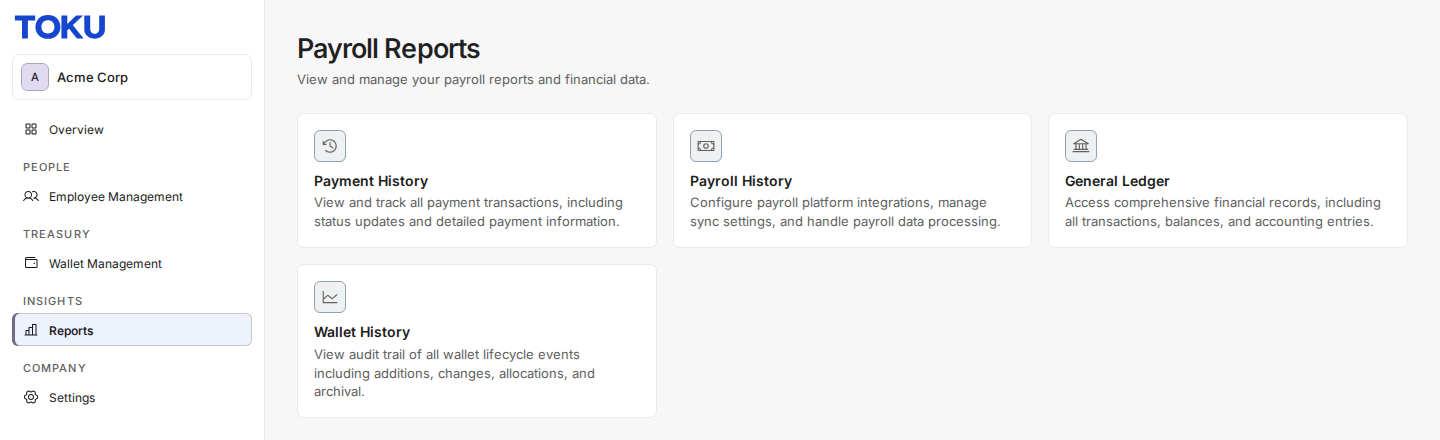
- Select Reports → Payroll History
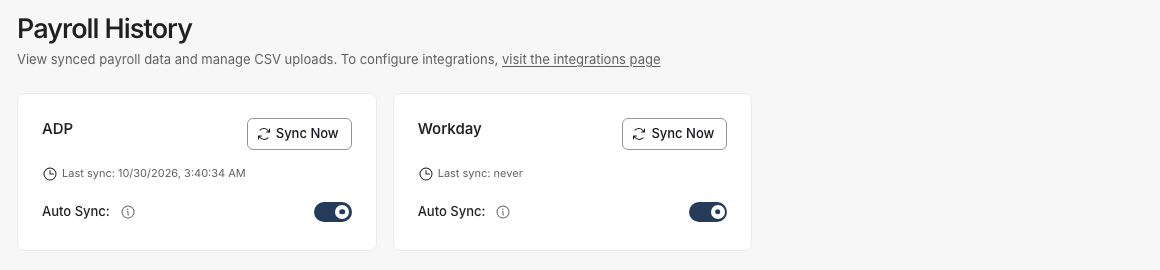
- Select Sync Now
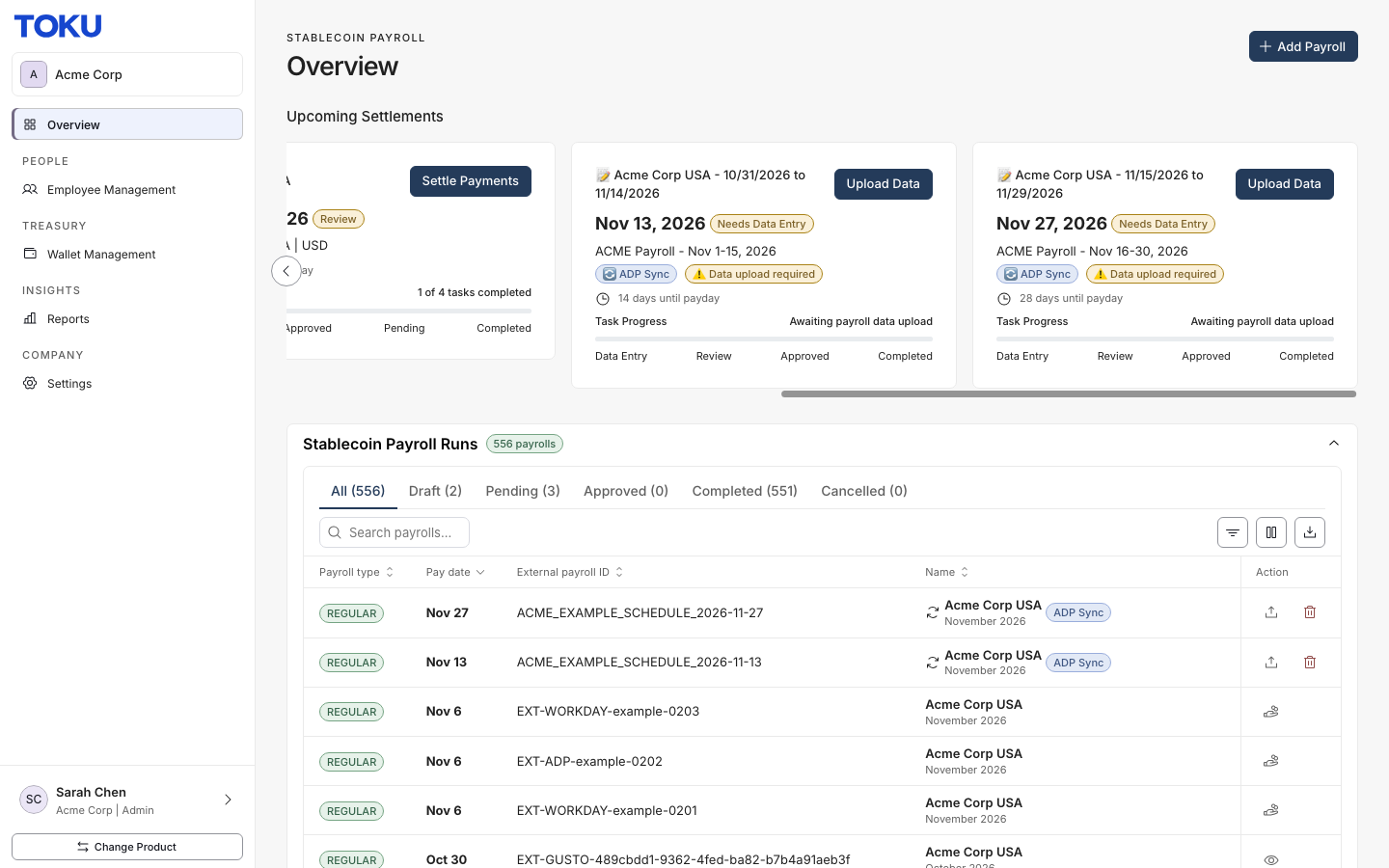
- Select Overview → Upload Data Next to your upcoming payroll
Troubleshooting
Raise ticket to ADP for approval
Finally Email / Create support ticket in ADP from this link: https://clientsupport.adp.com/hc/en-us/signin?return_to=https%3A%2F%2Fclientsupport.adp.com%2Fhc%2Fen-us%2Frequests%2F580069 to provide access to The API endpoint for "payroll-output" can be found here: https://developers.adp.com/guides/api-guides/payroll-output-api-guide-turbo-api-for-midsized-to-enterprise-businesses
- This is only accessible by logged in users
- Once the Email is sent to ADP Support, they will send an email for an approval from the ADP Admin.
- ADP Admin of the account has to reply with something like “Yes, Please approve the required access”, they will provide access to the payroll data endpoints.
- After the all the above steps are completed, Data will start flowing to TOKU from ADP
CONFIDENTIALITY NOTICE: resource and any attachments are only for the use of the intended recipient and may contain information that is privileged, confidential or exempt from disclosure under applicable law. If you are not the intended recipient, any disclosure, distribution or other use of this resource or attachments is prohibited. If you have received this resource in error, please delete and notify the sender immediately. Thank you.