
 13 MIN READ
 UPDATED NOV 3, 2026
📘 For organization administrators on Toku. Last updated October 30, 2026.
Update a team member's job details - title, department, employment type, manager, and dates - through the Employment Details section. To change their base salary, or how it's paid, use the separate Change salary editor - see Change a base salary below.
Employee pre-funding: For EOR, PEO, and payroll-only employees, additional payments over $5,000 USD require pre-funding. Whenever pre-funding is required, including termination or severance payments, submit complete changes and payment details in Toku by the 10th. Toku reviews those submissions and sends invoices on the 11th or next business day. Full funds must be received and cleared by the 14th for that month's payroll consideration. Funding received after the 14th moves the additional payment to the next eligible regular payroll cycle. Earlier cycle cutoffs still apply. Contractor deadlines are separate. See Additional Compensation Changes Over $5,000: Prefunding Approval.
Before you start
- You need administrator access to your organization on Toku.
- Payroll-impacting changes must be submitted before your payroll cycle's cutoff date to be included in that cycle's pay run. Cutoff dates vary by country and pay frequency - see Compensation changes - timing, approvals, and what employees see for details, or check with Toku to confirm a specific date.
- Missing the cutoff doesn't block a submission - the change is still recorded, and it is paid out in the following cycle rather than the current one. Whether the change itself is saved straight away or waits for Toku review is decided separately - see Good to know below.
Submit a change
- Log in at app.toku.com. If your company has two-factor authentication enabled, complete that step as well. If you're asked to choose a role, select ADMIN.
- Open People in the left-hand menu.
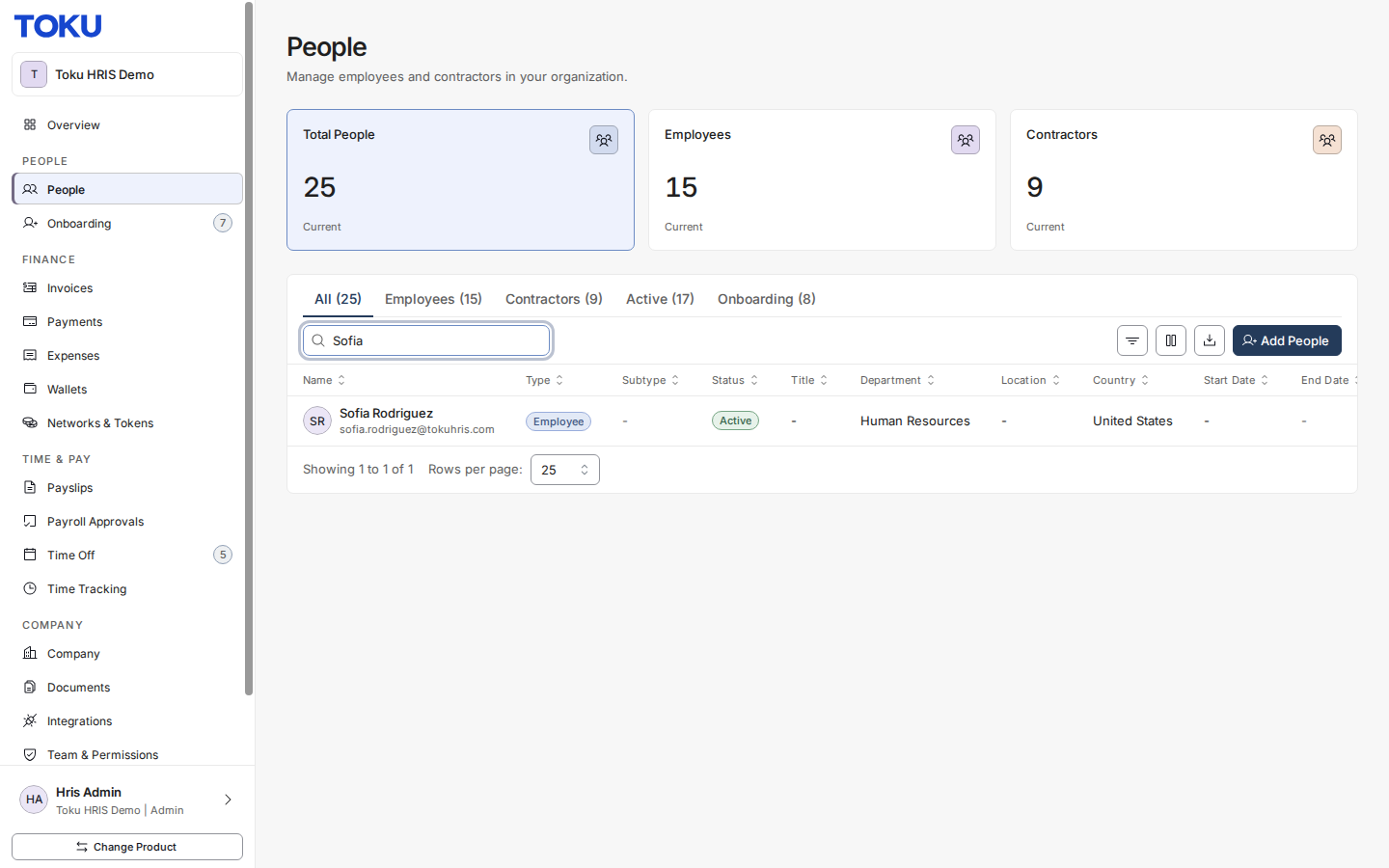
- Select the person's name to open their profile.
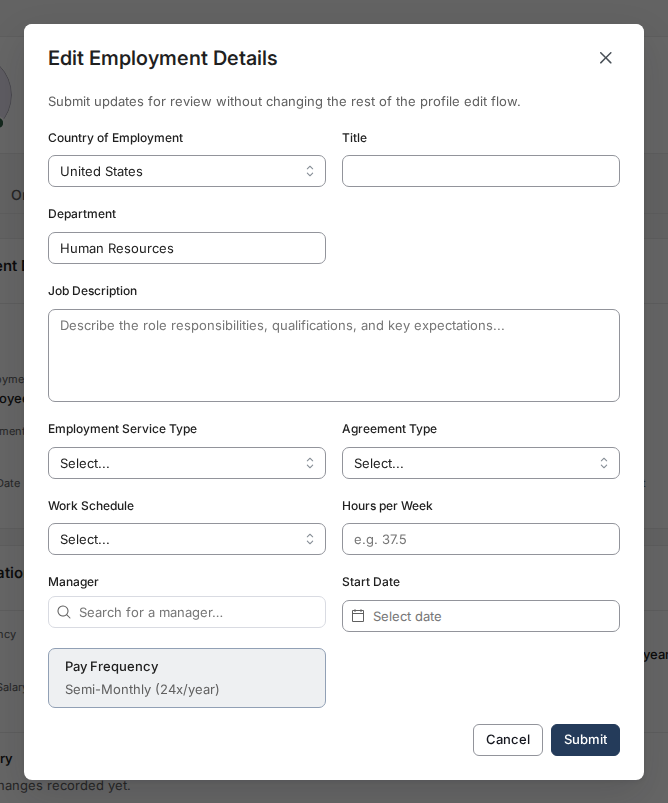
- In the Employment Details section, click Edit. (This is different from the Edit Profile button at the top of the page, which covers only title, department, phone, manager, and employment type.)
- Update the fields you need to change - title, department, employment service type (contractor type for a contractor), manager, start date, or end date (contractors only) - then select Submit. In the next window, choose when the change should take effect (Immediately, the next payroll run, or a custom date); if a payroll cut-off notice appears, review it and check the acknowledgment box. Select Confirm to finish. Base salary and currency are changed separately - use Change salary instead, see Change a base salary below.
Change a base salary
Base salary - and how it's paid, in a currency or in one of your organization's enabled tokens - is changed separately from the rest of the Employment Details window, through its own Change salary editor.
- Open People in the left-hand menu and select the person's name to open their profile.
- On the Overview tab, find the Compensation card and select Change salary — the dark blue button with the pencil icon, next to the white Add button, above the person's current pay figures.
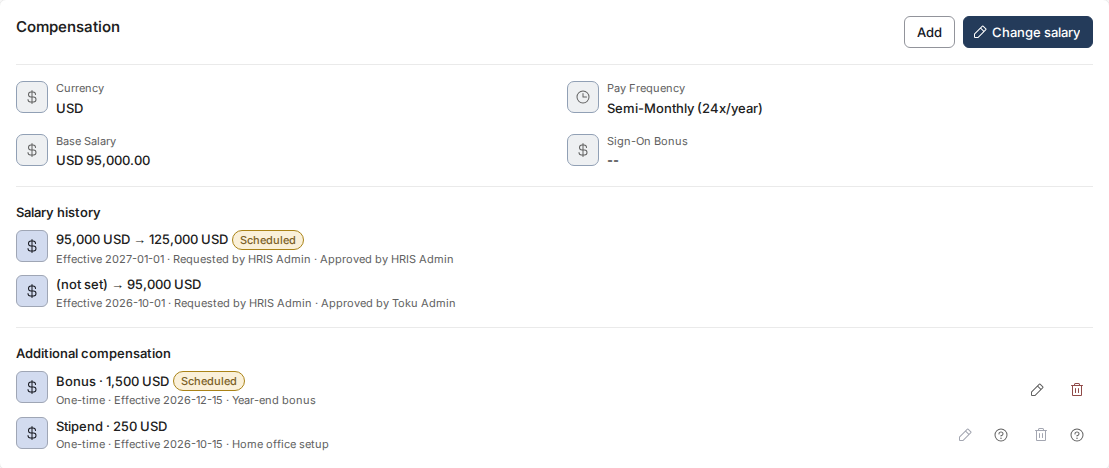
- In the Change Compensation window, enter the new amount in Base Salary. Use digits only - no commas, spaces, or currency symbols (for example 125000.50).
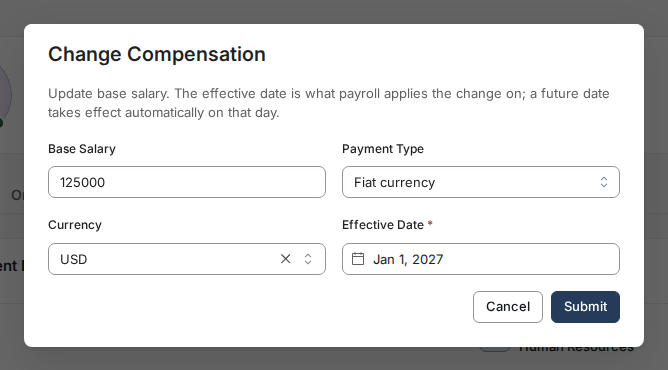
- Set Payment Type to Fiat currency or Token. For a fiat salary, choose the currency in Currency. For a token-denominated salary, choose the token in Token. This list only offers tokens already enabled for your organization. If the token you need is missing, do not use a different token as a placeholder; see If a token is missing below.
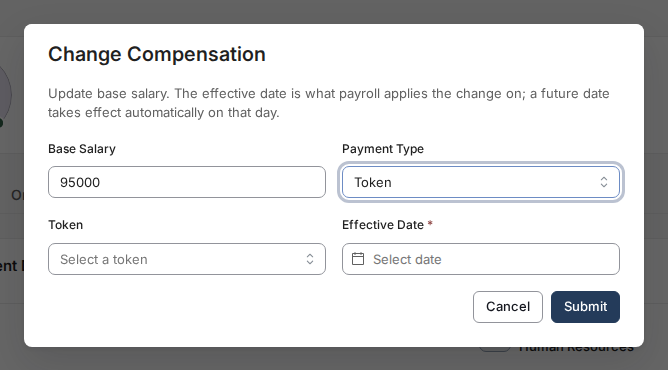
- Enter Effective Date. This field is required - the change is applied on this date, not when you submit it. If review is required, Toku must also approve it. Approval before the effective date leaves the change scheduled for that date; approval after the date applies it then.
- Select Submit. A confirmation message reads “Compensation change effective 2026-09-15” - the date you entered.
If a token is missing
The Token list is specific to your organization. If the required token or network is absent, do not substitute another token. Email [email protected] with your organization name, the token symbol and network, the person whose compensation is changing, and whether the compensation is denominated in that token or only settled in it. Toku will confirm whether the token can be configured and how settlement must be handled.
See the salary change history
Every base salary change submitted through Change salary stays on the person's profile, so you can see what the pay changed from and to, the date it takes effect, who asked for it and who approved it. There is nothing to turn on.
- Open People in the left-hand menu and select the person's name. Stay on the Overview tab.
- Find the Compensation card and look below the current Currency, Pay Frequency, Base Salary and Sign-On Bonus figures. The list is headed Salary history.
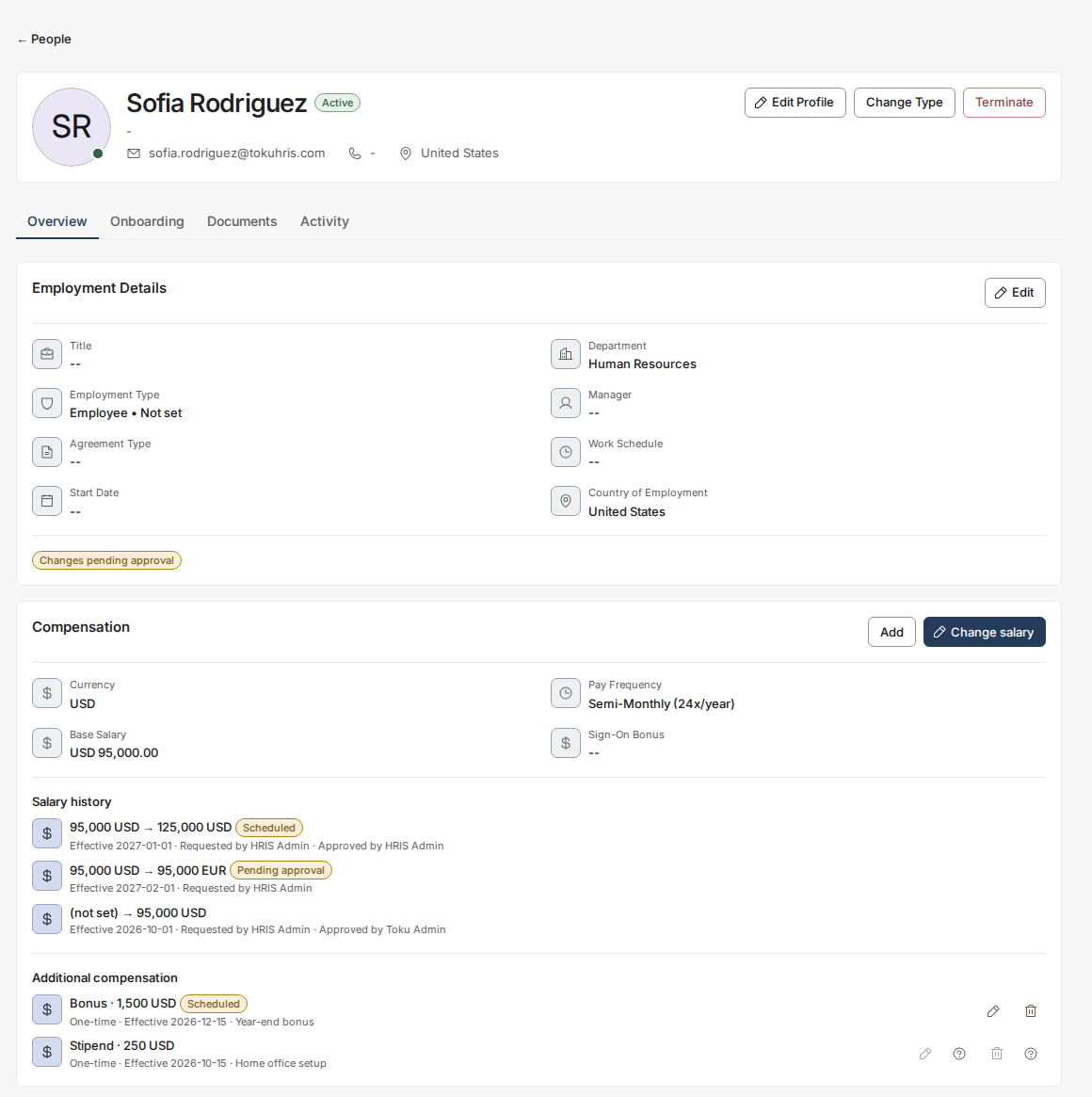
- Read each row from left to right: the change itself, then a status badge where one applies, then the effective date and the names of the person who requested it and the person who approved it.

The badge on a row tells you where the change has got to:
- No badge - applied. The change is on the record and payroll uses it from its effective date onwards.
- Scheduled - approved, with an effective date still in the future. It applies automatically on that day; you do not need to resubmit it.
- Pending approval - submitted and waiting for Toku review. It has not changed anyone's pay yet, and the same amber Changes pending approval chip appears on the Employment Details section above.
ℹ️ A row appears as soon as the change is submitted, so use this list to check whether a change was actually submitted before resubmitting it. Rows are ordered by when they were submitted, newest first - which is not always the order of their effective dates.
- Changes that were rejected or cancelled never took effect, so they are not listed here.
- This list covers base salary only. Bonuses, stipends and other one-off or recurring payments are listed under Additional compensation on the same card.
- "(not set)" as the old value means the person had no base salary on record before that change - usually the first salary entered for them.
- Employees do not see this list on their own profile. It is part of the administrator view of a profile, alongside the Change salary editor.
Pick the pay currency
Currency is set in the Change Compensation window (Change salary - see Change a base salary above), as a searchable list of the currencies Toku supports, not a free-text box. You cannot save a code that is not on it.
- In the Change Compensation window, click the Currency field. The list opens on the currency already stored for this person, with 158 supported codes to choose from.
- Start typing the code to narrow it. Typing EU leaves a single option, EUR. Pick the one you want from the list.
- If what you type matches nothing, the list reads No options and there is nothing to choose. Clicking away puts the field back to the currency already on the record.
💡 Unmatched text does not stop you clicking Submit - the window simply keeps the currency that was already on the record and submits that. If a currency change does not seem to have taken, reopen the window and check the field holds the code you meant, chosen from the list rather than typed.
- If the currency your contract needs is not on the list, email [email protected] rather than picking the nearest one - some codes are deliberately held back from employment records.
- A record already holding a code that is not offered still shows that code, so you can edit another field on the same window without losing it.
- If this person's base salary is paid in a token, Payment Type is set to Token in the Change Compensation window and this Currency field is replaced by a Token field instead - see Change a base salary above.
Change a contractor's end date
A contractor on a fixed-term agreement has an End Date on their profile - the last day of the contract. You can now move that date from the same Edit Employment Details window you use for any other job detail, instead of asking us to change it for you.
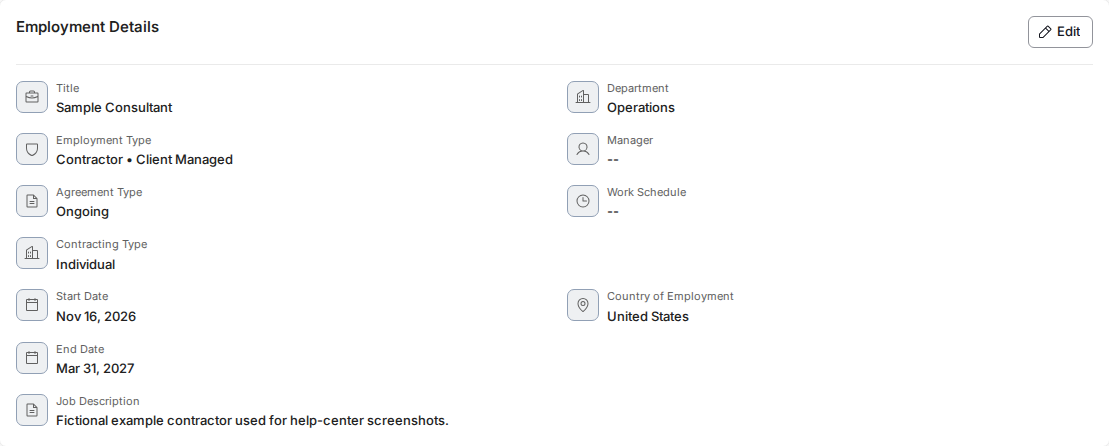
- Open People, select the contractor's name, and click Edit on the Employment Details section.
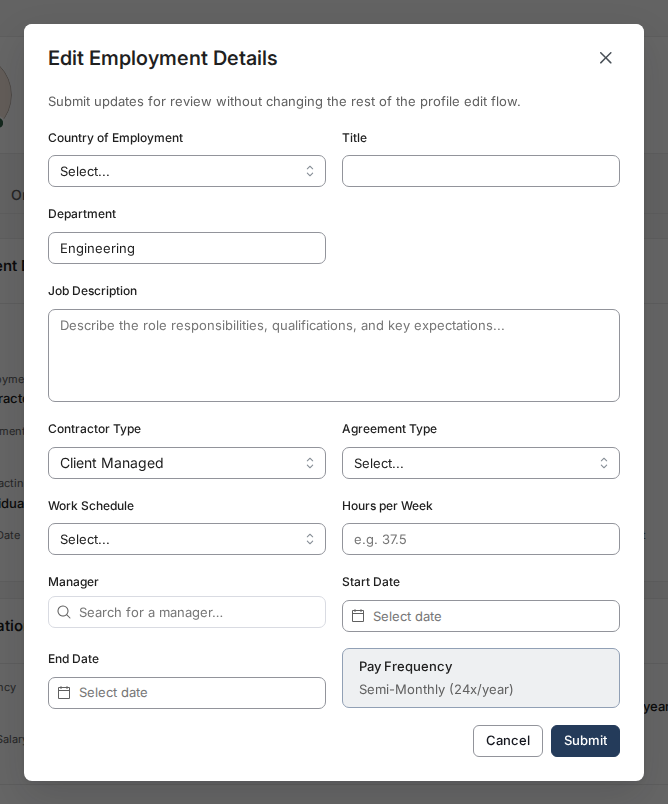
- The window now shows End Date just below Start Date, filled in with the contract's current last day.
- Enter the new last day and select Submit. To make the contract open-ended instead, clear the field and leave it empty.
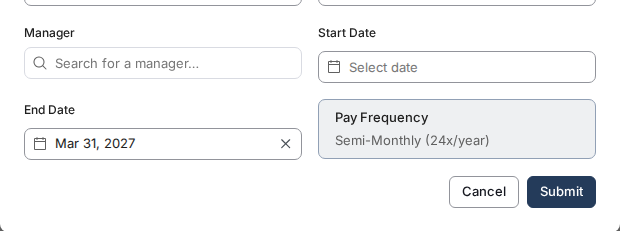
⚠️ This field is for contractors only. Open the same window on an employee and there is no End Date at all. Ending an employment is a termination - it carries a notice period, final pay, and a benefits end date - so it goes through Terminate on the employee's profile, not through this window. See Submitting a termination request.
What happens after you submit
- The new end date is saved to the profile straight away - this change does not wait for an approval.
- Toku is notified automatically, because moving a contract's last day usually needs paperwork: a side letter, and a termination notice as well when the date moves earlier than it was. Someone from Toku will follow up if anything is needed from you.
- If you use an integration or script that submits employment changes directly, it cannot get around the rule: an end date sent for anyone who is not a contractor is rejected with "End date can only be changed for contractors. Use the termination flow to end an employment."
Change someone's employment type
Moving a person between worker classes - for example from an Employer of Record employee to a contractor set up as Agent of Record - is done from Change Type on their profile, not from Edit Employment Details.
- Open People in the left-hand menu and select the person's name.
- In the profile header, next to Edit Profile, select Change Type. The Change Employment Type window opens and names the class they are on today.
- Set New Employment Type. The list offers only the transitions allowed from their current class.
- If you picked Contractor, set Contractor Type — Client Managed or Agent of Record. (Toku Contractor appears here only for someone already set up that way.) If you picked Employee, set Employment Service Type — Employer of Record (EOR), Professional Employer Org (PEO), or Payroll Only.
- Select Change Employment Type to submit. It's recorded as a change request and waits for Toku review. The window says which happened - Employment type updated when it applied, or Submitted for review when it is waiting.
- Change Type does not appear on the profile of someone who has already been terminated.
- Changing worker class has legal and payroll consequences - a new agreement, a different payout route, and in some countries a fresh set of tax registrations. Confirm the move with Toku before submitting it if you are not sure it is right.
Good to know
- Pay Frequency is set from the person's country (semi-monthly for the United States, Canada, Brazil and the Philippines; monthly everywhere else) and cannot be edited. It is shown read-only on the profile, and there is no admin or employee path to change it.
- Fields you can change in the Edit Employment Details window include title, department, manager, start date, and the worker's classification - Employment Service Type (Employer of Record, Professional Employer Org, or Payroll Only) for an employee, or Contractor Type for a contractor. For a contractor the window also includes End Date - see Change a contractor's end date above. Base salary and currency are changed separately, through the Change salary editor - see Change a base salary above, including Pick the pay currency for how the Currency field works there.
- The updated Base Salary or Additional Compensation figure appears on the employee's own Profile as soon as it's applied - see Compensation changes - timing, approvals, and what employees see for exactly what employees can and can't see.
- Whether a change is saved immediately or waits for Toku review is decided per change, not by an organization-level setting. A base salary edit that changes only the amount and keeps the same currency is saved straight away. A change to what the salary is denominated in - Payment Type, Currency, or Token — always waits for Toku review, and so does any change to a salary that is already paid in a token. Changing employment service type, employment type, or contractor type also waits for review. The other Employment Details fields - title, department, manager, start date, and a contractor's end date - are saved straight away. Either way, the change is reflected in payroll according to that cycle's cutoff date.
- After a base salary change or a bonus is applied, the person may receive an email asking them to sign a compensation change letter. Whether a letter goes out depends on their country and worker type.
- Whether a submitted salary change shows a pending status depends on whether it needed review. A change that waits for Toku review shows a Changes pending approval chip on the Employment Details section as soon as you submit it - a Currency, Payment Type, or Token change always lands here. The Base Salary figure on the Compensation card keeps showing the current pay until the change is applied, which is on the effective date you set - or on approval, if that date has already passed; the change itself is listed straight away under Salary history on that same card, badged Pending approval or Scheduled (see See the salary change history above). A change that was saved straight away shows no chip, and it too keeps displaying the current salary until its effective date arrives, when it applies automatically.
- If Base Salary is rejected, check the format - digits only, no thousands separators, and a period for decimals (for example 1902362.8, not 1,902,362.8).
⚠️ For urgent help with a salary change, email [email protected]. Changes submitted after your payroll cycle's cutoff date won't be paid out until the following cycle.
Still stuck?
You can email [email protected] to reach our support team. Please include your email address, organization name, and a description of what happened. Screenshots and videos are always welcome to speed up the troubleshooting process. Feel free to reach out any time for further assistance.