
 12 MIN READ
 UPDATED OCT 30, 2026
Overview
This guide walks you through the process of adding a cryptocurrency wallet to your Toku Token Grant Administration (TGA) account to receive token grants. The setup takes approximately 5-10 minutes and requires you to have access to your external wallet.
What you'll accomplish:
- Connect an external wallet address to your Toku TGA account
- Select the appropriate blockchain network for your tokens
- Verify wallet ownership through a test transaction
- Prepare your account to receive token grants
Table of Contents
Prerequisites
Before starting, ensure you have:
- An active Toku account
- Access to an external cryptocurrency wallet (MetaMask, Coinbase Wallet, etc.)
- Your wallet address ready to copy/paste
- Access to your wallet to verify test transactions
Steps To Set Up Your Token Wallet
Setting up your wallet involves three main steps: connecting your external wallet address, selecting the correct blockchain network, and verifying ownership through a test transaction.
How to Connect Your Token Wallet
- Log in to your Toku TGA account via https://app.toku.com/
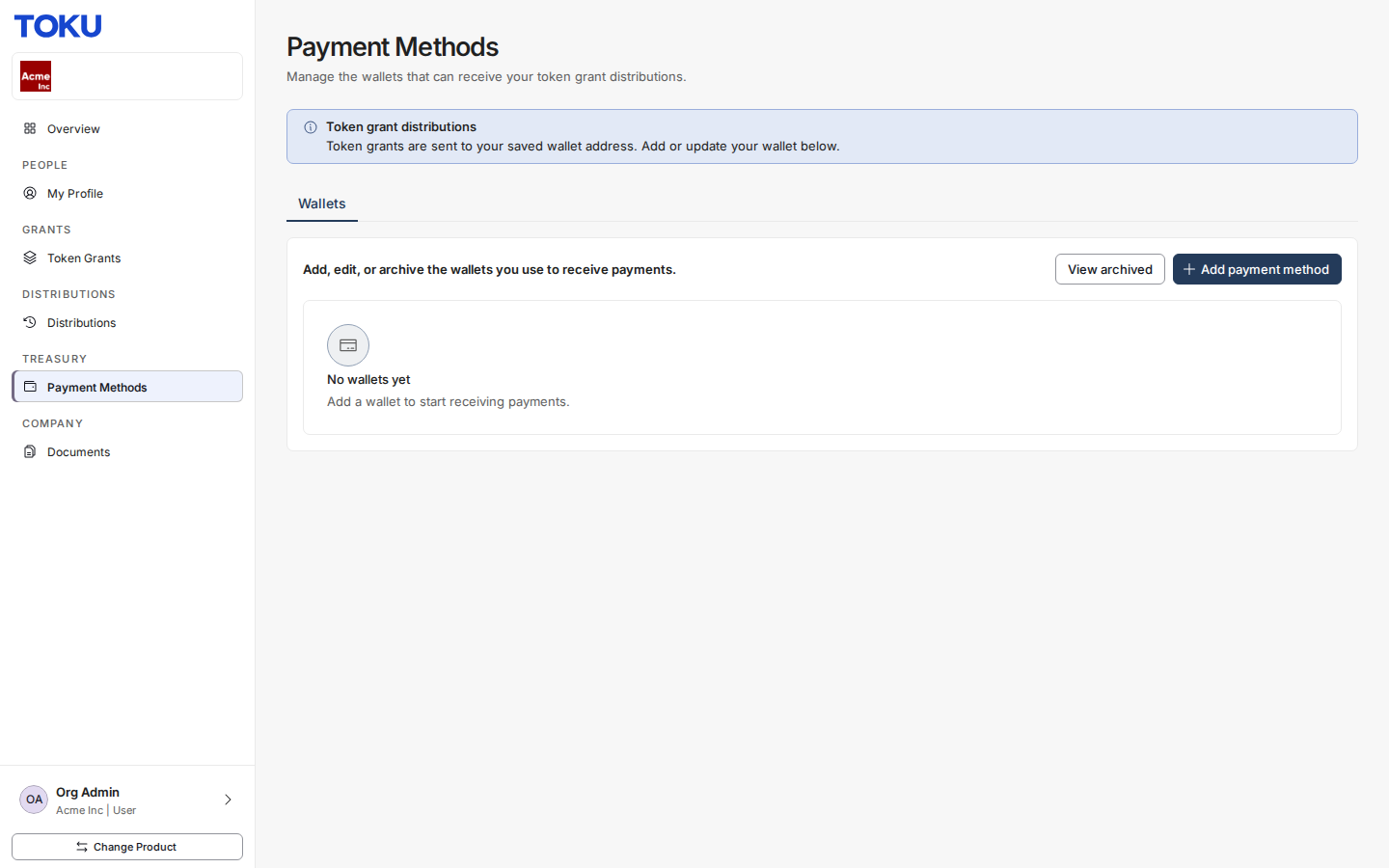
- From the left sidebar, click on Payment Methods
- You'll see the Payment Methods page. Click the + Add payment method button on the right side of the screen, per the screenshot below. This opens the wallet connection flow.
- A window will appear titled "Add Payment Method”. Select ‘Add External Wallet’. This option allows you to connect manually via wallet address
- Click Next to proceed.
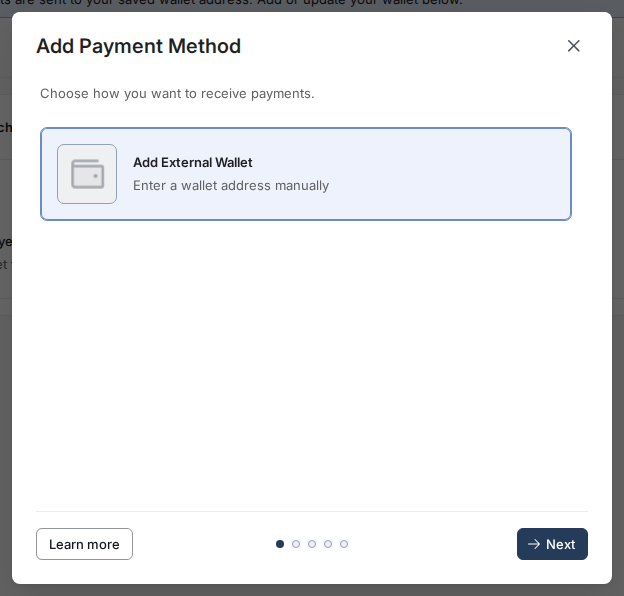
⚠️ Note: Toku TGA does not support direct wallet browser extension connections at this time. All connections are made by manually entering your wallet address.
- Select the blockchain network of your wallet, then click Next.
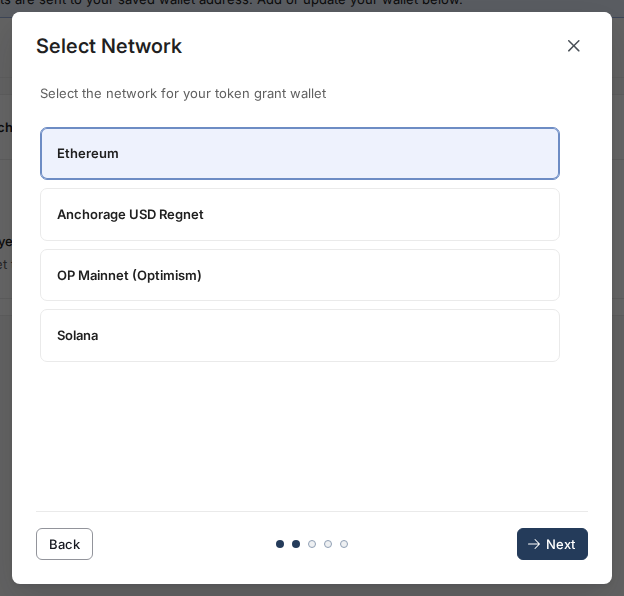
⚠️ Important: Ensure you select the correct network. Sending tokens to a wallet on the wrong network may result in permanent loss of funds. If you're unsure which network to use, contact your grant administrator.
- In the "Wallet Address" field, paste your complete wallet address. Double-check that the address is accurate and complete.
- Click Next to proceed
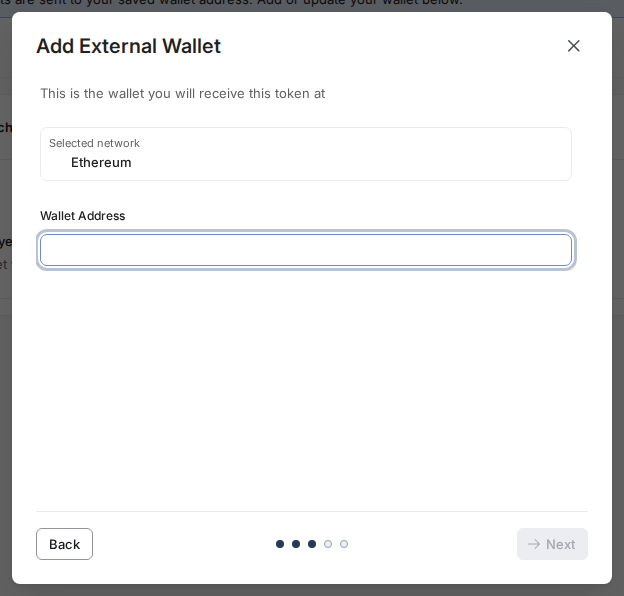
⚠️ Critical: Verify your wallet address carefully. Incorrect addresses may result in lost tokens. We recommend:
💡 Wallet Address Format Examples:
- Ethereum: 0x742d35Cc6634C0532925a3b844Bc9e7595f0bEb (42 characters)
- Bitcoin: bc1qxy2kgdygjrsqtzq2n0yrf2493p83kkfjhx0wlh (varies)
- Solana: 7EqQdEUuufH4j7kRLe3xnfhcFQJ5qx8HgMYyUcR5xr3m (44 characters)
- Toku will send a small test transaction to verify you control the wallet address. On your screen, you will see transaction details including:
- Date and time of transaction
- Recipient address (your wallet)
- Transaction hash (blockchain confirmation link)
- Amount sent
💡 Transaction Timing: Test transactions typically appear within 1-5 minutes depending on network congestion. If you don't see the transaction after 10 minutes, check your spam/pending transactions folder in your wallet.
- To verify, check your wallet for the test transaction. Alternatively, click the transaction hash link to view on the blockchain explorer
- Once you've confirmed receipt of the test transaction in your wallet, click Verify.
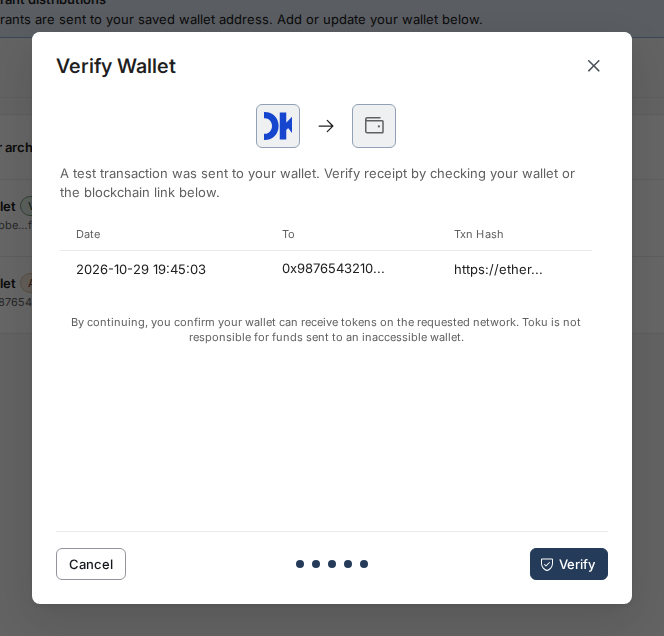
⚠️ Disclaimer Notice: By clicking the Verify button, you confirm that:
- Your wallet can receive tokens on the selected network
- You acknowledge Toku is not responsible for funds sent to inaccessible wallets
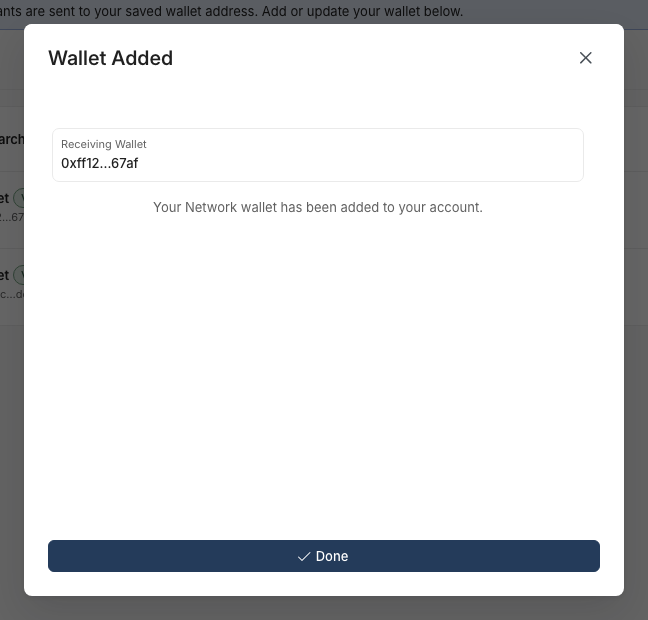
- Once verification is complete, you'll see a "Wallet Added" confirmation screen showing:
- Your receiving wallet address
- The network that has been added to your account
- Confirmation message Click Done to finish the setup process.
- If a test transaction is not sent immediately, you will be notified via email when the transaction is available for your review. Upon receipt of the email, log back in to your Toku account and return to the Payment Methods screen.
- Next to your submitted wallet, use the action icons. The options are:
- Copy wallet address - copy the address to your clipboard
- View Test Transaction - navigates you to the block explorer to review your transaction
- Verify Wallet - continue the process to confirm receipt of the test transaction and validate your wallet.
- Cancel request - archive your wallet in order to enter a new one

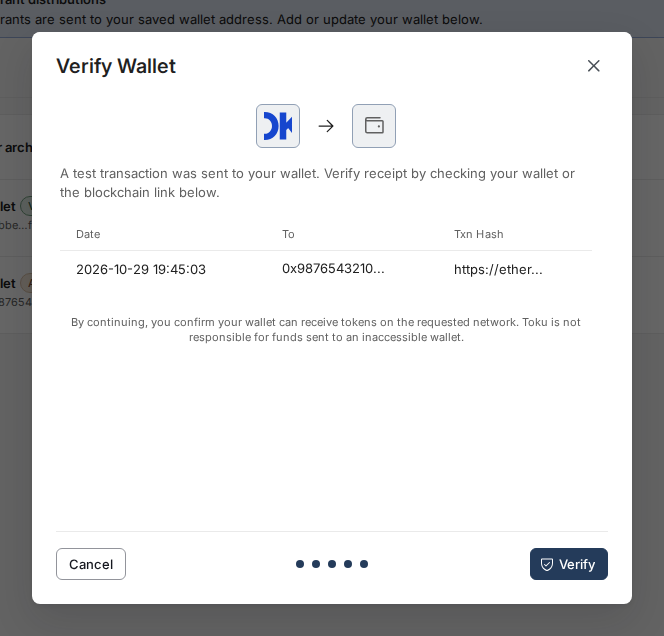
- Select Verify Wallet to open the following window, and click the blue Verify button once you have had a chance to confirm receipt of your test transaction. You will then be presented with a confirmation screen , and your wallet is officially verified!
Confirmation of Added Token Wallet
After completing the token wallet setup and verifying the test transaction, you can confirm your wallet is properly configured by following the steps below:
- Navigate back to Payment Methods in the left sidebar
- You should now see your connected wallet address displayed on the screen
- The network type should be displayed next to your address, together with the wallet verification status.

How To Delete Or Replace Your Token Wallet
You can remove or replace your connected wallets at any time via the Payment Methods page.
Removing a Wallet
If you need to remove a wallet from your account - whether to replace it with a new address or discontinue use - follow these steps:
- Log in to your Toku TGA account via https://app.toku.com/
- From the left sidebar, click on Payment Methods
- You will see your connected wallet displayed on this page.
- Click the Archive icon on the right side of the wallet row you want to remove.

- A confirmation window will appear with the message below:
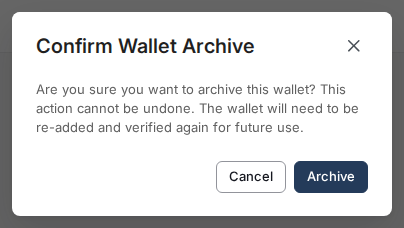
Review the warning carefully, then click Archive to proceed or Cancel to abort.
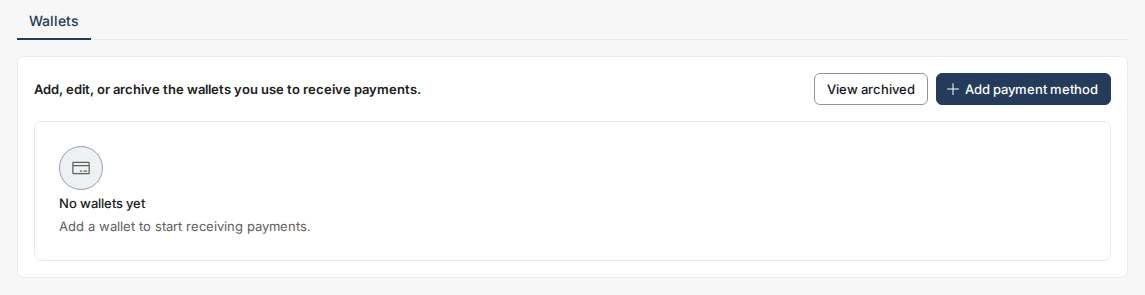
- After archiving, the wallet will be removed from your account. You'll return to the empty wallet state showing "No wallets yet."
Replacing Your Wallet
To replace an existing wallet with a new one, follow the Steps To Set Up Your Token Wallet.
When to Archive Your Wallet
Consider archiving your wallet if:
- You've lost access to the wallet or its private keys
- You're switching to a different wallet provider
- You want to use a different blockchain network
- The wallet has been compromised or you suspect security issues
- Your organization requires you to use a specific wallet type
Important Warnings
⚠️ Archive or Remove Wallet is Permanent Once archived or removed, the wallet cannot be restored. You must go through the complete setup and verification process again to re-add it.
⚠️ Timing Matters Never archive your wallet immediately before a scheduled token distribution. Ensure your new wallet is added and verified ahead of time and confirmed by your grant administrator first.
⚠️ Notify Your Administrator As an extra safety step, always inform your grant administrator when changing wallets to prevent distributions to an old or inaccessible address.
Best Practice
Following these best practices will help ensure a smooth wallet setup and secure token grant management.
- Use Self-Custody Wallets We strongly recommend using self-custody wallets (where you control the private keys) rather than exchange-hosted wallets. Self-custody options include MetaMask, Coinbase Wallet, Trust Wallet, or hardware wallets like Ledger and Trezor.
- Manually Verify Address Accuracy Always double-check your wallet address before submitting:
- Copy the address directly from your wallet application (never type manually)
- Verify the first 6 and last 6 characters match your source
- Keep Private Keys Secure
- Never share your wallet private keys, seed phrases, or recovery phrases with anyone
- Toku will never ask for your private keys or seed phrase
- Store recovery phrases offline in a secure location
- Choose the Network That Match Your Token Type Ensure the network you select matches the token you'll receive:
- ERC-20 tokens → Select Ethereum
- SPL tokens → Select Solana
- Bitcoin → Select Bitcoin network
- Understand Network Compatibility Not all wallets support all networks. Before setup:
- Verify your wallet supports the network you're selecting
- Confirm your wallet can receive the specific token type
- Update Promptly If your wallet situation changes:
- Update your wallet address in Toku before the next grant distribution
- Confirm the update was successful by checking your Payment Methods page
- Notify Toku and other relevant parties of the change
Troubleshooting
Below are the common issues, possible causes and potential solutions for your guidance.
Test transaction not appearing
Solution: Wait up to 15 minutes for blockchain confirmation. Check your wallet's pending transactions. Verify you're checking the correct network.
Wrong network selected
Solution: Cancel the setup process and restart from Step 1. If already completed, delete the wallet from the Payment Methods page and add it again with the correct network (refer How To Delete Or Replace Your Token Wallet here).
Wallet address not accepted
Solution: Ensure you've copied the complete address with no extra spaces. Verify the address format matches the selected network.
Appendix: Key Terminology
| Term | Definition |
|---|---|
| Wallet Address | A unique alphanumeric identifier that represents your cryptocurrency wallet on a specific blockchain. Similar to a bank account number, it's where you receive tokens. Wallet addresses are public information and safe to share. |
| Self-Custody Wallet | A wallet where you control the private keys, giving you full ownership and responsibility for your funds. Also called a "non-custodial wallet." |
| Exchange Wallet | A wallet provided by a cryptocurrency exchange (like Coinbase or Binance) where the exchange controls the private keys. You access these through your exchange account. |
| Private Key | A secret cryptographic code that proves ownership of a wallet and allows you to send tokens. Never share your private key with anyone, including Toku. |
| Seed Phrase / Recovery Phrase | A series of 12-24 words that can restore access to your wallet. Treat this like a master password and store it securely offline. Never share your private key with anyone, including Toku. |
| Blockchain Network | The underlying technology platform that processes and records cryptocurrency transactions. Different tokens operate on different networks (e.g., Ethereum, Solana, Bitcoin). |
| ERC-20 | A technical standard for tokens built on the Ethereum blockchain. Most tokens issued on Ethereum follow this standard. |
| SPL Token | The token standard used on the Solana blockchain. |
| Network Compatibility | Whether a wallet can send, receive, and store tokens on a specific blockchain network. A wallet must support the network to receive tokens on it. |
| Gas Fees | Transaction fees paid to blockchain validators for processing transactions. Costs vary by network and congestion level (also called "network fees"). |
| Test Transaction | A small transfer of tokens sent by Toku to verify wallet and network compatability, as well as your control of the wallet address you provided. Also called a "verification transaction." |
| Transaction Hash (TXN Hash) | A unique identifier for a specific blockchain transaction. You can use this to track transaction status on a blockchain explorer. |
| Blockchain Explorer | A web tool that allows you to view transaction details and wallet balances on public blockchains. Examples: Etherscan (Ethereum), Solscan (Solana), Blockchain.com (Bitcoin). |
| Token Distribution | The process of transferring vested tokens from the company to recipient wallets. |
| Wallet Verification | The process of confirming you control a wallet address by receiving and acknowledging a test transaction. |
FAQS
Q: Can I connect multiple wallets? A: You can have one wallet per network. When you add a payment method, networks you already have a wallet for show as Added.
Q: Can I change my wallet address after setup? A: Yes, you can add new wallets or remove existing ones from the Payment Methods page. Refer to How To Delete Or Replace Your Token Wallet for guidance.
Q: What happens to the test transaction amount? A: The small amount sent during verification remains in your wallet - it is yours to keep.
Q: Is my wallet information secure? A: Toku only stores your wallet address (which is public blockchain information). We never have access to your private keys or ability to withdraw from your wallet.
Q: What if I lose access to my wallet? A: You can immediately remove the existing wallet and add a new wallet via the Payment Methods page. Contact your grant administrator immediately to notify about your wallet update before any grant distributions occur.
Contact Toku Support
Need Additional Help?
If you encounter issues not covered here, contact Toku support with your transaction hash for assistance
Contact Options:
- Slack: Reach out in your dedicated support channel (if applicable)
- Email: [email protected]
Feedback and Improvements
This guide is continuously updated based on user feedback and platform improvements. If you have suggestions for improving this guide or notice any discrepancies, please contact [email protected].
Version
Version: Set Up Your Token Wallet on TGA 1.0
Last Updated: 30 October 2026