
 5 MIN READ
 UPDATED OCT 30, 2026
This guide walks you through accessing and reviewing your token distribution history in the Toku platform. Your distribution history includes all past token settlements, transaction details, and associated documentation.
What You'll Learn
- How to access the Distributions page
- Understanding your transaction history
- How to filter, search, and export your data
- Understanding distribution statuses and details
Before You Begin
Make sure you have the following:
| Requirement | Details |
|---|---|
| Toku Account | An active account with your organization on the Toku platform |
| Login Credentials | Your email address and password for app.toku.com |
| Token Grant | At least one approved token grant with past distribution events |
Step-by-Step Instructions
Step 1: Log In to Your Toku Account
Open your web browser and navigate to https://app.toku.com/
Enter your registered email address and click Continue, then enter your password and click Sign In.
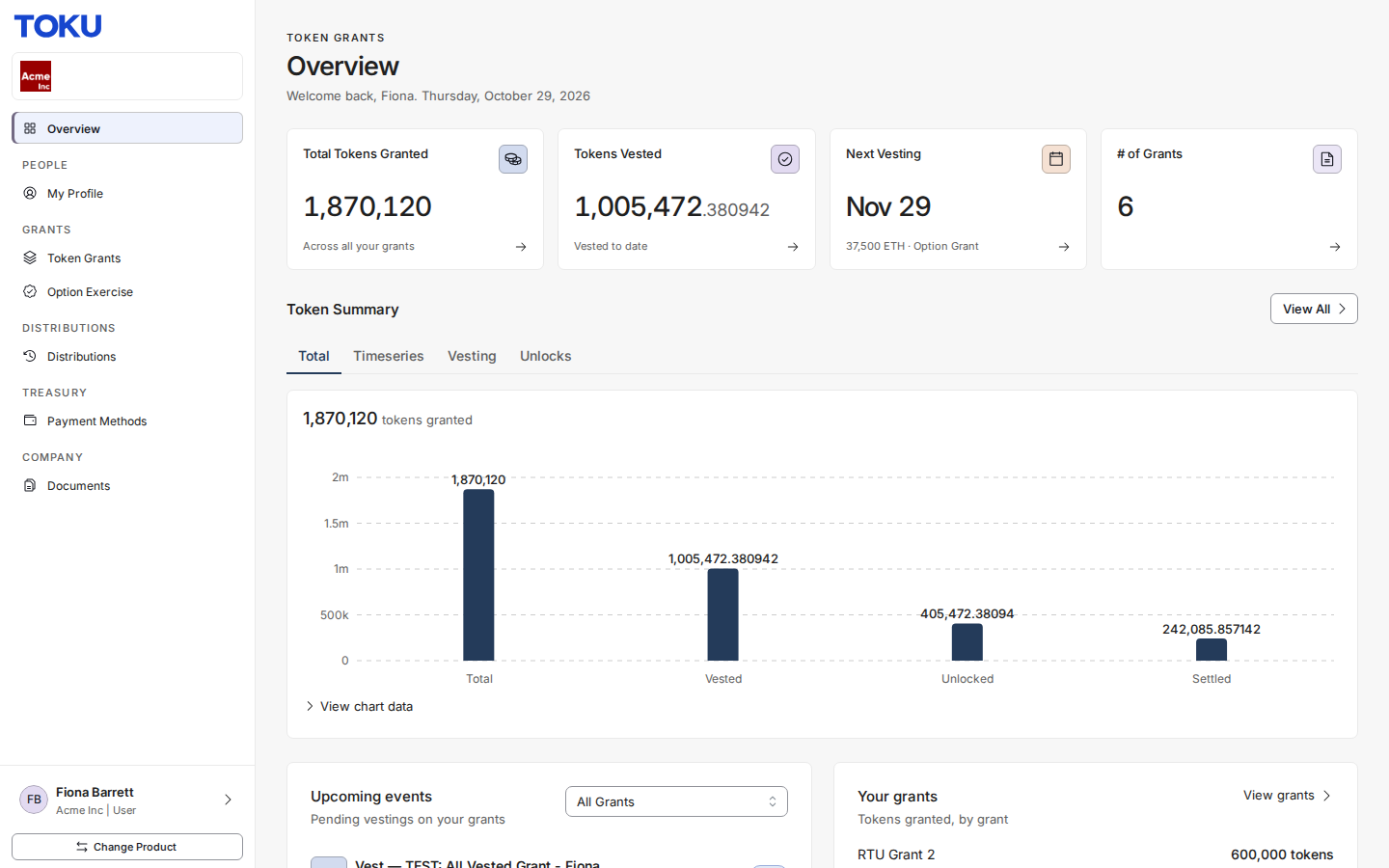
After logging in, you'll be directed to your Overview page showing a summary of your token grants.
💡 Tip: If you've forgotten your password, click the "Forgot Password" link on the login page to reset it.
Step 2: Find Distributions in the Sidebar
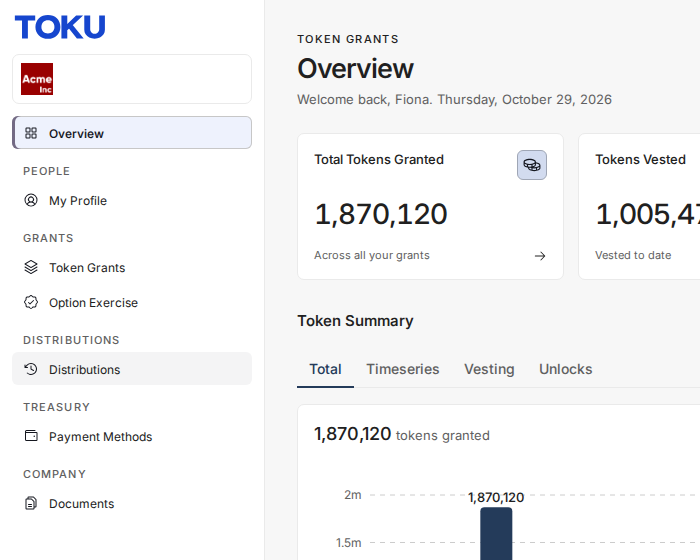
Look at the left sidebar navigation. You'll see several menu options including Overview, Token Grants, and Distributions.
Distributions is listed under the Distributions heading. There is no Tools menu to expand.
Step 3: Navigate to Distributions
In the left sidebar, click on Distributions.
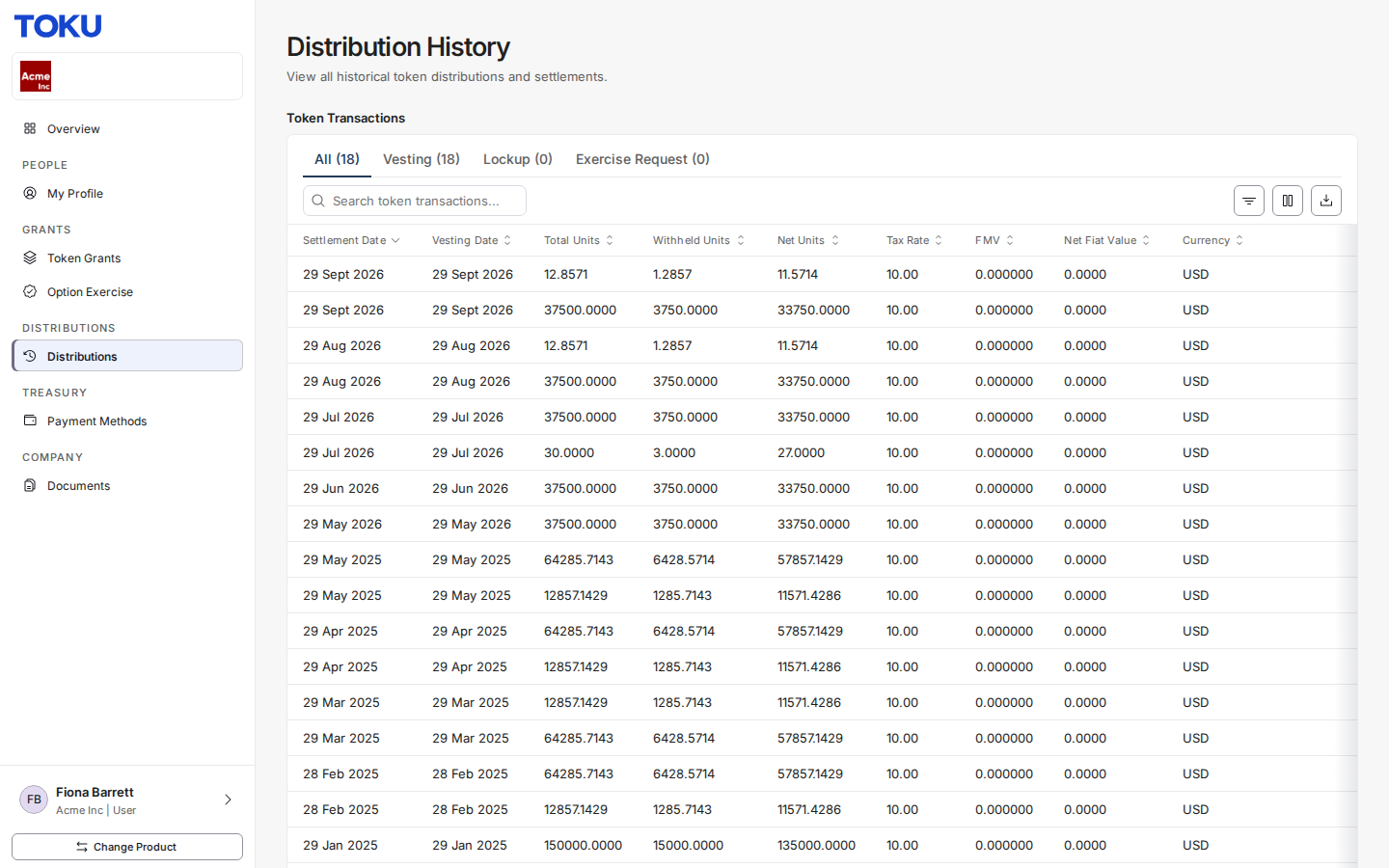
This will open the Distribution History page, whose Token Transactions table displays your complete distribution history.
Step 4: View Your Historic Transactions
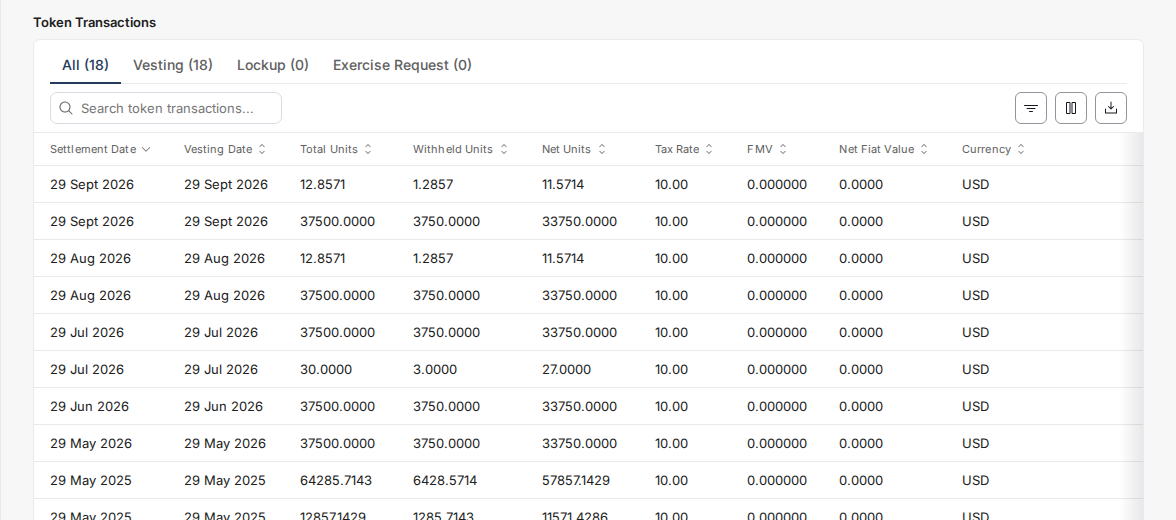
In the Token Transactions table, you'll see all your past distributions. Each row represents a single distribution event and includes the following information:
| Column | Description |
|---|---|
| Settlement Date | The date when the distribution was settled on-chain |
| Vesting Date | The date when the tokens originally vested according to your grant schedule |
| Total Units | The total number of tokens included in this vesting event |
| Withheld Units | Tokens withheld for tax obligations (if applicable) |
| Net Units | The actual number of tokens transferred to your wallet |
| Tax Rate | The tax rate applied to this distribution (if applicable) |
| FMV | Fair Market Value per token at the time of distribution |
| Net Fiat Value | The fiat currency value of your net tokens at distribution |
| Currency | The fiat currency used for valuation (e.g., USD, CAD) |
| Grant Name | The specific token grant associated with this distribution |
| Transaction Hash | The unique blockchain transaction identifier |
| Transaction Link | Link to view the transaction on-chain |
| Tax Details | Link to view tax-related information for this distribution |
Additional Features
Search and Filter
Use the search bar at the top of the Token Transactions table to quickly find specific distributions. You can search by grant name, date, or transaction hash.
Customize Your View
Click the Columns button to show or hide specific columns based on your preferences. This allows you to focus on the information most relevant to you.
Export Your Data
Click the Export CSV button to download your distribution history. This is useful for personal record-keeping, tax preparation, or sharing with financial advisors.
Filter by Date or Grant
Use the Filters option to narrow down your view to specific time periods or particular grants. This is especially helpful if you have multiple grants or a long distribution history.
Frequently Asked Questions
Q: Why don't I see any distributions?
Distributions only appear after tokens have been settled to your wallet. If you have an approved grant but no distributions, it may mean your first vesting event hasn't occurred yet, or the settlement is still being processed.
Q: What does the Transaction Link show?
Clicking the Transaction Link will open a blockchain explorer where you can verify the on-chain transaction details, including the exact amount transferred, the destination wallet address, and the block confirmation status.
Q: Why are some tokens shown as "Withheld"?
Depending on your jurisdiction and employment arrangement, a portion of your tokens may be withheld to cover tax obligations. The withheld amount is typically sold or transferred to cover estimated tax liabilities on your behalf.
Q: Can I download a report for my tax advisor?
Yes! Use the Export feature to download your distribution history as a spreadsheet file. This includes all relevant tax information such as settlement dates, FMV at distribution, and fiat values.
Troubleshooting
⚠️ Common Issues and Solutions Page won't load: Try clearing your browser cache or using a different browser. Toku works best with Chrome, Firefox, or Edge.
Missing distributions: Check that you're viewing the correct organization if you have access to multiple. Your organization name appears under your name at the bottom of the sidebar.
Export not working: Ensure your browser allows downloads from app.toku.com. Check your browser's download settings or popup blocker.
Need Help?
If you have questions or need assistance that isn't covered in this guide, please reach out to your organization's Toku administrator or contact Toku support.
Quick Reference: Navigation Path
Login → Distributions → View Transactions