
 4 MIN READ
 UPDATED OCT 30, 2026
This document outlines the procedures of enabling Okta authentication for the Toku application. It is intended for administrators and stakeholders responsible for authentication and access control within their organization. The guide assumes basic familiarity with Okta and requires administrative privileges to authorize users in their organization to sign in with Okta.
Prerequisites
Please ensure the following before starting the integration:
- You have an active Okta account for your organization, with administrator access.
- All intended Toku users are provisioned in your Okta directory
- The login email for each employee in Toku matches the Okta Username for that user. Consistency is required to avoid sign-in failures.
- Toku will provide you the orgID for your account Integration Process Overview
The integration consists of three high-level steps:
-
Create and configure an Okta application
-
In Okta Admin, add a new OIDC application appropriate for a web app.
-
Configure sign-in redirect and sign-out URLs (Toku related urls will be shared)
-
Assign users or groups to the application as per your preferences
-
Collect required integration details
-
From Okta: Client ID, Client Secret, and the Issuer url.
-
From Toku: Redirect URI(s) to register in Okta and your org ID in Toku.
-
Enable Okta in Toku (self-serve)
-
Update your organization settings in the Toku app
-
Enable Okta authentication and enter your Client ID, Client Secret and Issuer Url (or shared these three information with us if you want us to configure) Steps
-
Log in to your Okta Admin Dashboard.
-
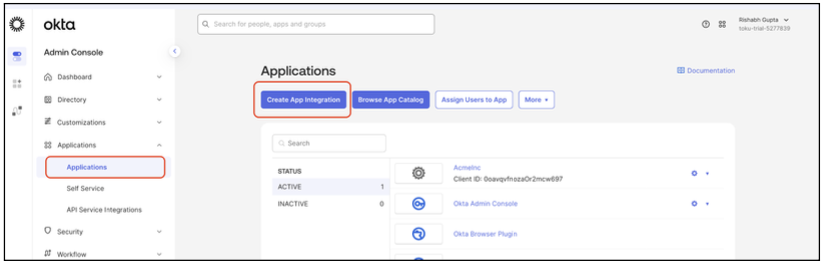
Navigate to Applications > Create App Integration.
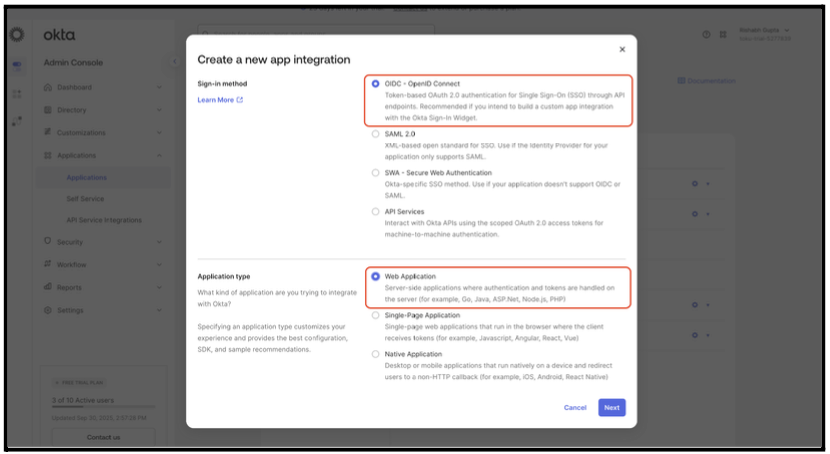
- Choose OIDC - OpenID Connect as the Sign-in method and Web Application as the Application type.
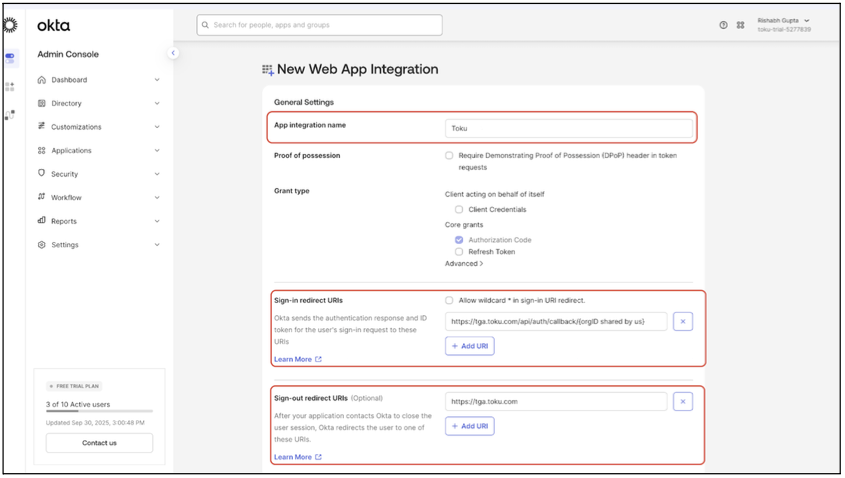
- Hit "Next" and provide the following details
- App integration name: Choose a name (eg. “Toku”)
- Sign-in redirect URIs: https://app.toku.com/api/auth/callback/{orgID} Replace {orgID} with your Toku org ID shared by us.
- Sign-out redirect URIs: https://app.toku.com/
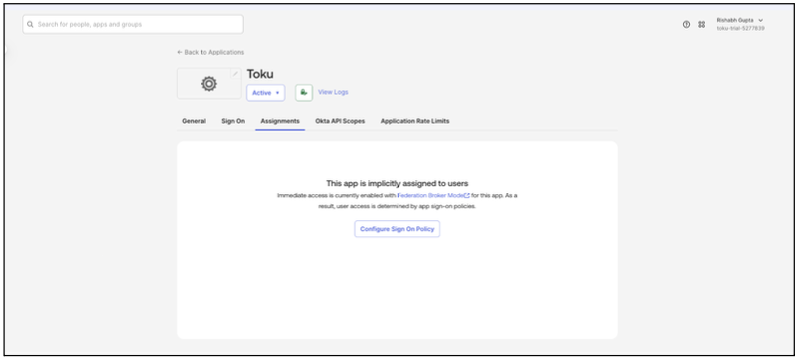
- Set the Assignments option based on your preference - Your default assignment rule will be picked up
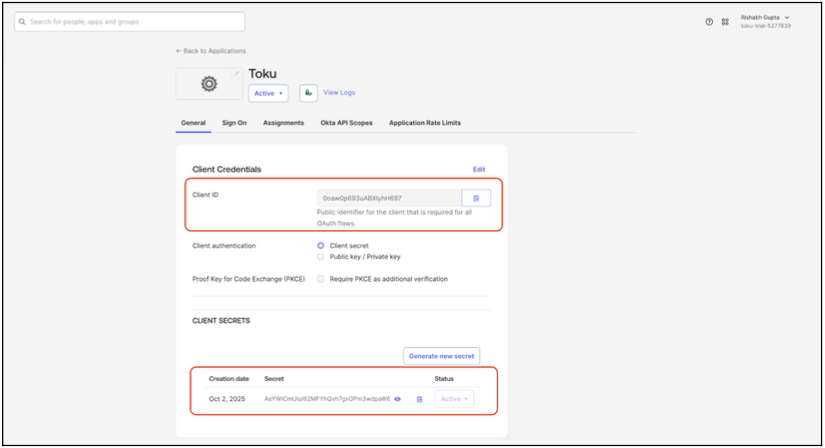
- After creating the app, note down the following information
- Client ID
- Client Secret
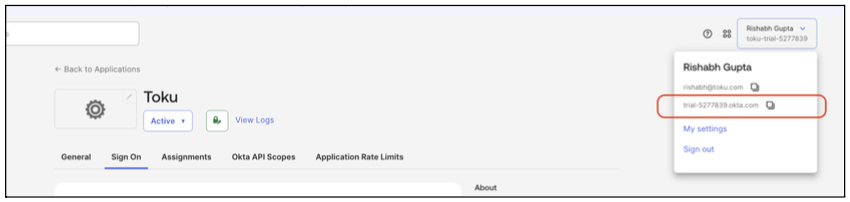
- Okta Issuer URL (click on your account name in the top right corner)
- For the image below, issuer url is https://trial-5277839.okta.com7.
- Share with us your Client ID, Client secret and Okta issuer URL or you can enable it from your Toku account as well.
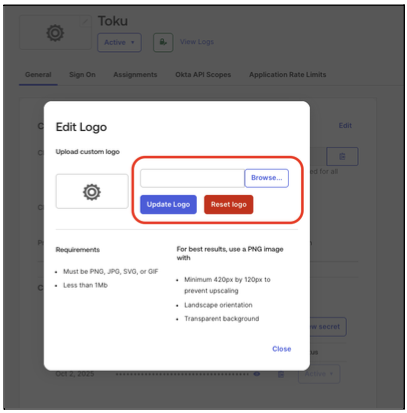
- Logo update for Toku application
- Select the Pencil Icon

- Select Browse
- Use the logo from here (Download the below .png image from the 3 dots on top right of the image)

Self serve: Enable Okta On Your Toku account as a Toku Admin
If your Okta administrator has access to your Toku account these actions can be self serve. If not please work with Toku directly to share the Okta Client ID, Okta Client Secret Key, and Okta Issue URL and we can complete the integration on our side.
- Sign in to your Toku account.
- Go to Organization Settings from the profile menu at the bottom left
- Get your organization ID for your Okta setup from Toku (the Organization Settings page doesn't currently display it)
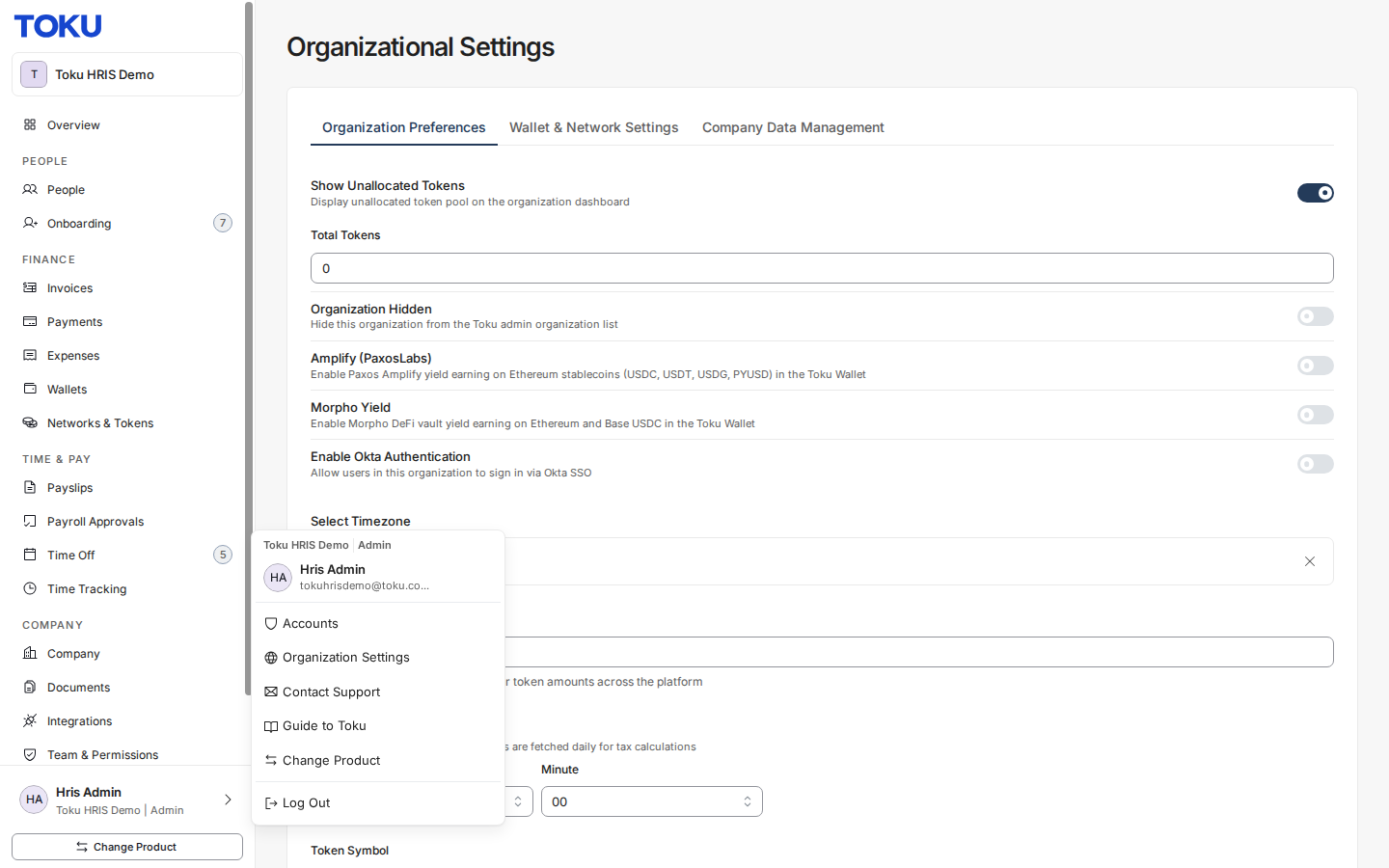
- Toggle switch to enable Okta authentication
- Enter the three fields
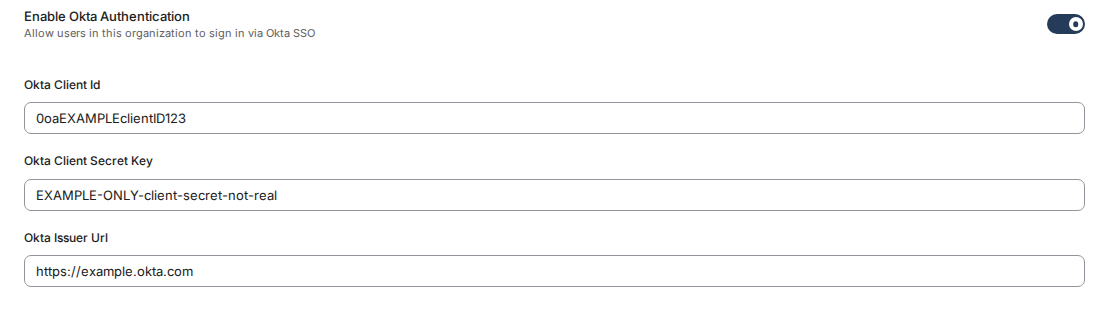
- Note: Ensure the URL starts with “https://”
- Hit Save Okta is now enabled for your account.!
Okta Validation
Navigate to https://app.toku.com/ and enter your email address. You will see a “Login with Okta” button
Okta Browser Plugin extension: Make Toku Tile visible (Optional)
This section is an optional feature that you can enable to give users access to the app without needing to remember the URL. This assumes that all users have Okta browser plugin extension installed on their browsers
- Navigate to general settings under “General” tab of your new app
- Edit General settings

- Choose “Either Okta or App” for login initiated by field
- Add “Initiate login URI” : https://app.toku.com/login?product=stablecoin_payroll
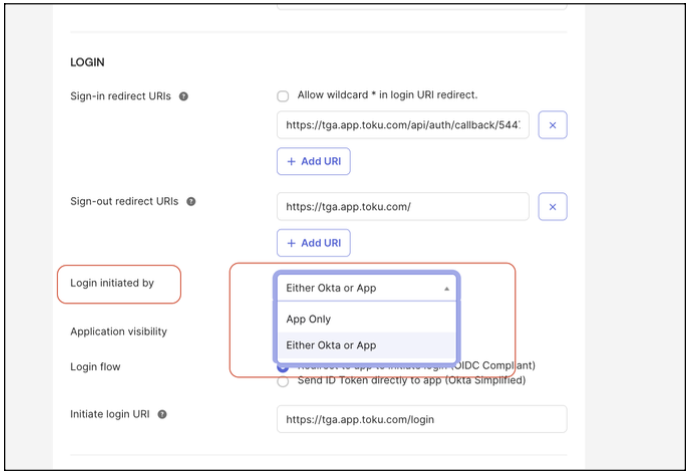
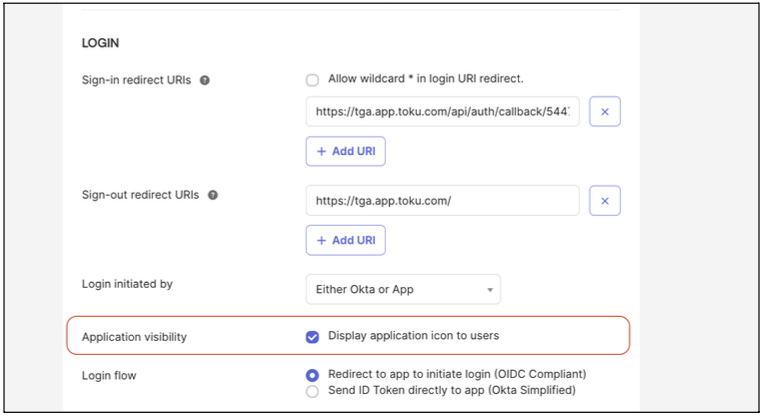
- Check Application visibility field to display the icon. Make sure all the intended users are assigned this app for Toku tile to be visible in their Okta login layout
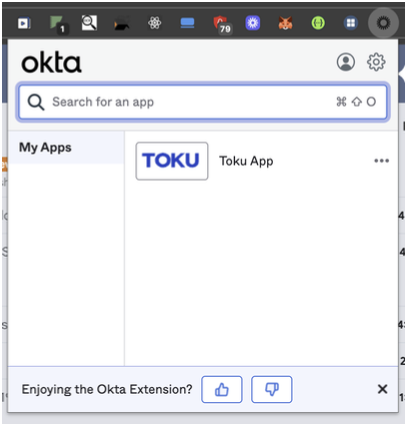
- Updated layout for user will look like this:
Rotating your Okta Client Secret
For the separate, publicly shareable rotation guide in Employment, see Rotate your Okta client secret for Toku.
CONFIDENTIALITY NOTICE: resource and any attachments are only for the use of the intended recipient and may contain information that is privileged, confidential or exempt from disclosure under applicable law. If you are not the intended recipient, any disclosure, distribution or other use of this resource or attachments is prohibited. If you have received this resource in error, please delete and notify the sender immediately. Thank you.