
 5 MIN READ
 UPDATED AUG 19, 2026
Applies to: Logging in to the Toku HRIS / Payroll platform Audience: Clients, Employees, and Customer Support Last updated: August 19, 2026 for the move to app.toku.com and the new two-step sign-in.
Login Troubleshooting Steps
If you can't log in, try these steps in order. Most issues are fixed by Steps 1-4.
Step 1: Use the correct web address
- Always sign in at app.toku.com
- Bookmark this exact link and use it every time.
- Don't use
tga.app.toku.com, old email links, or search results - that is the old address. It redirects, but a stale bookmark or cached page can leave you looking at a sign-in screen that no longer works.
Step 2: Enter your email, then your password
There are no product tabs any more. Everyone signs in on the same page, and Toku sends you to the right product (Employment, Token Grants, or Stablecoin Payroll) after you sign in.
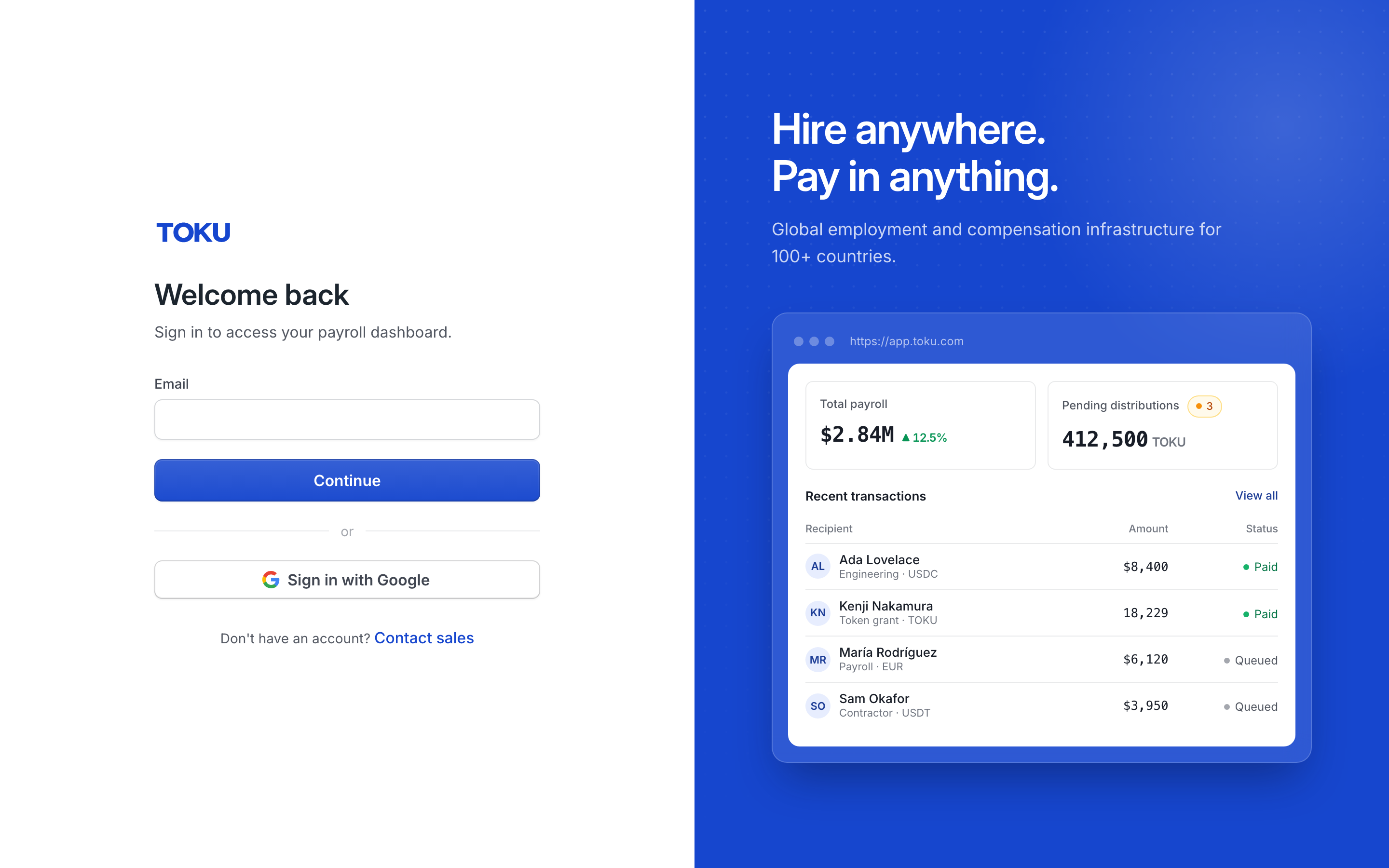
The first screen says Welcome back and asks only for your email address. Enter it and select Continue.
The second screen asks for your password. Enter it and select Sign in.
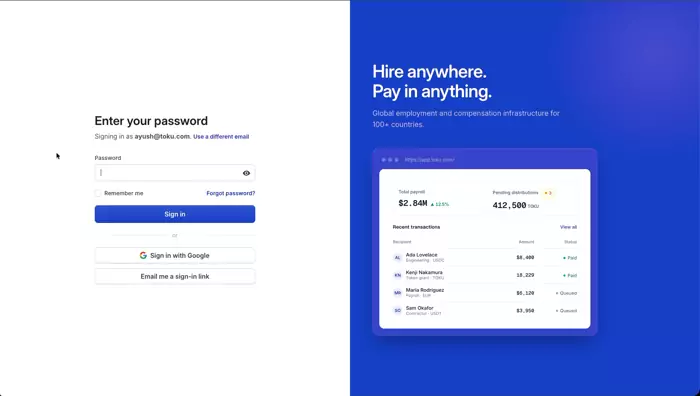
Two alternatives on that screen if a password is the problem:
- Sign in with Google — works if your Toku email is a Google account.
- Email me a sign-in link — Toku emails you a link that signs you in without a password. It works once and expires after an hour.
Step 3: Use the correct email
- Use the exact email Toku invited you with (check your original invitation email if unsure).
- Watch for typos, extra spaces, or mixing up personal vs. work email.
- If the first screen does not recognize your email, there is no Toku account on that address - check the invitation, or contact support.
Step 4: Enter your password and 2FA code
- Enter your password carefully, plus the current code from your authenticator app if prompted.
- Forgot your password? Select "Forgot password?" on the password screen, enter your email, and select Send reset link.
Step 5: Still stuck? Do a clean reset
This fixes most "stuck loading," "old screen," or "invoices won't open" issues.
Option A - Incognito/private window (quickest)
-
Open a private window:
Ctrl+Shift+N(Windows) orCmd+Shift+N(Mac/Safari) -
Go to app.toku.com
-
Sign in using Steps 1-4 above Option B - Clear cache & cookies
-
Log out of Toku
-
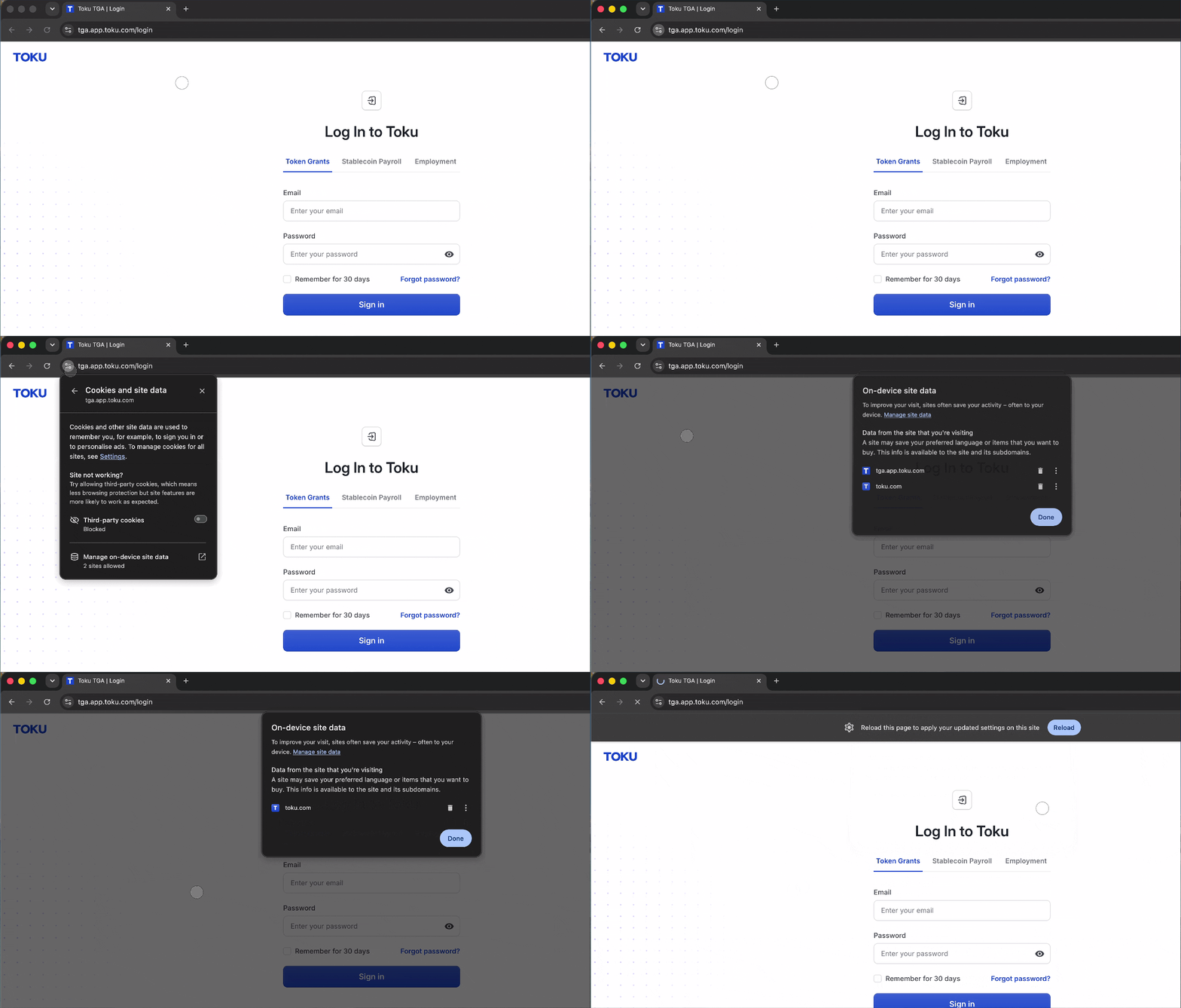
Clear browser cache and cookies (Chrome/Edge: Settings → Privacy → Clear browsing data; Safari: Settings → Privacy → Manage Website Data → Remove All)
-
Close and reopen the browser
-
Go to app.toku.com and sign in again
🎬 Clearing cache & cookies
Option C - One-click reset
- Go to https://app.toku.com/tokuUserVerify
- This logs you out and clears saved login info
- Go back to app.toku.com and sign in
Step 6: Still stuck? Contact support
Please include:
- Your full name and login email
- Your company/organization name
- The exact web address you used
- Your browser and device (e.g., Chrome on Windows, Safari on iPhone)
- Which sign-in method you used (password, Sign in with Google, or the emailed sign-in link)
- A screenshot of the screen or error
- Whether you already tried incognito and
/tokuUserVerify
Support Escalation Process - Only for Admins
Goal: resolve common login issues before escalating to Engineering. Only escalate after every checklist item is confirmed and the user still can't log in.
Pre-escalation checklist (run live with the user)
- Correct URL - confirm
https://app.toku.com, not the retiredtga.app.toku.comor an old/cached link - Sign-in method - confirm whether they used a password, Sign in with Google, or the emailed sign-in link. There are no product tabs any more, so "wrong tab" is no longer a possible cause
- Correct email - matches their Toku invite exactly; check for typos or work/personal mix-up
- Password / MFA - send password reset if unknown; confirm current MFA code and device time if MFA fails
- Clean session - try incognito, clear cache/cookies, or
/tokuUserVerify, then sign in again
Symptom triage
| What the user sees | Most likely cause | What to do |
|---|---|---|
| Spinner never finishes / keeps reloading | Old bookmarked URL or cached old session | Confirm app.toku.com, run /tokuUserVerify or incognito, sign in again |
| Old screen, or invoices won't open | Account resolving an older org record | Sign in again after /tokuUserVerify. If still old → escalate |
| "User does not have a role in the org" | Account/role setup issue | Escalate - needs account check |
| "Invalid credentials" on the password screen | Wrong password | Reset password, or have them use the emailed sign-in link |
| Email not recognized on the first screen | No account on that address | Re-confirm the invited email; escalate if it matches the invite |
When to escalate to Engineering
Escalate only if all checklist items pass and the user still can't sign in, or still lands on the old view after reset.
Include in the escalation:
- Full name + exact login email
- Company/org name
- Exact URL used and which sign-in method
- Browser + OS
- Screenshot of the error/screen
- Date/time of the attempt
- Confirmation that incognito and
/tokuUserVerifywere already tried
✅ Quick Do / Don't reference Do: sign in at
https://app.toku.com· enter your email, select Continue, then your password · use your Toku invite email · try Sign in with Google or an emailed sign-in link · try incognito or/tokuUserVerifyif stuck Don't: use the retiredtga.app.toku.comor old/bookmarked/Google links · look for the old Employment / Token Grants / Stablecoin Payroll tabs, which no longer exist · keep retrying the same way without clearing your session