
 3 MIN READ
 UPDATED OCT 30, 2026
📘 For all Toku users on Toku. Last updated October 30, 2026.
If you see "Invalid email or password" when signing in, work through these checks to fix it in a minute or two.
Before you start
- You are on the Toku sign-in page at app.toku.com. (This replaced
tga.app.toku.com, and there are no longer three product tabs to choose between - everyone signs in on the same page and Toku sends you to the right product afterwards; if your login has more than one, you pick it on the Choose how you'd like to continue screen.) - You have the email address and password you use to sign in ready.
How signing in works now
Signing in takes two screens. First you enter your email address and select Continue.
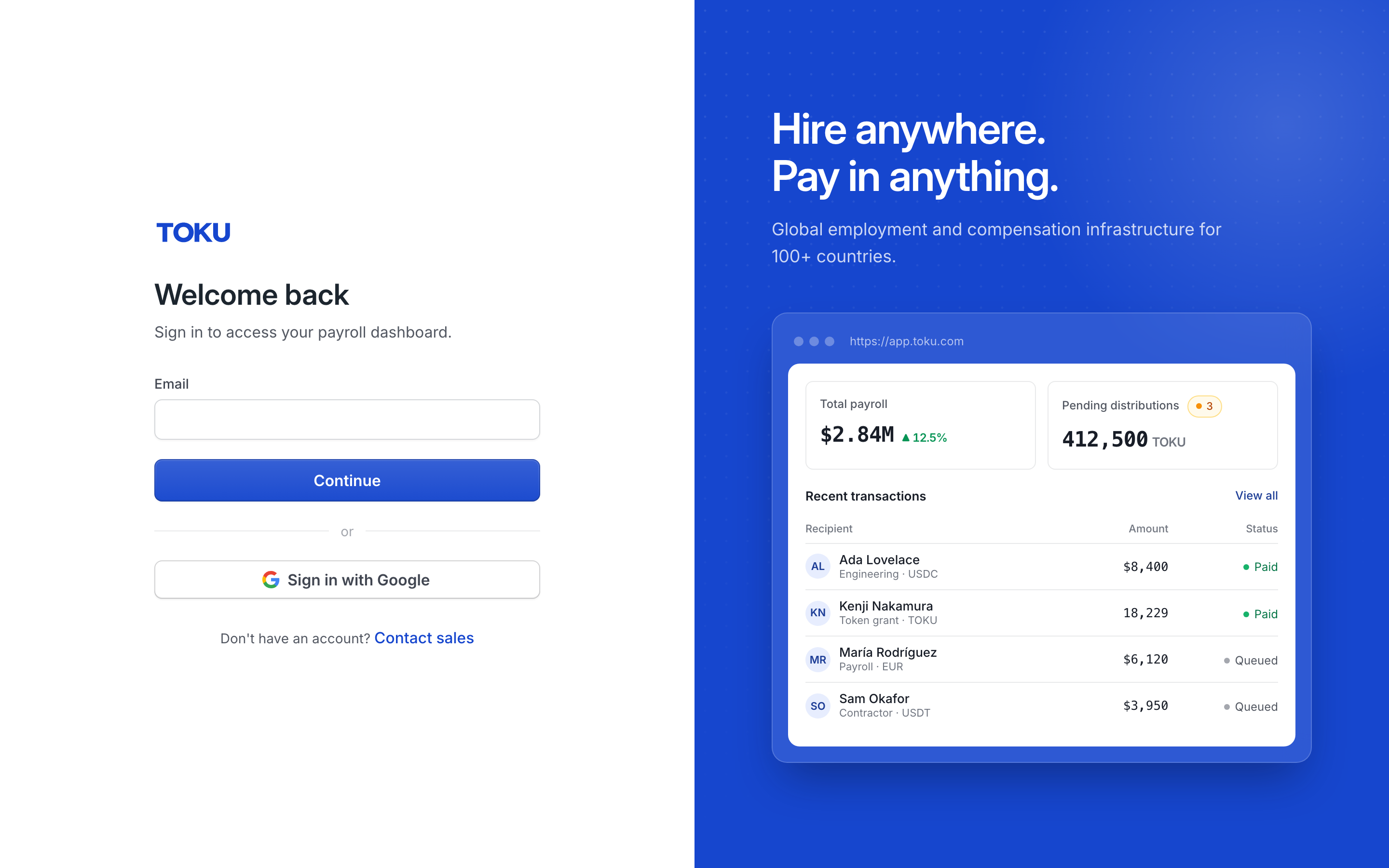
Then you enter your password and select Sign in. The "Invalid email or password" message appears on this second screen.
You can also skip the password entirely: select Sign in with Google if your Toku email is a Google account, or Sign in with email, then Send sign-in link, and open the link Toku emails you - it works once and expires after an hour.
Work through the checks
- Check 1 - Correct email? Compare your email letter by letter with the one that received your Toku invitation. Check for extra spaces or mixed-up work and personal email addresses. If the email is not recognized at the first screen, no Toku account exists for it.
- Check 2 - Old password? If your account was created on an older Toku website, that old password does not carry over. If you ever had an account on this upgraded platform (for example, for token grants or stablecoin payments), use that password. When in doubt, reset it.
- Check 3 - Right address? Make sure the address bar reads
app.toku.com. Old bookmarks, old email links, and search results may still point attga.app.toku.com; that address redirects, but a stale cached page can leave you on a sign-in screen that no longer works. Typeapp.toku.comin fresh if anything looks unfamiliar.
Reset your password
- Select the Forgot password? link on the password screen. The Forgot password? page opens, reading "Enter the email for your Toku account and we'll send you a reset link."
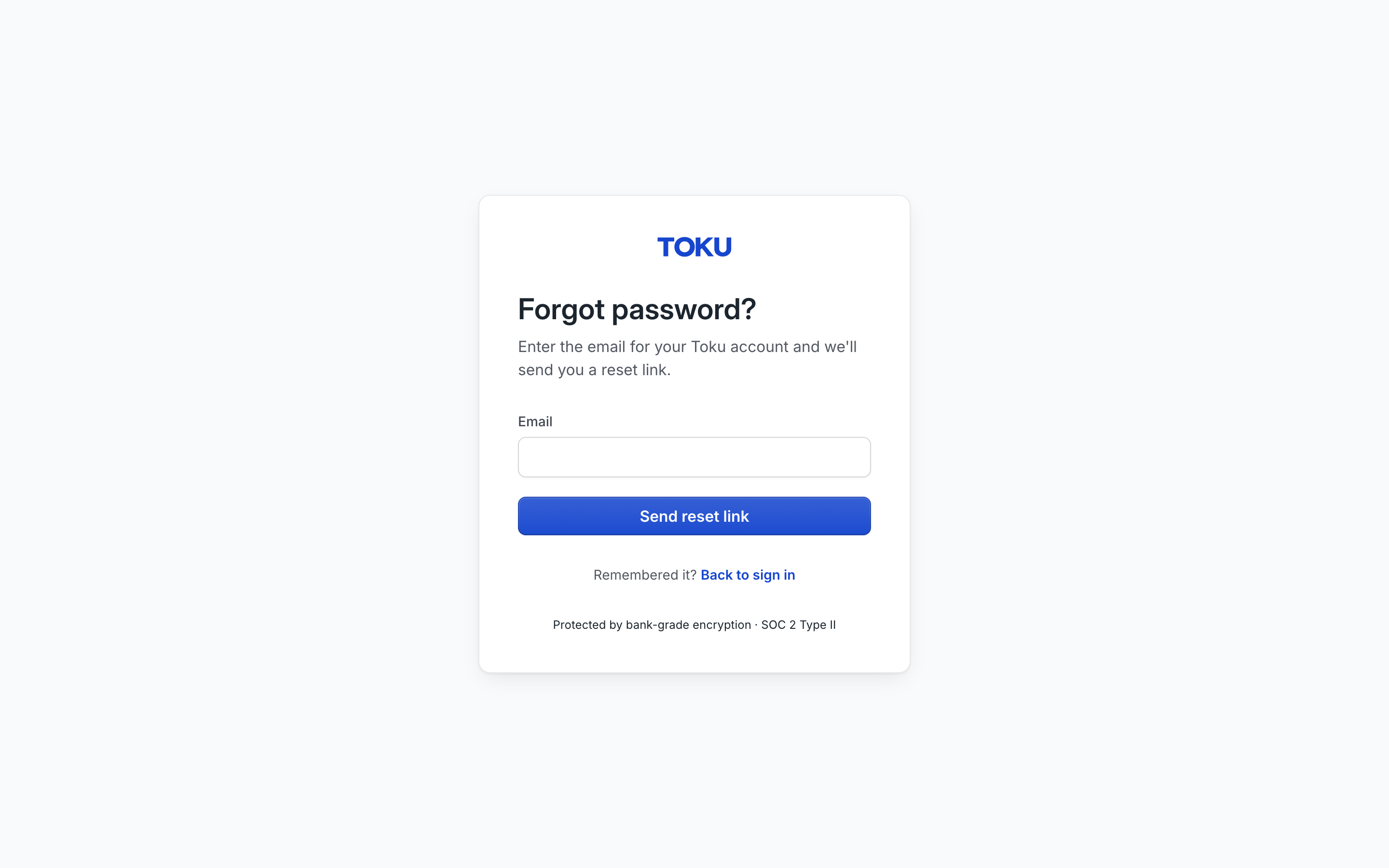
- Select the Email box and type the exact email address you use to sign in.
- Select the Send reset link button. Toku emails you reset instructions - check your spam folder if nothing arrives within a few minutes. Follow the link in that email to choose a new password, then return to the sign-in page and sign in with it. To go back without resetting, select Back to sign in.
Other common issues
- Page stuck loading: close the tab and open a private (incognito) window. Go to app.toku.com and try signing in there. If that works, clear your browser's cache and cookies and try the regular window again.
- Two-factor authentication code not working: see Troubleshoot two-factor authentication problems for step-by-step help.
Good to know
- Your account is rarely broken when this error appears - it is usually a typo, an old password that needs resetting, or a stale bookmark pointing at the retired address.
- Password resets typically work within a couple of minutes, but the email can take a few minutes to arrive.
- If you would rather not deal with a password at all, the emailed sign-in link on the password screen gets you in without one.
Still stuck?
You can email [email protected] to reach our support team. Please include your email address, organization name, and a description of what happened. Screenshots and videos are always welcome to speed up the troubleshooting process. Feel free to reach out any time for further assistance.