
 4 MIN READ
 UPDATED NOV 2, 2026
📘 For organization administrators on Toku. Last updated October 30, 2026.
Understand how compensation changes work behind the scenes: when they take effect, approval workflows, and what your employees see in their accounts.
Before you start
- This is background context for anyone who submits or manages compensation changes.
- For step-by-step instructions, see How to change a base salary or How to add bonuses and one-time payments.
- Payroll cutoff is the 10th of each month for most countries. Requests submitted on or before the applicable cutoff are eligible for that month's payroll only once required review, approvals, and pre-funding are complete. Late requests move to the next eligible regular payroll cycle.
- Payments are never processed immediately — they are always tied to the next eligible payroll cycle.
- Need a payment sent sooner? Off-cycle payments start at an additional $49 per person.
- Employee pre-funding: For EOR, PEO, and payroll-only employees, additional payments over $5,000 USD require pre-funding. Whenever pre-funding is required, including termination or severance payments, submit complete changes and payment details in Toku by the 10th. Toku reviews those submissions and sends invoices on the 11th or next business day. Full funds must be received and cleared by the 14th for that month's payroll consideration. Funding received after the 14th moves the additional payment to the next eligible regular payroll cycle. Earlier cycle cutoffs still apply. Contractor deadlines are separate. See Additional Compensation Changes Over $5,000: Prefunding Approval.
How effective dates work
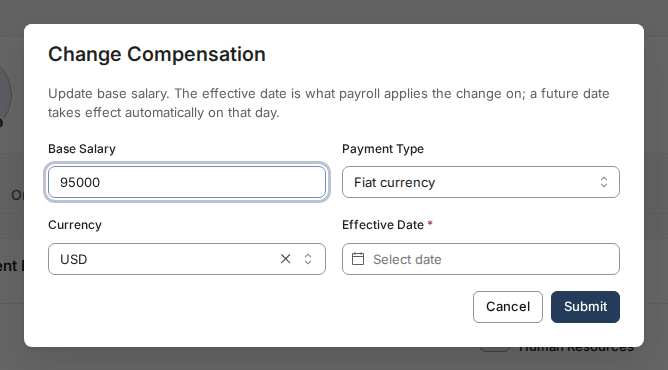
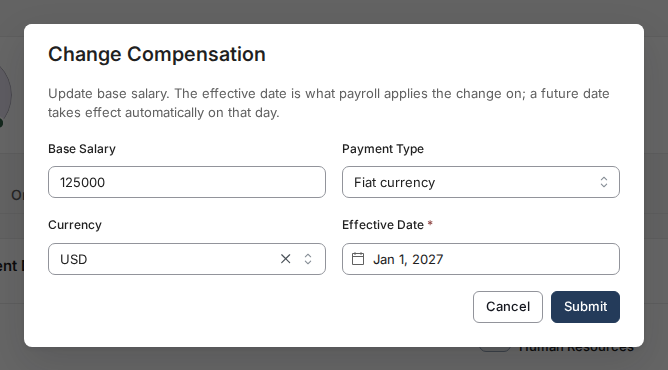
- Every change and payment has an effective date. The Effective Date field is required. When you pick today or an earlier date, the change is applied as soon as it's processed. When you pick a future date, the change is saved now but only becomes active automatically on that day.
Large amounts may take longer
- Very large bonuses or salary increases may need extra processing time on Toku's side. If a payment must land by a specific date, submit it as early as possible and confirm timing with your Customer Success contact rather than assuming it will process on the standard cycle.
Approvals and pending changes
- By default, a submitted compensation change is saved and reflected on the profile immediately - most organizations don't have a separate approval step for the change itself, and the new figure appears in the Compensation section right away. A future-dated entry instead shows a Scheduled tag until its effective date arrives (see "How effective dates work" above). Some organizations may have compensation changes configured to require Toku review before they apply; if yours does, a submitted change may not appear immediately and the change is listed in the Compensation section with a yellow Pending approval tag (and, for a salary change, a "Changes pending approval" notice appears on Employment Details) until the review is complete. Separately, Toku's payroll team reviews the resulting payroll run on the Payroll Approvals page - each run shows its period, country, headcount, and approval status, and an org admin approves the run before payments go out. If a change you submitted doesn't show up on the person's profile, don't resubmit it - contact Toku support first, since duplicates create extra correction work later.

What employees see
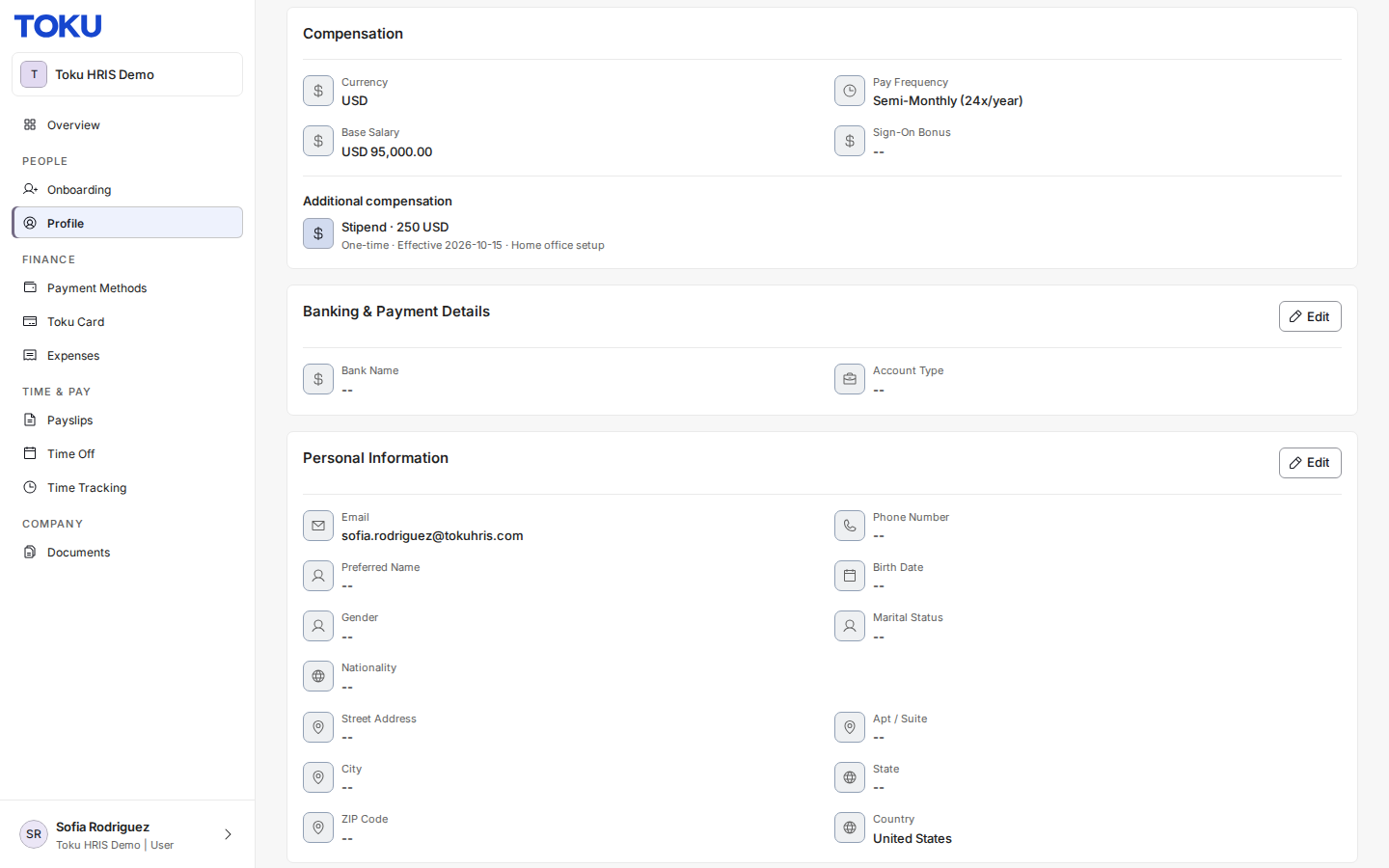
- When employees sign in to their account and open Profile from the left-hand menu, they see the same Compensation section you use, including Additional compensation - but view-only, with no edit, remove, or add buttons, and without Salary history. They cannot see any entries with a future effective date until that date arrives.
Good to know
- Once a base-salary change is applied, the new figure appears in the Base Salary row of the Compensation section of the employee's profile.
- Entries you schedule with a future effective date don't appear in your employee's profile until that date arrives - that's expected behavior.
Still stuck?
You can email [email protected] to reach our support team. Please include your email address, organization name, and a description of what happened. Screenshots and videos are always welcome to speed up the troubleshooting process. Feel free to reach out any time for further assistance.