5 MIN READ
 UPDATED NOV 5, 2026
📘 For organization administrators on Toku. Last updated November 5, 2026.
Toku automatically watches two dates on people's profiles, a contract end date (for contractors and fixed-term employees) and anyone's work authorization or visa expiry date, so your organization has time to act. Each administrator receives the resulting emails according to their own Email Notifications preference.
Before you start
- The date monitoring is automatic; there is no organization rule to enable. Email delivery is not unconditional: each administrator can set Email Notifications to Off, Immediate, or Daily for their own account.
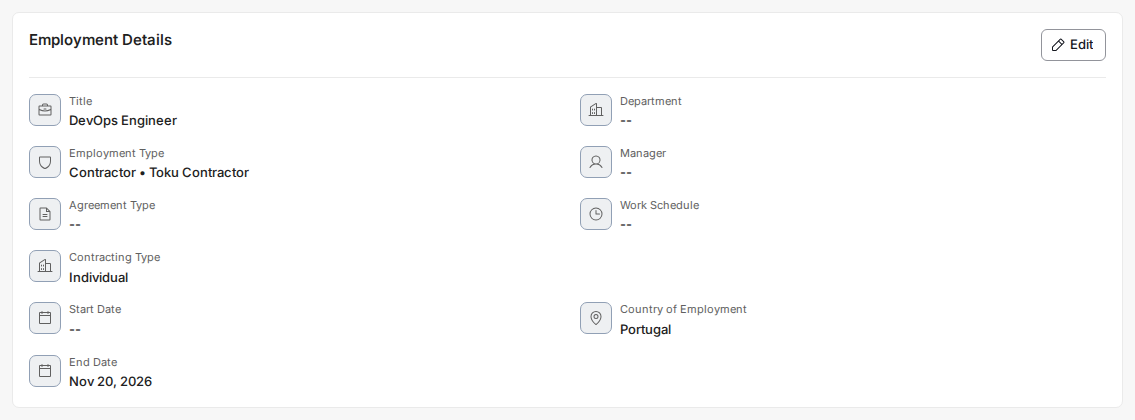
- A contractor's or fixed-term employee's End Date lives in the Employment Details section of their profile (see How to Submit Salary and Employment Changes for exactly where). For a fixed-term employee you can also record the Reason for the fixed term there.
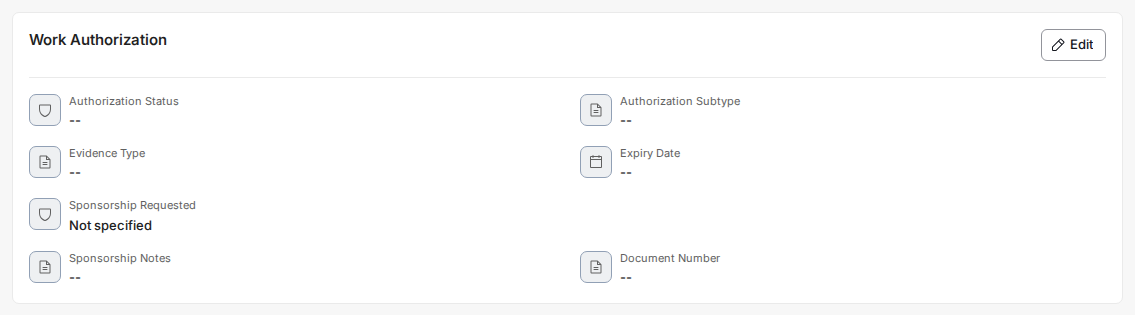
- A work authorization or visa Expiry Date lives on the Work Authorization card on a person's profile - see How to Request Visa or Immigration Support for exactly where. This applies to employees as well as contractors.
- You need administrator access to your organization on Toku to see the profiles these notices link to.
How the contract-ending notice works
- Toku checks every End Date once a day. For a fixed-term employee your organization is notified 60 days and again 30 days before the End Date; for a contractor, 30 days before. Each notice goes out once for the same date.
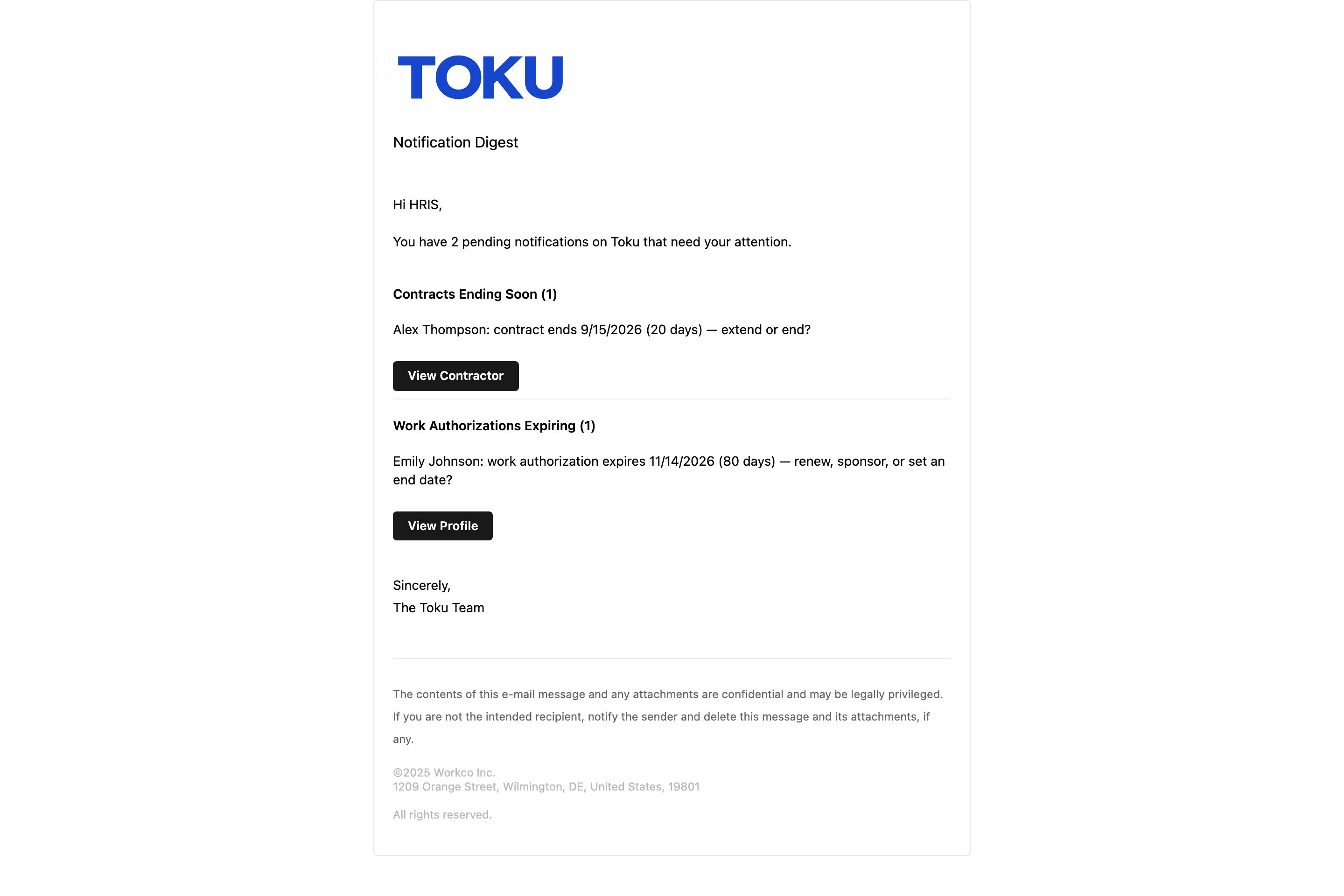
- The notice is titled Contracts Ending Soon, and lists the person by name with a plain question: “[name]: contract ends [date] ([number] days), extend or end?”
- Use the notice to decide whether to extend or end the contract. If you extend it, record the new End Date (a fixed-term employee's extension also needs an amendment to their signed agreement, which Toku prepares); if you end it, use the termination flow.
- Open-ended employees never produce this notice: ending their employment is a termination, which the separate termination process handles. Payroll-only employees don't get it either.
How the work authorization and visa notice works
- Toku also checks every work authorization Expiry Date once a day - for employees and contractors alike, since a right to work matters either way.
- You're notified before the date: at 6 months, 3 months, and 1 month out. A renewal or a fresh sponsorship has to be filed with a government, and that alone can take months, so the first notice comes early. If the date passes and the profile still shows it, reminders start again about two weeks after expiry and repeat roughly every two weeks until the profile is updated.
- The notice is titled Work Authorizations Expiring, and asks: “[name]: work authorization expires [date] ([number] days) - renew, sponsor, or set an end date?”
- Use the notice to decide whether to renew, sponsor, or set an end date. Once the outcome is known, keep the profile dates current.
- The person may also receive a reminder at a work or personal email address when one is on file.
How you'll be notified
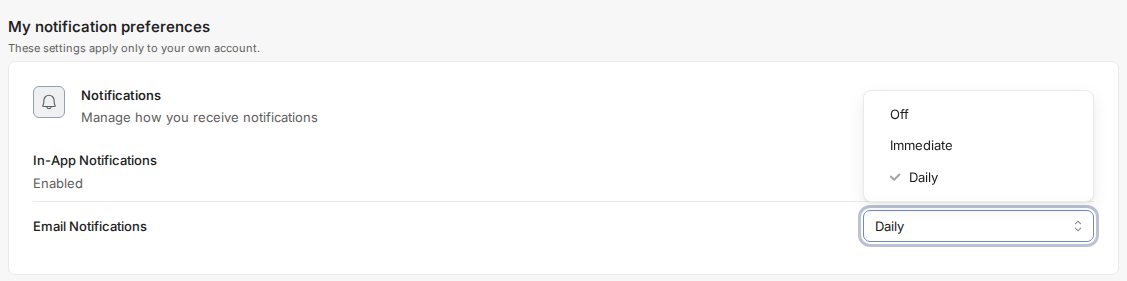
Both notices go out through your own Email Notifications setting. This is a per-administrator preference - it sits under My notification preferences and applies only to your own account, so changing yours doesn't change anyone else's. The organization-wide Approval notifications section just above it covers time-off and expense approvals, not these notices. It starts on Daily, which sends one summary each morning at 8:00 UTC; set it to Immediate to get each notice as its own email as it happens, or Off to stop these emails - see Manage Administrator Access and Email Notifications to check or change it.
- Each email groups the notices by type and gives you one button per group, not one per person - View Contractor under the Contracts Ending Soon list, and View Profile under the Work Authorizations Expiring list. On Daily, ten expiring contracts arrive as ten lines under one button; on Immediate, each notice is its own email with a single line and its own button. Either button opens your People list rather than an individual profile, so find the person named in the notice there and open their profile from the list.
- If you have several notices pending, or other Toku notifications waiting, your Daily summary groups them by type - Contracts Ending Soon and Work Authorizations Expiring appear as their own sections, alongside anything else pending.
Good to know
⚠️ A notice depends on the date already being correct on the profile. If an End Date or Expiry Date is missing or wrong, nothing fires for it - so the absence of a notice isn't proof there's nothing coming due.
- Anyone already on the way out - with a last working day or a termination date on file, or already marked terminated - is left out of both notices; that decision has already been made.
- Once you know the outcome, update the profile: a new End Date if a contract is extended, or a new Expiry Date once a work authorization is renewed.
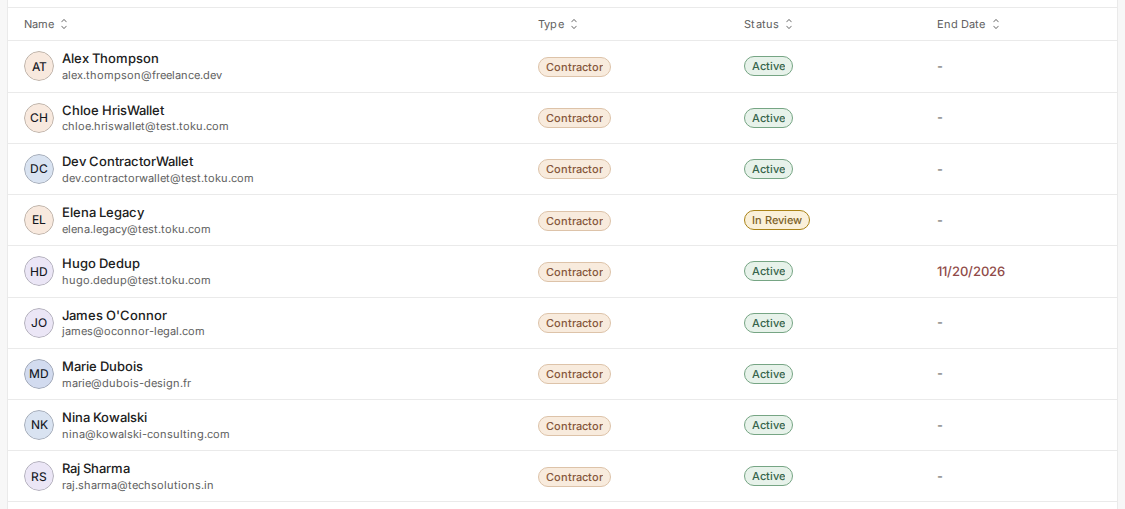
- At a glance: the People list can show an End Date column, and an approaching contractor End Date is highlighted in red.