
 3 MIN READ
 UPDATED OCT 30, 2026
Some countries require your employer to keep a record of your working time. Depending on where you're employed, that record does different jobs: it may document your leave and absences, satisfy a local HR or labour law obligation, or feed directly into how your pay is calculated. In some countries it does more than one of those at once.
If time tracking applies to you, you'll keep a monthly timesheet and submit it to Toku. Your Toku Customer Success Manager can confirm what applies in your country and why.
💡 Timesheet Template
Access the WorkCo Employee Timesheet here: View Timesheet Template →
This is a view-only file. You must make your own copy before filling it out.
Step 1 - Make Your Own Copy
- Open the timesheet link above.
- Go to File → Make a copy in Google Sheets.
- Rename your copy in this format: [Your Full Name] - [Company Name] - Timesheet 2026
- Example: Jane Smith - Acme Corp - Timesheet 2026
- Save it to your own Google Drive. Your copy is private to you by default.
⚠️ Do not edit the master template directly. Any changes you make to the original file will be visible to everyone.
Step 2 - Fill Out Your Timesheet
- Select the correct month tab at the bottom of the sheet (e.g. May, Jun).
- Enter your name in the Employee Name field at the top.
- Set your standard hours using the Apply same hours Mon - Fri row - this auto-fills all Present days with your usual start and end time.
- Update your daily status for each working day using the dropdown:
| Status | When to use it |
|---|---|
| Present | You worked a full or partial day - enter your start and end times |
| Absent | You did not work and it's not a recognised leave type |
| Annual Leave | A pre-approved vacation or personal leave day |
| Sick Leave | You were unable to work due to illness |
| Public Holiday | A nationally recognised public holiday in your country |
- Adjust individual days as needed - just overwrite the Hr / Min / AM/PM cells for that row.
- Review the Total Hours column — it calculates automatically based on your start and end times.
Step 3 - Download and Submit
Once your timesheet is complete for the month:
- Click the month tab you're submitting (e.g. "May").
- Go to File → Download → Comma-separated values (.csv).
- This exports only the active tab, so make sure you're on the right month before downloading.
- Log in to your Toku HRIS profile.
- Navigate to Documents in the left-hand menu.
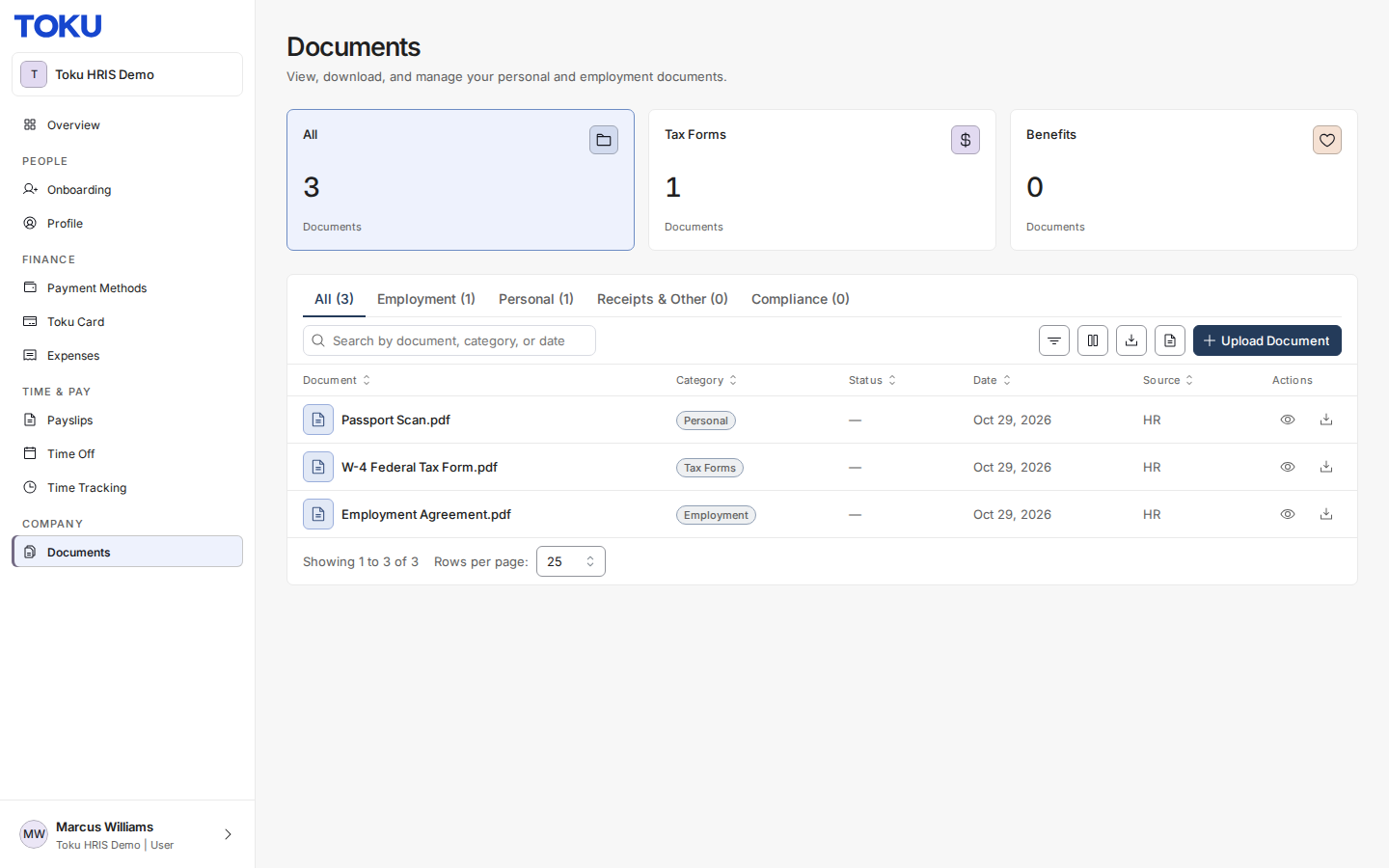
- Click Upload Document and upload the CSV file.
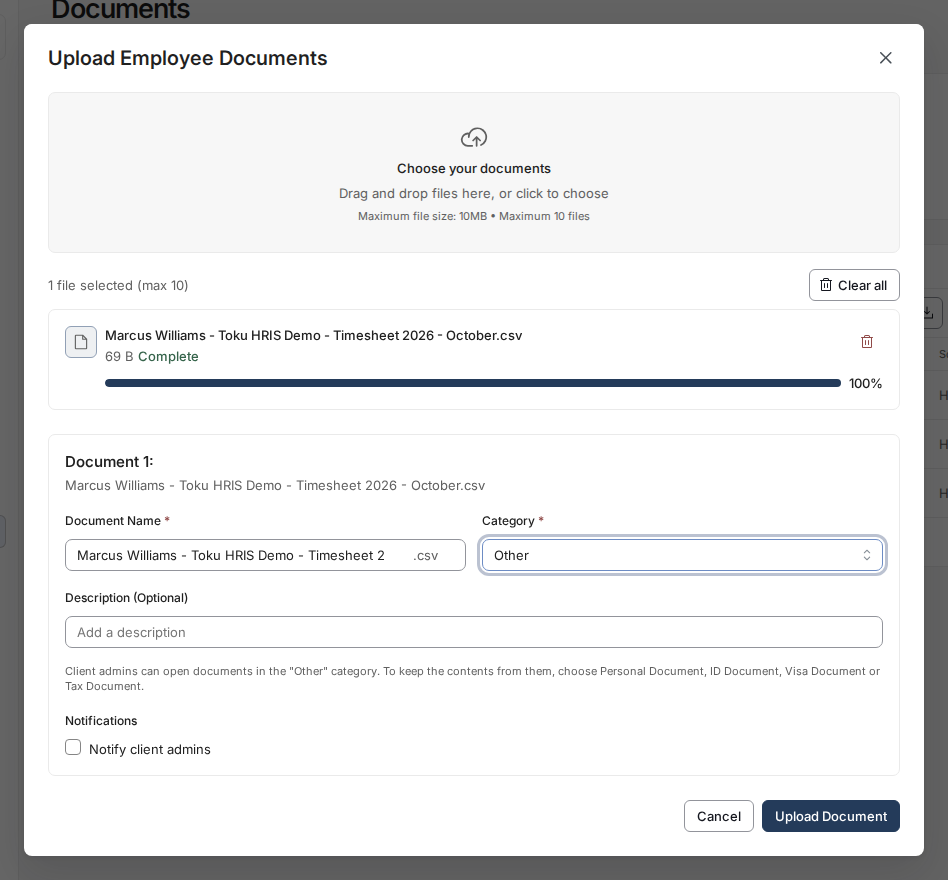
Toku will be automatically notified and will record your hours for the month.
⏰ Submission Deadline & Late Changes
Timesheets must be submitted by the 10th of the month.
If your hours affect your pay and your timesheet arrives after the 10th, or you need to correct hours already submitted:
- Toku will process your standard contracted hours for the current payroll cycle.
- Any difference will be corrected and made whole on the following month's payroll. This keeps payroll running on time while still accounting for any adjustments you need.
If you're on a fixed salary, your timesheet does not change what you are paid. It is still needed on time, because it is the record your employer is required to keep and it documents your leave and absences for that month.
Questions?
Contact your Toku Customer Success Manager or reach out to [email protected].