
 3 MIN READ
 UPDATED OCT 30, 2026
📘 For organization administrators on Toku. Last updated October 30, 2026.
Create leave categories unique to your organization, control which ones appear in requests, and set country-specific leave rules.
Before you start
- Sign in with an administrator account and navigate to the Time Off page.
- Toku includes built-in leave types (vacation, sick leave) that appear automatically on every employee's balance card.
- Only active leave types appear in the request form; inactive types remain visible in historical records only.
Create a custom leave type
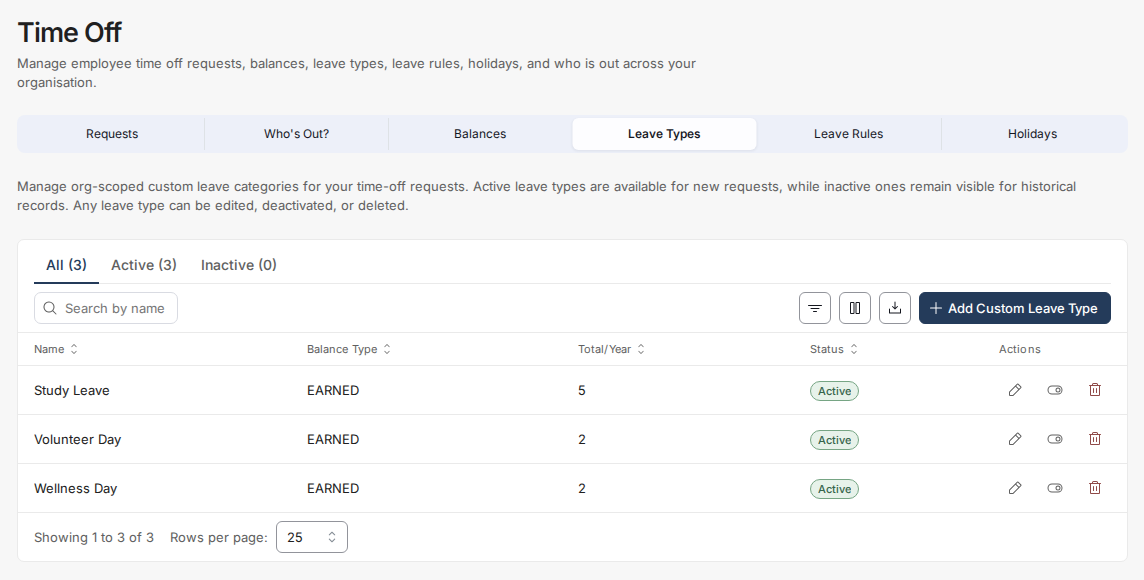
- Select the Leave Types tab. You'll see All, Active, and Inactive tabs with counts, plus a table listing all types.
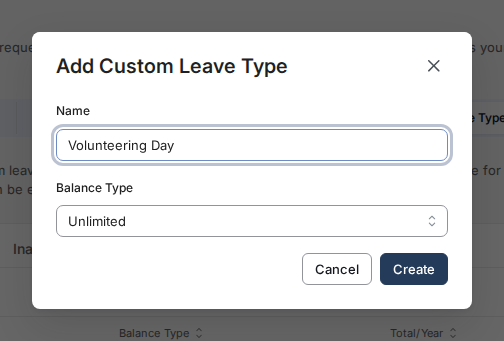
- Select the Add Custom Leave Type button. Enter a name for your new type (e.g., "Volunteering Day" or "Study Leave"), complete its settings, and select Create. Once its status is Active, employees can select it when they request time off.
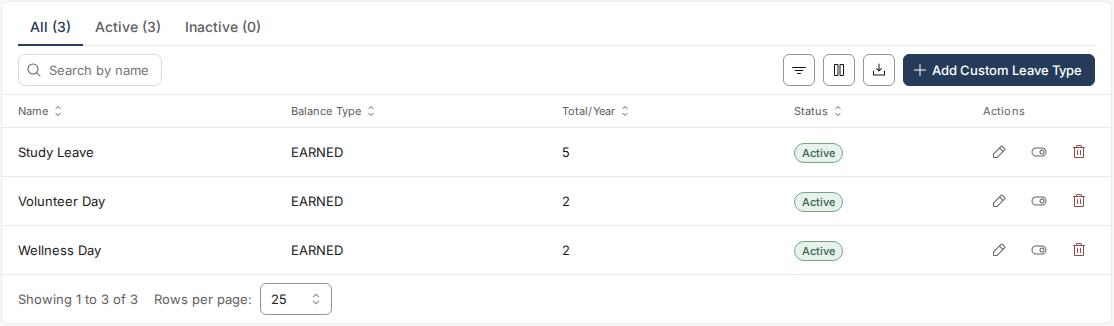
- Edit, deactivate, or delete existing types from the Actions column. Deactivated types stay visible for records but no longer appear in the request form.
Set country-specific leave rules
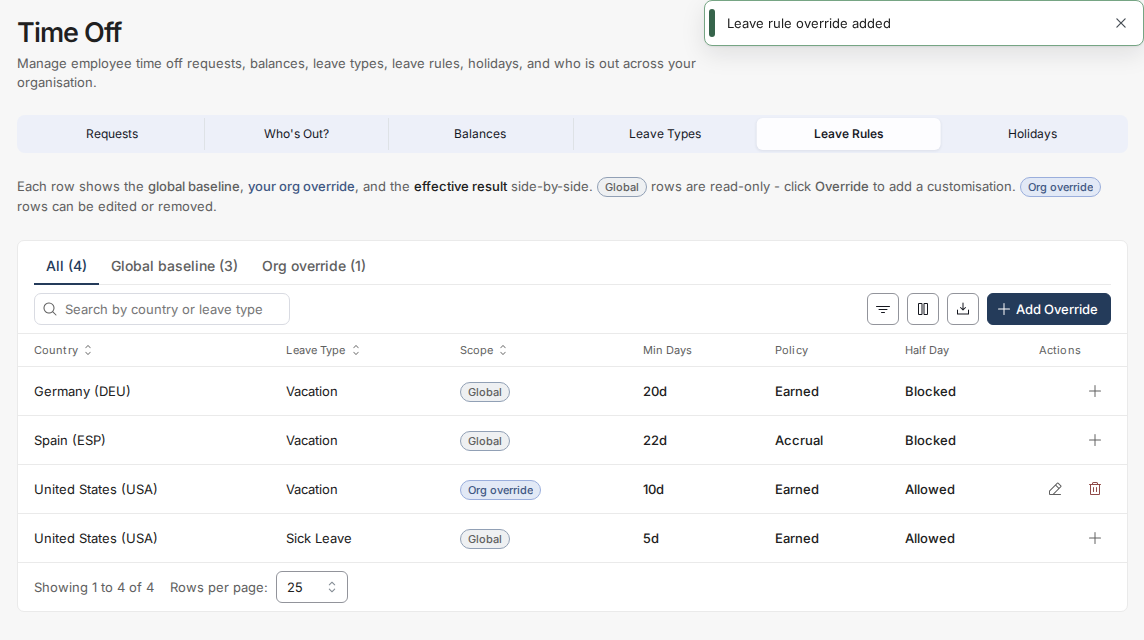
- From the Time Off page, select the Leave Rules tab. Each row shows the global baseline, your company's rule override, and the effective rule side by side.
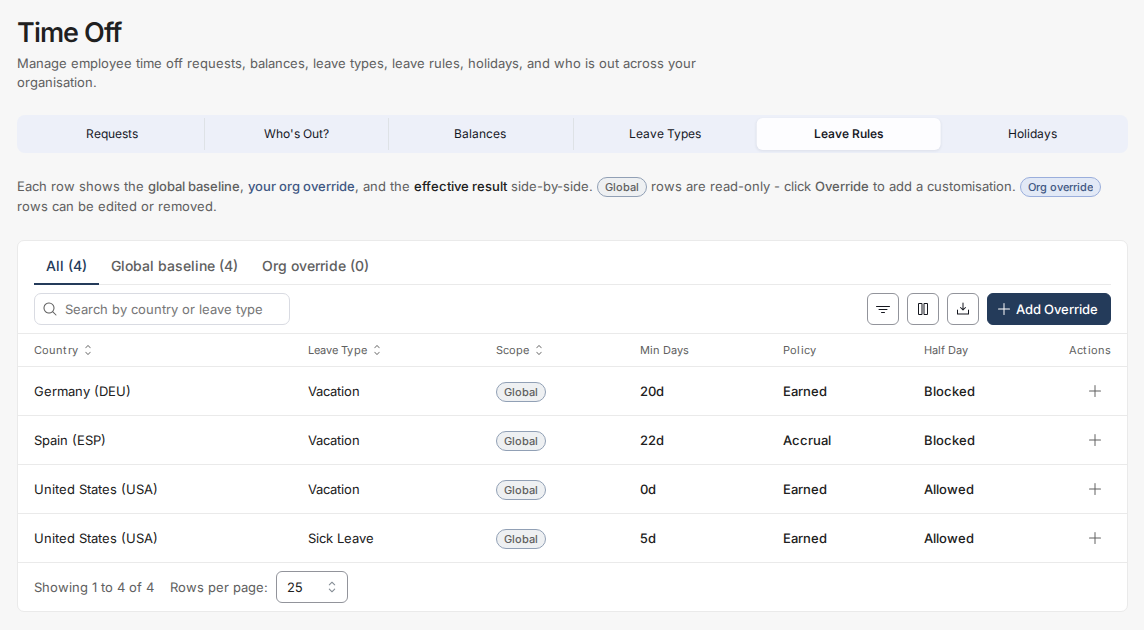
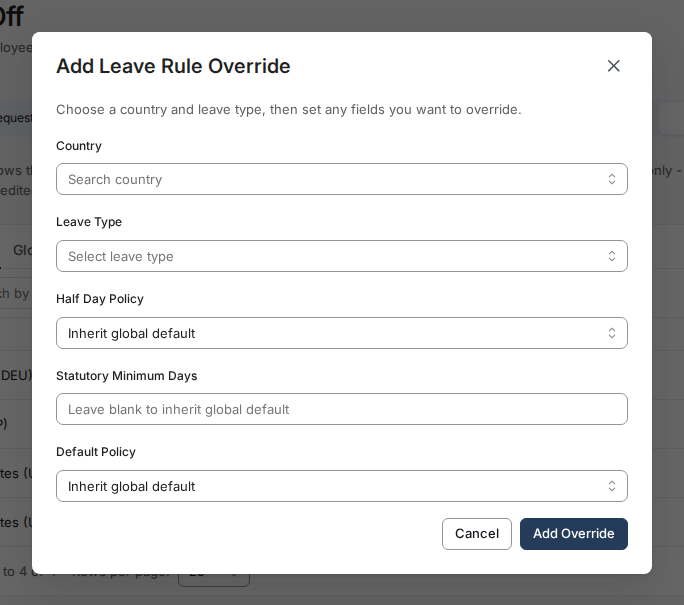
- Global rows are read-only. To create a customization, either select the + icon on a specific row, or use the toolbar's Add Override button and choose the Country and Leave Type yourself. Then set any of Half Day Policy, Statutory Minimum Days, or Default Policy — leaving a field on "Inherit global default" keeps the global rule for that setting.
- Edit or remove overrides from the Actions column. If no override exists, the global rule applies to that country and leave type.
Good to know
- Global leave types are built-in categories that appear on every employee's balance card; custom leave types are unique to your company.
- If no leave types are active, the leave type menu will be empty for all employees and they won't be able to submit requests.
- Overrides let you apply different rules by country; without an override, the global rule applies.
Still stuck?
You can email [email protected] to reach our support team. Please include your email address, organization name, and a description of what happened. Screenshots and videos are always welcome to speed up the troubleshooting process. Feel free to reach out any time for further assistance.