
 1 MIN READ
 UPDATED FEB 17, 2026
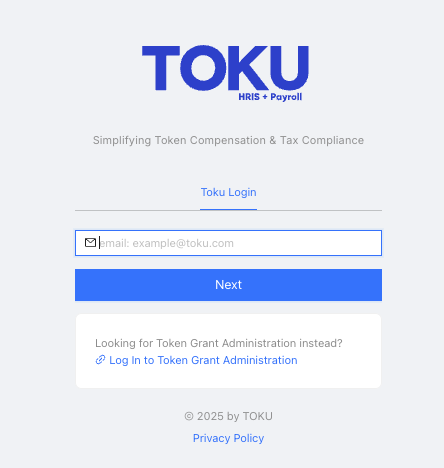
- Log into the HRIS:
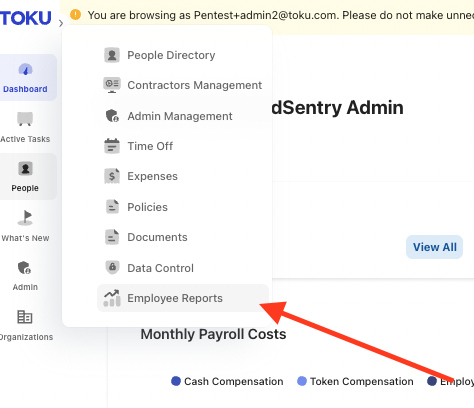
- Click on Employee Reports
- Hover over “People”
- Click on “Employee Reports”
- Select your Report Type
- You can now select your report type based on the report you would like to generate and then proceed with downloading your report.

There are 5 types of reports available:
- Demographic Report: Used to generate a report based on your team members Country of current residence, employment type and start date.
- Employee Payslips Report: Shows detailed payroll information for your team members.
- Expenses Report: Summarizes expense reimbursements submitted by your team members.
- Time-Off Report: Tracks annual leave and time off taken by your team members.
- User Report: Used to generate a report based on the roles.
CONFIDENTIALITY NOTICE: resources and any attachments are only for the use of the intended recipient and may contain information that is privileged, confidential or exempt from disclosure under applicable law. If you are not the intended recipient, any disclosure, distribution or other use of these resources or attachments is prohibited. If you have received this resource in error, please delete and notify the sender immediately. Thank you.