
 3 MIN READ
 UPDATED AUG 10, 2026
📘 For organization administrators on Toku. Last updated July 23, 2026.
Change a team member's base salary in response to a raise, promotion, or other compensation adjustment.
Before you start
- You need administrator access to your organization's account. If you're signed in but don't see the options below, sign out and back in, choosing Continue as ADMIN.
- The team member must already be added to your organization.
- Gather the new salary amount, the currency from their employment contract, and the date the change should take effect.
- Payroll cutoff is the 10th of each month for most countries. Requests submitted on or before the 10th will be included in that month's payroll. Requests submitted after the 10th will be processed in the following month's payroll.
- Payments are never processed immediately — they are always tied to the next eligible payroll cycle.
- Need a payment sent sooner? Off-cycle payments start at an additional $49 per person.
- Payments over $5,000 USD require pre-funding. Toku's finance team [[email protected]] will reach out with a pre-funding invoice that must be funded before the payment can be processed. Factor this into your timeline, as pre-funding adds an additional step before payroll processing.
Change a base salary
- Open People from the left-hand menu and select the person whose pay you want to change.
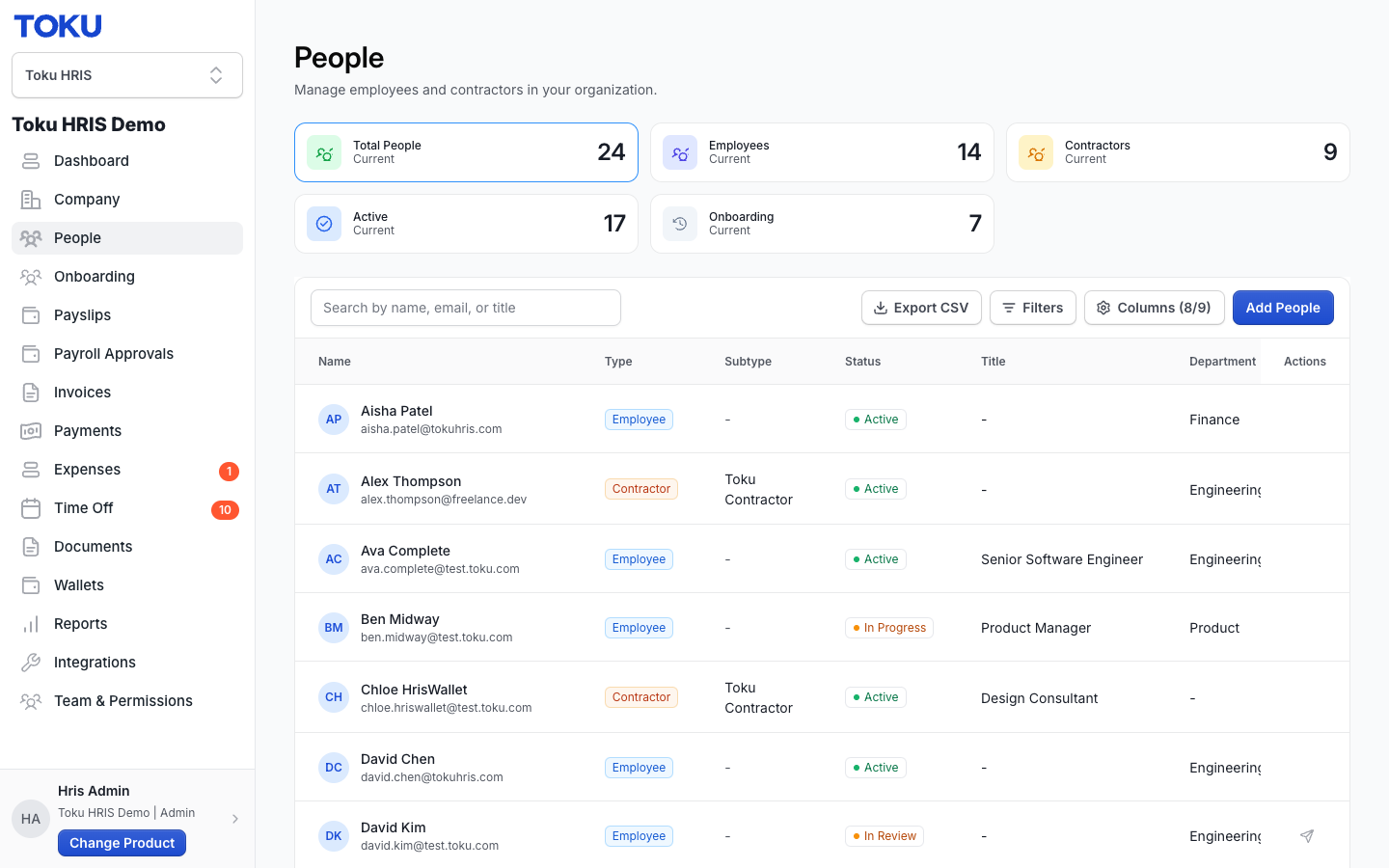
- Click Change salary on the right side of the Additional Compensation section.
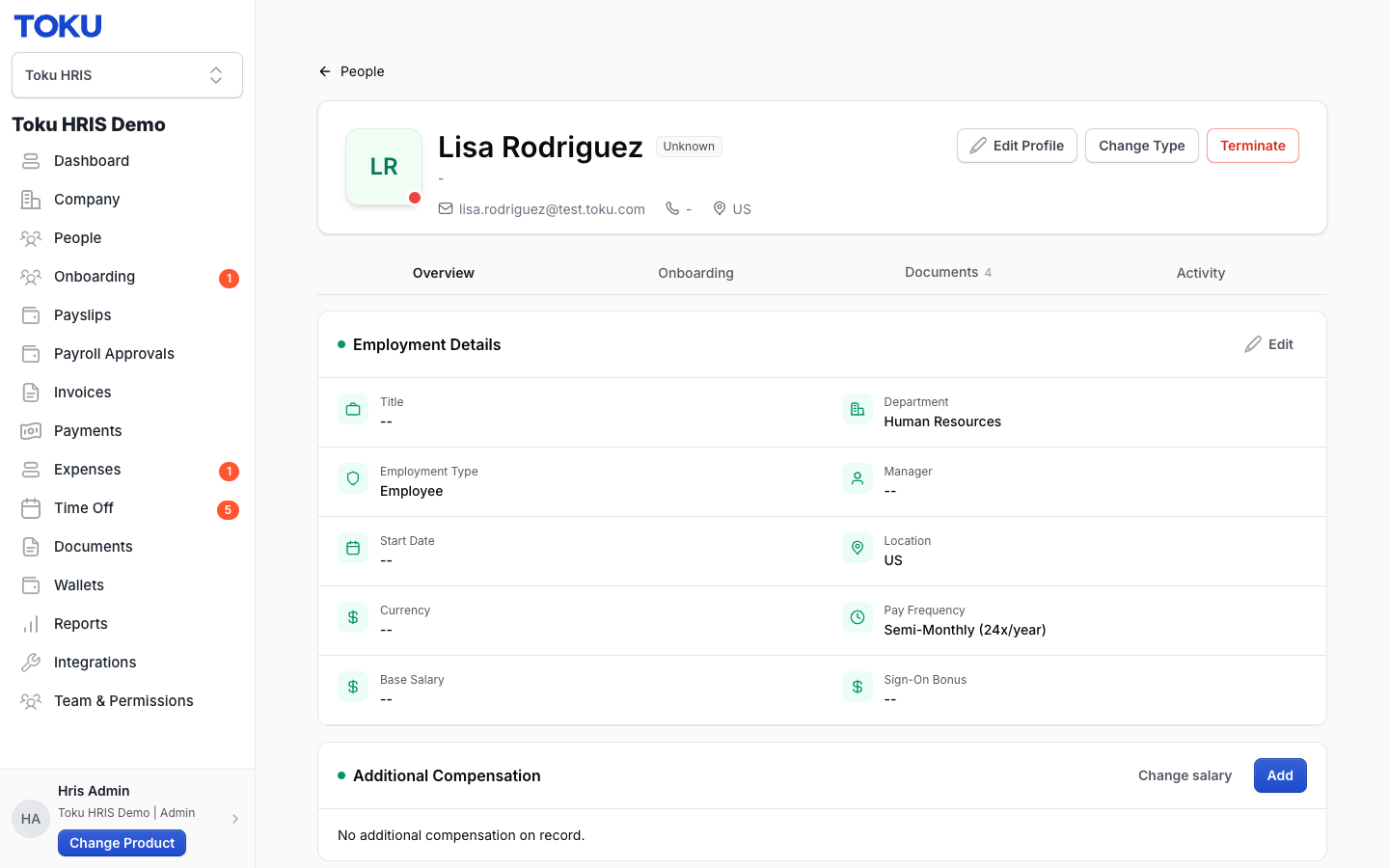
- In the Base Salary field, enter the new yearly salary using digits only (no commas, spaces, or symbols). Example: 125000.
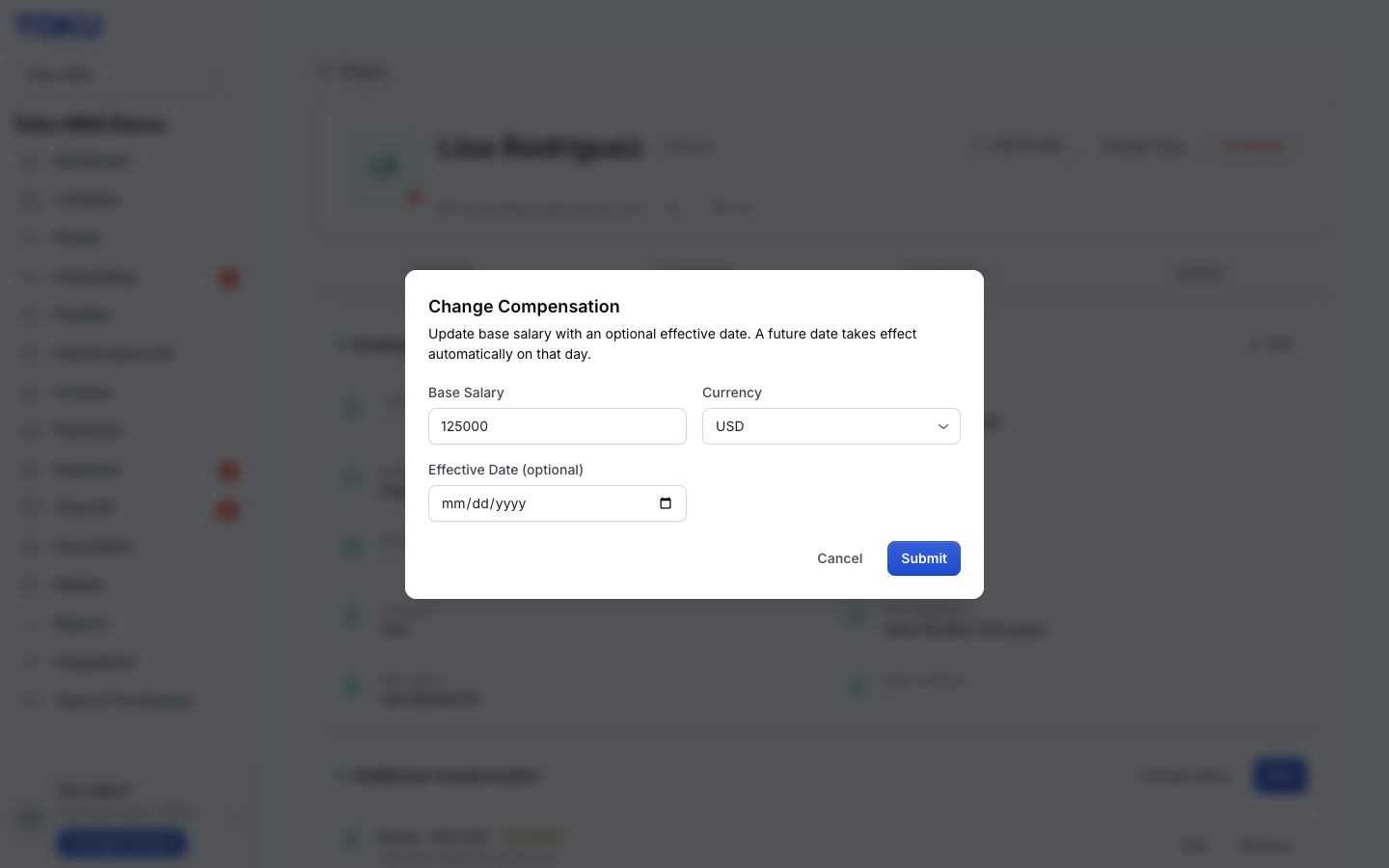
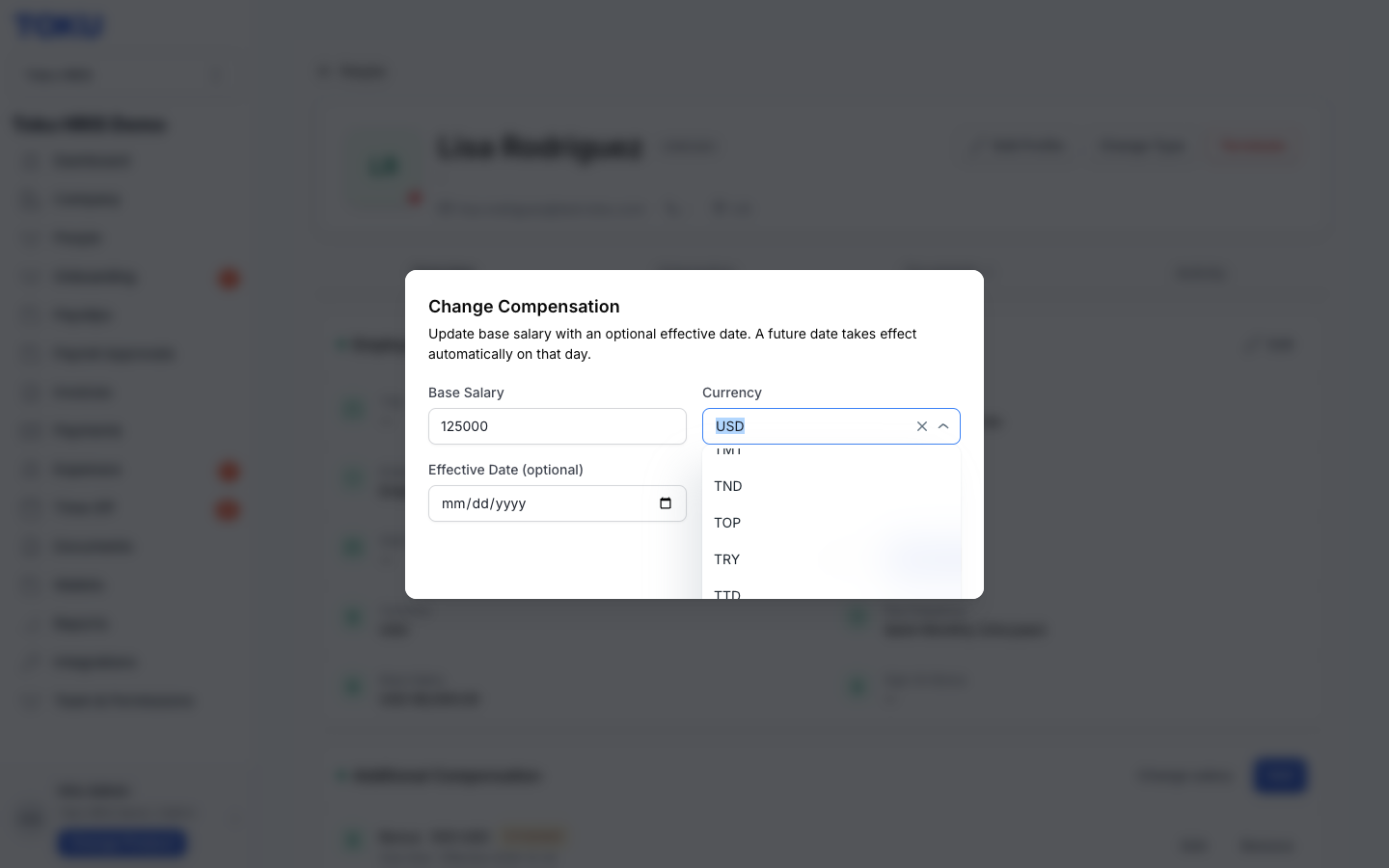
- Select the Currency dropdown and pick the currency from their employment contract. The list includes all fiat currencies plus USDC and USDT stablecoins.
- If the change should start on a specific date, select Effective Date (optional) and pick the date from the calendar. A future date applies the new salary automatically on that day.
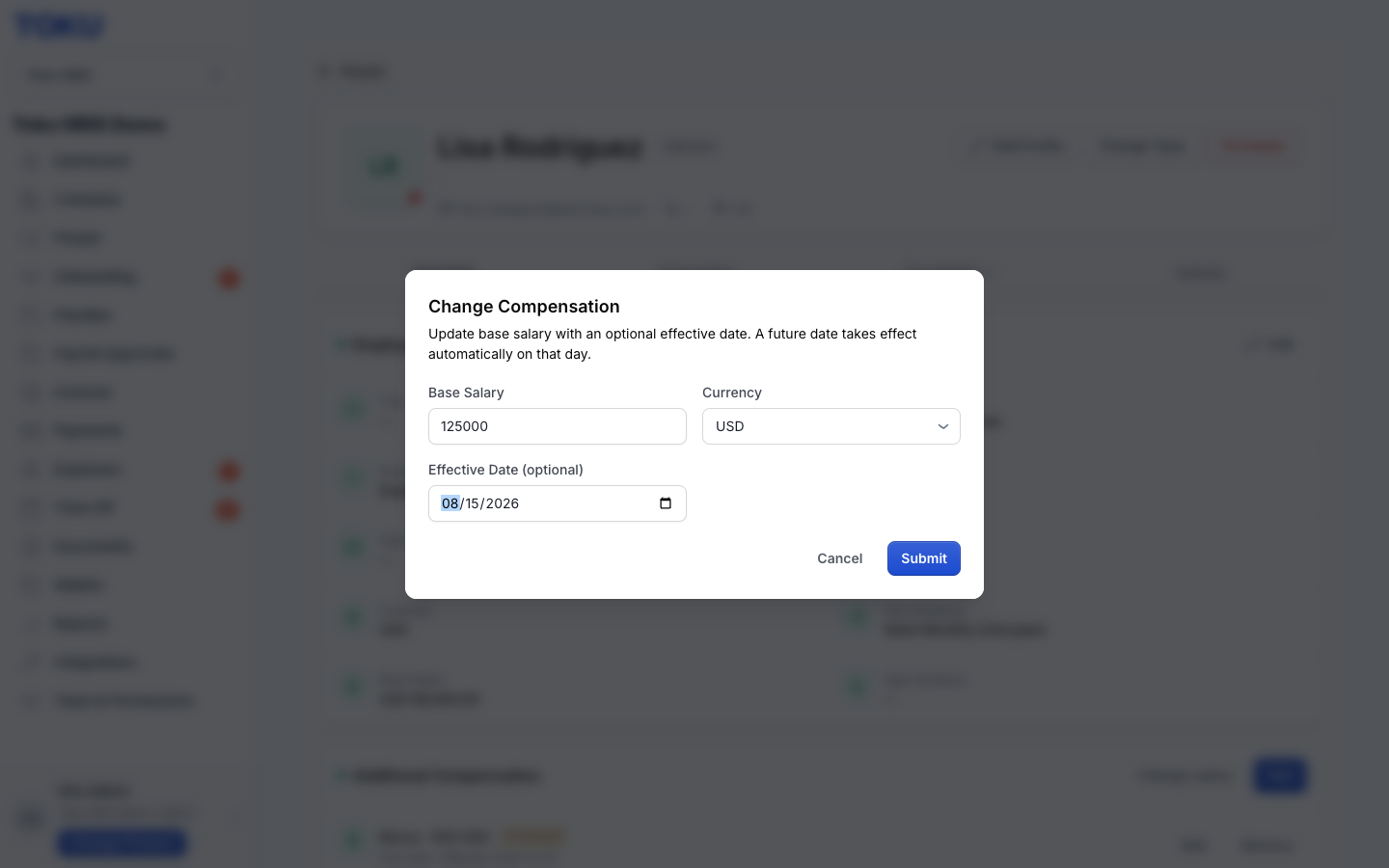
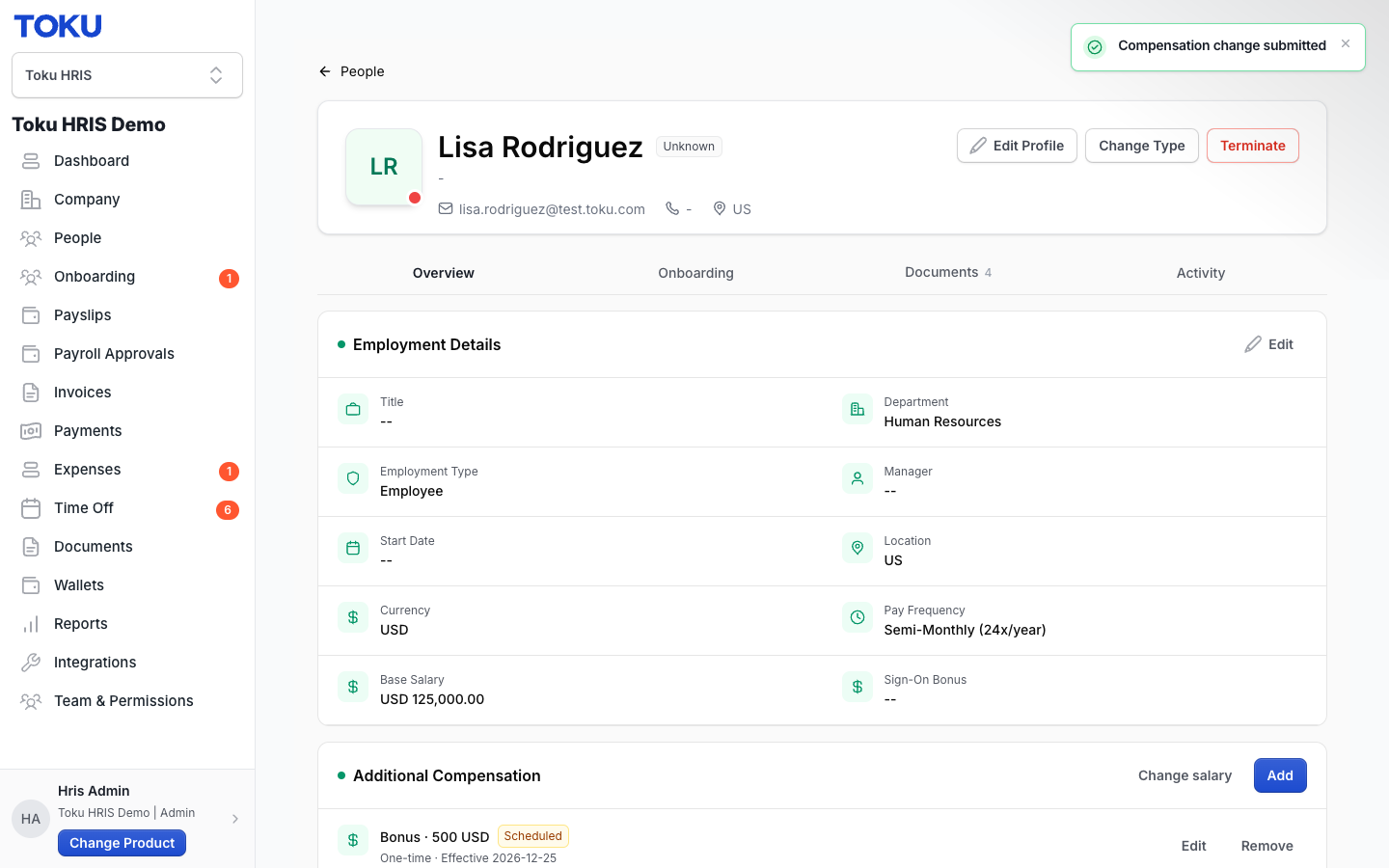
- Click the blue Submit button. A green confirmation banner reads 'Compensation change submitted' - the change is saved to the profile immediately, with no separate Toku approval step for the update itself.
Good to know
- If you see a red error message, fix the field it mentions and click Submit again.
- Past-dated entries are permanent records by design and cannot be edited.
- Every payroll cycle has a cutoff date. Changes entered after the cutoff take effect in the next cycle, not the current one. See Compensation changes - timing, approvals, and what employees see for the full explanation of timing and what your employee sees.
Still stuck?
You can email [email protected] to reach our support team. Please include your email address, organization name, and a description of what happened. Screenshots and videos are always welcome to speed up the troubleshooting process. Feel free to reach out any time for further assistance.