
 3 MIN READ
 UPDATED OCT 30, 2026
Fireblocks Payment Integration
Use this step‑by‑step guide to connect your Fireblocks account to Toku Stablecoin Payroll. The flow takes about 5 - 10 minutes.
What you’ll need
- Access to your Fireblocks workspace with permission to create API Users
- An admin user on your Toku Stablecoin payroll account
We generate an RSA key pair for a secure, non‑signing API integration. You will paste the Fireblocks API User ID into Toku and then select a vault account.
Overview of the 3 steps
- Generate RSA key pair in Toku and download the CSR
- Create a Fireblocks API User using that CSR and copy the API User (ID)
- Enter the API User (ID) in Toku and select your Vault Account
Step 1 - Generate RSA Key Pair in Toku
This creates the credentials used to authenticate with Fireblocks and produces a CSR file you’ll upload to Fireblocks.
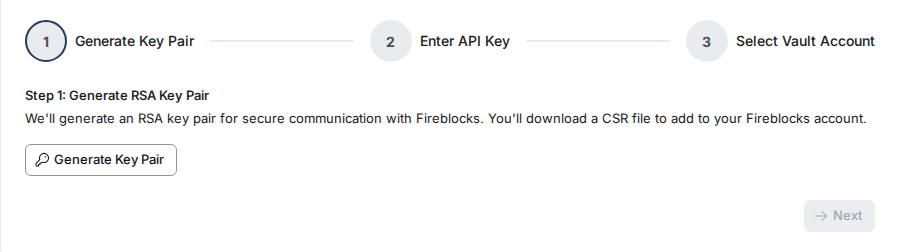
- Open Toku → Settings → Payment Integrations → Fireblocks, click "Get Started" → Step 1: Generate RSA Key Pair.
- Click "Generate Key Pair". You’ll see a success state.
- Click "Download CSR File" and save it to your computer.
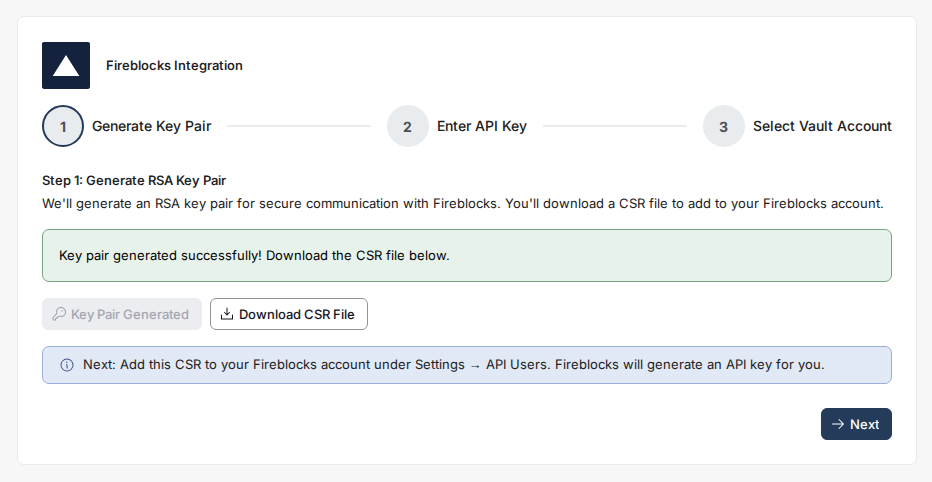
Keep the CSR file intact. Do not modify or open it in a text editor.
Step 2 - Create a Fireblocks API User using the CSR
Now add a new API User in Fireblocks and upload the CSR from Step 1.
- In Fireblocks, go to Developer Center → API users, then click "Add API user": sandbox.fireblocks.io
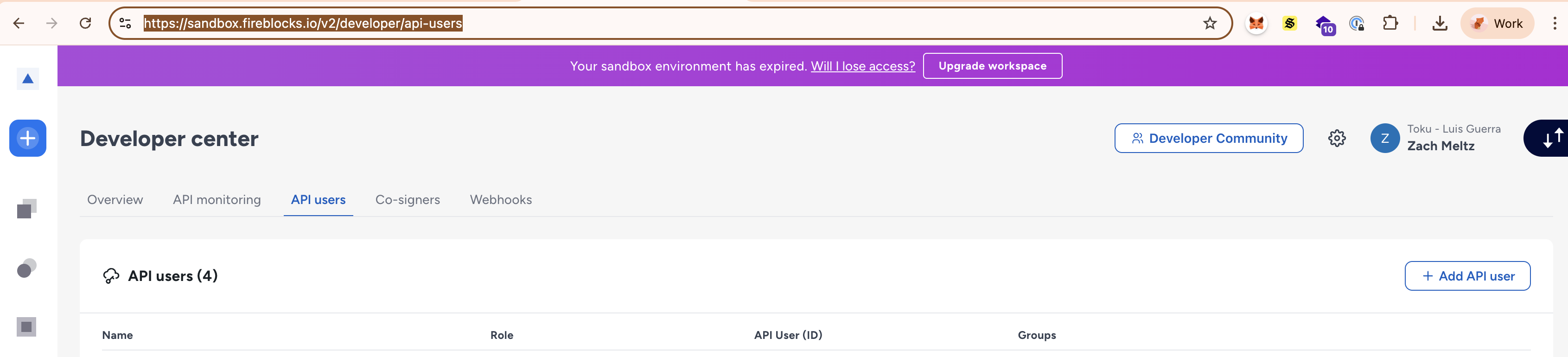
- In the Add API user modal:
- Name: Toku_Stablecoin_Integration (or similar)
- Role: Editor
- CSR: Choose "Custom CSR" and upload the CSR file you downloaded from Toku in Step 1
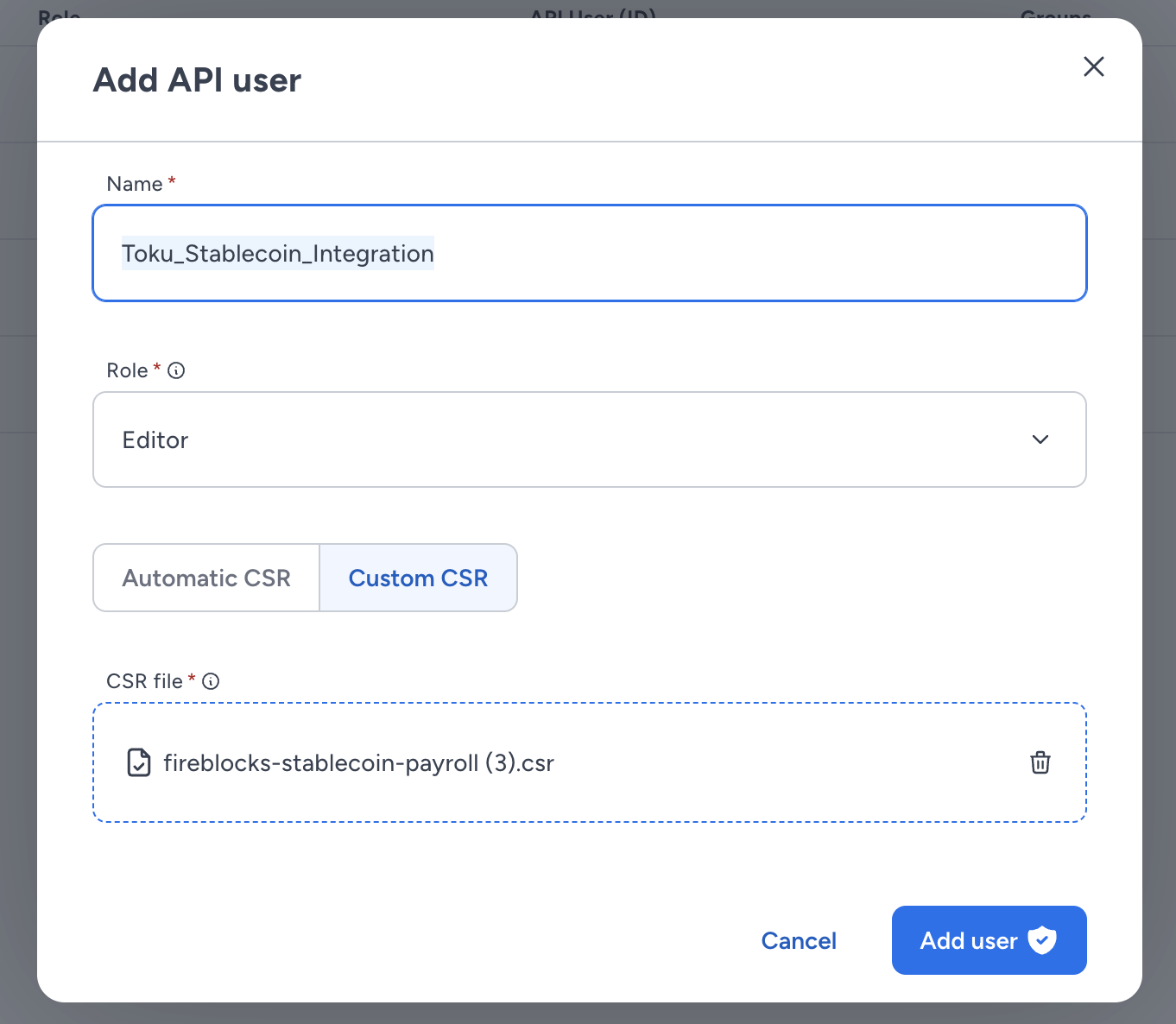
Why Editor? Editor lets Toku propose transactions without approval powers, keeping control with your approvers.
- After creating the user, copy the API User (ID) shown in the API users table.

Step 3 - Enter the API User (ID) in Toku and select a Vault
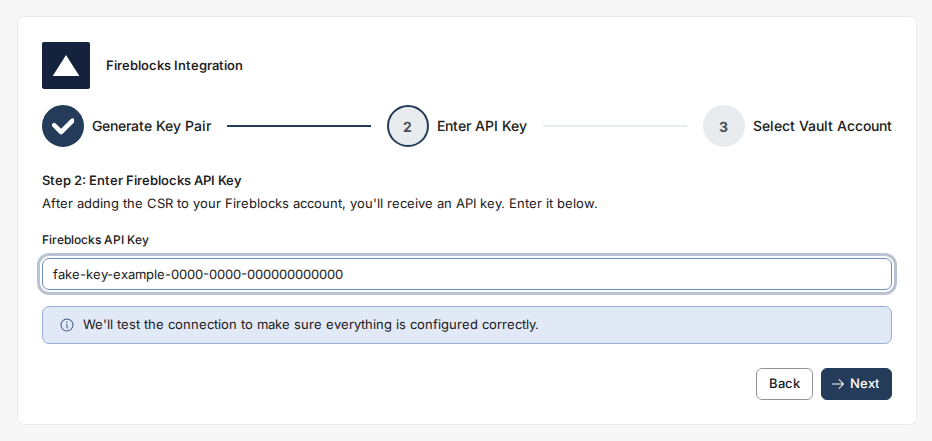
- Back in Toku, paste the API User (ID) into the Fireblocks API Key field and click Next. We verify the connection and available accounts.
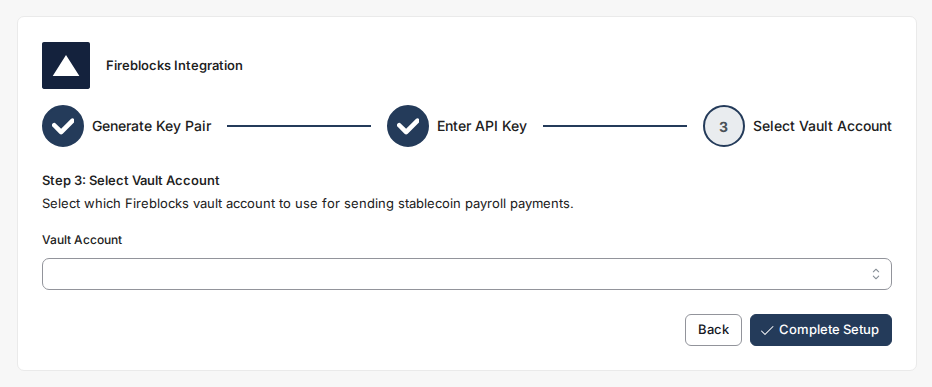
- Choose the Vault Account that will send stablecoin payroll payments, then click "Complete Setup". A single vault can hold assets across all networks; you don’t need to pick a chain here.
- You should now see a green confirmation: Fireblocks Integration Active, with your Vault Account ID, API key, and RSA key pair configured.
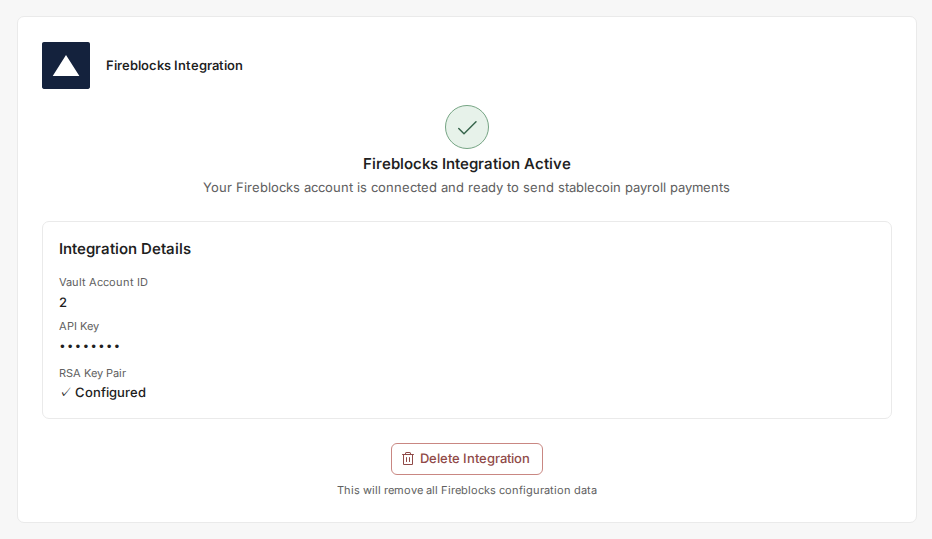
You’re done - Integration Active
Once active, you can immediately begin settling transactions via Fireblocks.
Notes and best practices
- Use a dedicated, clearly named API User for this integration so auditing is straightforward.
- Keep CSR/private key artifacts secure. Only the CSR is uploaded to Fireblocks; Toku retains the private key securely.
- The Editor role can only propose transaction, not approve them.
Troubleshooting
- Connection test fails after pasting API User (ID):
- Confirm you uploaded the exact CSR generated in Step 1.
- Ensure the API User exists and hasn’t been disabled in Fireblocks.
- Vault list is empty:
- Verify the API User has access to the workspace and vaults you expect.
- Need to start over:
- You can delete the integration in Toku and repeat the steps to re‑provision the key pair. CONFIDENTIALITY NOTICE: resource and any attachments are only for the use of the intended recipient and may contain information that is privileged, confidential or exempt from disclosure under applicable law. If you are not the intended recipient, any disclosure, distribution or other use of this resource or attachments is prohibited. If you have received this resource in error, please delete and notify the sender immediately. Thank you.