
 4 MIN READ
 UPDATED APR 13, 2026
Toku's document management feature provides a secure way to upload, store, and access important files. Clients can bulk-upload documents for their employees and view Toku-related documents like order forms. Employees can securely submit sensitive files such as sick notes and other confidential documents directly through the platform, ensuring privacy and compliance.
Client Admin Documents
Learn how to upload, organize, and manage documents for your organization and employees! You can bulk upload documents to employee profiles, share company policies (such as PTO or parental leave), and submit files to Toku, all from the Document section located in the Organizational Settings tab.
Accessing the Document Section
Login to Toku and navigate to Organizational Settings > Documents to access the document management page.
From here, you'll see two sections:
- Org Documents – Upload company-wide documents such as PTO policies, parental leave policies, handbooks, or any files you need to share with Toku.
- Employee Documents – View all documents uploaded by or for your employees in one place, without needing to check each profile individually.
Uploading Documents
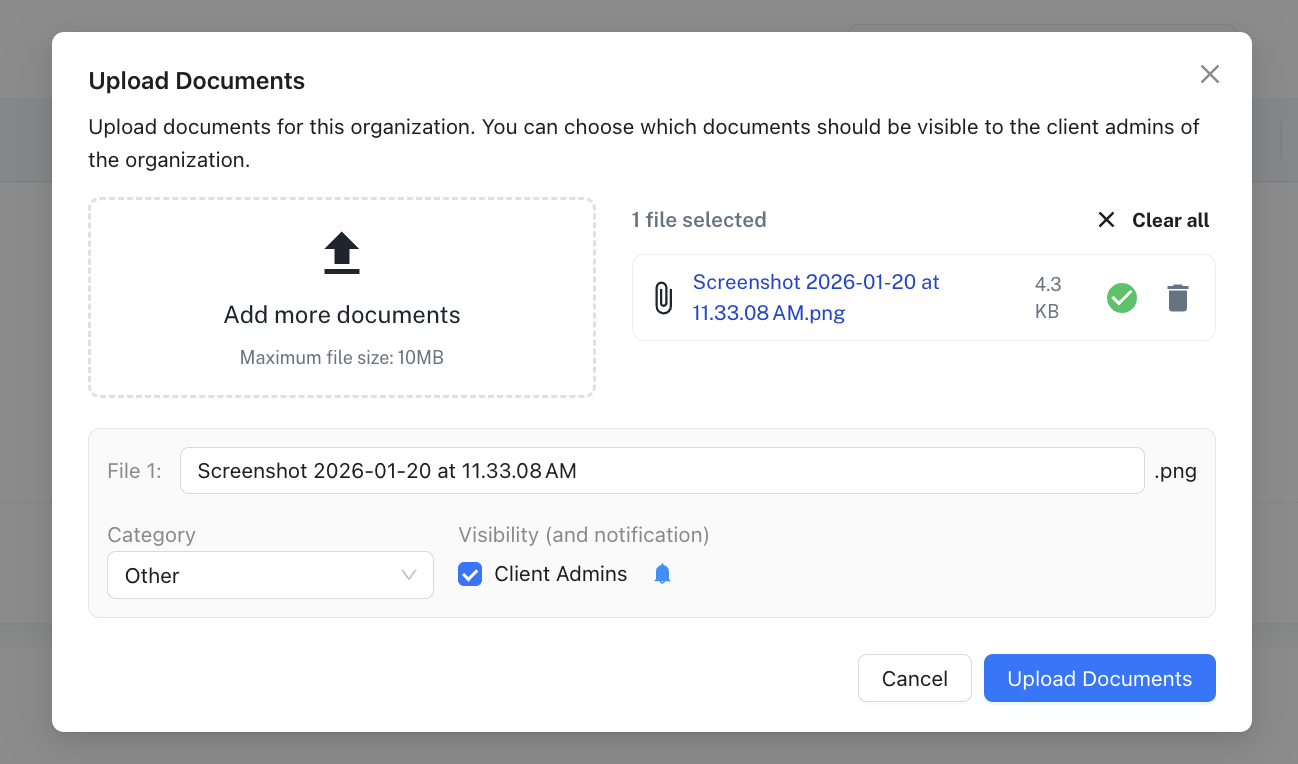
- Click the Upload New Documents button
- Drag and drop your file or click to browse (maximum file size: 10MB)
- You can upload more than 1 document at a time, just click the ‘Add More Documents’ box
- Rename the file if needed
- Select a Category to organize the document
- Set Visibility to control who can see the document and receive a notification
- Click Upload Documents
Additional Features:
- Search and filter – Use the search bar or filters to quickly find specific documents.
- Bulk export – Select multiple documents and export them at once.
- Docusign status – Track signature status for documents sent via Docusign, such as employment contracts.
Employee Documents
Overview
The Documents section of your Toku portal is where you can securely access, download, and upload important employment documents. This includes documents provided to you by Toku - such as your employment agreement, salary increase letters, and tax documents - as well as any files you choose to upload yourself.
Visibility note: Any documents you upload will be visible to Toku administrators and your employer's (client) administrators.
Accessing Your Documents
- Log in to https://app.toku.com.
- From the left-hand menu, click Documents.
- You'll see a list of all documents associated with your profile, including the document name, category, and date added.
Viewing and Downloading Documents
- To preview a document, click the eye icon (👁) in the Actions column.
- To download a document, click the download icon (⬇) in the Actions column.
Uploading a Document
If you need to securely provide documentation to Toku - such as a signed form, identification, or other requested files - you can upload it directly from this page.
- Click the Upload Document button in the top-right corner.
- Select the file from your device.
- Once uploaded, the document will appear in your Documents list and will be accessible to Toku and your employer's administrators.
What Types of Documents Will I Find Here?
Documents in this section may include:
- Employment agreements — Your signed employment contract
- Salary adjustment letters — Documentation of any salary increases or changes
- Tax documents — Wage certificates, tax forms, and related filings (e.g., Lohnausweis)
- Benefits documentation — Information related to your benefits enrollment or changes
- Company policies — Any policies or handbooks provided by your employer through Toku
- Amendment letters — Any formal changes to your employment terms
Additional Features
- Search: Use the search bar at the top of the page to quickly find a specific document by name.
- Filters: Click the Filters button to narrow documents by category or date.
- Export: Click Export to download a summary of your documents list.
- Manage Columns: Customize which columns are visible in your documents table.
Frequently Asked Questions
Can my employer see documents I upload? Yes. Any documents you upload are visible to both Toku administrators and your employer's administrators.
What file types can I upload? Common file types such as PDF, PNG, JPG, and Word documents are supported.
I don't see a document I was expecting. What should I do? If you're missing a document - such as your employment agreement or a tax form - please reach out to your Toku contact or submit a support request.
What does "Not applicable" mean in the Docusign column? This means the document does not require an electronic signature. Documents that do require a signature via Docusign will show their signing status in this column.