
 5 MIN READ
 UPDATED NOV 3, 2026
⚠️ Contractor invoice and payment deadlines: late action means late payment
- Contractors: submit invoices by the 19th of each month. A saved draft is not a submitted invoice.
- Admins: approve invoices by the 21st of each month. Submission alone does not authorize payment.
- Funding: Toku must receive cleared funds 4 - 5 business days before payout. Initiating a transfer or sending proof of payment does not meet the deadline.
- Standard monthly payout: the last day of the month, provided submission, approval, and funding deadlines are met. Late submission, approval, or funding will delay payment. Every day of delay pushes payment back by at least one day. A missed payment cycle can cause a longer delay; the invoice due date is not a guarantee of payment.
Automation does not remove these deadlines. Earlier published holiday deadlines take precedence; see Toku: 2026 End-of-Year Payroll & Payment Guide.
📘 For organization administrators managing contractors on Toku. Settings screenshots and instructions updated October 30, 2026. Screenshots use a demo account.
Auto-invoicing automatically generates a contractor's invoice each period from their contracted rate, and can optionally submit it for you too. This guide shows how to turn each part on or off.
Before you start
- Invoice preferences can be chosen while adding a contractor. Automatic invoice creation waits until onboarding is complete and the first cycle is eligible.
- With Auto-generate enabled, Toku creates an invoice for the contractor each period using their contracted annual rate divided across that many periods - it's saved as a draft unless you also enable Auto-submit
- You can still review and adjust individual invoices before approving them
Choose invoice automation before review
When adding a contractor through People → Add People, complete Contract, then choose invoice preferences on Invoices before Review. This step appears for Client Managed and Agent of Record contractors; available options depend on the contract and your organization’s settings.
Choose creation, submission, and approval independently, then select Continue to review, or choose Set up later to preserve your organization’s defaults. On Review & Confirm, check Invoice preferences and click Add contractor to save; Back lets you revisit earlier steps.
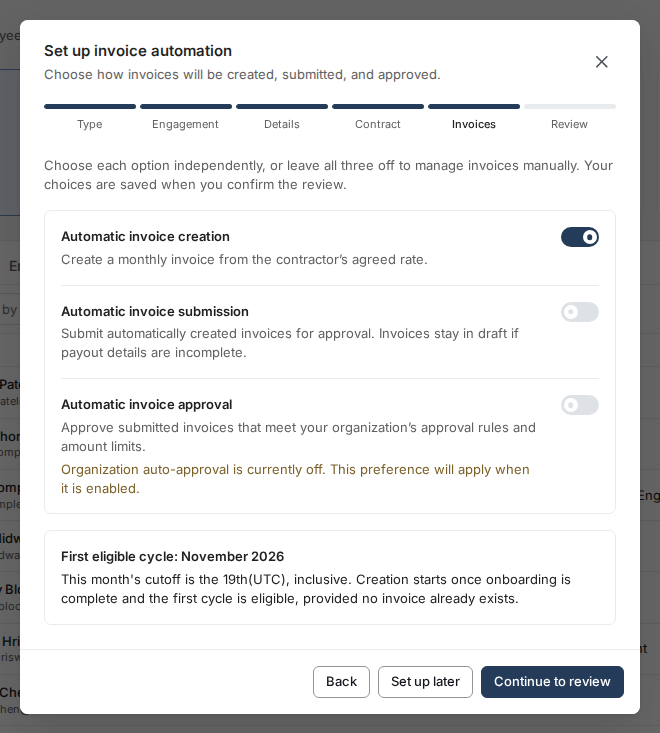
Automatic creation waits until onboarding is complete and the first cycle is eligible; the monthly cutoff is the 19th (UTC), inclusive. Hourly invoices need hours entered manually, submission waits for complete payout details, and automatic approval still follows your organization’s rules and amount limits.
See the illustrated contractor onboarding walkthrough.
How to turn auto-invoicing on or off
- Log in to your Toku account, open Company, and select the Settings tab.
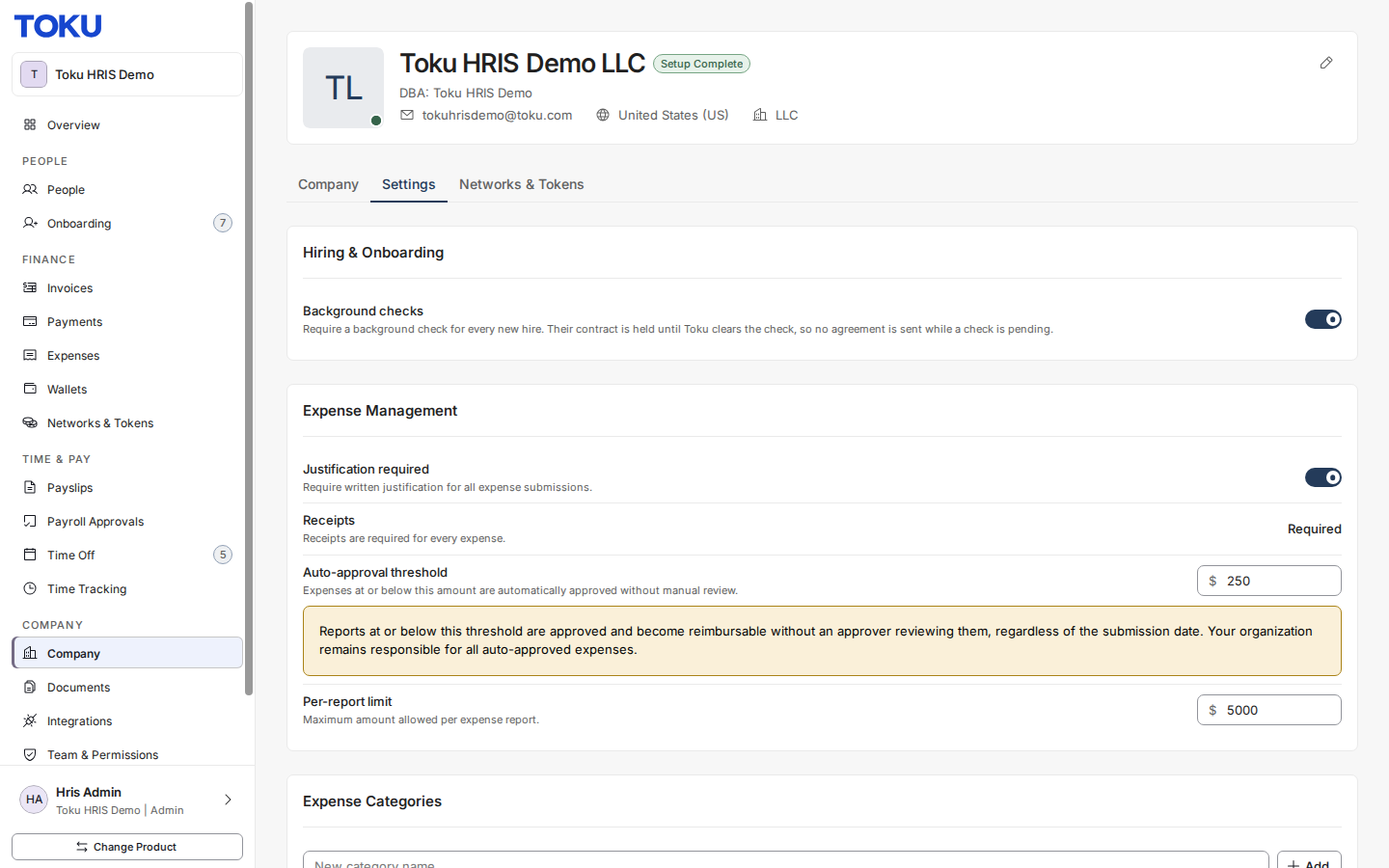
- Scroll down to Contractor Invoices, below Invoice approvals. Search by name, email, or entity to find a contractor. If this section is missing, contact [email protected] to check whether auto-invoicing is enabled for your organization. If a row shows No rate on file, add the contractor’s agreed rate (the base salary on their profile) before enabling generation.
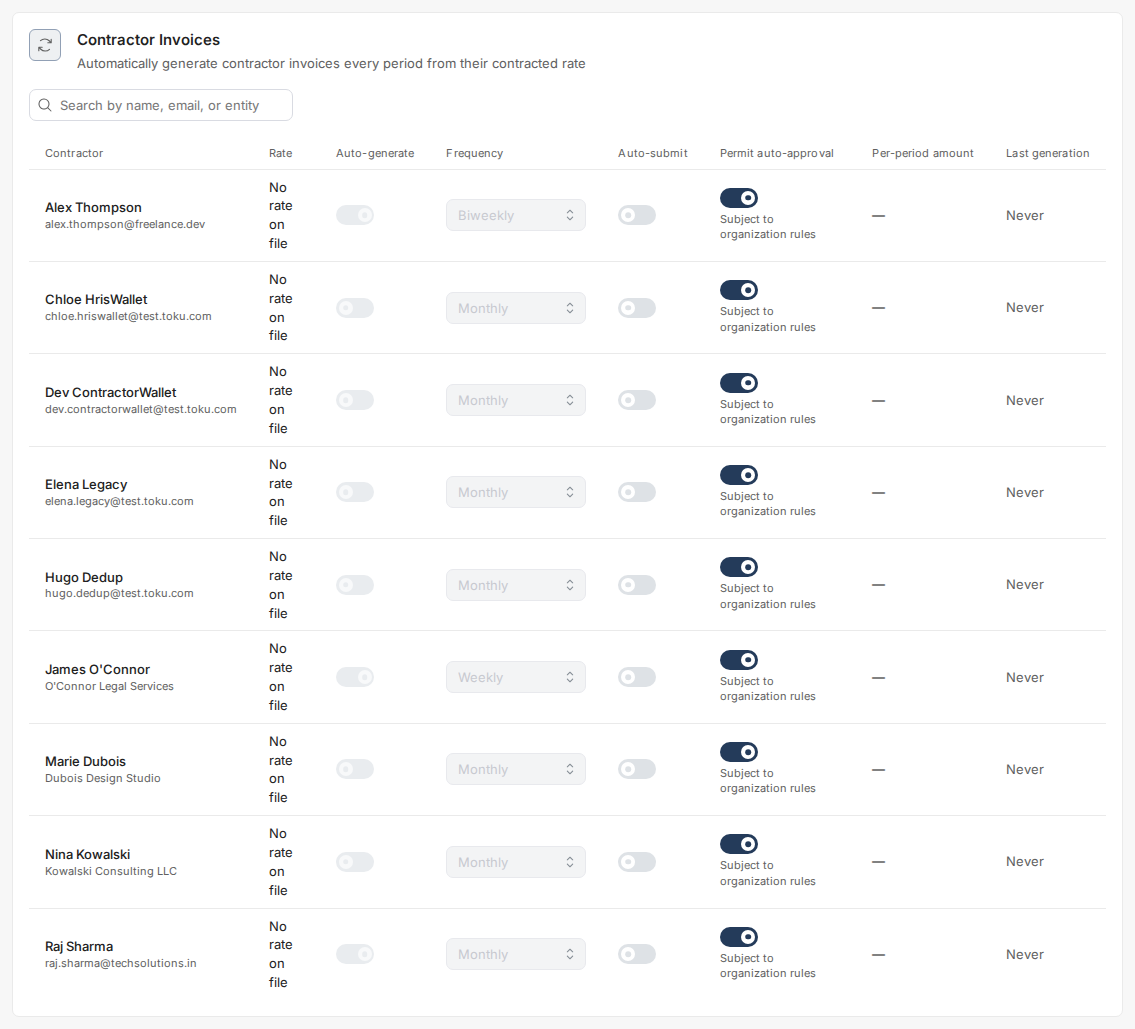
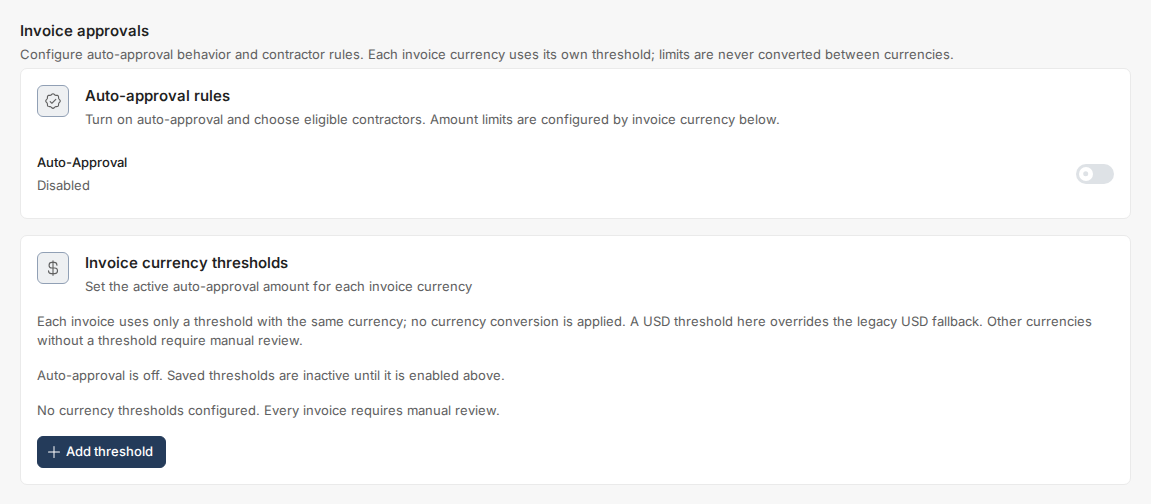
- For each eligible contractor, turn on Auto-generate and choose a Frequency. Turn on Auto-submit to send generated invoices into your approval queue; leave it off to create drafts for the contractor to review and submit. Permit auto-approval controls whether that contractor’s invoices may be approved automatically, subject to your organization’s rules. Configure the master Auto-Approval switch and Invoice currency thresholds in Invoice approvals above. Review and confirm any change when prompted.
What auto-invoicing does
When Auto-generate is enabled for a contractor, Toku automatically creates an invoice for them each period calculated from their contracted annual rate (prorated for partial periods). By default the generated invoice is saved as a draft, visible only to the contractor. Turn on Auto-submit as well to have it submitted automatically so it appears in your approval queue without the contractor needing to act.
Key behaviors with auto-invoicing
| Scenario | What happens |
|---|---|
| Auto-submitted invoice appears | On the first day of each period (the 1st of the month for Monthly frequency), giving you time to review and adjust before the 21st approval deadline |
| Contractor wants to adjust | They can retract a submitted invoice and make changes at any point until you approve it |
| Invoice is already approved | No further changes can be made to that invoice - reject it from the Invoices page, then create a new invoice with the corrected amount |
| You turn off auto-invoicing | Auto-submission stops immediately; future invoices must be submitted manually by the contractor |
Adjusting auto-submitted invoices
If the contractor's scope or compensation changes mid-period, you can adjust the auto-submitted invoice before approving it. The contractor can also request changes before approval. Once approved, an invoice can't be edited in place - reject it from the Invoices page and a new invoice will need to be created with the corrected amount.
Good to know
- Auto-invoicing divides the contractor's contracted annual rate evenly across each period based on the Frequency you choose (12 periods for Monthly, 26 for Biweekly, 52 for Weekly) - if their compensation is irregular, manual submission may be preferable
- The contractor retains the ability to adjust invoices up until approval - including submitting a draft invoice themselves if Auto-submit is off for them
- Turning auto-invoicing off does not retroactively change already-submitted invoices
Still stuck?
You can email [email protected] to reach our support team. Please include your email address, organization name, and a description of what happened. Screenshots and videos are always welcome to speed up the troubleshooting process. Feel free to reach out any time for further assistance.