
 6 MIN READ
 UPDATED OCT 30, 2026
⚠️ Contractor invoice and payment deadlines: late action means late payment
- Contractors: submit invoices by the 19th of each month. A saved draft is not a submitted invoice.
- Admins: approve invoices by the 21st of each month. Submission alone does not authorize payment.
- Funding: Toku must receive cleared funds 4 - 5 business days before payout. Initiating a transfer or sending proof of payment does not meet the deadline.
- Standard monthly payout: the last day of the month, provided submission, approval, and funding deadlines are met. Late submission, approval, or funding will delay payment. Every day of delay pushes payment back by at least one day. A missed payment cycle can cause a longer delay; the invoice due date is not a guarantee of payment.
Automation does not remove these deadlines. Earlier published holiday deadlines take precedence; see Toku: 2026 End-of-Year Payroll & Payment Guide.
📘 For all Toku users on Toku. Last updated October 30, 2026.
Your Toku account can access up to three separate products - each with its own home page and menu - and knowing which one holds what you're looking for saves time and confusion.
Before you start
- The sign-in page is always app.toku.com — type this into your web browser's address bar. It replaces the old tga.app.toku.com address.
- There is now one sign-in page for all three products. You no longer pick a product tab before signing in - Toku takes you to the right product afterwards, and you can switch products at any time without signing out.
- You need a Toku account that has already been activated (you accepted your invitation email and set a password).
- This guide applies to all roles: employees, contractors, token grant recipients, and administrators.
The three Toku products
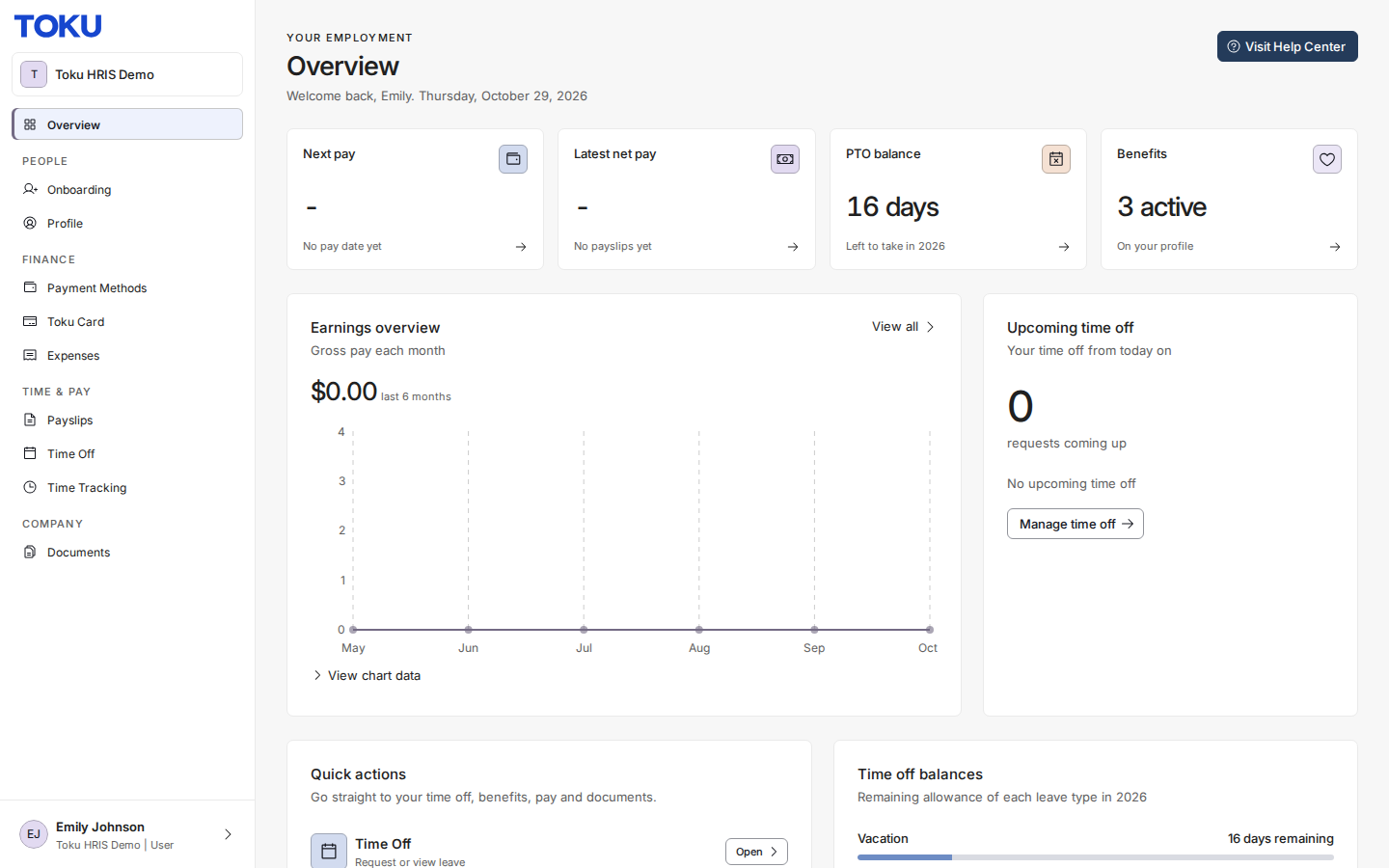
- Employment: Your job details, pay, documents, time off, expenses, and invoices for contract work.
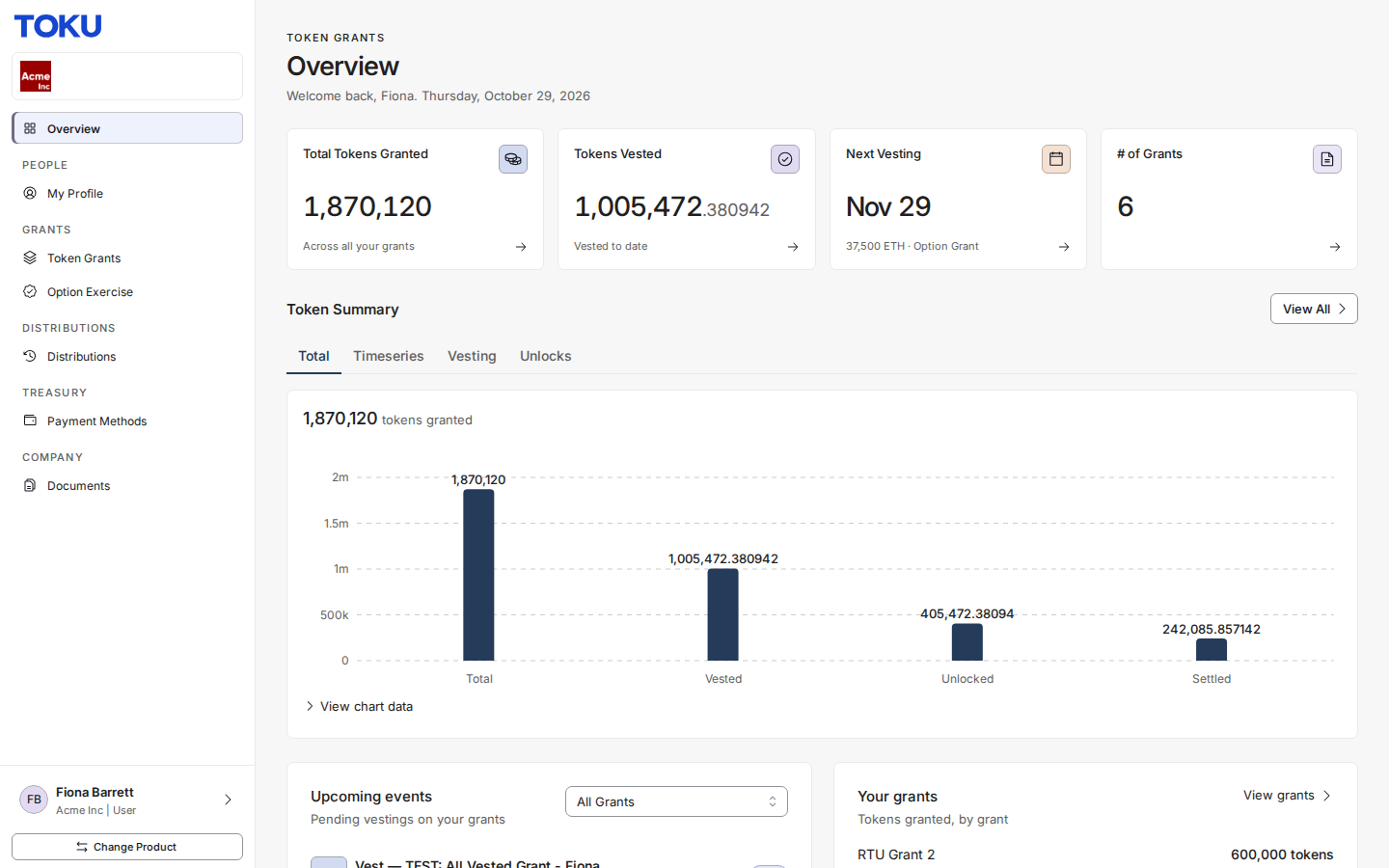
- Token Grants: Your token grants and vesting schedules. Sign in as usual, then switch to Token Grants using Change Product, described below.
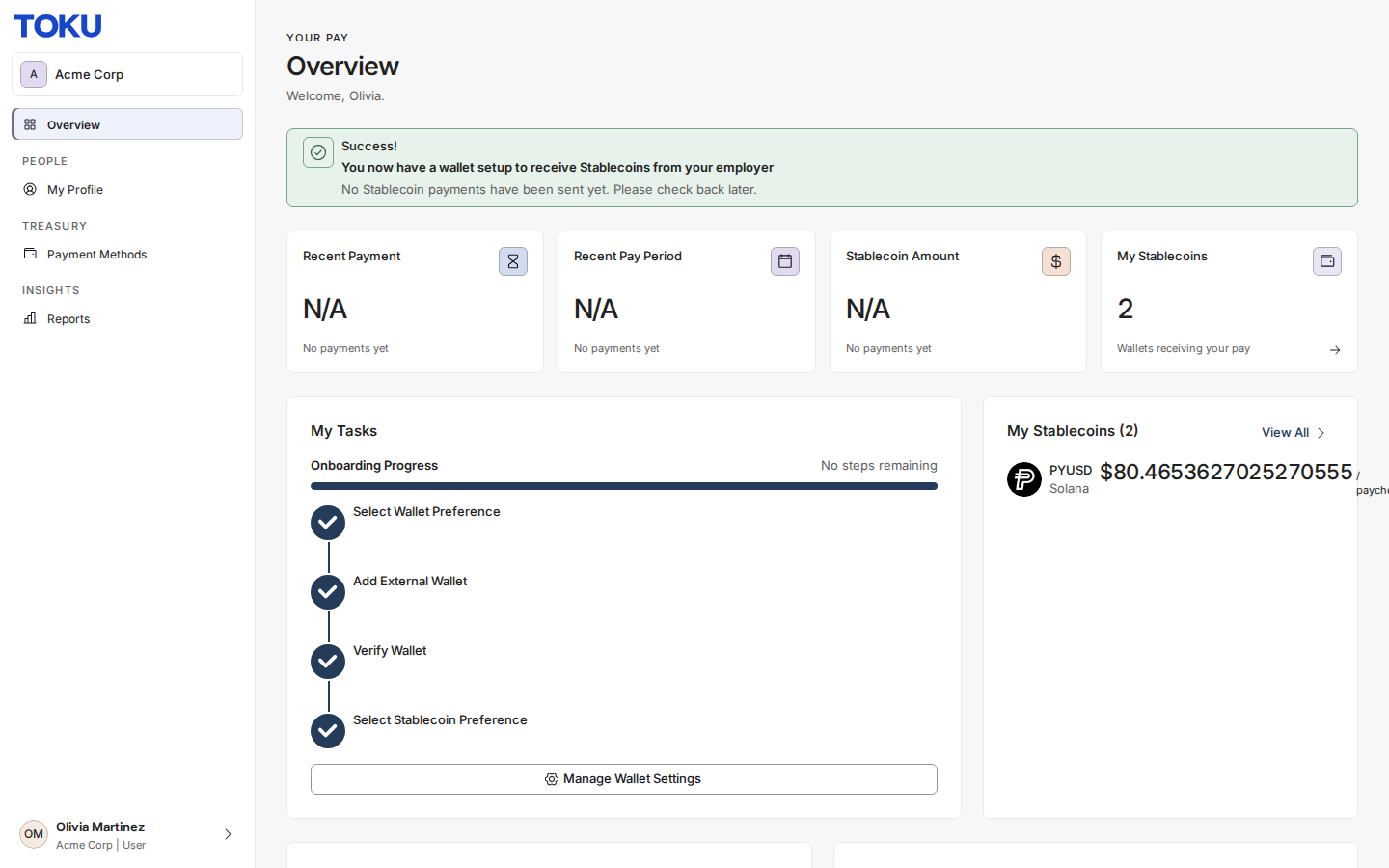
- Stablecoin Payroll: Your stablecoin salary setup and payments. Sign in as usual, then switch to Stablecoin Payroll using Change Product, described below.
Sign in to the right product
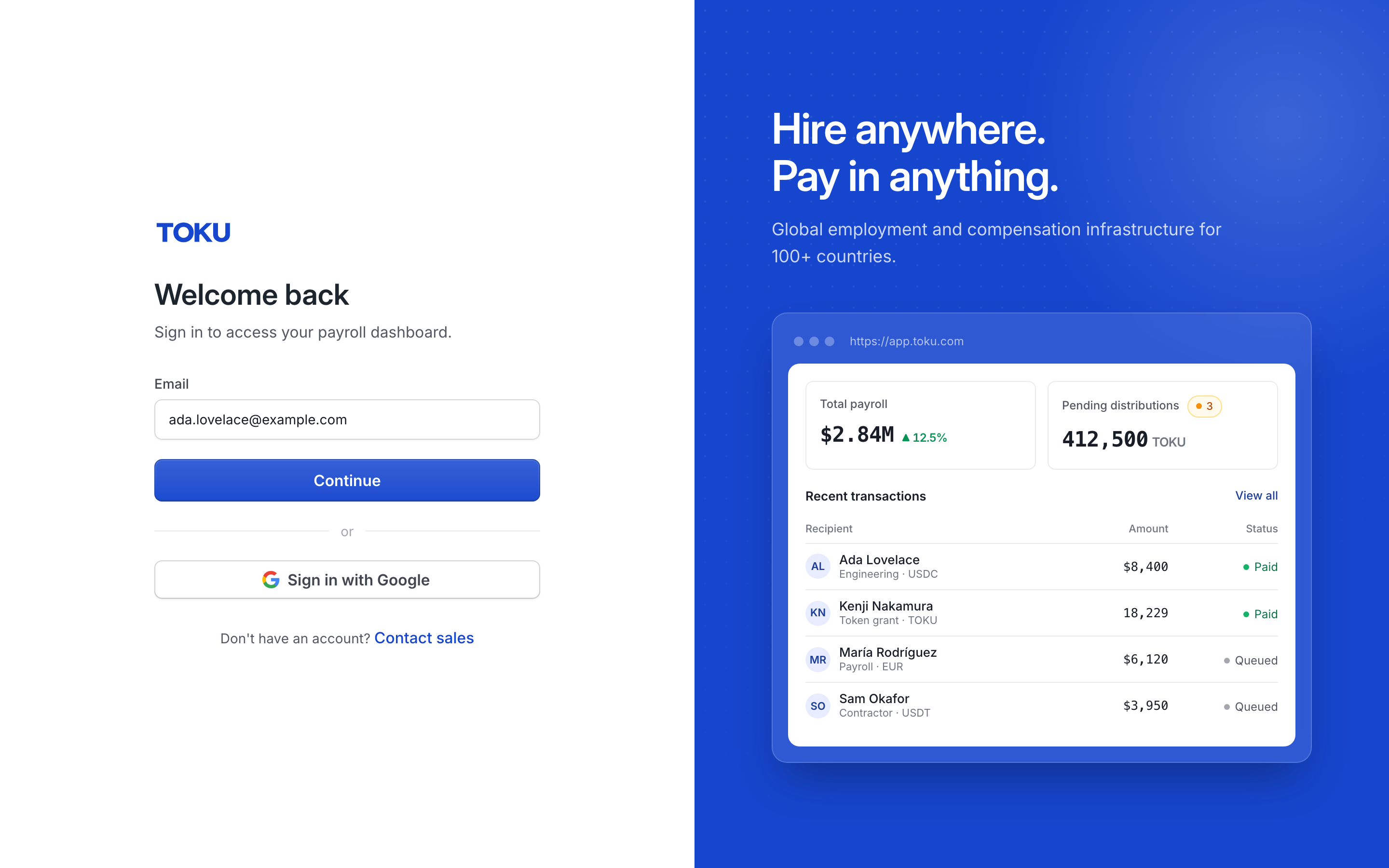
- Open a web browser and type app.toku.com into the address bar, then press Enter. You should see a page headed Welcome back with a single Email box - there are no product tabs to choose.
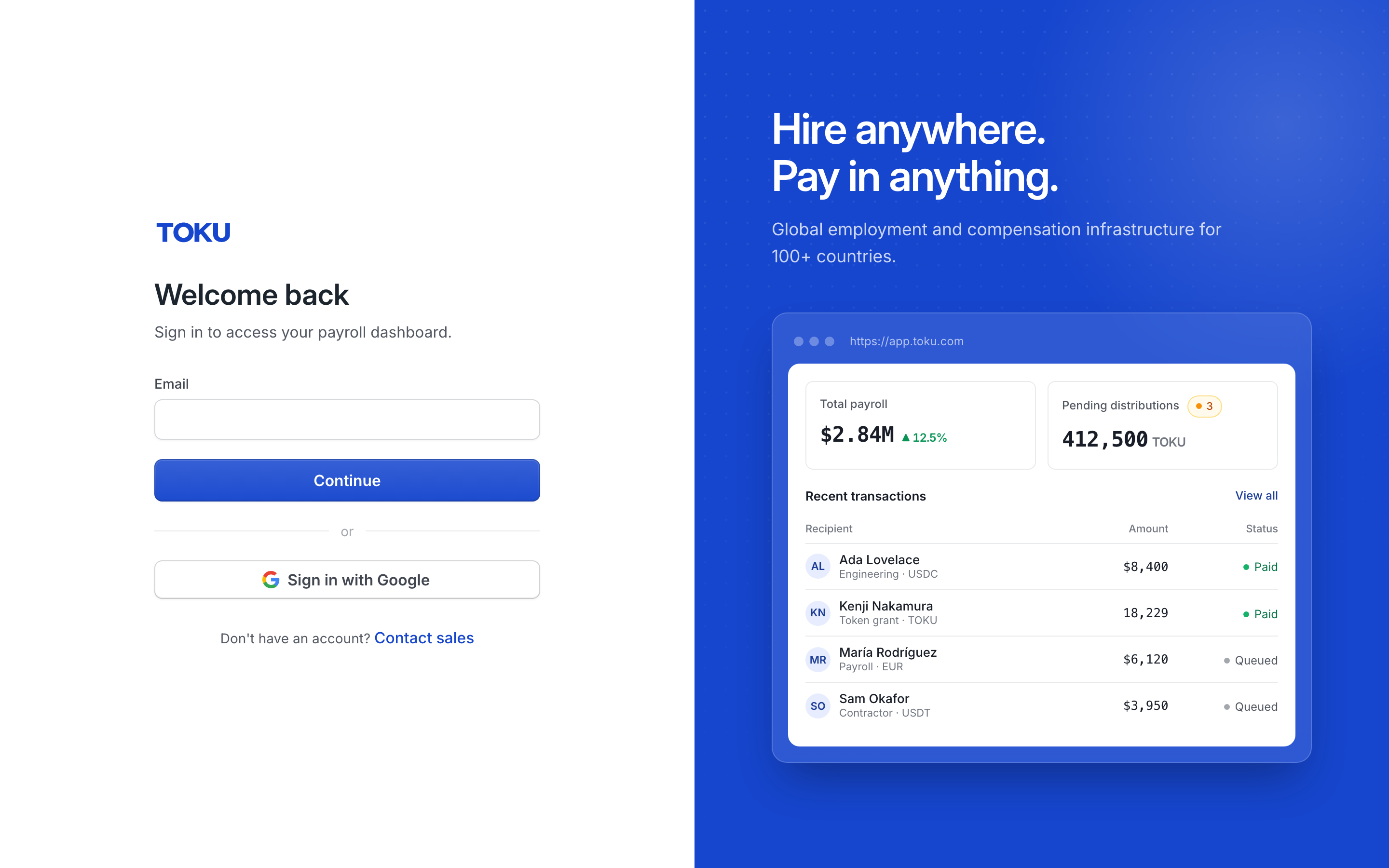
- Type your email address and select Continue. The page then asks for your password. Enter it and select the blue Sign in button. Signing in takes a few seconds. (You can also use Sign in with Google, or ask Toku to email you a one-time sign-in link.)
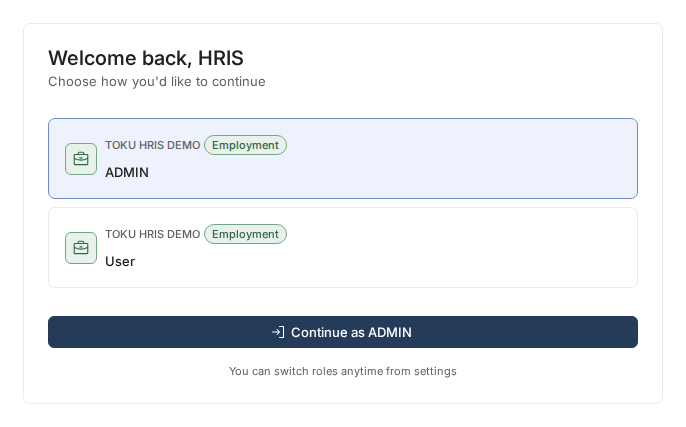
- If your account has more than one role, a screen appears asking "Choose how you'd like to continue" - pick the role you need and select the Continue as [Role] button. (If you have only one role, you skip this and go straight to your dashboard.)
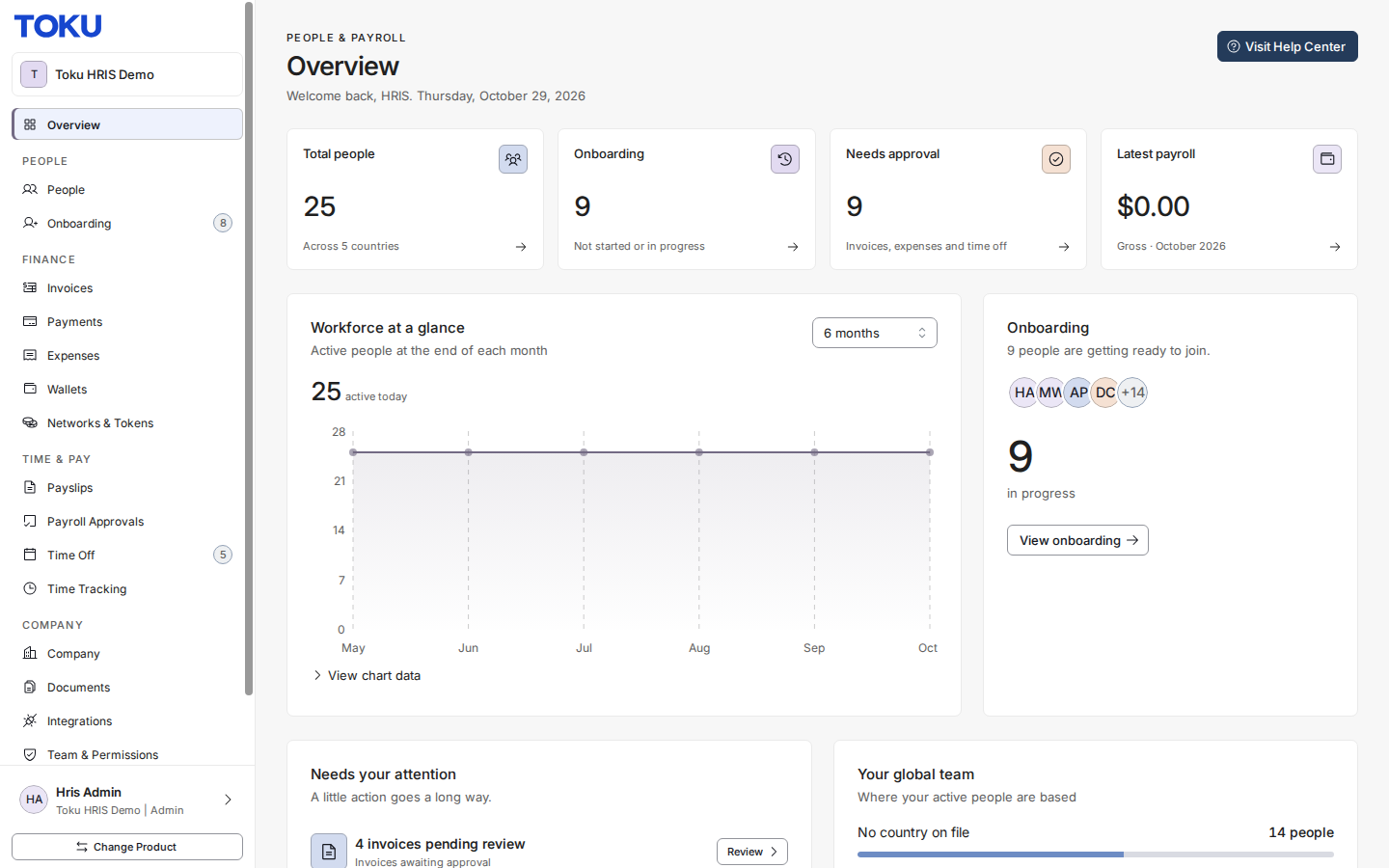
- Your home page (Overview) opens. Success looks like this: your organization's name appears directly under the Toku logo, and the card in the bottom-left corner shows your name, organization and role. If the wrong product or organization shows, use the next section to switch.
Switch products without signing out
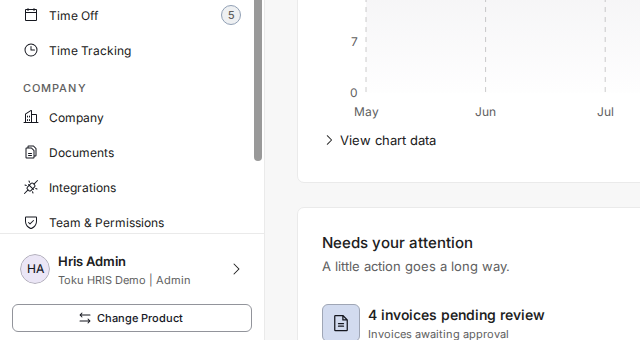
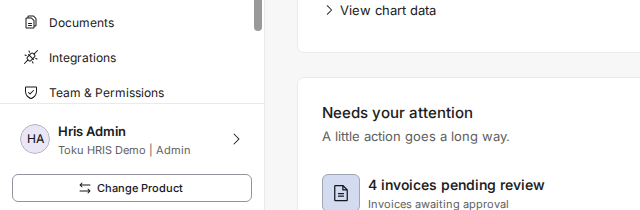
- Select Change Product below the name card at the bottom-left corner of the screen.
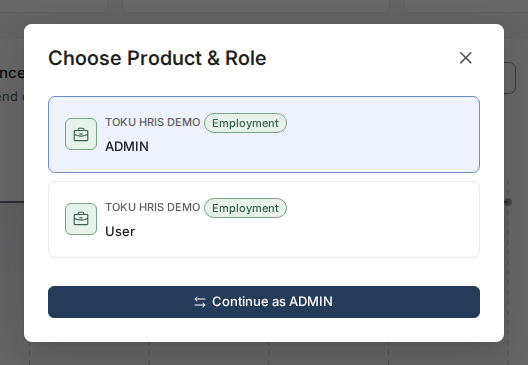
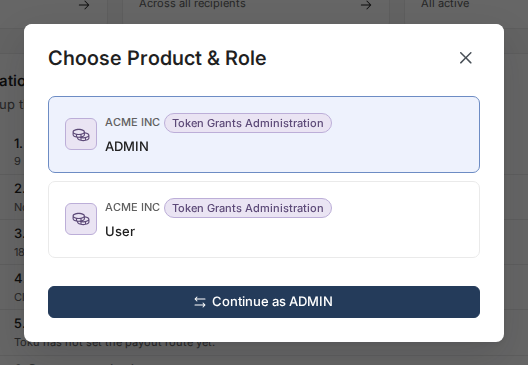
- Pick the product and role you want from the "Choose Product & Role" window, then select the Continue button naming your selected role. The page reloads into the chosen product and role.
Finding missing items in your account
- Check the product. Select Change Product at the bottom-left - the product and role you're currently in is listed first and already selected, with a badge naming the product. Invoices, pay, and time off live in Employment; grants and vesting live in Token Grants; stablecoin salary lives in Stablecoin Payroll.
- Check your role. Look at the card in the bottom-left corner - the line under your name shows your organization and your current role. Some items are only visible to certain roles (for example, invoices waiting for approval show to administrators, not to standard users).
- Check how you got there. If you arrived through a bookmark, it may point deep into a product you didn't mean to open - or at the old tga.app.toku.com address. Go back to app.toku.com and sign in fresh, then switch to the product you want and save a new bookmark from the page you actually need.
Good to know
- Bookmarks can drop you into the wrong product or role, so sign in fresh if you're unsure.
- Role-based visibility: some features are only shown to certain roles (e.g., approval queues show only to administrators).
- Token Grants and Stablecoin Payroll accounts are separate from Employment - they don't share the same dashboard.
- Choosing a product is now something you do after signing in, not before. One email and password covers all three.
- For a full walkthrough of switching products and roles without signing out, see How to Switch Between Products.
Still stuck?
You can email [email protected] to reach our support team. Please include your email address, organization name, and a description of what happened. Screenshots and videos are always welcome to speed up the troubleshooting process. Feel free to reach out any time for further assistance.