
 4 MIN READ
 UPDATED OCT 30, 2026
📘 For organization administrators on Toku. Last updated October 30, 2026.
Toku emails the person who actually needs to act on a request, instead of copying every administrator on everything. This article covers how approval notifications are routed, the organization-wide switches you can set, and how each person controls their own email frequency.
How notifications are routed by default
- An employee submits time off — their manager is emailed. Administrators are not.
- An employee with no manager submits — administrators are emailed instead, so the request can't go unseen. This fallback ignores the switch below, but it does respect each administrator's Access scope: an admin limited to Their team only is not emailed about someone outside their team, so keep at least one Entire organization administrator to be sure every request reaches someone.
- A request is approved or rejected — the employee is notified. Rejections include the reviewer's reason.
- An employee submits an expense report — the alert goes to whoever is set up to approve expenses for your organization, and to the employee's manager if they have one. If no expense approver is configured, administrators are notified instead.
- An expense is reimbursed — the employee who submitted it is emailed when it's paid out, unless you switch this off (below).
Change the organization-wide rules
Go to Company → Settings and scroll to Approval notifications.
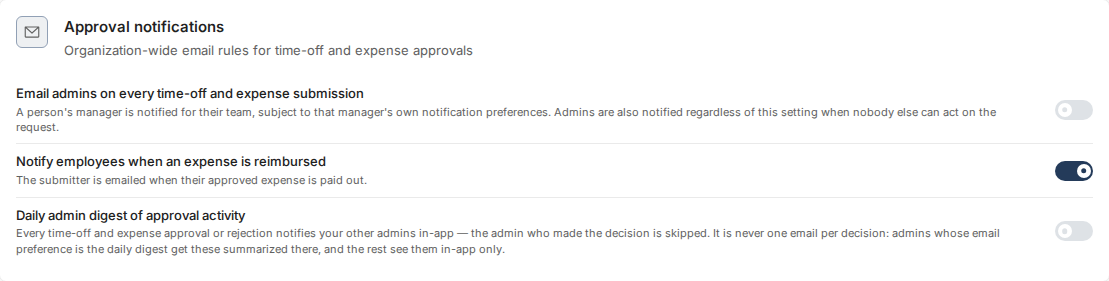
- Email admins on every time-off and expense submission — switch this on when your administrators want to be copied in, not just the approver or the manager. Time-off copies still follow each administrator's Access scope, so an administrator set to Their team only hears about their own team. Managers are still notified for their own team either way, and nobody receives duplicates.
- Notify employees when an expense is reimbursed — controls the "paid out" email to the submitter.
- Daily admin digest of approval activity — instead of a separate email for every approval or rejection, your other administrators get in-app notifications as decisions happen, summarized in one daily email. The administrator who made a decision is never notified about it. The summary email goes to administrators whose own email preference (below) is the daily digest; the rest see the activity in-app only.
My notification preferences
Below the organization section is My notification preferences, which applies only to your own account: an In-App Notifications switch, and an email frequency you can set to immediate, a daily digest, or off. Changing your personal frequency changes when you receive email - it doesn't change who Toku routes notifications to.
What the recipient receives
Notification emails arrive with the subject line "You have 1 pending notification on Toku" and link into Toku - that's the phrase to search an inbox for when someone says they never got one.
If notifications aren't arriving
- One person gets nothing. Check their personal email frequency first - off means no email at all, and the daily digest means everything waits for the next day's summary.
- A manager isn't told about their team's requests. The requester probably has no manager set, or reports to someone else - check their profile. See Toku: Assign or change an employee's manager.
- A manager isn't told about their team's expense submissions. The employee probably has no manager set, or reports to someone else - check their profile, the same way as for time off. Or the manager's own email frequency (under My notification preferences) is set to off or the daily digest, so the alert isn't arriving immediately.
- An email failed to send. The underlying action still goes through - approvals and submissions are never blocked by email delivery.
Good to know
- The daily digest is sent once a day, so a decision made just after today's summary appears in tomorrow's.
- Time-off routing follows the reporting line - see Toku: Set up reporting lines and grant time off and expense approval for how to set that up.
- Being emailed about a request is not the same as being able to action it. Approving time off, timesheets, and expense reports always follows the administrator's Access scope, so an administrator set to Their team only can be copied on a notice and still not be the one who can approve it. See Toku: Manage Administrator Access and Email Notifications.
Still stuck?
You can email [email protected] to reach our support team. Please include your email address, organization name, and a description of what happened. Screenshots and videos are always welcome to speed up the troubleshooting process. Feel free to reach out any time for further assistance.