
 4 MIN READ
 UPDATED OCT 30, 2026
📘 For organization administrators on Toku. Last updated October 30, 2026.
The manager on an employee's profile creates their reporting line. Toku uses that link for manager-based access and time-off submission notifications; approving requests still requires the Approver role. Expense reports may follow separate approval-tier routing. This article covers setting, changing, and clearing a manager.
Before you start
- You need administrator access to a Toku Employment (HRIS) organization.
- The manager must be an active person in the same organization. The picker only offers real records, so there is no email address to type or mistype.
Set or change the manager
- Go to People and open the employee's profile.
- Select Edit Profile.
- In the Manager field, search by name or email. Each result shows the person's name, email, and department so you can tell people apart.
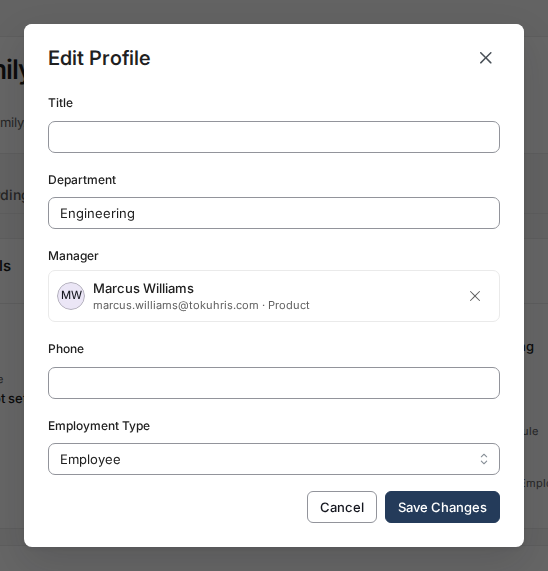
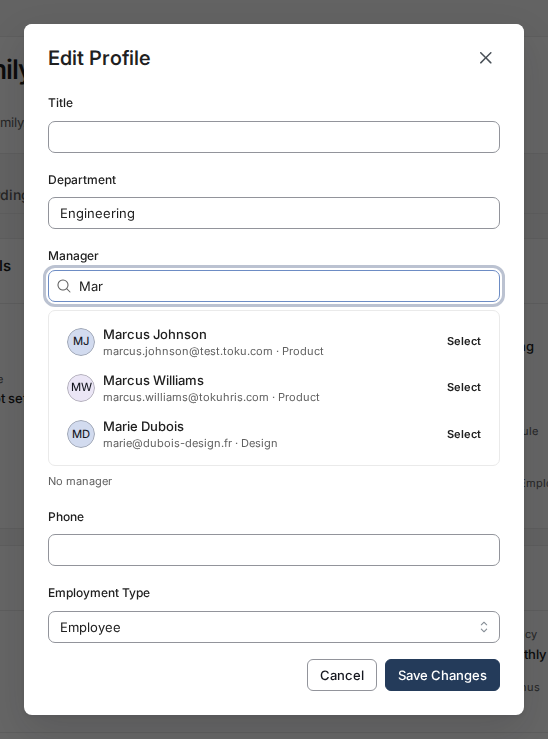
- Select the manager, then select Save Changes. When asked when the change should take effect, choose an option (for example Immediately), tick the confirmation box if one appears, then select Confirm. The Employment Details section of the profile now shows the manager's name - as an administrator you can select it to jump to the manager's own profile. Future time-off submission notifications use the current linked manager.
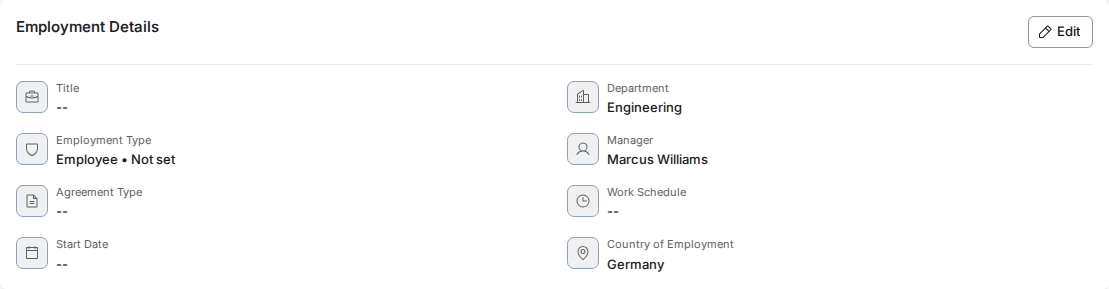
Edit the manager from Employment Details
You can also change the manager directly from the Employment Details card, without opening Edit Profile. It uses the same search-and-select picker pattern.
- On the employee's profile, find the Employment Details card and select Edit.
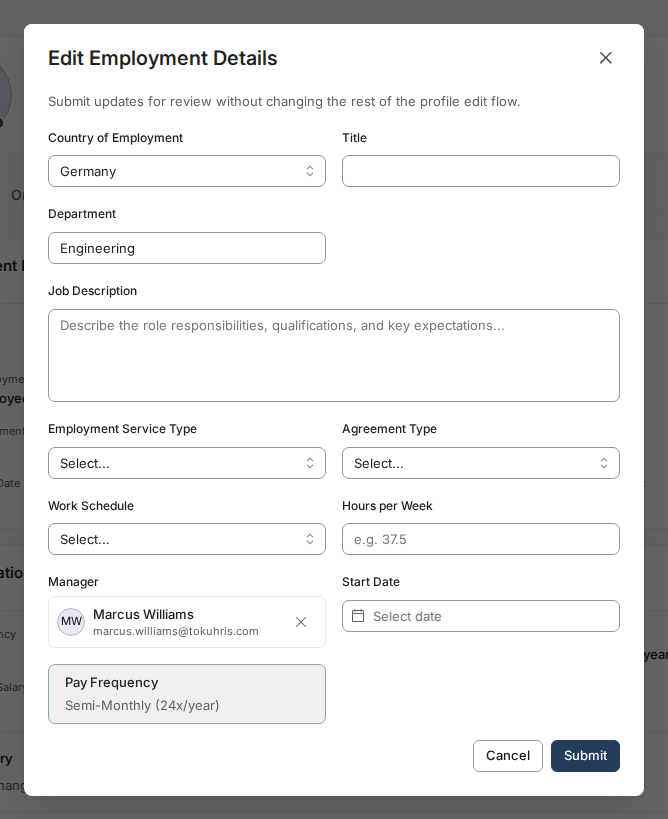
- In the Manager field, search for a person. Select them from the results, then select Submit. This saves the same linked reporting-line field as Edit Profile; neither path accepts a free-text manager name.
Clear the manager
Open the Manager picker - from Edit Profile or the Employment Details card - and remove the selected person, then save. The manager field on the profile empties, and the employee drops out of their former manager's reporting scope. While they have no active manager, their time-off submissions notify your in-scope administrators instead, so nothing goes unseen.
Who the picker won't offer
- The employee themselves — nobody can be their own manager.
- Anyone who reports up to them, directly or further down. The picker leaves them out of the search results entirely, so there's nothing to select that would create a reporting loop.
- Terminated or archived people.
- You. An administrator can't currently select themself as an employee's manager from the picker.
If it doesn't work
- The Employment Details card shows the warning "Unlinked" instead of a manager's name, with a note that the saved value "doesn't match an active employee." This means the saved manager doesn't link to a current employee record. Open Edit Profile: the Manager field opens empty with the same warning and a Remove option. Search for the right person, select them, then select Save Changes. The warning clears once the pick is saved.
- The save is rejected with a message about the reporting line. The change would have made two people report to each other. Pick a manager outside the employee's own branch.
- Time-off notifications are still reaching the old manager. Re-open the profile and confirm the new manager actually saved, and check whether the request was submitted before the change.
Good to know
- Setting a manager creates the reporting line, but the manager also needs the Approver role before they can approve or reject time off. Expense approval routing can be configured separately. See Toku: Set up reporting lines and grant time off and expense approval. You can also manage reporting lines in bulk from Team & Permissions (Approvers tab → All eligible → Manage reports).
- Manager changes are recorded on the employee's Activity tab, so you can always see who changed a reporting line and when.
- For details about submission notifications and fallback recipients, see Toku: Choose who gets notified about time off and expense approvals.
- Editing the manager from Edit Profile or from the Employment Details card has the same effect - both save the real reporting link, and neither accepts free text.
Still stuck?
You can email [email protected] to reach our support team. Please include your email address, organization name, and a description of what happened. Screenshots and videos are always welcome to speed up the troubleshooting process. Feel free to reach out any time for further assistance.