
 5 MIN READ
 UPDATED NOV 3, 2026
⚠️ Contractor invoice and payment deadlines: late action means late payment
- Contractors: submit invoices by the 19th of each month. A saved draft is not a submitted invoice.
- Admins: approve invoices by the 21st of each month. Submission alone does not authorize payment.
- Funding: Toku must receive cleared funds 4 - 5 business days before payout. Initiating a transfer or sending proof of payment does not meet the deadline.
- Standard monthly payout: the last day of the month, provided submission, approval, and funding deadlines are met. Late submission, approval, or funding will delay payment. Every day of delay pushes payment back by at least one day. A missed payment cycle can cause a longer delay; the invoice due date is not a guarantee of payment.
Automation does not remove these deadlines. Earlier published holiday deadlines take precedence; see Toku: 2026 End-of-Year Payroll & Payment Guide.
📘 For organization administrators on Toku. Last updated October 30, 2026.
Import multiple employees or contractors at once using a spreadsheet template (CSV, XLSX, or XLS). All contributors will receive onboarding invitations and instructions to activate their accounts.
Before you start
- Prepare your contributor data in a spreadsheet - CSV, XLSX, and XLS are all supported. Download the template from Toku to see all required and optional fields.
- Initiate bulk imports at least two weeks before start dates to allow time for registration, tax forms, benefits, and contract signatures.
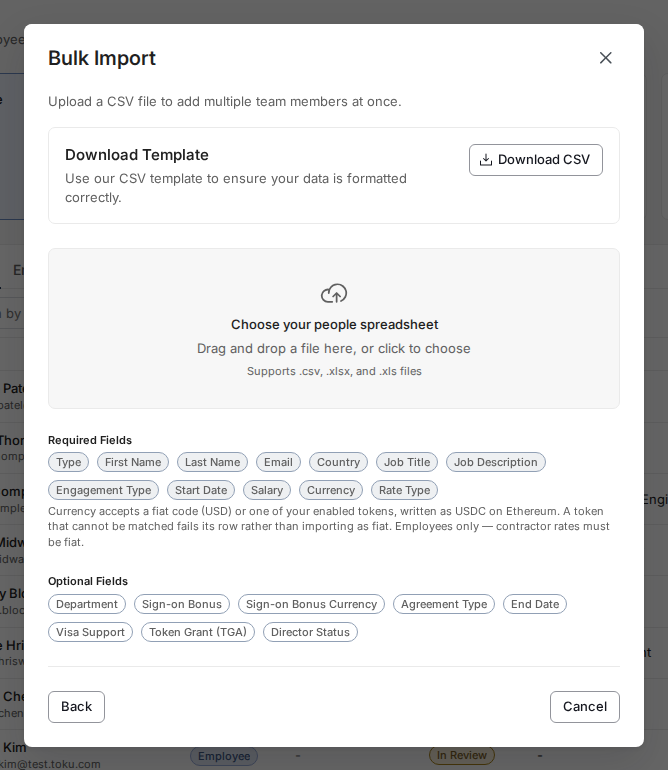
- Each row needs the required fields: Type (Employee or Contractor), First Name, Last Name, Email, Country, Job Title, Job Description, Engagement Type (EOR or PEO for employees; Client Managed or Agent of Record for contractors), Start Date, Salary, and Currency. Contractors also require Rate Type.
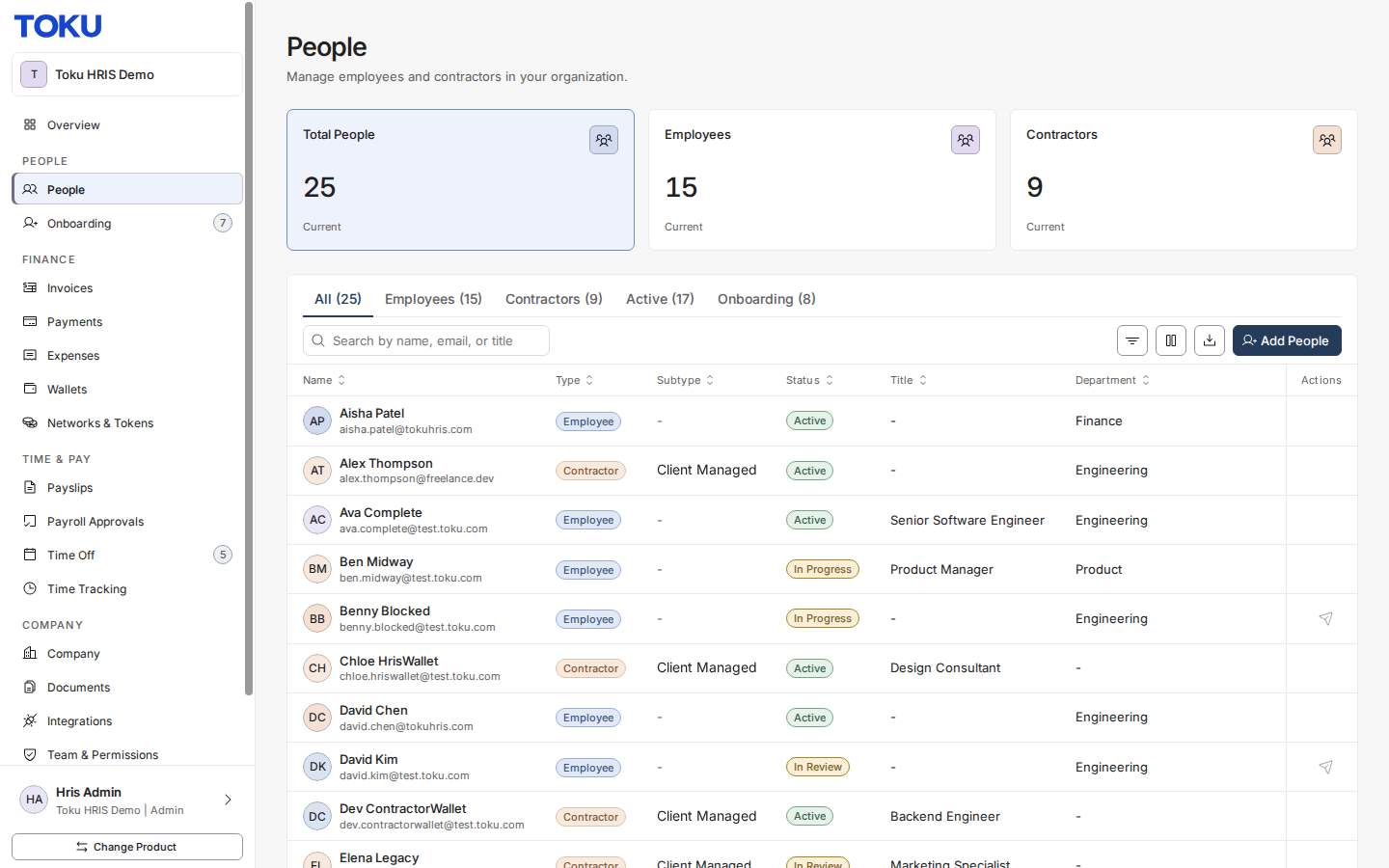
Navigate to the People section
- Log in to Toku and open People in the left-hand menu.
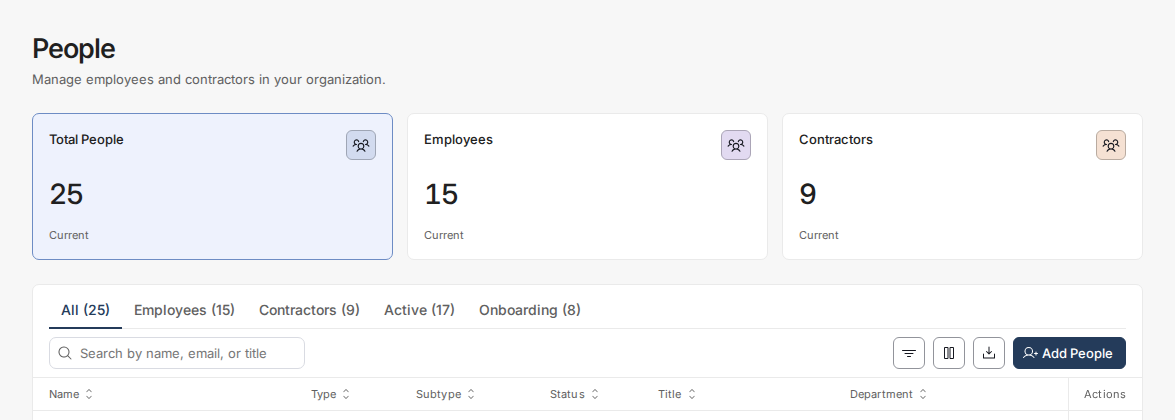
- Click the Add People button at the top right of the people list.
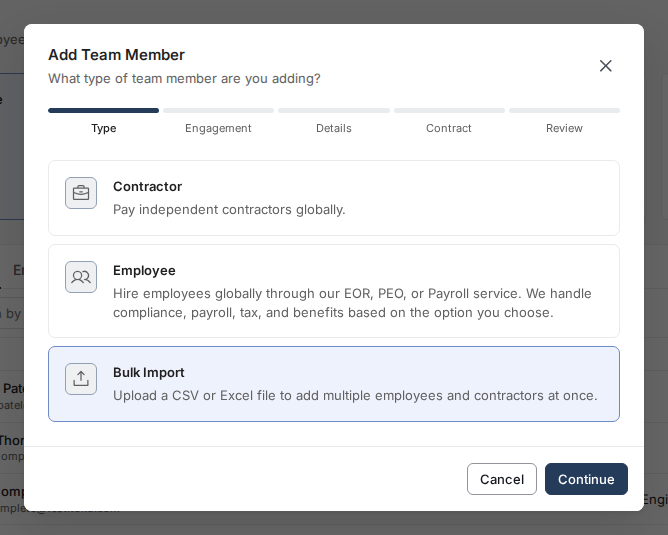
Select bulk import option
- In the dialog that appears, select Bulk Import to add multiple contributors at once.
Download the template
- Click Download CSV to download the template. It includes an example row for an employee and a contractor so you can see exactly how to format your data, and the required/optional fields are also shown right in this window.
Fill in the CSV template
Optional fields include: Department, Sign-on Bonus, Sign-on Bonus Currency, Agreement Type, End Date (for fixed-term contractors), Visa Support, Token Grant (TGA), and Director Status.
- First Name, Last Name — contributor's full name
- Email — must be in valid email format
- Country — use the country code from Toku's supported list (for example, US, GB)
- Job Title, Job Description — role and responsibilities
- Start Date — Toku accepts common date formats (such as YYYY-MM-DD or M/D/Y) and normalizes them internally
- Type — Employee or Contractor
- Engagement Type — for employees: EOR or PEO; for contractors: Client Managed or Agent of Record
- Salary — required for every row: the annual salary for employees, or the rate amount for contractors
- Currency — three-letter code (USD, GBP, CAD, INR, etc.)
- Rate Type — required for contractors only (for example, Hourly or Monthly); leave blank for employees
Upload the CSV
- Drag your completed file into the upload area, or click to browse and select it.
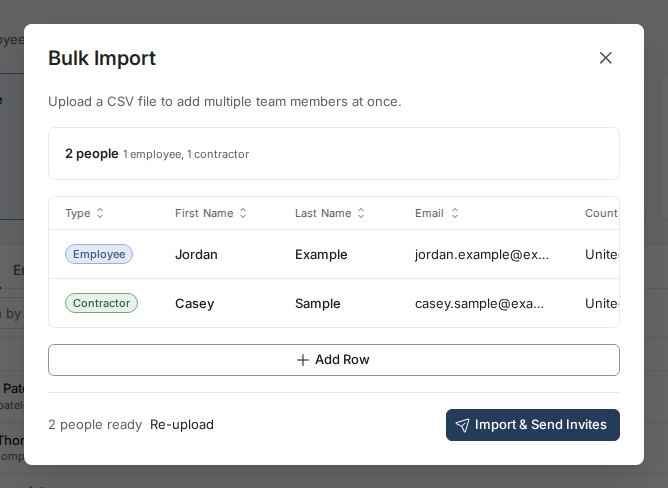
Review and confirm
- Toku validates your data automatically and shows how many people are ready to import. If there are errors, they're listed below the summary with the row and field - fix them inline in the grid, or fix your spreadsheet and click Re-upload.
- Once everyone shows as ready, click Import & Send Invites to add all team members to your organization and send them invitation emails.
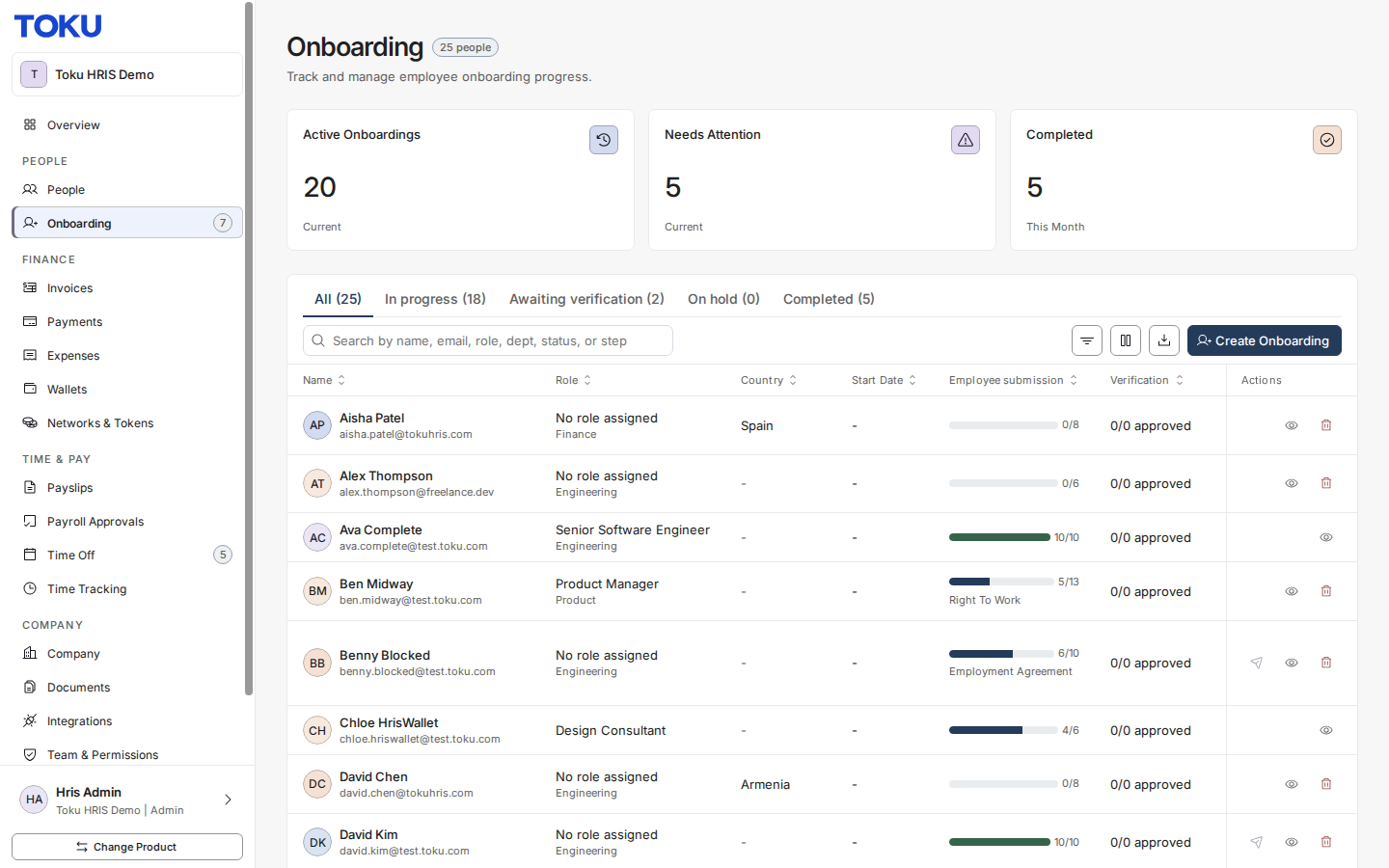
Track progress in Onboarding
- Open Onboarding in the left-hand menu to monitor all contributors' progress, view missing steps, and send reminders.
Good to know
-
The Invoices step described in the single-contractor onboarding guide belongs to People → Add People → Contractor. Bulk import uses its own spreadsheet and review flow; it does not present that per-contractor step. See the illustrated contractor onboarding walkthrough.
-
Date format: YYYY-MM-DD is recommended (e.g., 2026-08-15), but Toku also accepts other common formats and normalizes them internally.
-
Email validation: All email addresses must be in valid format (e.g., [email protected]).
-
Supported countries: Use the country code from Toku's supported list (for example, US, GB) rather than the full country name.
-
Fixed-term contractors: enter an End Date. Toku's Customer Success team is alerted 30 days before it arrives and will contact you to extend or end the engagement. The Needs your attention list on your Overview page and the People page also show who is approaching an end date.
-
If onboarding isn't completed by the start date, contributors' start dates may be delayed.
Still stuck?
You can email [email protected] to reach our support team. Please include your email address, organization name, and a description of what happened. Screenshots and videos are always welcome to speed up the troubleshooting process. Feel free to reach out any time for further assistance.