
 2 MIN READ
 UPDATED OCT 30, 2026
📘 For employees on Toku. Last updated October 30, 2026.
After you complete and submit your onboarding, you'll see a confirmation screen that lets you know we received everything - then you can go to your dashboard.
Before you start
- You have filled out all your onboarding steps, including bank details, tax information, and personal data.
- You're on the final Review & Confirm screen of your onboarding wizard.
Submit your onboarding
- Review the information you entered. Make sure everything looks correct before proceeding.
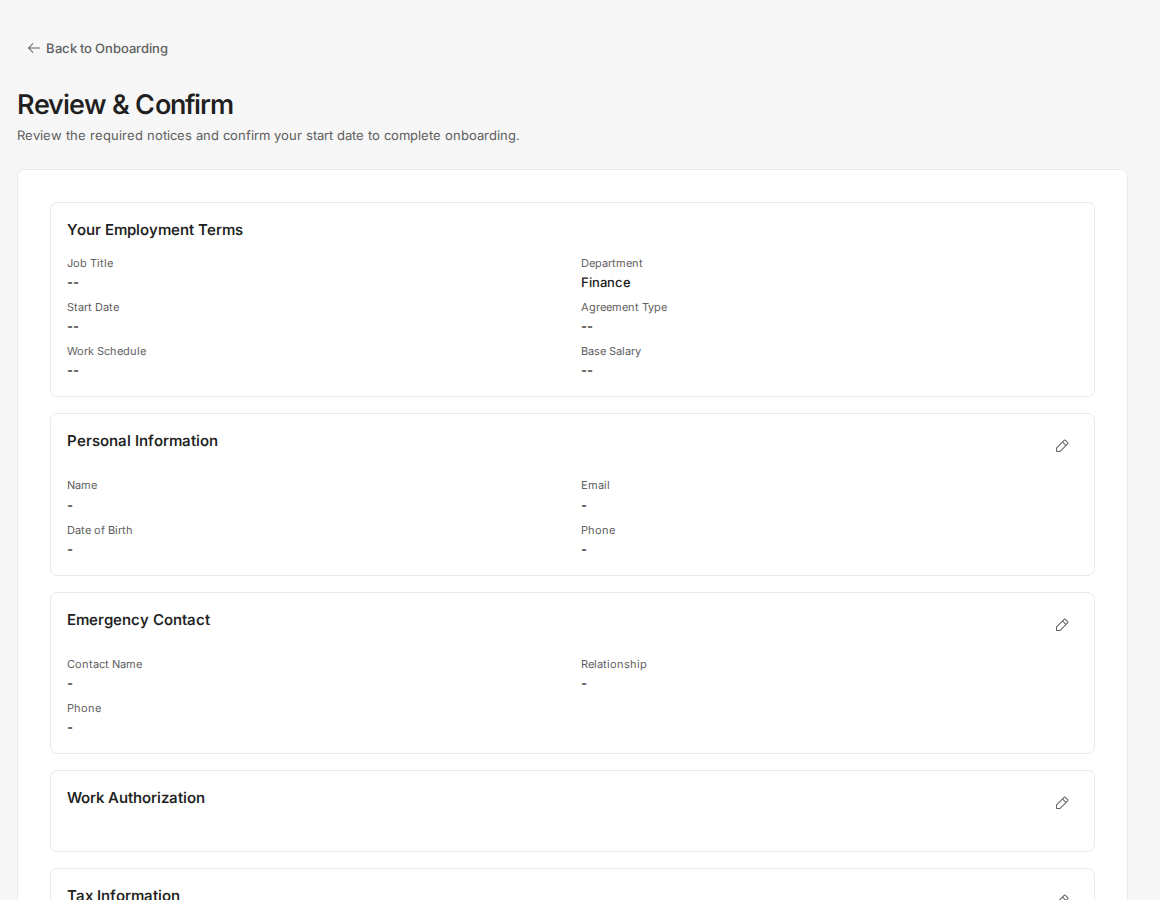
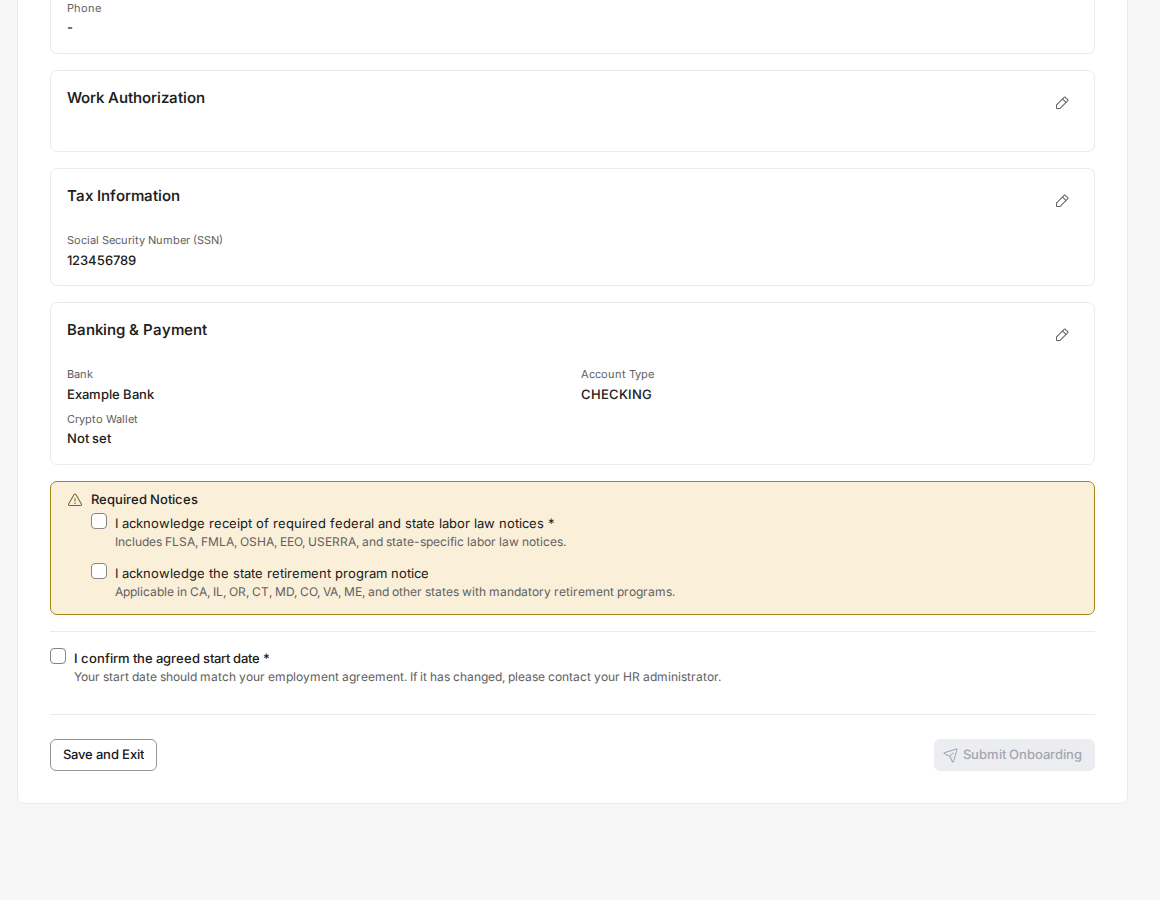
- Scroll to the bottom of the Review & Confirm step, tick every required notice and the start-date confirmation, then click Submit Onboarding. The button only becomes active once all required boxes are ticked.
See your confirmation screen
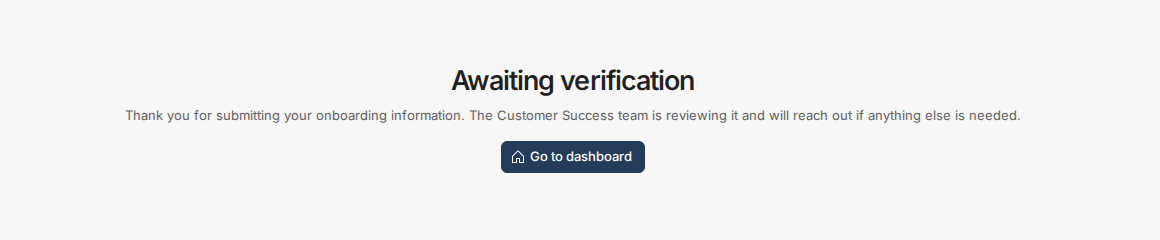
- After you click Submit Onboarding you'll see the Awaiting verification screen with the message "Thank you for submitting your onboarding information. The Customer Success team is reviewing it and will reach out if anything else is needed." (If nothing is left to verify, the screen reads Completed instead.)
Go to your dashboard
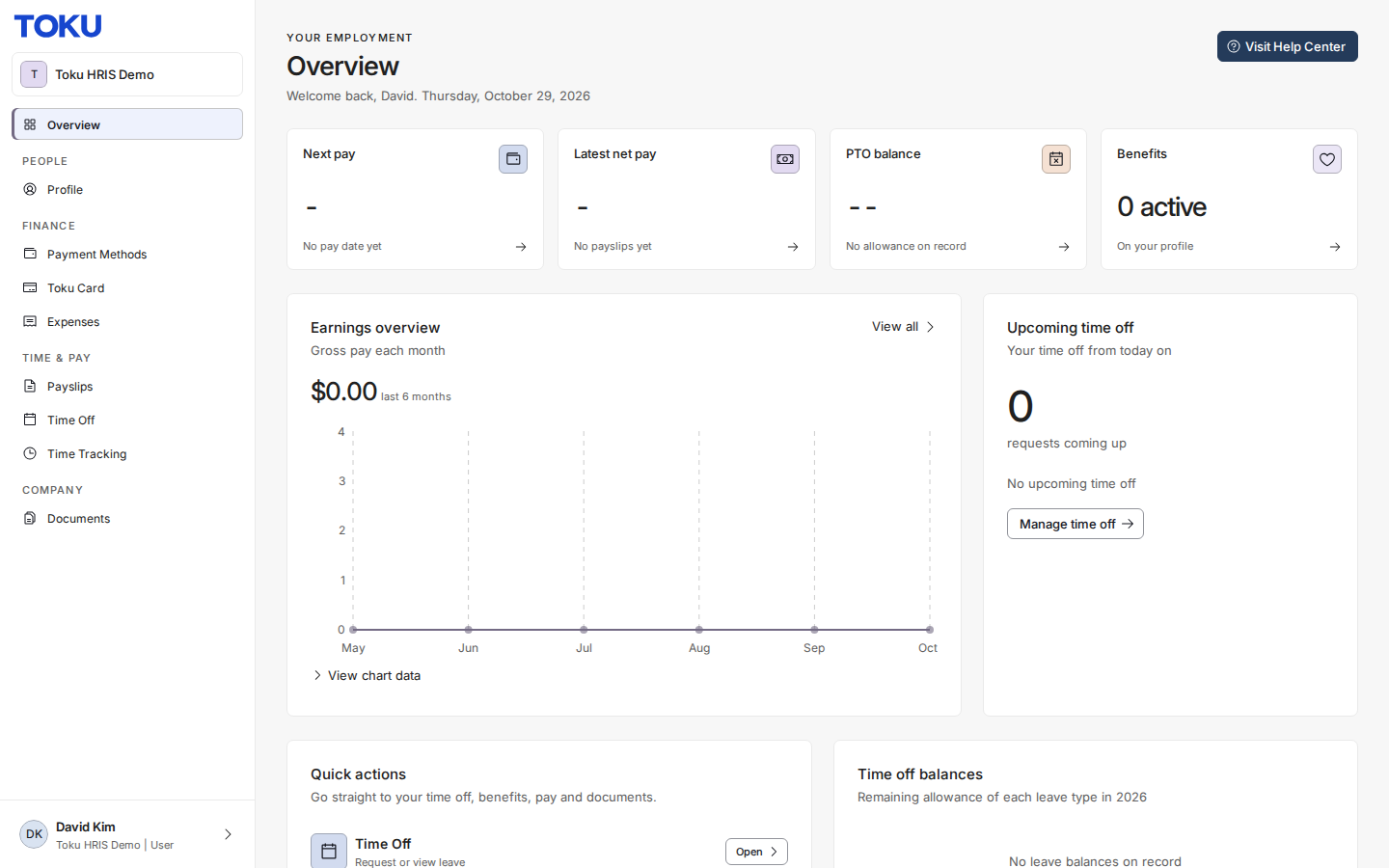
- Click the Go to dashboard button on the confirmation screen to view your employee dashboard (Overview).
Good to know
- If you open your onboarding page again while your submission is being reviewed, you'll see the same status screen. Once your onboarding is completed, you're taken straight to your dashboard.
- The confirmation screen confirms that your submission went through.
- You can review your submitted information anytime from your employee profile.
Still stuck?
You can email [email protected] to reach our support team. Please include your email address, organization name, and a description of what happened. Screenshots and videos are always welcome to speed up the troubleshooting process. Feel free to reach out any time for further assistance.