
 3 MIN READ
 UPDATED OCT 31, 2026
📘 For employees and contractors on Toku. Last updated October 31, 2026.
Access and download your payslips from the Toku platform after each pay cycle.
Before you start
- Log in to your Toku account at https://app.toku.com
- Payslips usually arrive a few days after payday. The first box on My Payslips shows your next salary date and the date your payslip should be ready.
View your payslips
- From the left-hand menu, under TIME & PAY, click Payslips.
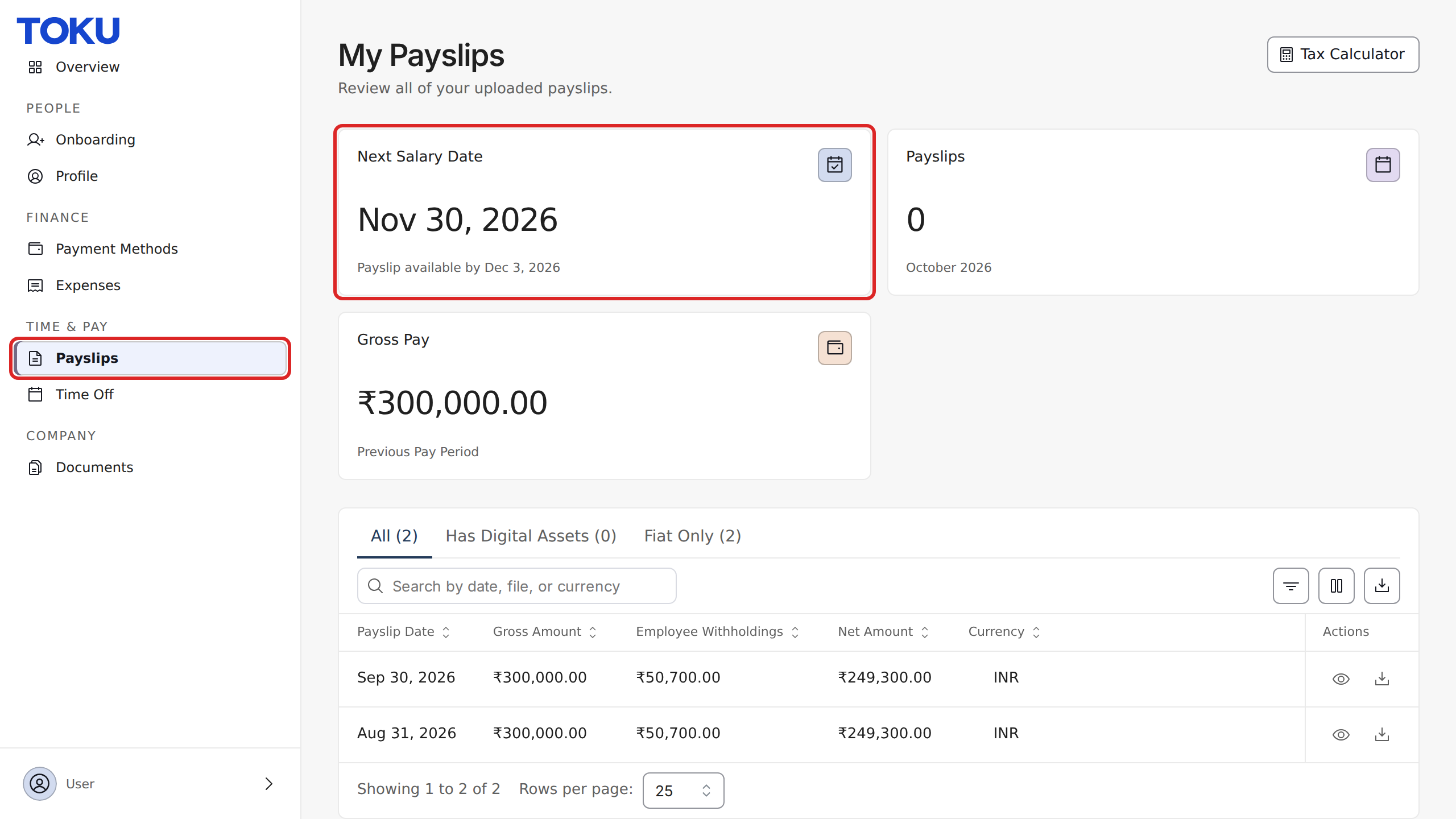
- Browse your payslips. Each row shows the payslip date, gross amount, employee withholdings, net amount, and currency.
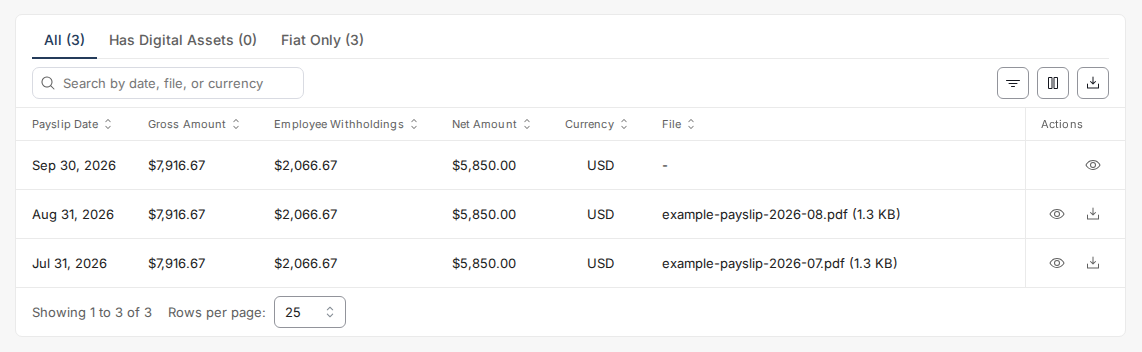
- To download a payslip, click the download icon in the Actions column for that row. Download is only available once your admin has uploaded a payslip PDF; if none has been uploaded yet, the File column shows
–and no download link appears.
See when you're paid next
The first box on My Payslips, Next Salary Date, shows the date of your next salary payment. Underneath, Payslip available by shows when the payslip for that payment should be ready to view and download.
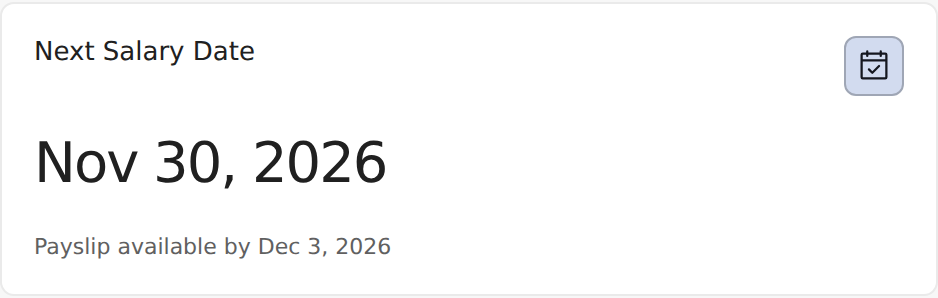
- Both dates come from your organization's payroll calendar, so you don't have to guess when you'll be paid.
- The payslip date is based on how quickly your recent payslips arrived. For your first payslip, we estimate 5 days after payday.
- If your organization hasn't set up a payroll calendar yet, this box shows your total number of payslips instead.
Estimate your take-home pay
Click Tax Calculator at the top right of My Payslips to try a different gross pay, tax rate or deduction and see roughly what you'd take home. Full steps: Toku: Estimate your take-home pay with the Tax Calculator.
Understand your payslip columns
| Column | What it shows |
|---|---|
| Payslip Date | The date associated with that pay period. |
| Gross Amount | Your total gross pay for the period, before deductions. |
| Employee Withholdings | Taxes, social contributions, and other deductions withheld from your gross pay. |
| Net Amount | Your take-home pay after all withholdings. |
| Currency | The currency your payslip amounts are shown in (e.g., USD). |
| File | A link to download the payslip PDF once your admin has uploaded it. Shows - if no file has been uploaded yet. |
| Uploaded At | The date your admin uploaded this payslip record. |
| Actions | Contains the view icon (opens the payslip details) and the download icon for that payslip, shown once a file has been uploaded. |
Good to know
- If you have both semi-monthly and monthly pay schedules, check your org's payroll calendar for exact payday dates.
- Payslips are retained for your complete employment history on the platform.
Still stuck?
You can email [email protected] to reach our support team. Please include your email address, organization name, and a description of what happened. Screenshots and videos are always welcome to speed up the troubleshooting process. Feel free to reach out any time for further assistance.