
 4 MIN READ
 UPDATED OCT 30, 2026
⚠️ Contractor invoice and payment deadlines: late action means late payment
- Contractors: submit invoices by the 19th of each month. A saved draft is not a submitted invoice.
- Admins: approve invoices by the 21st of each month. Submission alone does not authorize payment.
- Funding: Toku must receive cleared funds 4 - 5 business days before payout. Initiating a transfer or sending proof of payment does not meet the deadline.
- Standard monthly payout: the last day of the month, provided submission, approval, and funding deadlines are met. Late submission, approval, or funding will delay payment. Every day of delay pushes payment back by at least one day. A missed payment cycle can cause a longer delay; the invoice due date is not a guarantee of payment.
Automation does not remove these deadlines. Earlier published holiday deadlines take precedence; see Toku: 2026 End-of-Year Payroll & Payment Guide.
📘 For organization administrators ending a client-managed contractor's engagement on Toku. Last updated October 30, 2026.
When you're ready to end a contractor's engagement, you submit a termination request for Toku's approval. Once approved, the contractor moves to inactive status, which stops future invoices and payments. This guide shows how to submit a termination request.
Before you start
- Ensure any final invoice has been submitted, approved, and funded before terminating
- Moving a contractor to Inactive stops all future auto-invoicing (if enabled)
- The contractor's Toku account stays open after termination - they keep access to their Dashboard, invoice history, payslips, and documents. Termination only stops future auto-invoicing and starting a new onboarding; see Accessing Your Account and Invoices After Termination.
How to terminate a contractor
- Log in to your Toku account and open the People tab.
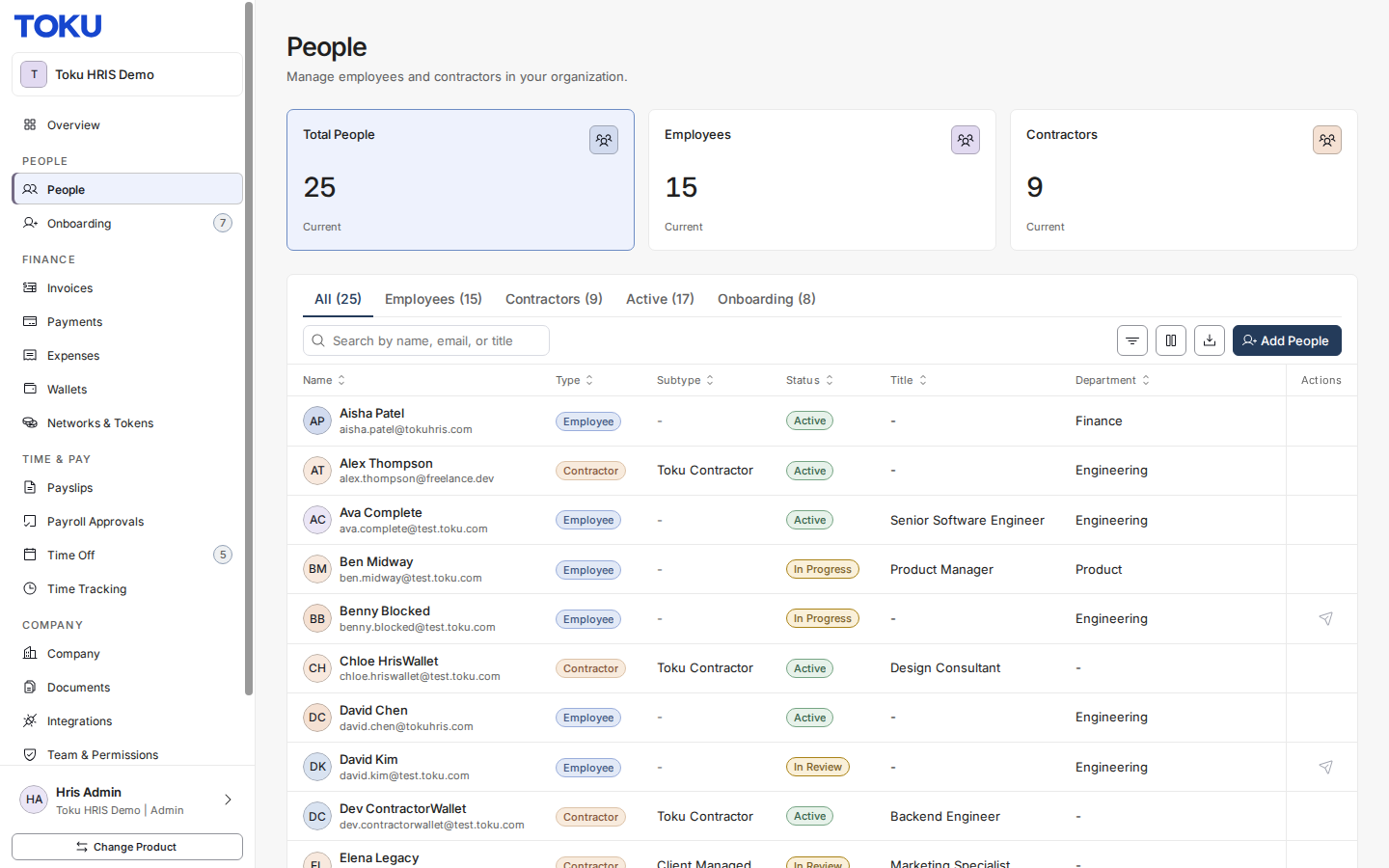
- On the People page, click the Contractors card to filter the list to contractors only.
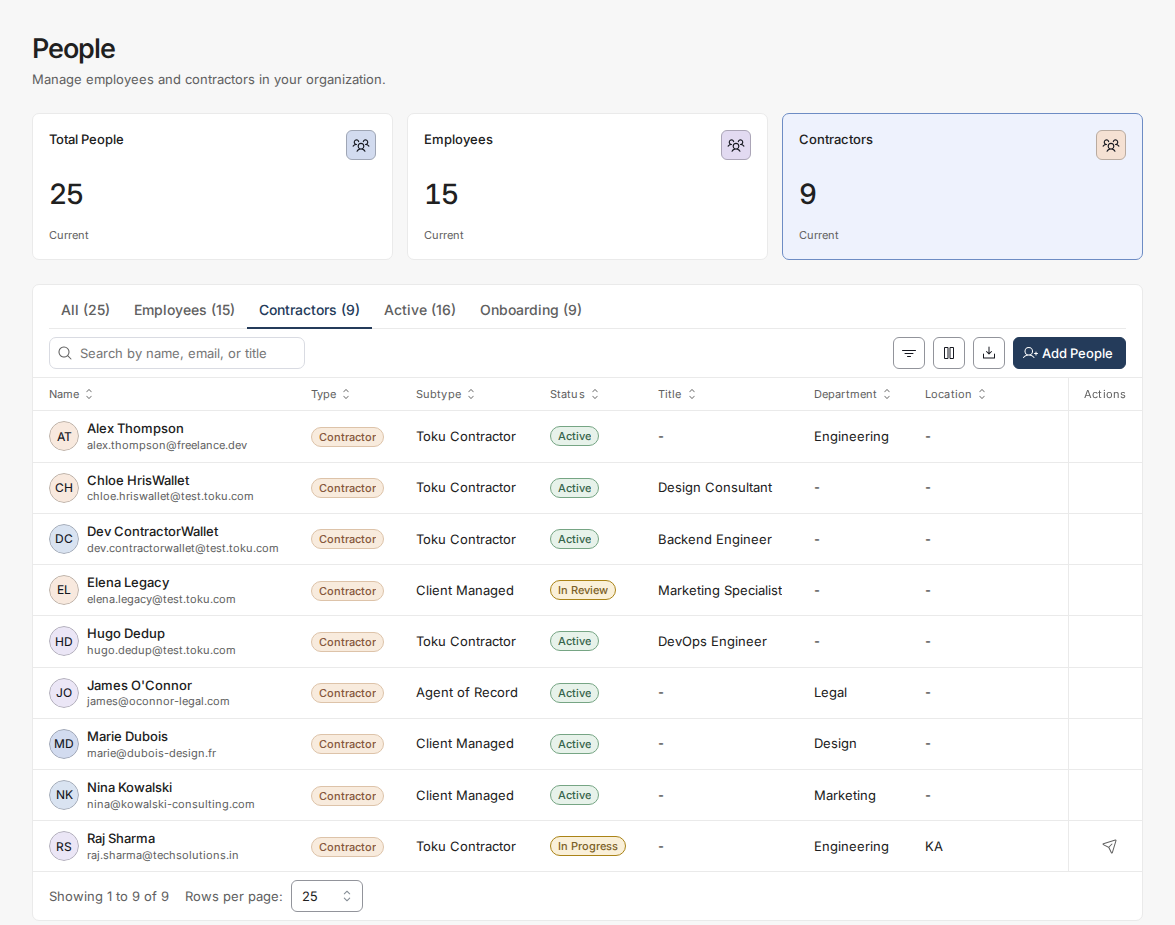
- Click on the contractor's name to open their profile.
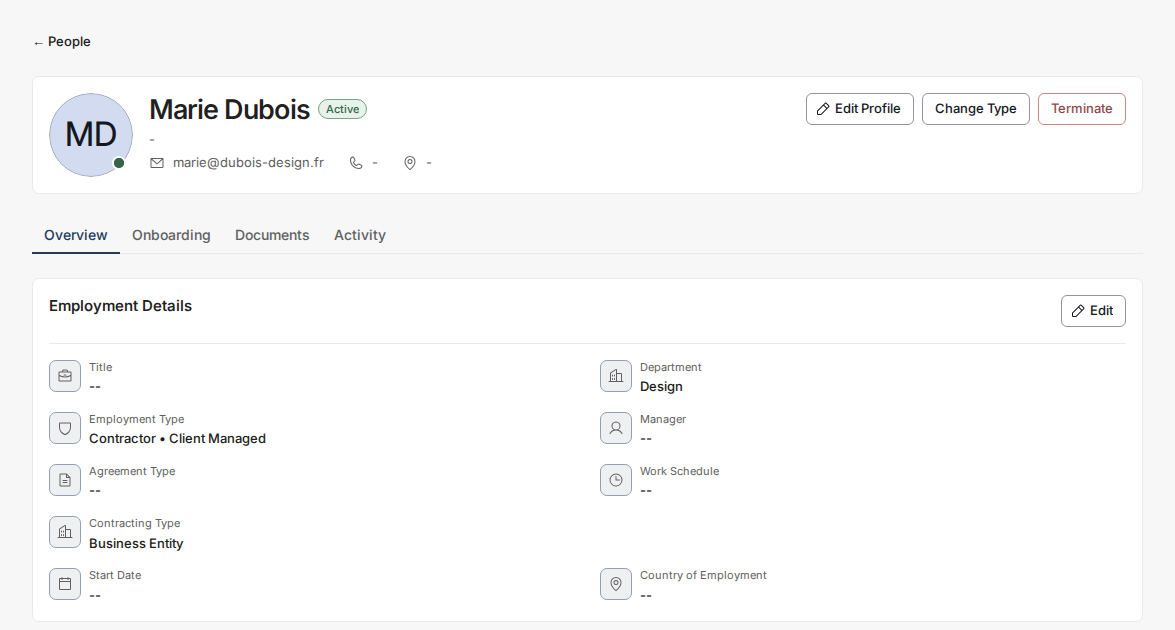
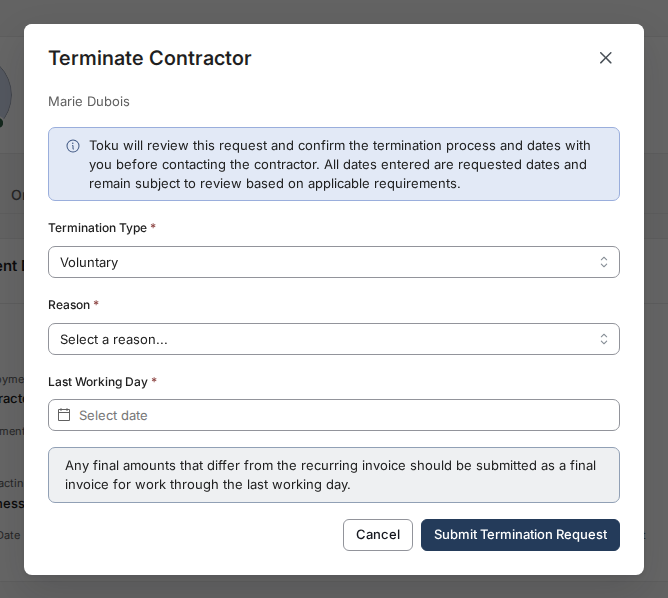
- Click Terminate, fill in the termination details - termination type, reason, any supporting document the reason asks for, and last working day - then click Submit Termination Request. This does not terminate the contractor immediately: the request is submitted for Toku admin approval, and the contractor stays active until it's approved.
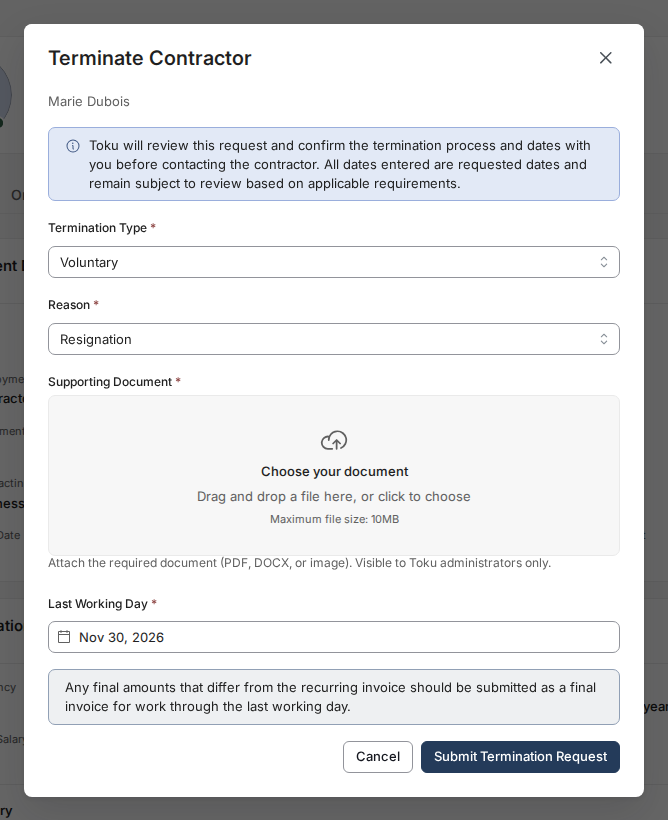
What happens after termination
Submitting the form creates a termination request, which Toku reviews and approves. Only once it's approved does the contractor's status change to Inactive — future auto-invoicing stops. Until then, the contractor stays active and can still submit invoices. Even after their status changes to Inactive, the contractor keeps access to their Toku account - including their Dashboard, invoice history, and documents - and can still submit a final invoice for work completed before their last working day; see Accessing Your Account and Invoices After Termination.
Before you terminate
Important: Submit any final invoice before terminating if you can. If something is missed, the contractor can still sign in after termination and submit a final invoice for work completed before their last working day - see Accessing Your Account and Invoices After Termination. If you need Toku to add a payment on their behalf, contact Toku support.
Good to know
- Termination is permanent - you cannot reactivate a terminated contractor in the same organization
- If you need to re-engage the same person, you'll need to add them again as a new contractor
- Auto-invoicing stops once your termination request is approved and takes effect
⚠️ Verify that all final payments have been approved and funded before terminating. You cannot add invoices for terminated contractors.
Still stuck?
You can email [email protected] to reach our support team. Please include your email address, organization name, and a description of what happened. Screenshots and videos are always welcome to speed up the troubleshooting process. Feel free to reach out any time for further assistance.