
 2 MIN READ
 UPDATED OCT 30, 2026
📋 For employees on Toku. Last updated October 30, 2026.
Submit your monthly timesheet to Toku so your hours can be processed accurately through payroll.
Before you start
- Your organization requires time tracking for your role.
- You have access to the WorkCo Employee Timesheet template (a view-only Google Sheets file).
- Aim to submit by the 10th of each month to be included in that month's payroll cycle - see Good to know below for what happens if you submit later.
Make your own copy of the timesheet
- Open the WorkCo Employee Timesheet template. It's view-only, so you must make your own copy before you can fill it out.
- In Google Sheets, click File → Make a copy.
- Rename your copy in this format: [Your Full Name] - [Company Name] - Timesheet 2026. Example: Jane Smith - Acme Corp - Timesheet 2026.
- Save the copy to your Google Drive. Your copy is private by default.
Fill out your timesheet
- Select the month tab at the bottom of the sheet (e.g., May, June). Enter your name in the Employee Name field at the top.
- Use the Apply same hours Mon - Fri row to set your standard hours - this auto-fills all present days with your usual start and end time. Adjust individual days as needed.
- For each working day, use the status dropdown to select: Present (enter start/end times), Absent, Annual Leave, Sick Leave, or Public Holiday.
- The Total Hours column calculates automatically based on your start and end times. Review it before submitting.
Download and submit your timesheet
- Open the month tab you're submitting. Click File → Download → Comma-separated values (.csv). Make sure you're on the correct month tab before downloading.
- Log in to your Toku account and open Documents in the left-hand menu.
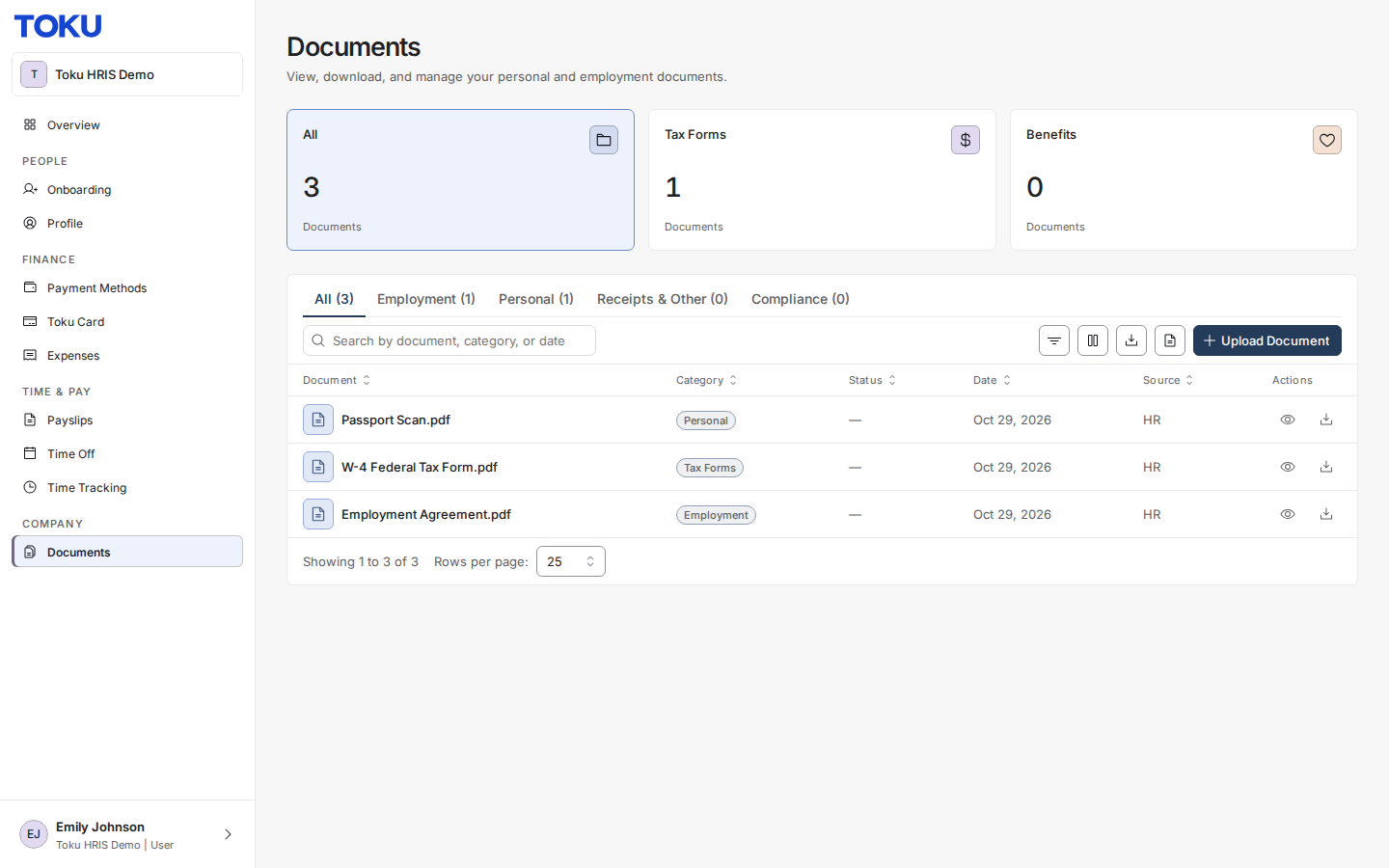
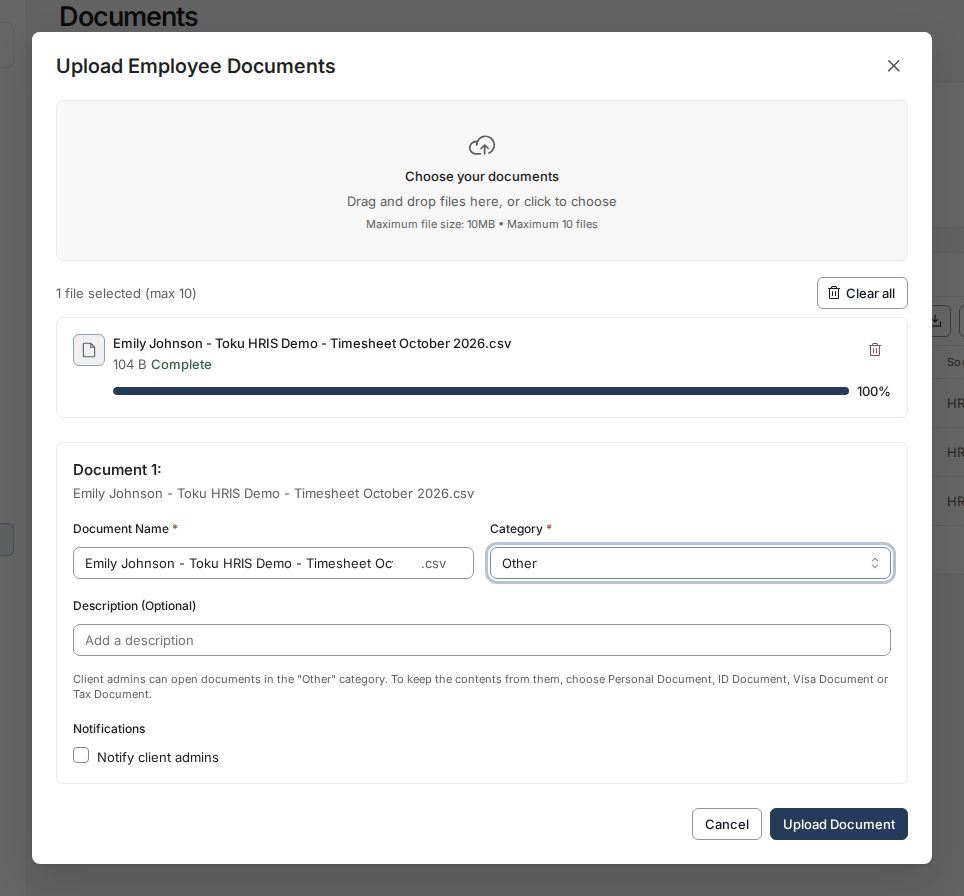
- Click Upload Document, add the CSV file, choose a Category, and click Upload Document. Toku is automatically notified and will process your hours for the upcoming payroll run.
Good to know
- If you submit your timesheet after the 10th of the month, Toku will process your standard contracted hours for the current payroll cycle and correct any difference on the following month's payroll.
Still stuck?
You can email [email protected] to reach our support team. Please include your email address, organization name, and a description of what happened. Screenshots and videos are always welcome to speed up the troubleshooting process. Feel free to reach out any time for further assistance.