
 4 MIN READ
 UPDATED NOV 3, 2026
For company admins on Toku Employment. Last updated November 3, 2026.
Company allowances let you set up a recurring payment, like a monthly internet or health care stipend, once for the whole company. Toku then adds it to every matching new hire when their onboarding is completed, so nobody has to remember to add it by hand. You can also add an allowance to people who already work for you, and move them to a new amount when its terms change.
Before you start
- You need to be a company admin who can edit company settings.
- Company allowances are part of Toku HR. You find them under Settings in the Company part of the left-hand menu.
- Each allowance is added to a person's profile as a recurring Stipend. Payroll sees every addition or change in the Change Tracker.
Add a company allowance
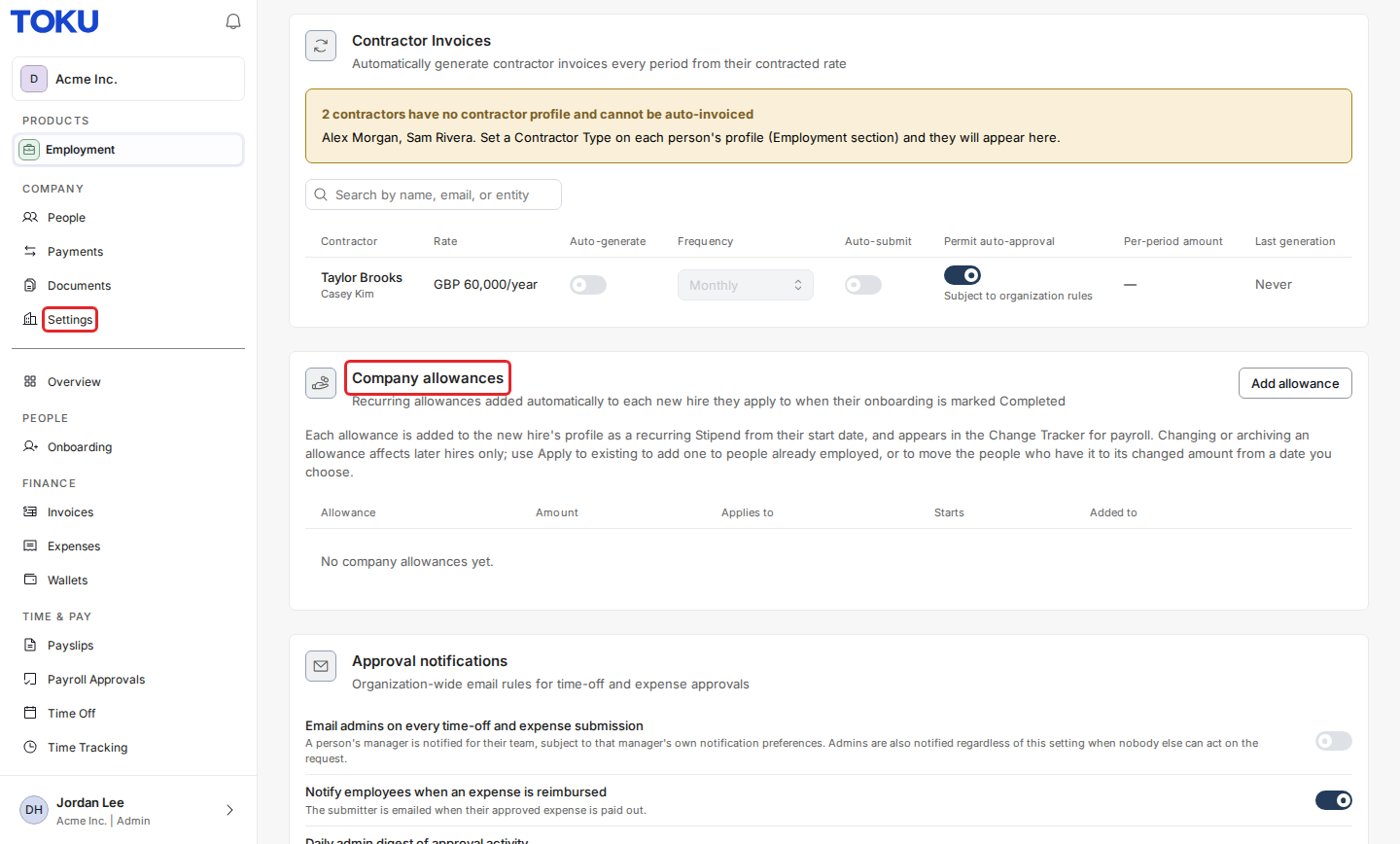
- Log in at app.toku.com and select Settings under Company in the left-hand menu.
- Scroll down to the Company allowances card and select Add allowance.
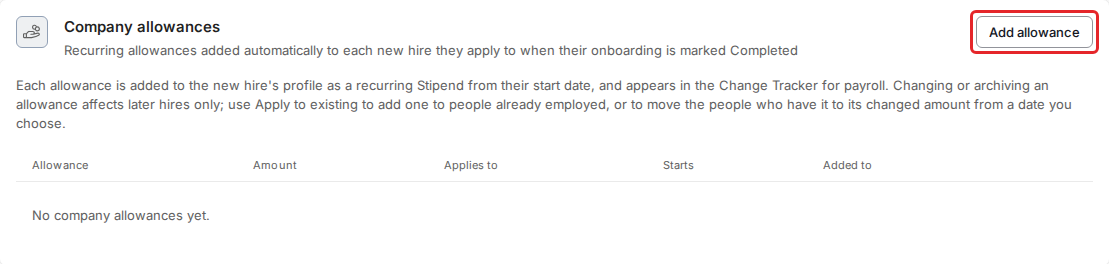
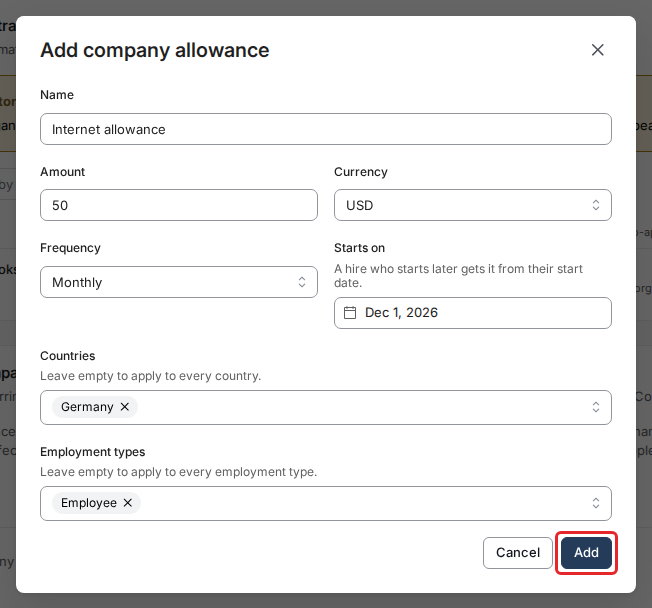
Fill in the form, then select Add:
- Name: what people and payroll will see, for example "Internet allowance".
- Amount and Currency: how much is paid each time.
- Frequency: how often it is paid, for example Monthly.
- Starts on: the first day the allowance applies. A hire who starts later gets it from their own start date.
- Countries: the countries it applies to. Leave it empty to apply it in every country.
- Employment types: Employee, Contractor or both. Leave it empty to apply it to every employment type.
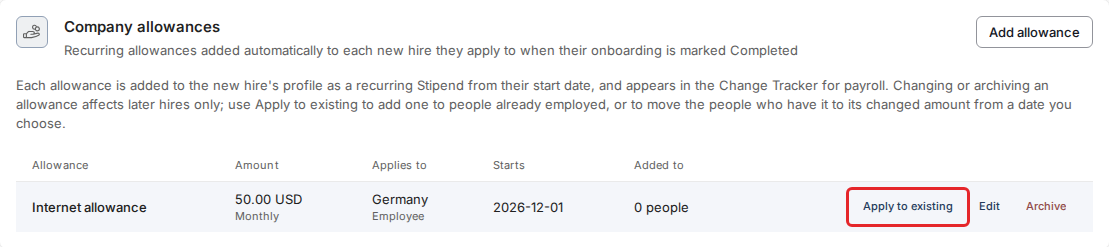
The allowance now shows in the list with its amount, who it applies to, its start date and how many people have it (Added to). From now on, Toku adds it automatically to each matching new hire when their onboarding is marked Completed.
Add an allowance to people who already work for you
New allowances only reach new hires on their own. To give one to your current team:
- In the Company allowances card, select Apply to existing on the allowance's row.
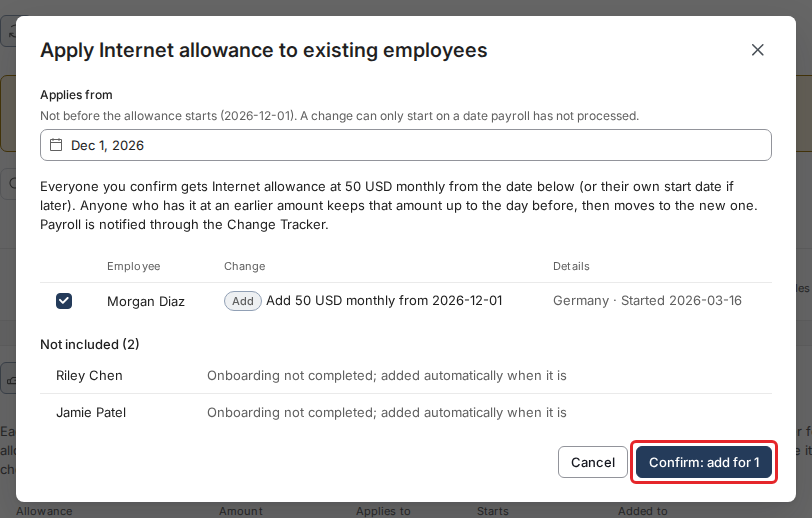
- Under Applies from, pick the date the allowance should start for them. It can't be earlier than the allowance's own start date.
- Check the list. Everyone who would get the allowance is ticked, with the amount and the date it starts. Untick anyone who should not get it.
- Check Not included. It lists the people who are left out and why, for example "Onboarding not completed; added automatically when it is".
- Select Confirm. The button shows how many people will be added or changed.
Toku then shows the result for each person: Added, Changed or Skipped, with the reason.
Change an allowance's amount
- Select Edit on the allowance's row, change the amount, currency or frequency, and select Save. New hires get the new terms from now on.
- To move the people who already have it, select Apply to existing, pick the date the new amount starts and select Confirm. Each person keeps the earlier amount up to the day before the date you picked, then moves to the new one. Toku never rewrites an amount payroll may already have paid, and the date you pick must still be open for payroll in each person's country.
Stop an allowance for new hires
- Select Archive on the allowance's row.
- Select Archive again to confirm.
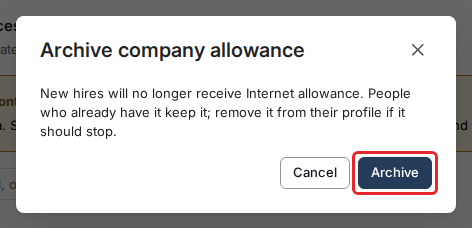
New hires no longer receive it. People who already have it keep it. To stop it for someone, remove it from that person's profile.
Good to know
- Toku never adds the same allowance to a person twice, even if their onboarding is reopened and completed again.
- People whose onboarding isn't completed yet are left out of Apply to existing. Toku adds the allowance for them automatically when their onboarding is completed.
- People who are terminated or leaving are left out.
- If an allowance entry was changed or removed by hand on someone's profile, Apply to existing leaves that person alone. Change it on their profile instead.
- If payroll for the date you picked may already be processed in someone's country, that person is left out. Pick a later date to include them.
Still stuck?
You can email [email protected] to reach our support team. Please include your email address, organization name, and a description of what happened.