
 7 MIN READ
 UPDATED NOV 4, 2026
📘 For employees on Toku. Last updated November 4, 2026.
Choose a fixed amount of each paycheck to receive in stablecoins, sent to your verified wallet. The amount is in the currency your salary is set in. The rest of your pay continues to your bank account as normal.
Before you start
- You can sign in at app.toku.com with your work email.
- You have at least one verified wallet on Toku. To add one, follow Toku: How to add your payout wallet.
- Your organization must have stablecoin payouts enabled. If you don't see the options below, ask your administrator.
If stablecoin pay is not available in your country
In some countries, Toku’s employment setup cannot pay part of a paycheck in stablecoins. Today this applies to employees in Kenya. Contractors are not affected.
- The Paycheck Allocation tab shows Stablecoin elections are not available for employees in Kenya. There is no Edit paycheck allocation button.
- If you set an amount before this changed, it is still shown, with a Clear paycheck allocation button. Click it so your whole paycheck goes to your bank account.
- During onboarding, the paycheck allocation step does not ask for an amount. Click Save to finish setting up your wallet.
See your paycheck allocation
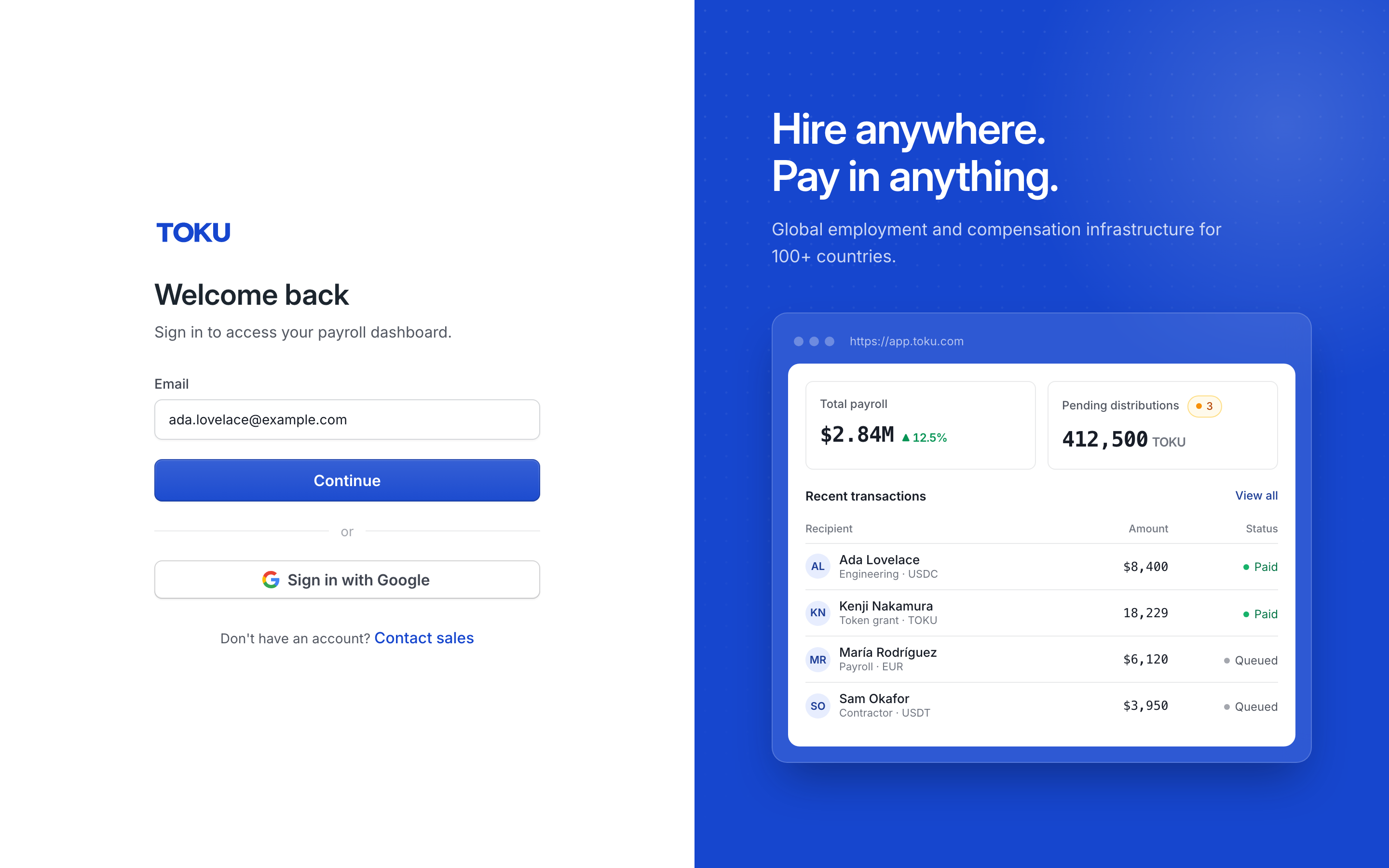
- Go to app.toku.com. You see Welcome back and a single Email box.
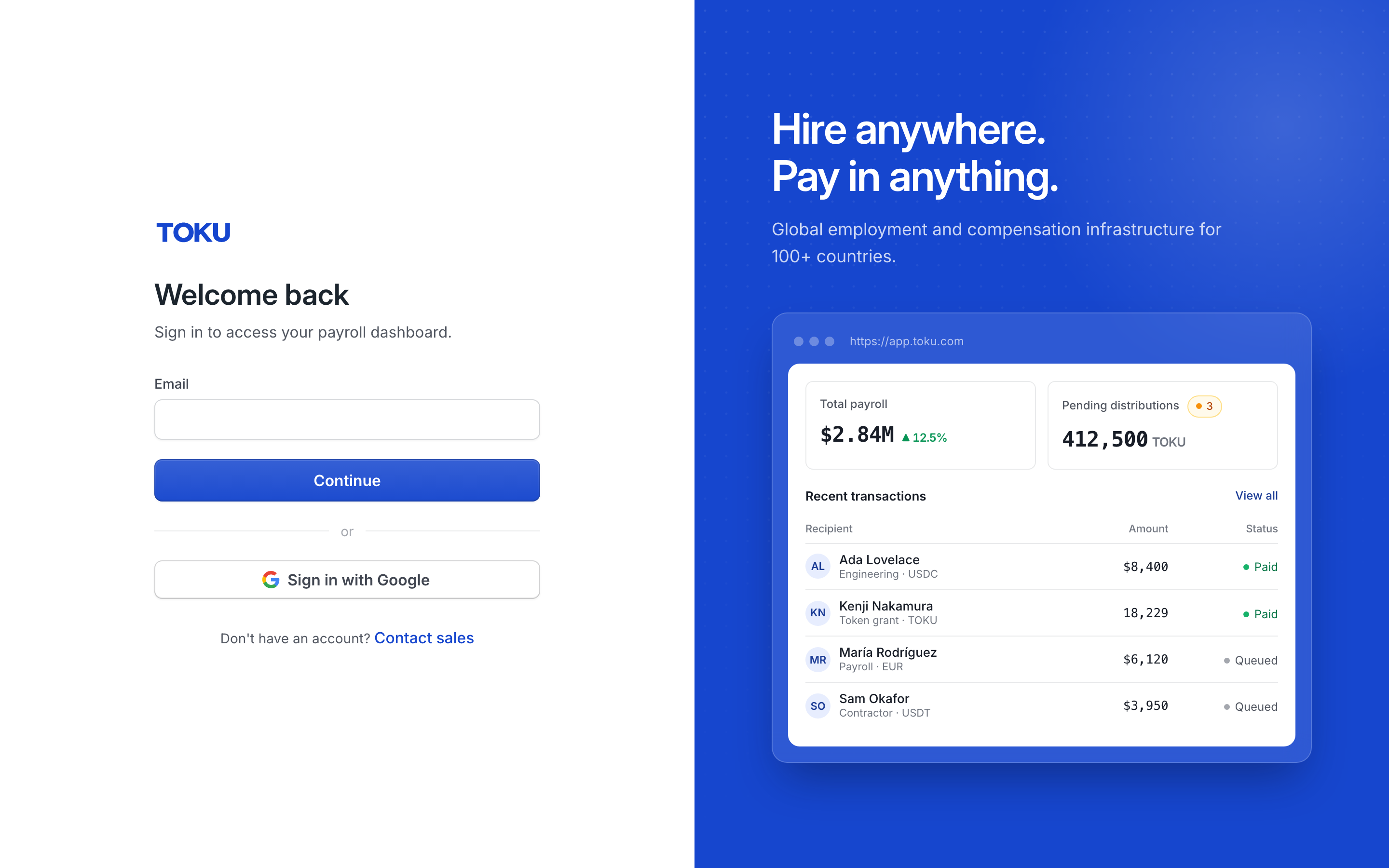
- Enter your email and select Continue, then enter your password and click Sign in.
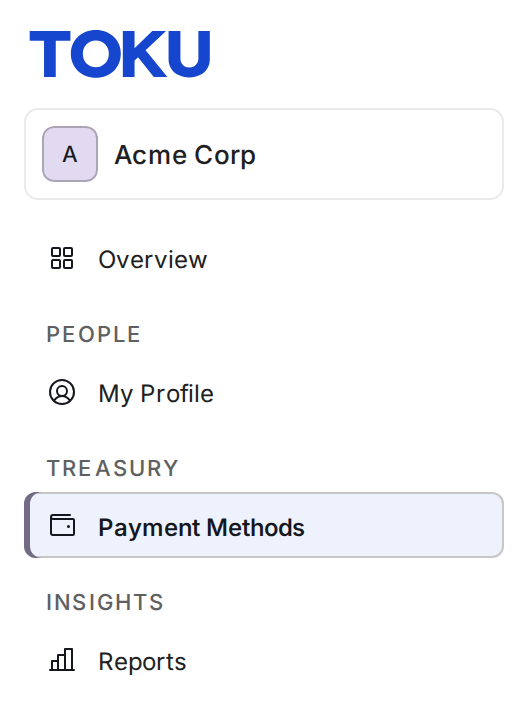
- Click Payment Methods in the left-hand menu.
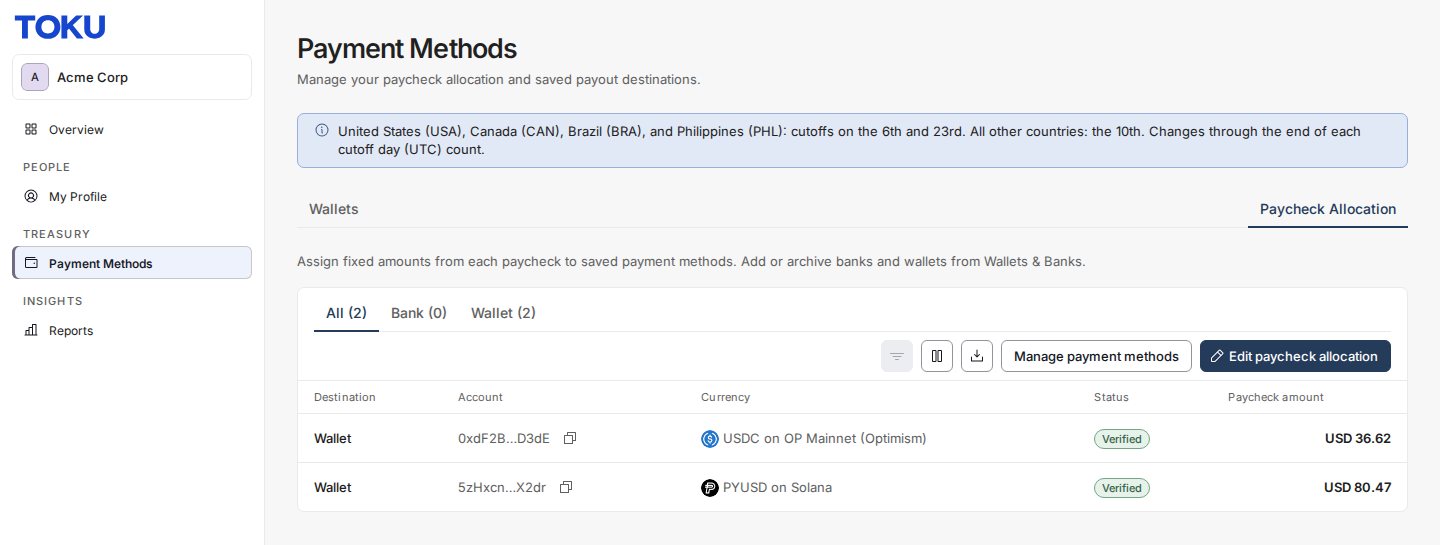
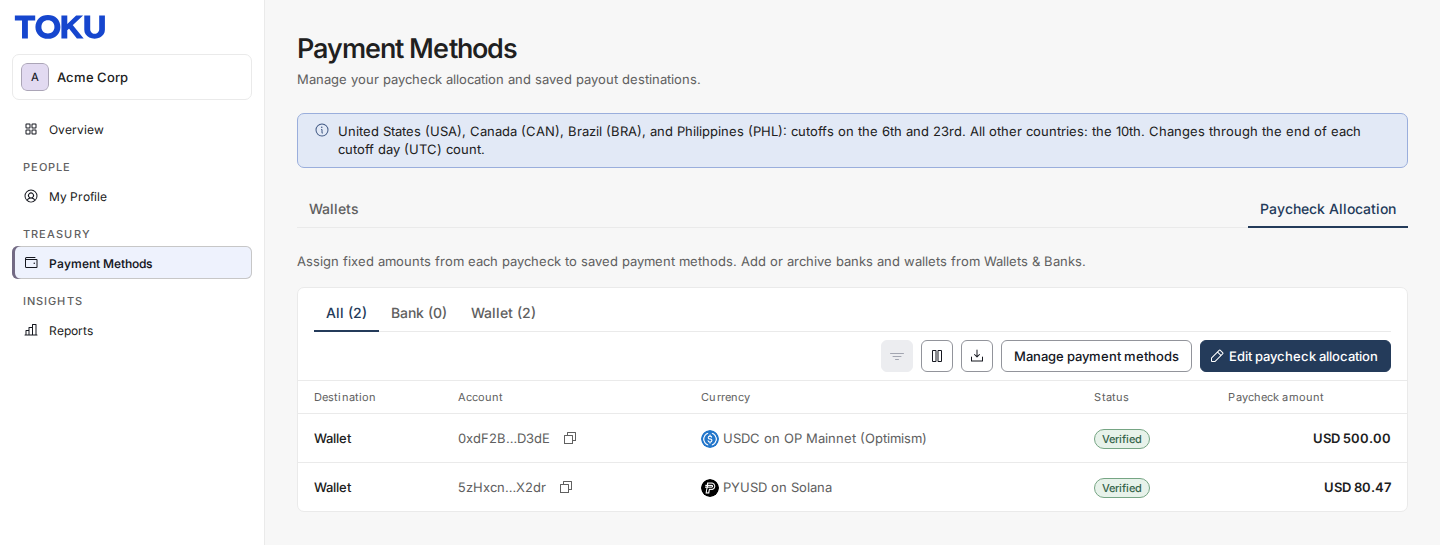
- Open the Paycheck Allocation tab at the top right (it appears once you have a wallet). Each wallet row shows its stablecoin, network, status, and the amount it receives per paycheck - if your bank account is on Toku, it is listed too and receives the Remaining amount.
Choose how much to receive in stablecoin
- Click Edit paycheck allocation. The Paycheck amount column becomes editable for each verified wallet.
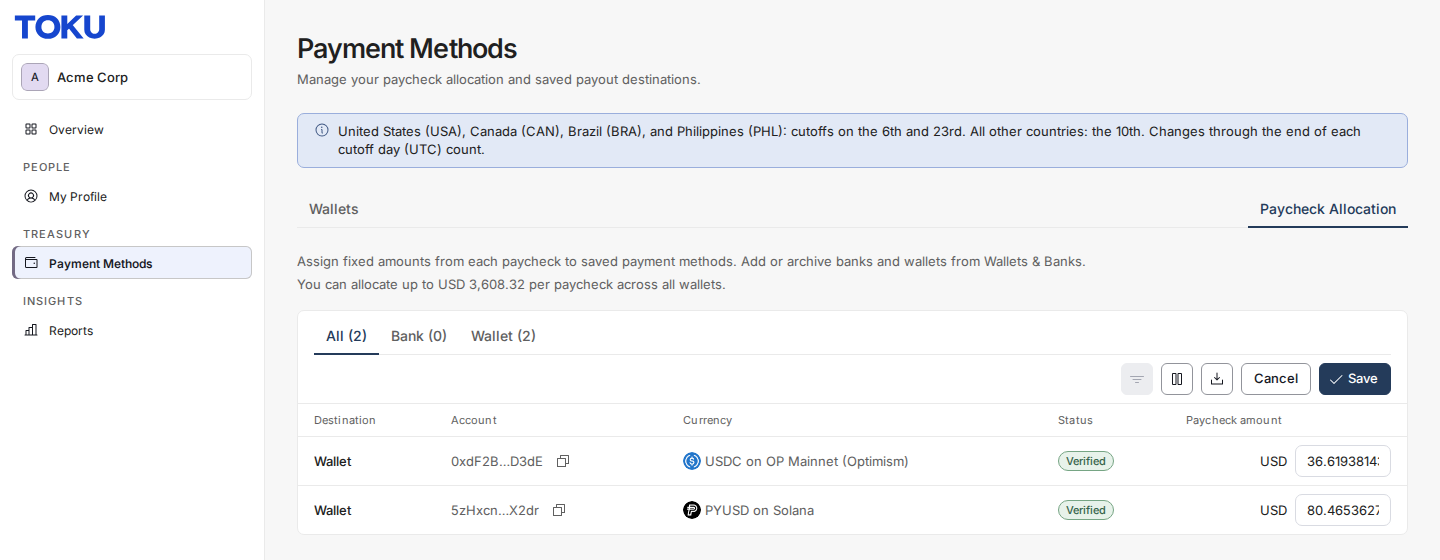
- Type the amount you want to receive into the wallet's Paycheck amount field. The code in front of the field - for example AED — is the currency your salary is set in, and the amount you type is in that currency. It is a fixed amount per paycheck, not a percentage.
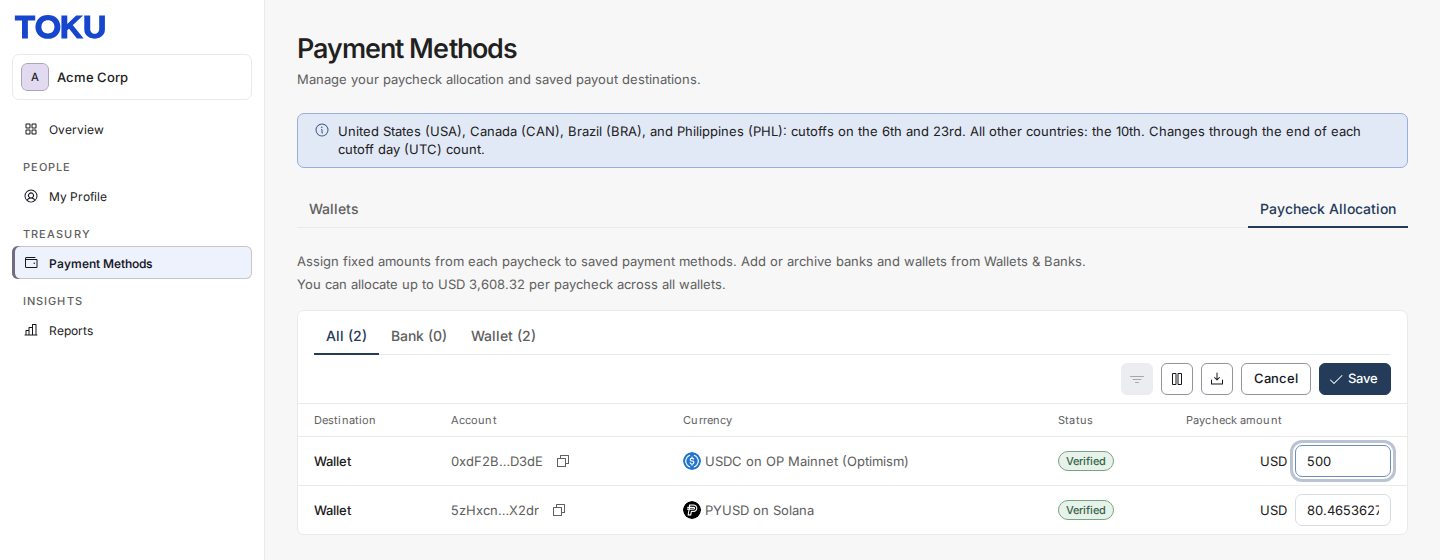
- Click Save. The table shows your updated amounts, and your bank account keeps the Remaining balance.
How much of your pay can go to wallets
There is a limit on how much of each paycheck you can send to wallets. It is worked out from your salary and the rules for the country you are paid in, and your organization can set a lower one.
While you are editing, the page shows your own figure under the description above the table:
You can allocate up to USD 5,000.00 per paycheck across all wallets.
Both the figure and the currency code in front of it are yours: the code is the currency your salary is set in, so an employee paid in AED sees something like AED 59,118.00 instead.
The limit applies to the total across every wallet, not to each wallet on its own. If the amounts you have typed add up to more than the limit, that line turns red and adds The amounts entered exceed this limit.
The line is guidance. It does not disable Save, so you can still try a larger figure.
If your allocation is not saved
When Toku cannot accept the amounts you entered, a message appears headed Paycheck allocation not saved with the reason underneath, and the editor stays open with your figures still in it. Nothing was saved, and nothing you typed is lost. Correct the amount and save again.
The usual reason is that the total is above your limit.
Two things are worth knowing about that message:
- The reason is worded as a percentage of your salary rather than as an amount, so it will not read exactly like the figure shown above the table.
- If you are told your allocation was not saved but the reason is not clear to you, note the wording before you close it. It is the fastest way for us to tell which limit applied. If you tried to set an allocation before the end of August 2026 and the amount silently returned to 0 with no message at all, that was a fault on this page, and it is fixed. The page now always tells you when a change was not saved.
Add or manage wallets and bank accounts
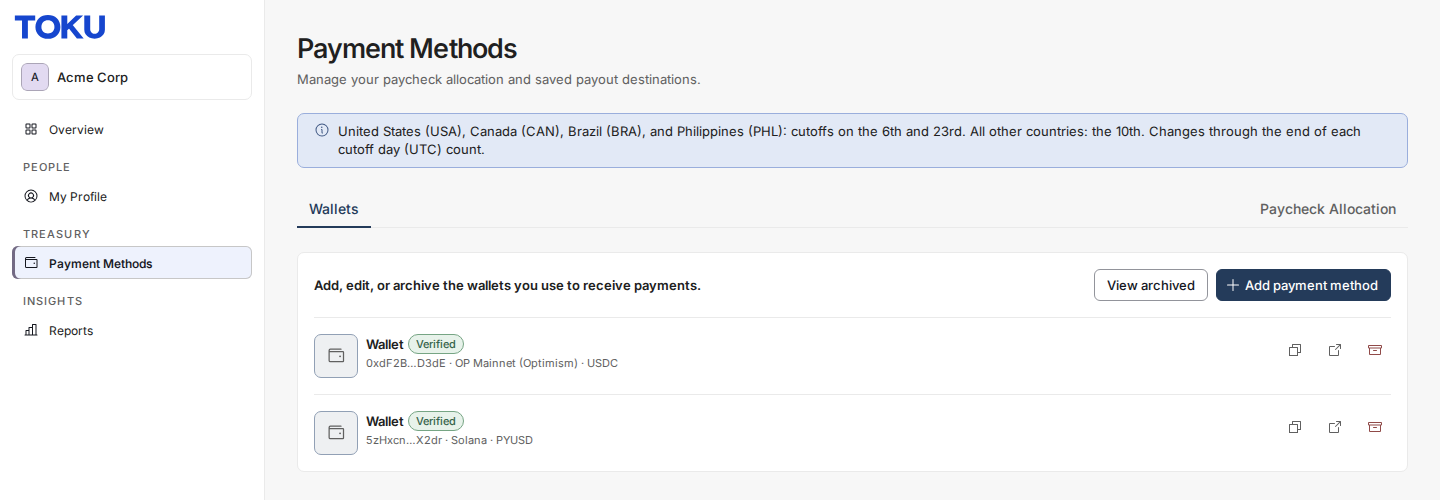
- Open the Wallets & Banks tab (just Wallets if your bank account is not on Toku) to see every saved payout destination. Click Add payment method to add a new wallet - the full steps are in Toku: How to add your payout wallet.
Track your stablecoin payments
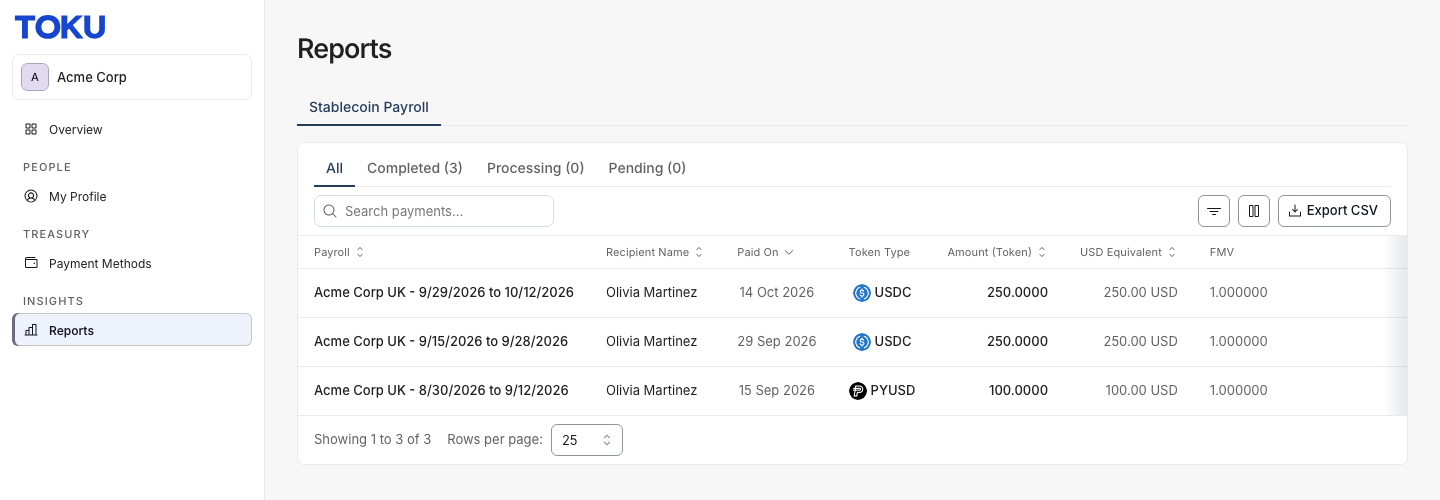
- Open Reports under INSIGHTS in the left-hand menu. The Stablecoin Payroll tab lists each settled payment with the payroll period, the amount in tokens, its USD equivalent, the rate (FMV), the transaction hash, the receiving wallet, and the network. Export CSV downloads the list.
Good to know
- Amounts on this tab are shown as a currency code followed by the figure - for example AED 59,118.00 — rather than with a currency symbol. While the page is still loading your details the figures appear without a label for a moment; they are never shown in a currency you are not paid in.
- The Currency column tells you what each destination is paid in. A wallet row shows its stablecoin and network. Your bank row shows the currency Toku holds for that account's country, and where Toku does not hold one it shows the currency your salary is set in.
- Allocation changes have cut-offs: the 6th and 23rd of each month if you are paid in the United States, Canada, Brazil, or the Philippines, and the 10th everywhere else. The note at the top of the page lists them: "United States (USA), Canada (CAN), Brazil (BRA), and Philippines (PHL): cutoffs on the 6th and 23rd. All other countries: the 10th. Changes through the end of each cutoff day (UTC) count."
- The note does not lock the page. You can edit and save your allocation on any day of the month, including after a cut-off. A change made after a cut-off is not refused, it is simply paid from the next pay run.
- A change made on a cut-off day itself still counts for that pay run. The cut-off is read in UTC, so it does not shift with your time zone.
- Only wallets with a green Verified status receive payouts. A wallet that is still pending is not used for your paycheck.
- Each wallet is tied to the stablecoin and network you chose when you added it. The stablecoins available to choose from are the ones your organization has enabled - if a coin you expect is missing, contact your administrator.
- Whatever you don't allocate to wallets goes to your bank account automatically, shown as Remaining.
Still stuck?
You can email [email protected] to reach our support team. Please include your email address, organization name, and a description of what happened. Screenshots and videos are always welcome to speed up the troubleshooting process. Feel free to reach out any time for further assistance.