
 3 MIN READ
 UPDATED OCT 30, 2026
Applies to: Logging in to the Toku HRIS / Payroll platform Audience: Clients, Employees, and Customer Support
Login Troubleshooting Steps
If you can't log in, try these steps in order. Most issues are fixed by Steps 1-4.
Step 1: Use the correct web address
- Always sign in at app.toku.com
- Bookmark this exact link and use it every time.
- Don't use tga.app.toku.com, old email links, or search results - these are the old address and can cause a login loop. We redirect the old address for now, but fix the bookmark.
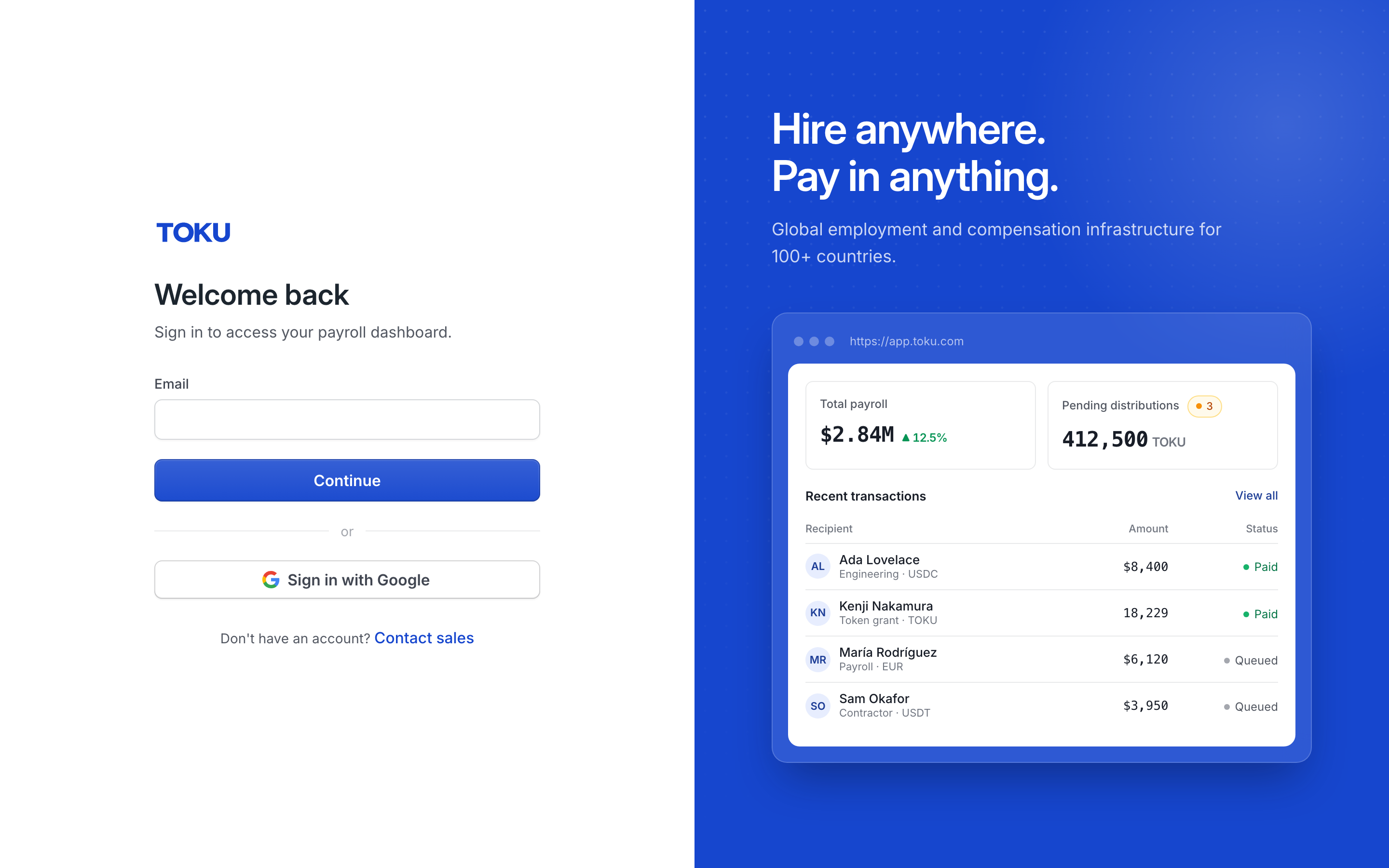
Step 2: Enter your email and continue
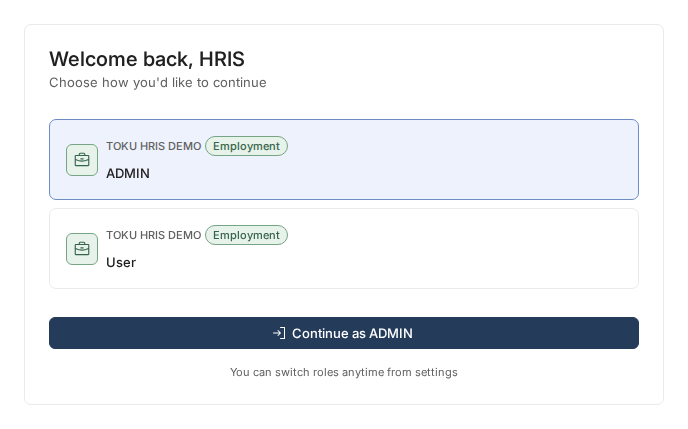
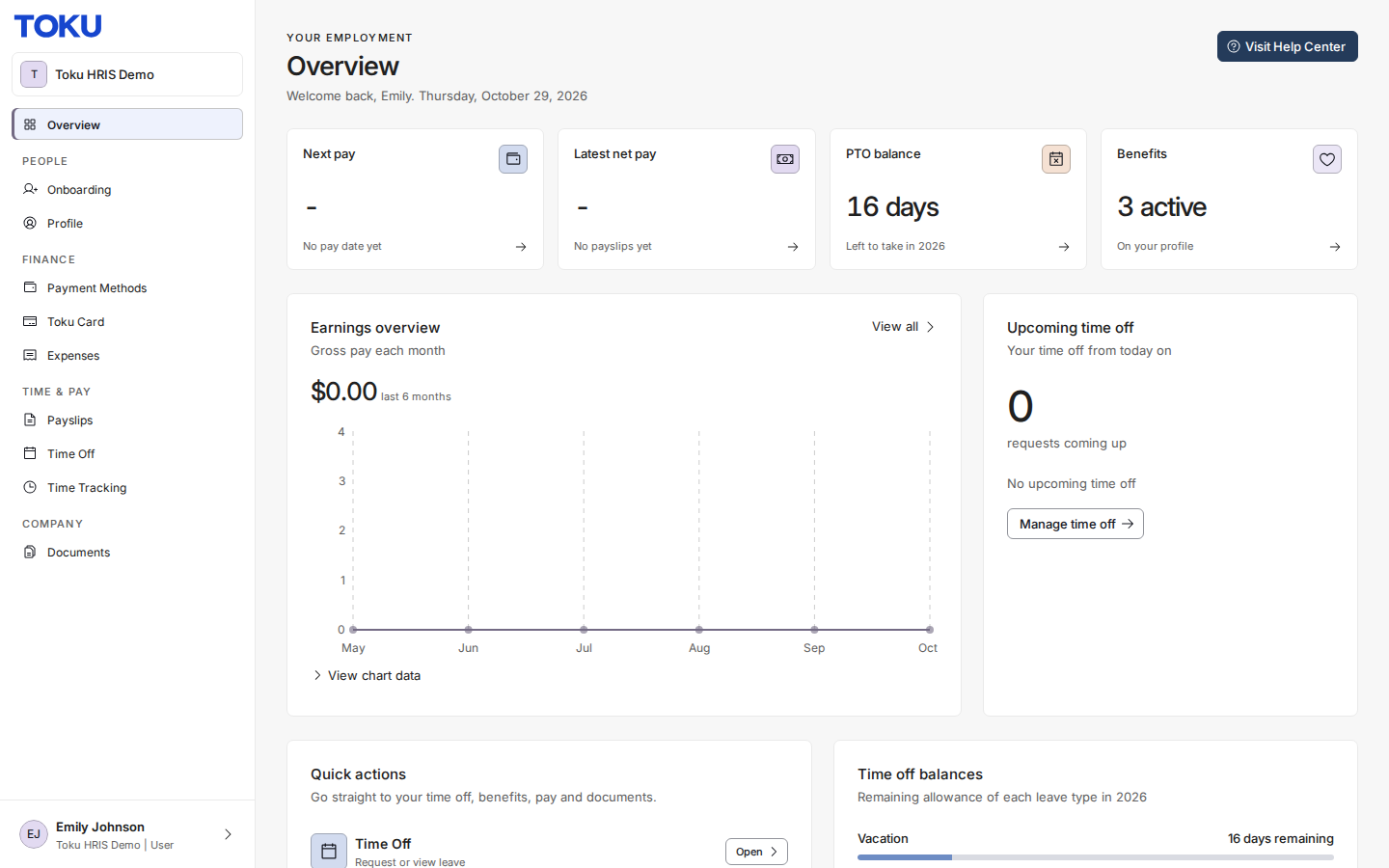
- There are no longer Employment, Token Grants or Stablecoin Payroll tabs. Everyone signs in on the same page, and Toku sends you to the right product automatically. If your login has more than one product or role, Toku asks you to pick one on the Choose how you'd like to continue screen after you sign in: select it and click Continue as ….
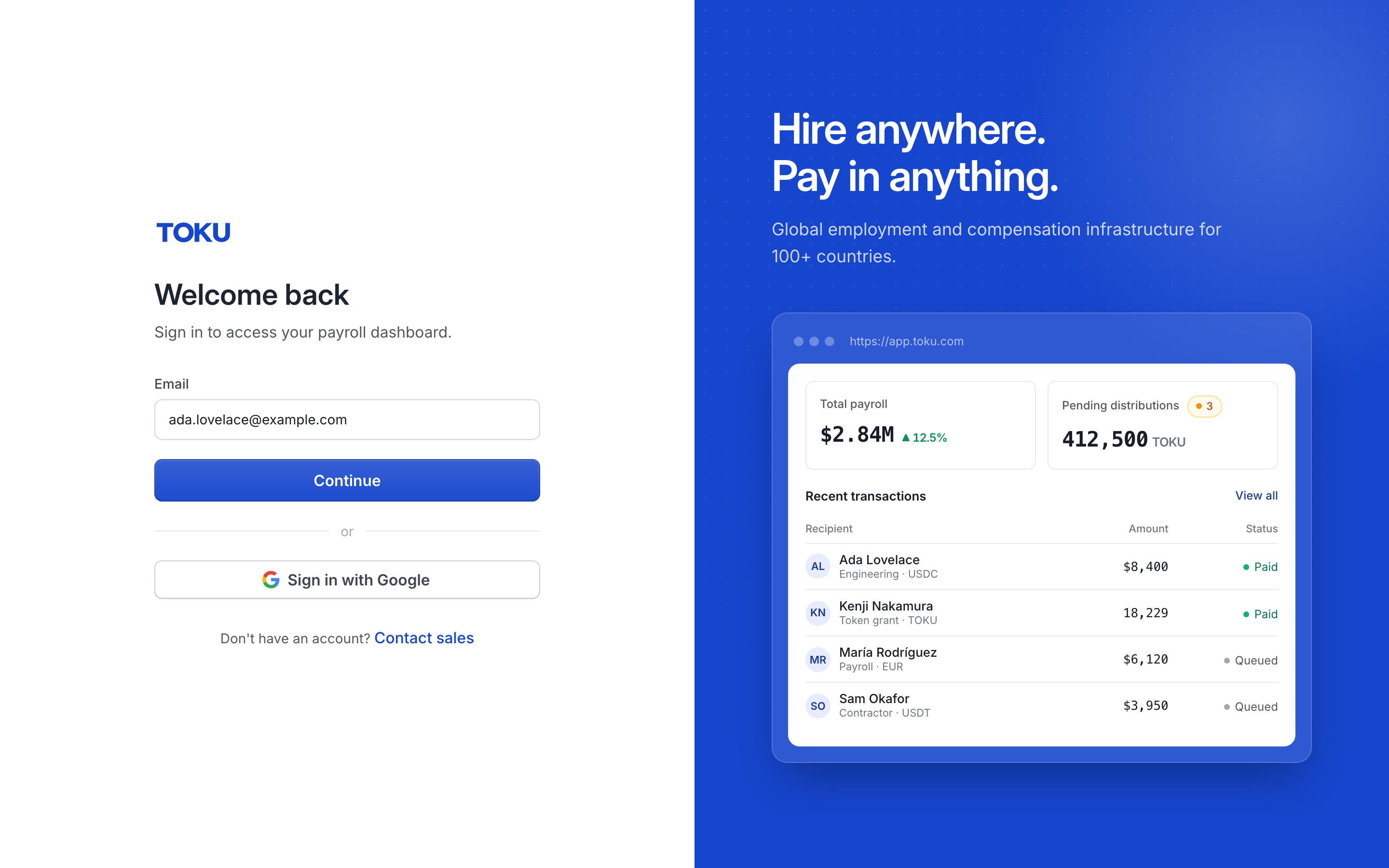
- Type your email and click Continue. The page then asks for your password.
Step 3: Use the correct email
- Use the exact email Toku invited you with (check your original invitation email if unsure).
- Watch for typos, extra spaces, or mixing up personal vs. work email.
Step 4: Enter your password and 2FA code
- Enter your password carefully, plus the current code from your authenticator app if prompted.
- Forgot your password? Use "Forgot password?" on the password step.
- Two alternatives avoid the password entirely: Sign in with Google (if your Toku email is a Google account), or select Sign in with email on the password step to have Toku email you a one-time sign-in link, valid for one hour.
Step 5: Still stuck? Do a clean reset
This fixes most "stuck loading," "old screen," or "invoices won't open" issues.
Option A - Incognito/private window (quickest)
- Open a private window:
Ctrl+Shift+N(Windows) orCmd+Shift+N(Mac/Safari) - Go to app.toku.com
- Sign in using Steps 1-4 above
Option B - Clear cache & cookies
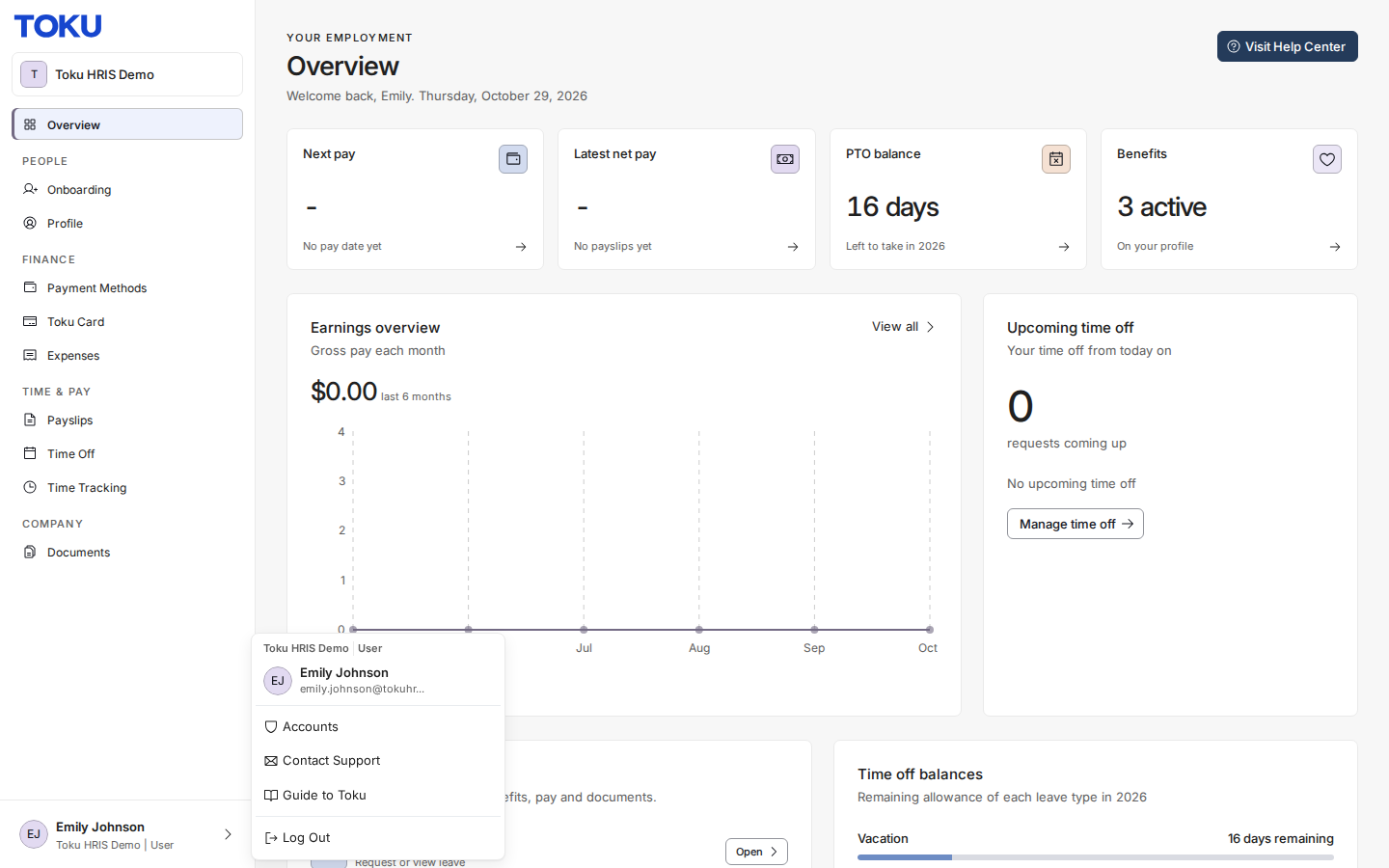
- Log out of Toku: select your name at the bottom left, then Log Out
-
Clear browser cache and cookies (Chrome/Edge: Settings → Privacy → Clear browsing data; Safari: Settings → Privacy → Manage Website Data → Remove All)
-
Close and reopen the browser
-
Go to app.toku.com and sign in again Option C - One-click reset
-
This logs you out and clears saved login info
-
Go back to app.toku.com and sign in
Step 6: Still stuck? Contact support
Email [email protected] and include the following so we can help without a round trip:
- Your full name and login email
- Your company/organization name
- The exact web address you used
- Your browser and device (e.g., Chrome on Windows, Safari on iPhone)
- Which sign-in method you used (password / Google / emailed sign-in link)
- A screenshot of the screen or error
- Whether you already tried incognito and
/reset
✅ Quick Do / Don't reference Do: sign in at
https://app.toku.com· use your Toku invite email · try Sign in with Google or an emailed sign-in link · try incognito or/resetif stuck Don't: usetga.app.toku.comor old/bookmarked/Google links · keep retrying the same way without clearing your session