
 6 MIN READ
 UPDATED NOV 3, 2026
⚠️ Contractor invoice and payment deadlines: late action means late payment
- Contractors: submit invoices by the 19th of each month. A saved draft is not a submitted invoice.
- Admins: approve invoices by the 21st of each month. Submission alone does not authorize payment.
- Funding: Toku must receive cleared funds 4 - 5 business days before payout. Initiating a transfer or sending proof of payment does not meet the deadline.
- Standard monthly payout: the last day of the month, provided submission, approval, and funding deadlines are met. Late submission, approval, or funding will delay payment. Every day of delay pushes payment back by at least one day. A missed payment cycle can cause a longer delay; the invoice due date is not a guarantee of payment.
Automation does not remove these deadlines. Earlier published holiday deadlines take precedence; see Toku: 2026 End-of-Year Payroll & Payment Guide.
📘 For organization administrators managing invoice approvals and payments for client-managed contractors. Last updated October 30, 2026.
Once a contractor is onboarded, a monthly cycle begins: they submit invoices, you approve them, Toku consolidates and releases payment. This guide outlines the timing and your responsibilities.
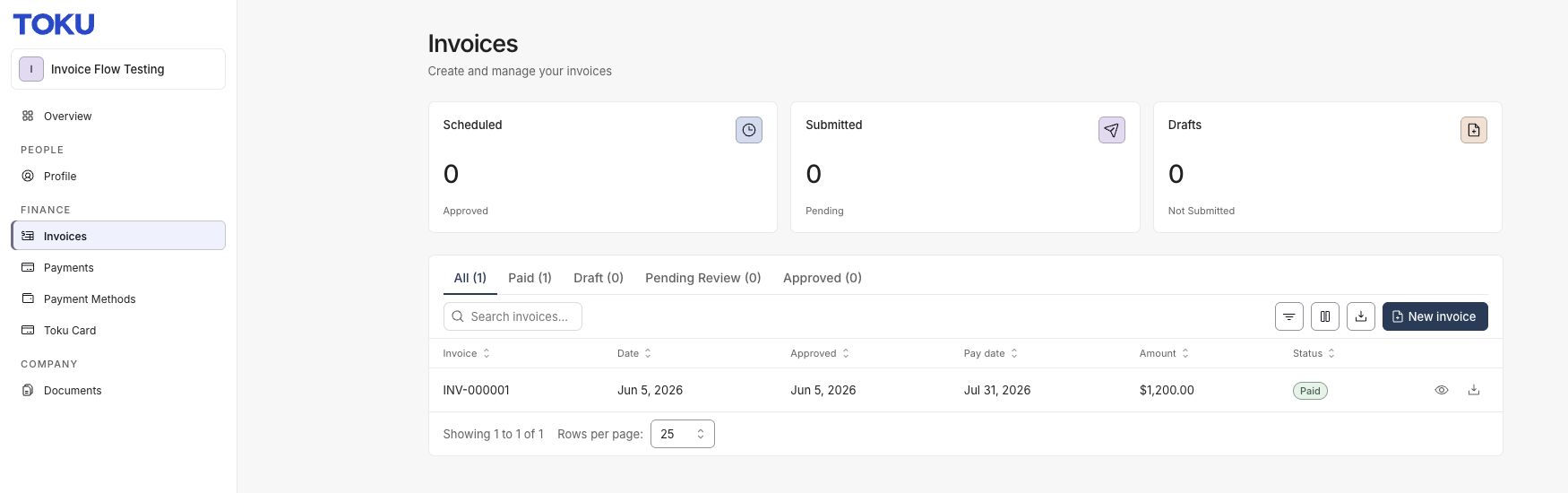
New: approval and payment dates (October 28, 2026) Contractors now see Pay date in their own invoice list. Use Columns to also show Approved. Open an invoice to see its submission date, approval date or waiting status, expected pay date, and the approval deadline while pending. Invoices submitted by the 19th have an expected date on the current month’s final day; later submissions use the following month’s final day. For paid invoices, a recorded completed payment date replaces that estimate when available. Draft, rejected, cancelled and failed invoices show no expected pay date. The expected pay date is not a guarantee. Submission, approval and cleared funding deadlines still apply, including earlier holiday deadlines. Late approval can delay payment even if the displayed expected date has not changed.
Before you start
- The contractor must be in Onboarded status before they can submit invoices
- Monthly invoices follow a fixed timeline with deadlines for submission, approval, and funding
- Cleared payment funding must be received by Toku 4 - 5 business days before the last-day-of-month payout
Choose invoice automation before review
When adding a contractor through People → Add People, complete Contract, then choose invoice preferences on Invoices before Review. This step appears for Client Managed and Agent of Record contractors; available options depend on the contract and your organization’s settings.
Choose creation, submission, and approval independently, then select Continue to review, or choose Set up later to preserve your organization’s defaults. On Review & Confirm, check Invoice preferences and click Add contractor to save; Back lets you revisit earlier steps.
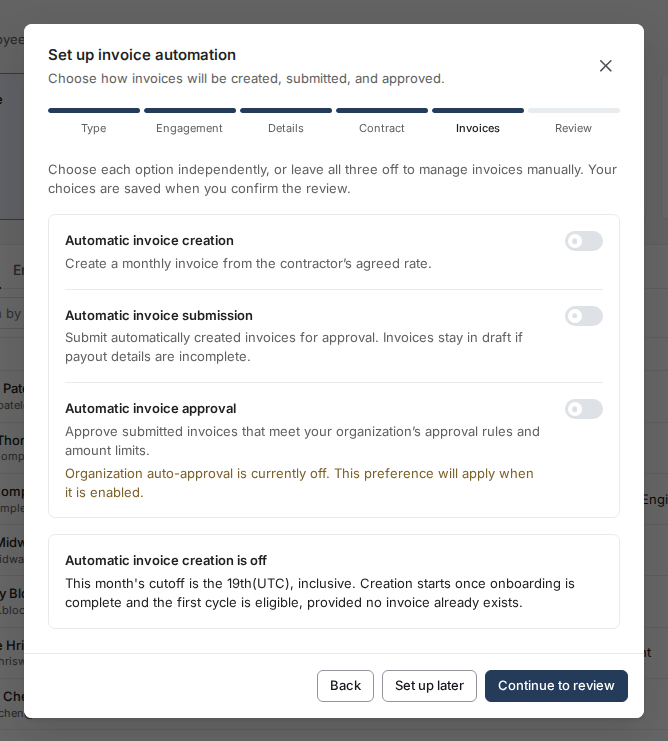
Automatic creation waits until onboarding is complete and the first cycle is eligible; the monthly cutoff is the 19th (UTC), inclusive. Hourly invoices need hours entered manually, submission waits for complete payout details, and automatic approval still follows your organization’s rules and amount limits.
See the illustrated contractor onboarding walkthrough.
The monthly payment cycle
- By the 19th of the month: The contractor submits their invoice.
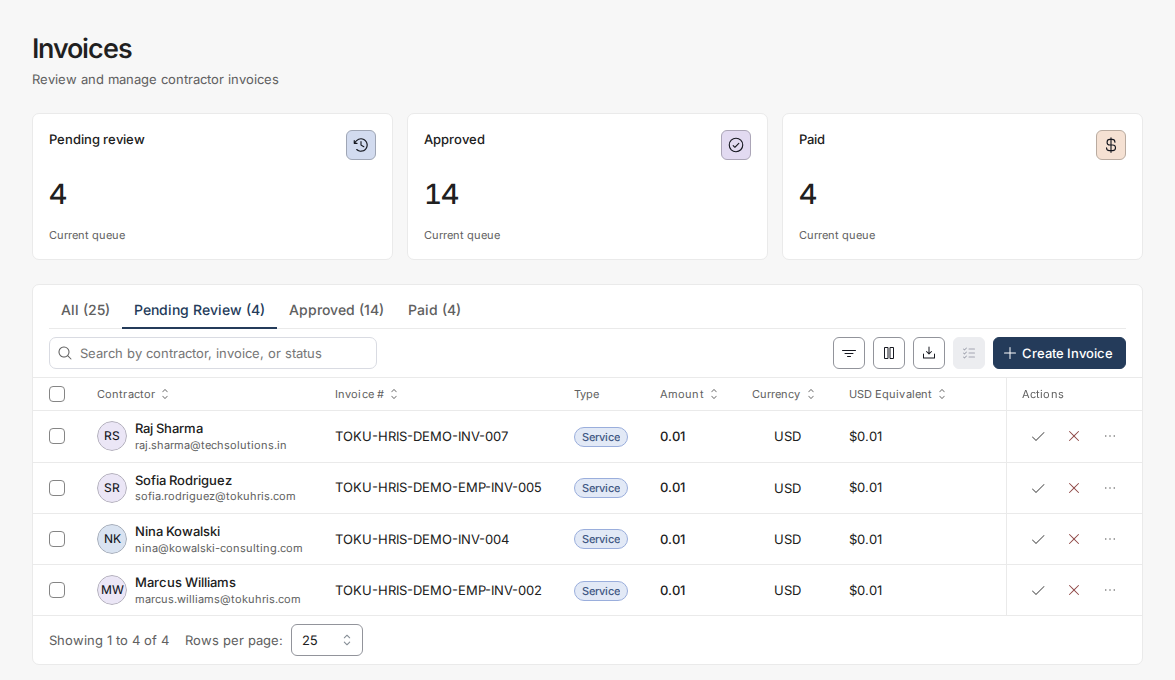
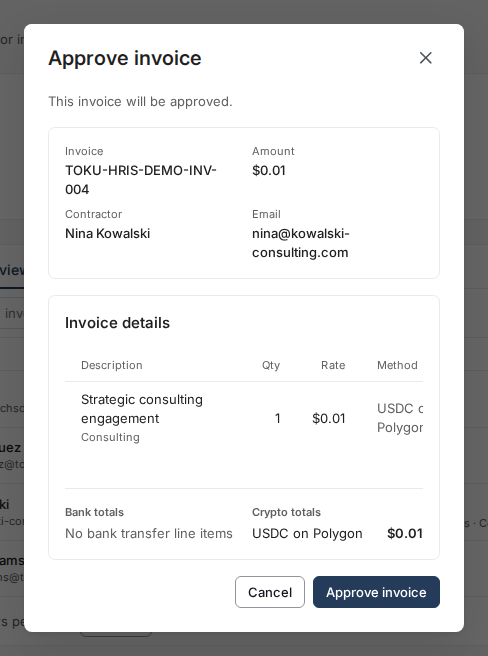
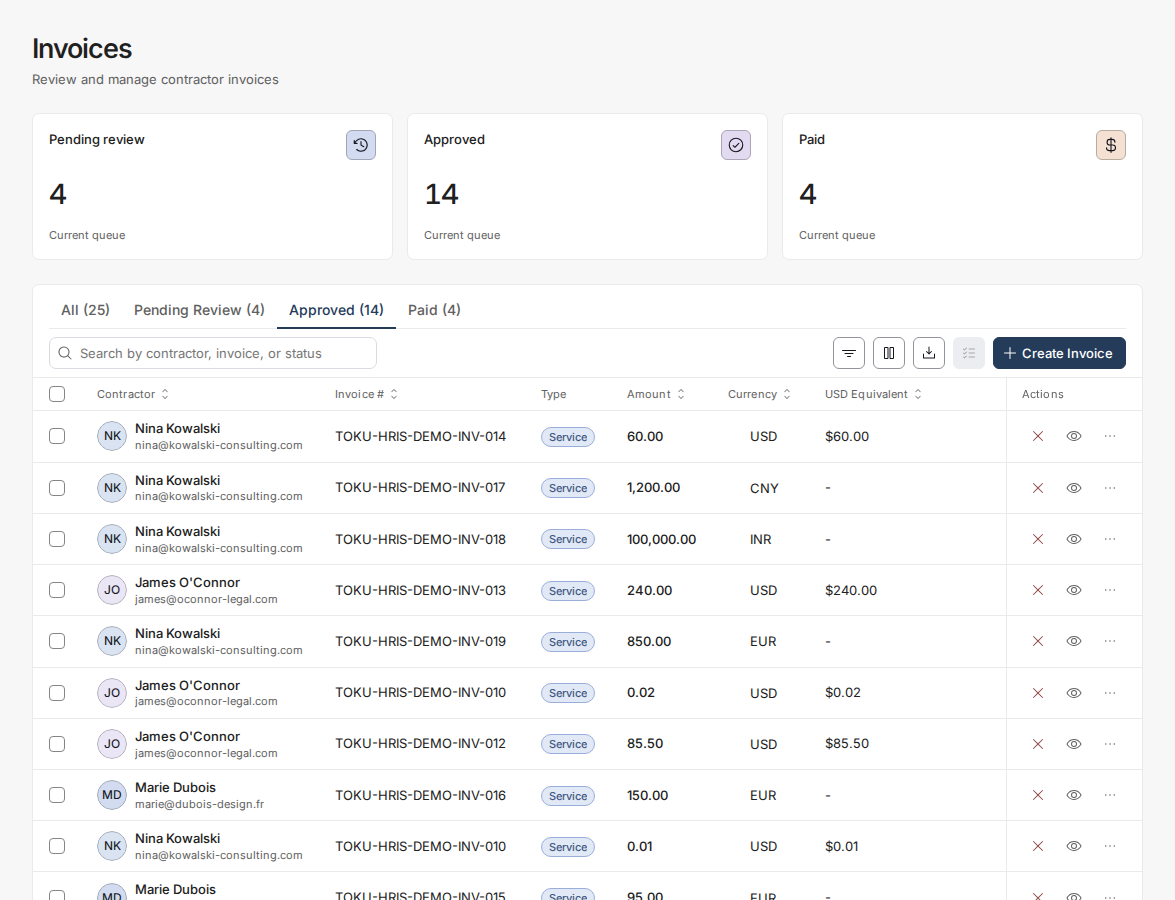
- After the contractor submits: You review and approve the invoice in the platform by the 21st of the month.
- A few business days after approvals: Toku generates a consolidated invoice listing all approved invoices and sends it to your organization admins.
- 4 - 5 business days before payout: Cleared funds must be received by Toku so payment can be released on the last day of the month. Initiating a transfer does not meet the deadline.
Funding deadline
Toku must receive cleared funds 4 - 5 business days before the last-day-of-month payout. Payment will be delayed for each day that invoice submission, admin approval, or funding is late. A missed payment cycle can cause a longer delay.
What you're approving
Review the contractor's submitted invoice for completeness and accuracy by the 21st of the month. Confirm the amount, dates, and any details before approving. Once you approve, the invoice moves into the consolidated payment batch.
Who the invoice is addressed to
Every contractor invoice names the party being invoiced in a Bill To block. Who appears there follows the agreement the contractor signed, not who reviews or funds the invoice.
- A contractor who contracted with the company they work for is shown as Client Managed on their profile. Their invoice names that company, and carries no Toku logo.
- A contractor who contracted with Toku is shown as Toku Contractor or Agent of Record. Their invoice names the Toku contracting entity recorded against them, with that entity's registered address, and carries the Toku logo. Where no entity is recorded, the invoice is addressed to WorkCo Global LLC, 1209 Orange Street, Wilmington, Delaware 19801, United States.
Where to look
- Open Invoices in the left-hand menu and open the invoice. The Bill To block sits under the invoice number, above the dates.
- The contractor sees the same block by selecting View on their invoice row, which opens the invoice preview.
- The Download PDF control on the invoice row produces the document itself. The same Bill To appears there, at the top.
After approval
Once an invoice has been approved, it cannot be edited or undone in place. If a correction is needed, reject the invoice - the contractor can then submit a corrected invoice for you to review and approve.
Good to know
- Invoices must be submitted by the 19th to ensure timely processing. Admins must approve by the 21st of the month.
- Toku consolidates all approved invoices into a single payment batch for efficiency
- An approved invoice can't be edited in place - if a correction is needed, reject it so the contractor can submit a new one
- Where Toku holds no registered address for the named entity, the entity's name appears on its own. An invoice never borrows another entity's address
- Where no party can be named at all, the Bill To block is left off the invoice rather than naming the wrong one
- The Bill To is worked out from the contractor's record each time the invoice is opened or downloaded. If the contracting entity recorded against them is corrected, invoices already sent show the corrected entity the next time anyone opens them
- The Toku logo appears only where Toku is genuinely the party the contractor contracted with
⚠️ Late submission, approval, or funding delays contractor payment for every day the required action is late. Plan for cleared funding to reach Toku 4 - 5 business days before payout.
Still stuck?
You can email [email protected] to reach our support team. Please include your email address, organization name, and a description of what happened. Screenshots and videos are always welcome to speed up the troubleshooting process. Feel free to reach out any time for further assistance.