
 3 MIN READ
 UPDATED OCT 30, 2026
📘 For organization administrators on Toku. Last updated October 30, 2026.
Bring approved time-off entries from a spreadsheet into Toku and review them before they update leave balances.
Before you start
- Use an administrator account and open the Time Off page. The import starts on its Requests tab.
- Prepare a CSV or XLSX file with one sheet, up to 100 data rows, and a maximum size of 2 MB. Include Employee (name or email), Start Date, End Date, Status, Leave Type, and Days.
- Use dates in YYYY-MM-DD format, such as 2026-08-10. If your file uses slash dates, they are read as month/day/year. Rippling report headers are also supported; use employee email addresses when names could match more than one person.
Upload and review your time off
- On the Time Off page, select Requests, then select Import time off in the table toolbar. It is the upload icon button immediately to the left of New Request.
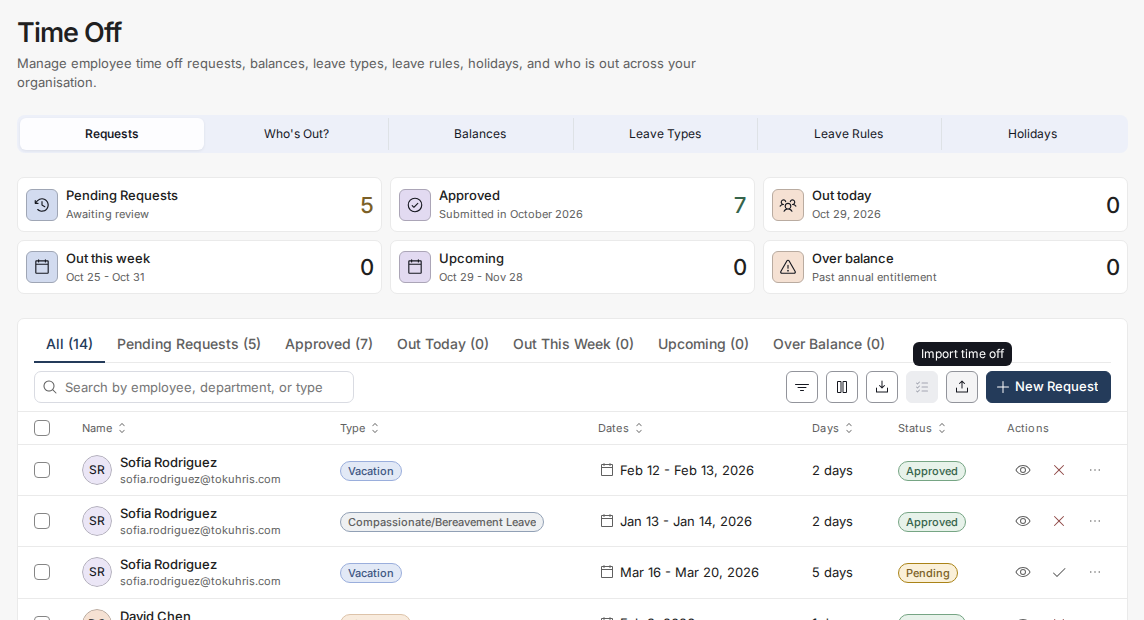
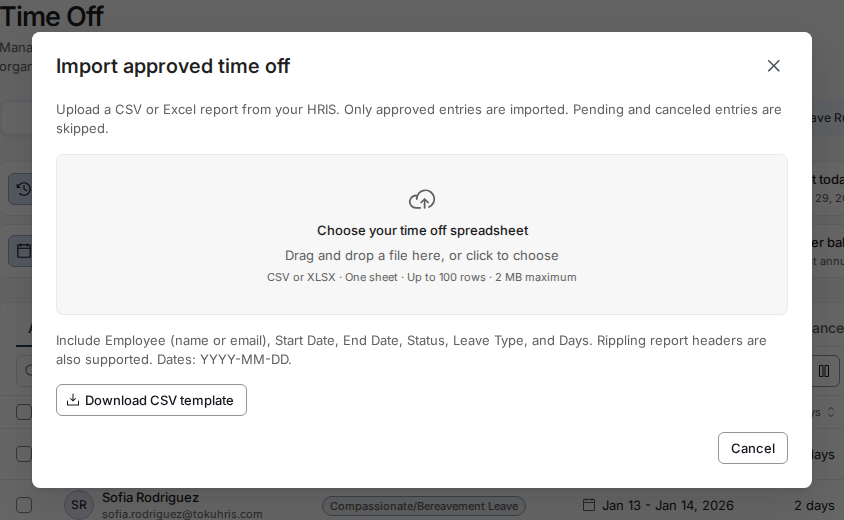
- Drag your CSV or XLSX file onto Choose your time off spreadsheet, or click that area to choose the file. Select Download CSV template if you need a starting file.
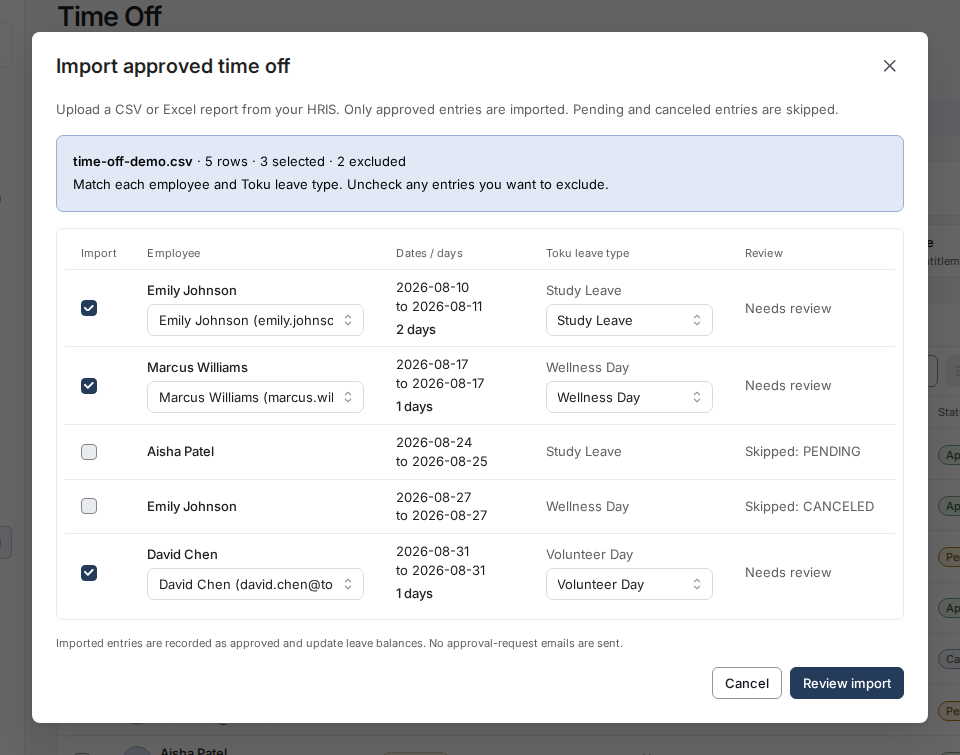
- Check each Employee and Toku leave type selection, and choose the correct person or leave type where needed. Uncheck any entries you do not want to import, then select Review import.
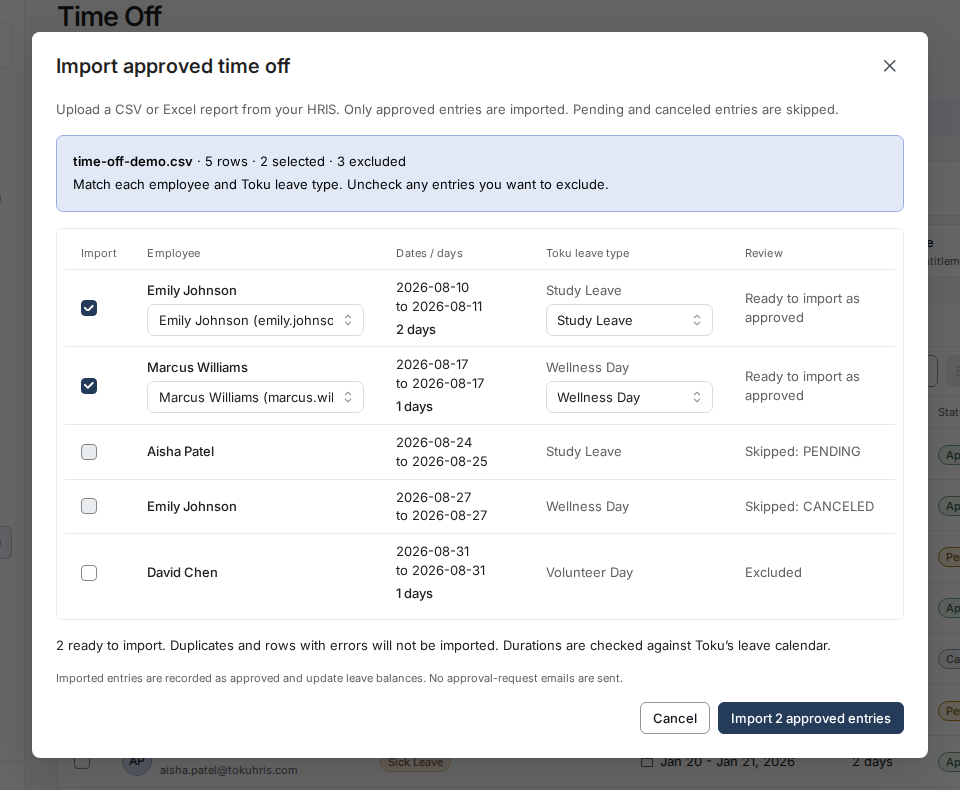
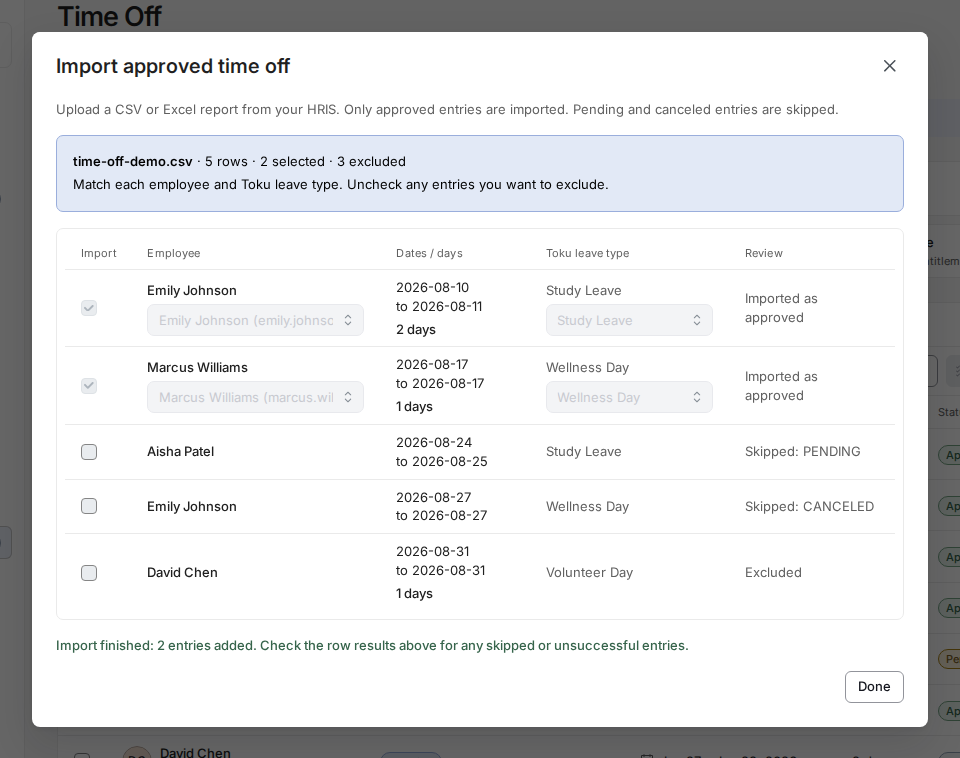
- Check the Review column and the number of entries ready to import. Select the import button when the selection is correct; in this example, it reads Import 2 approved entries.
- Read the completion message and each row result, then select Done. Check for skipped or unsuccessful entries even when some entries were added successfully.
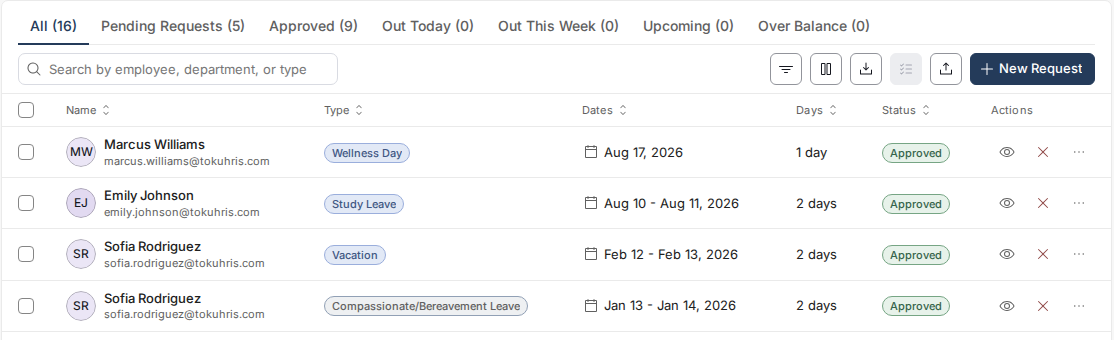
- Check the Requests table for the imported entries. In this example, Marcus has one Wellness Day and Emily has two days of Study Leave.
Good to know
- Only entries marked approved in the spreadsheet can be imported. Pending, canceled, and other non-approved entries remain skipped.
- Duplicates and rows with errors are not imported. If the review reports a problem, correct the affected entry and review it again.
- Changing an employee, leave type, or row selection requires another Review import before you can confirm.
- The number of days is checked against Toku’s leave calendar. Remove unused rows at the bottom of the sheet if the file exceeds the 100-row limit.
⚠️ Importing records the selected entries as approved and updates leave balances. No approval-request emails are sent, so confirm that the leave was already approved before importing.
Still stuck?
Email [email protected] with your organization name, the step you reached, and the exact message shown. Avoid sending the full employee spreadsheet unless the support team requests it.