
 2 MIN READ
 UPDATED OCT 30, 2026
📘 For employees completing onboarding on Toku. Last updated October 30, 2026.
Upload a bank verification document to complete the Banking & Payment onboarding step.
Before you start
- You'll see this field in the Banking & Payment step during onboarding.
- For Japan: uploading a bank book or bank statement photo is required. For India: uploading a cancelled cheque photo is optional.
Upload your bank verification document (Japan)
- During the Banking & Payment step, you'll see a field labeled Bank Book / Statement Photo* with an asterisk (required).
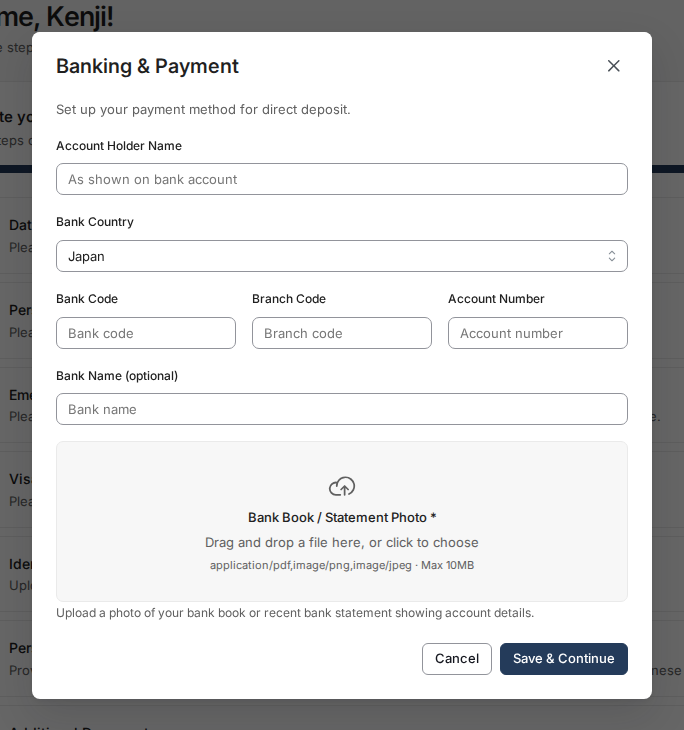
- Click the upload area and select a clear photo of your bank book or bank statement showing your account holder name.
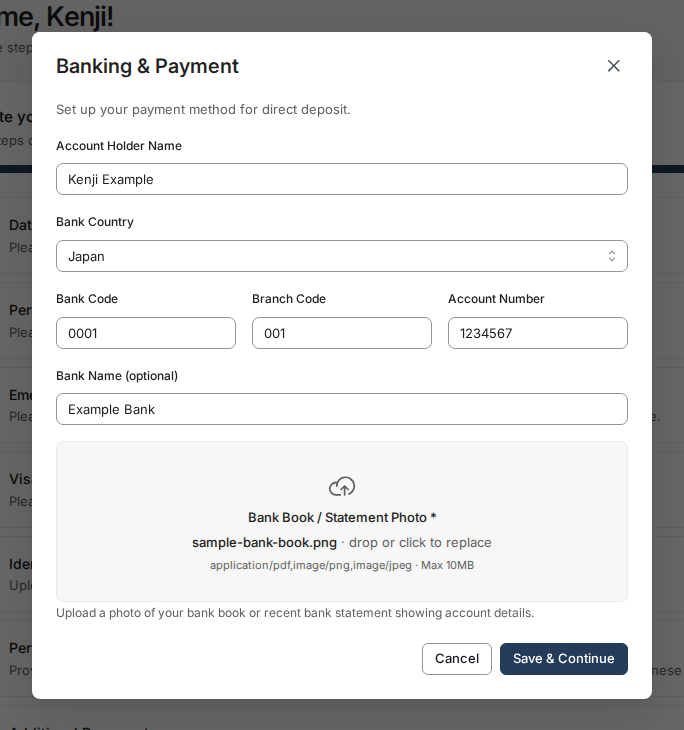
- Click Save & Continue at the bottom. Your bank information and verification document are now saved.
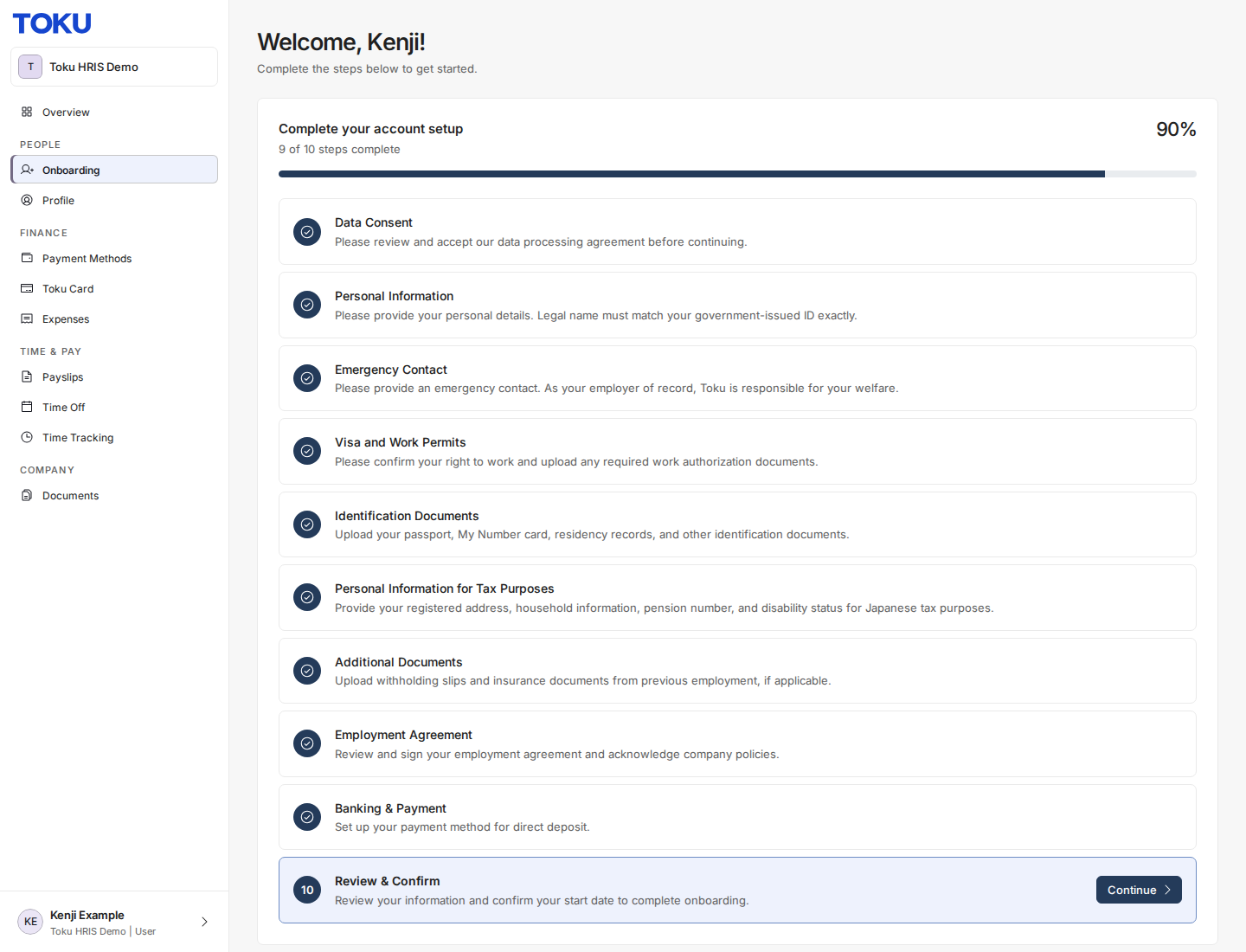
Upload your bank verification document (India)
- During the Banking & Payment step, you'll see a field labeled Cancelled Cheque Photo below your bank details.
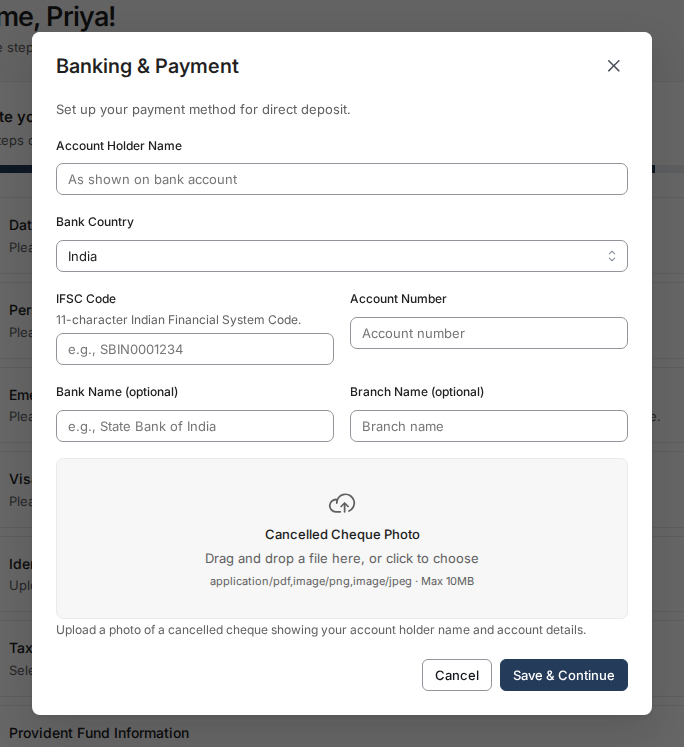
- This field is optional. To upload a cancelled cheque, click the upload area and select your photo.
- Click Save & Continue. The Banking & Payment step saves with or without a cancelled cheque upload.
Good to know
- For Japan employees: Your account holder name on the bank document must match your name in the system exactly (spacing, spelling, and katakana/alphabet characters). If there's a mismatch, reach out to Human Resources.
- Photos should be clear and legible. Ensure account details and account holder name are visible.
- Once saved, your verification document is attached to your employee profile and visible to your organization's HR team.
Still stuck?
You can email [email protected] to reach our support team. Please include your email address, organization name, and a description of what happened. Screenshots and videos are always welcome to speed up the troubleshooting process. Feel free to reach out any time for further assistance.