
 3 MIN READ
 UPDATED OCT 30, 2026
📘 For employees and organization administrators on Toku. Last updated Oct 30, 2026.
Filter your documents by category to quickly find what you need.
Before you start
- You'll find the category cards at the top of the Documents page, with the remaining categories as tabs and the Filters button (funnel icon) just above the table - in your own sidebar (for employees) or in the admin sidebar (for organization administrators, who see documents across the whole org).
- The categories are fixed, not dependent on what's been uploaded. Employees see cards for All, Tax Forms and Benefits, and tabs for Employment, Personal, Receipts & Other and Compliance. Organization administrators see cards for All, Company Documentation and Tax Forms, with Benefits moving to the tabs. A category still appears with a count of 0 if no documents are in it yet.
View all documents, or add extra filters
- Open the Documents page. The All card appears first and is selected by default, showing your total document count.
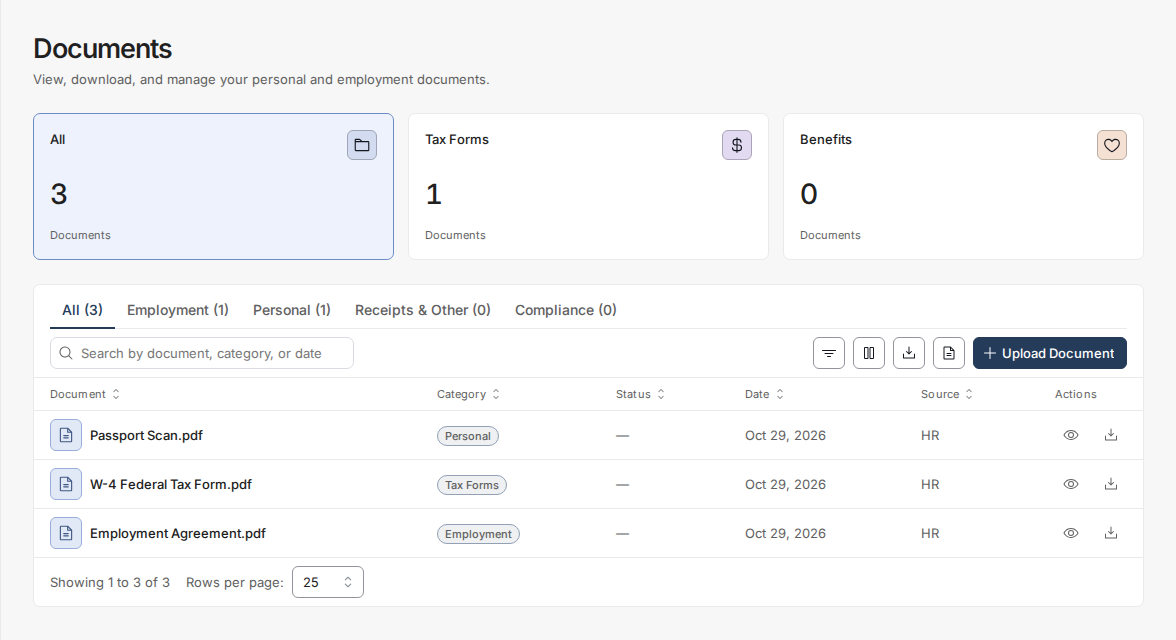
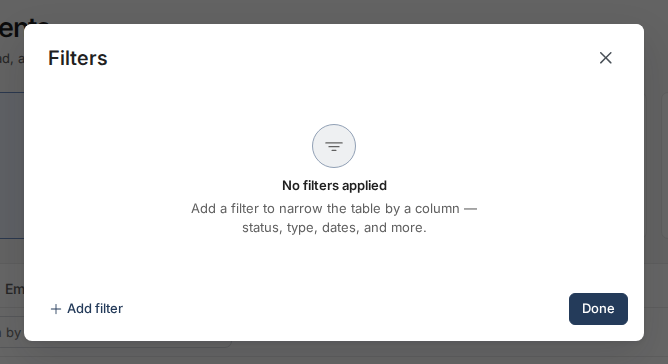
- Click Filters (the funnel icon at the right of the toolbar, above the table) to open a window where you can add extra criteria beyond the category cards. It's empty by default - click Add filter to pick a field. The available fields differ by view (for example, employees can filter by document Source; admins can filter by Document, Employee, Category, Status, Visible to, Date, and Size). Any filters you add here combine with the selected category card or tab and the search box.
Filter by a specific category
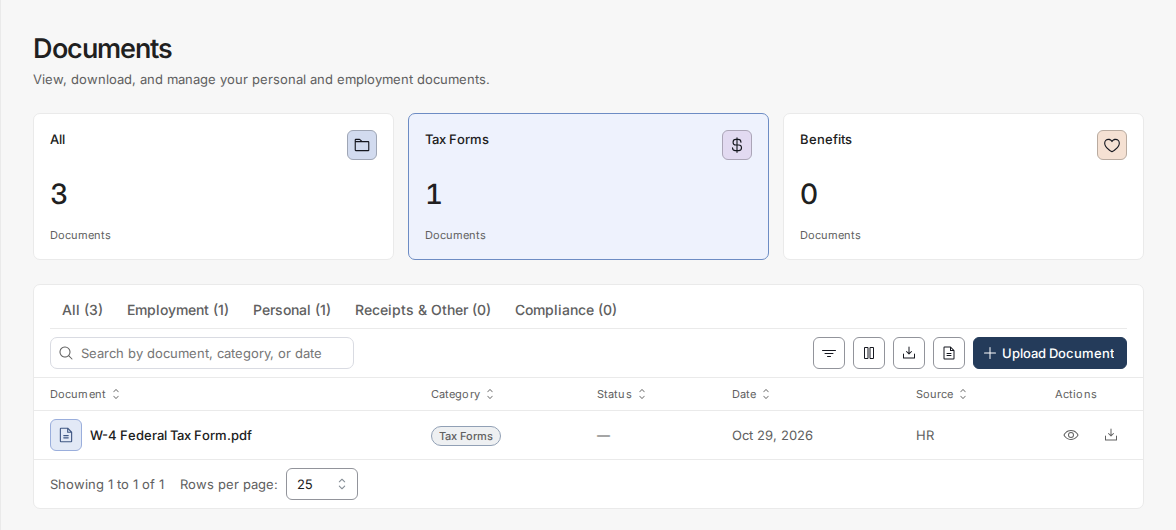
- Click any category card (such as Tax Forms, or Company Documentation for admins) or category tab (such as Employment). The card or tab highlights and the table updates to show only documents in that category. Only one category can be selected at a time - clicking a different card or tab switches the filter instead of adding to it.
Return to viewing all documents
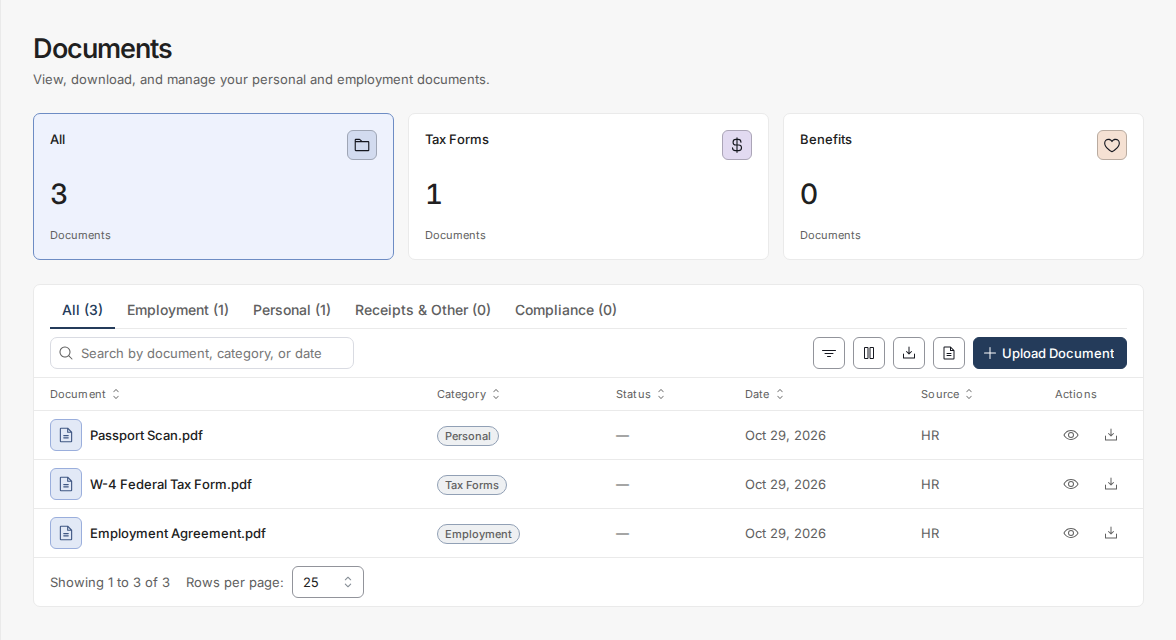
- Click the All card or the All tab - or click the currently-selected category card again - to clear the filter and see every document.
Good to know
- The All card count equals the sum of all category cards and tabs - if a category has no documents, its card or tab still appears and displays 0.
- Category cards and tabs and the Filters button are separate tools that work together: cards and tabs give one-click single-category filtering, while Filters lets you stack additional criteria (fields vary by view) that combine with whatever category card or tab is selected.
- The category card counts update automatically as your organization uploads or removes documents.
Still stuck?
You can email [email protected] to reach our support team. Please include your email address, organization name, and a description of what happened. Screenshots and videos are always welcome to speed up the troubleshooting process. Feel free to reach out any time for further assistance.