
 3 MIN READ
 UPDATED OCT 30, 2026
📘 For organization administrators on Toku. Last updated October 30, 2026.
Find and export people by their country in a single view.
Before you start
- You must be an organization administrator to access the People list.
- From the left-hand menu, click People.
- Ensure people have their country information filled in their profiles.
View the Country column
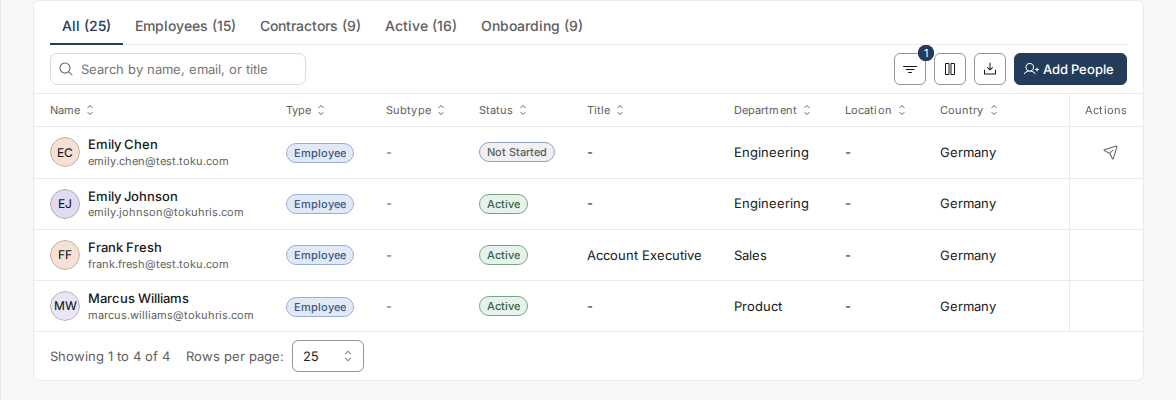
- Open People from the left-hand menu. The Country column is visible by default, showing each person's country as a full name (e.g., "United States", "Germany").
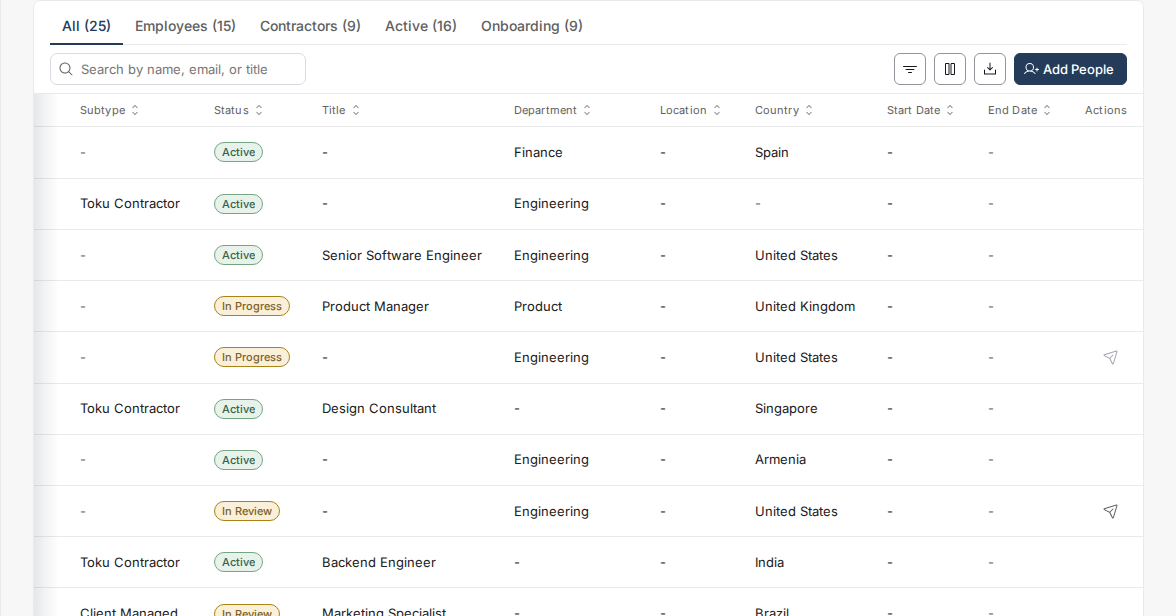
- The Country column is visible by default - like most columns, it can be hidden from the Columns menu. It's a separate field from Location, which, when set, shows a two-letter code (e.g., "US", "DE").
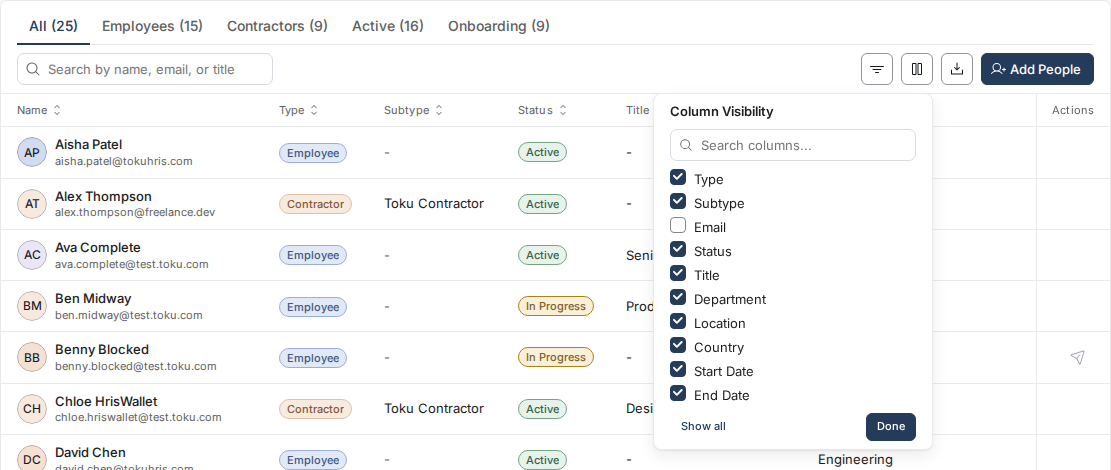
Filter people by country
- Click the Filters icon above the table.
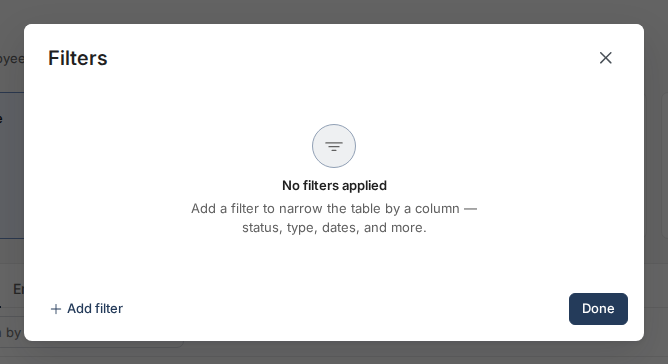
- Select Add filter, click the column dropdown (it starts on Name), and select Country. Tick the country you want, then select Done.
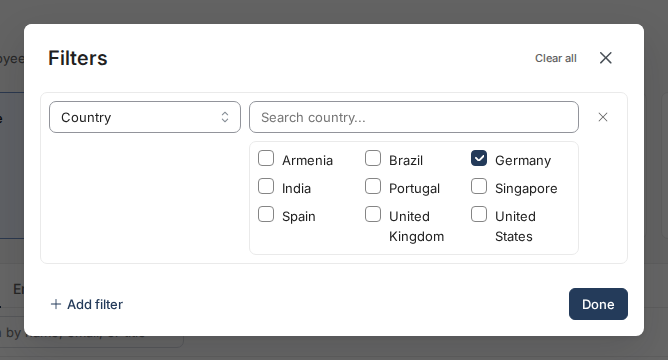
- The table updates immediately to show only people from the selected country. The footer count shows how many people are in that country (e.g., "Showing 1 to 4 of 4").
Export your filtered People list
- With your country filter active (or no filter), click the Export CSV (download) icon above the table.
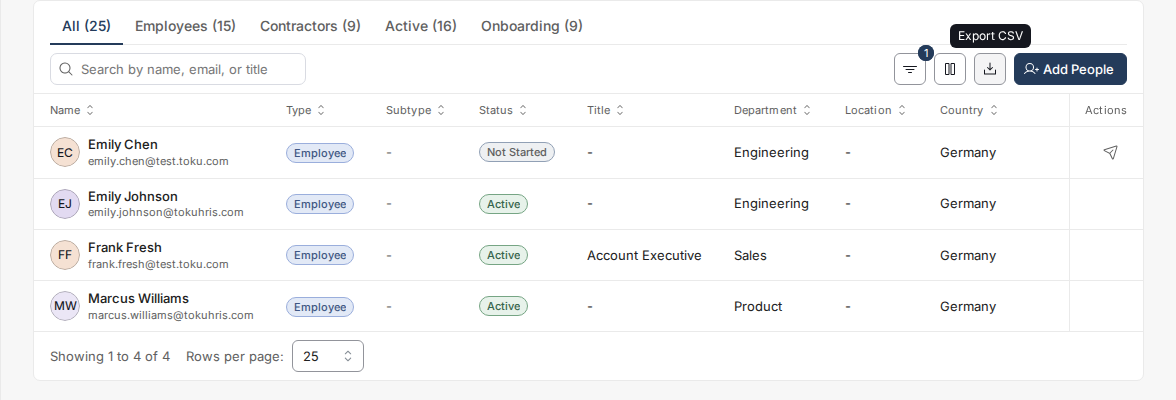
- The file downloads with all visible rows and columns, including the Country column. The export respects your active filter - filtering by "Germany" produced a 4-row CSV containing only Germany records.
Good to know
- The Country column is filterable as an enum - the checklist shows only countries that exist in your organization.
- Removing the country filter returns the table to show all people.
- The Location field, when set, uses two-letter country codes (e.g., "US", "GB"); the Country column already shows the resolved full name.
- The Country column is included in the export as long as it's checked in the Columns menu - which it is by default.
Still stuck?
You can email [email protected] to reach our support team. Please include your email address, organization name, and a description of what happened. Screenshots and videos are always welcome to speed up the troubleshooting process. Feel free to reach out any time for further assistance.