
 2 MIN READ
 UPDATED OCT 30, 2026
📘 For organization administrators on Toku. Last updated October 30, 2026.
Add a new administrator to your organization so they can help manage your team on Toku.
Before you start
- You need administrator access to your organization on Toku.
- Have the new administrator's first name, last name, and email address ready.
- The new administrator receives access through the email address you enter, so double-check it.
Add the new administrator
- Log in at app.toku.com.
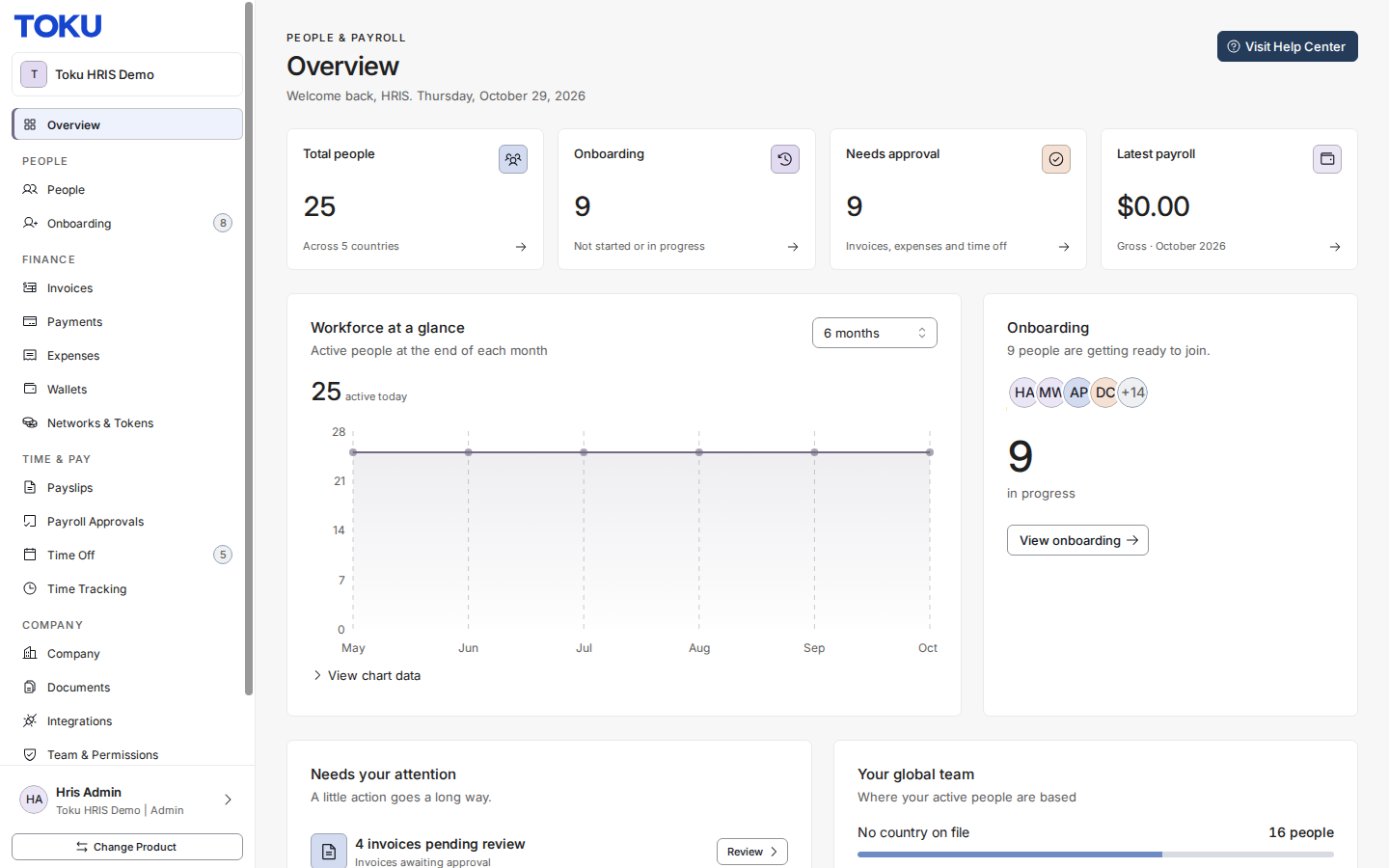
- Open Team & Permissions in the left-hand menu to access the administrators page.
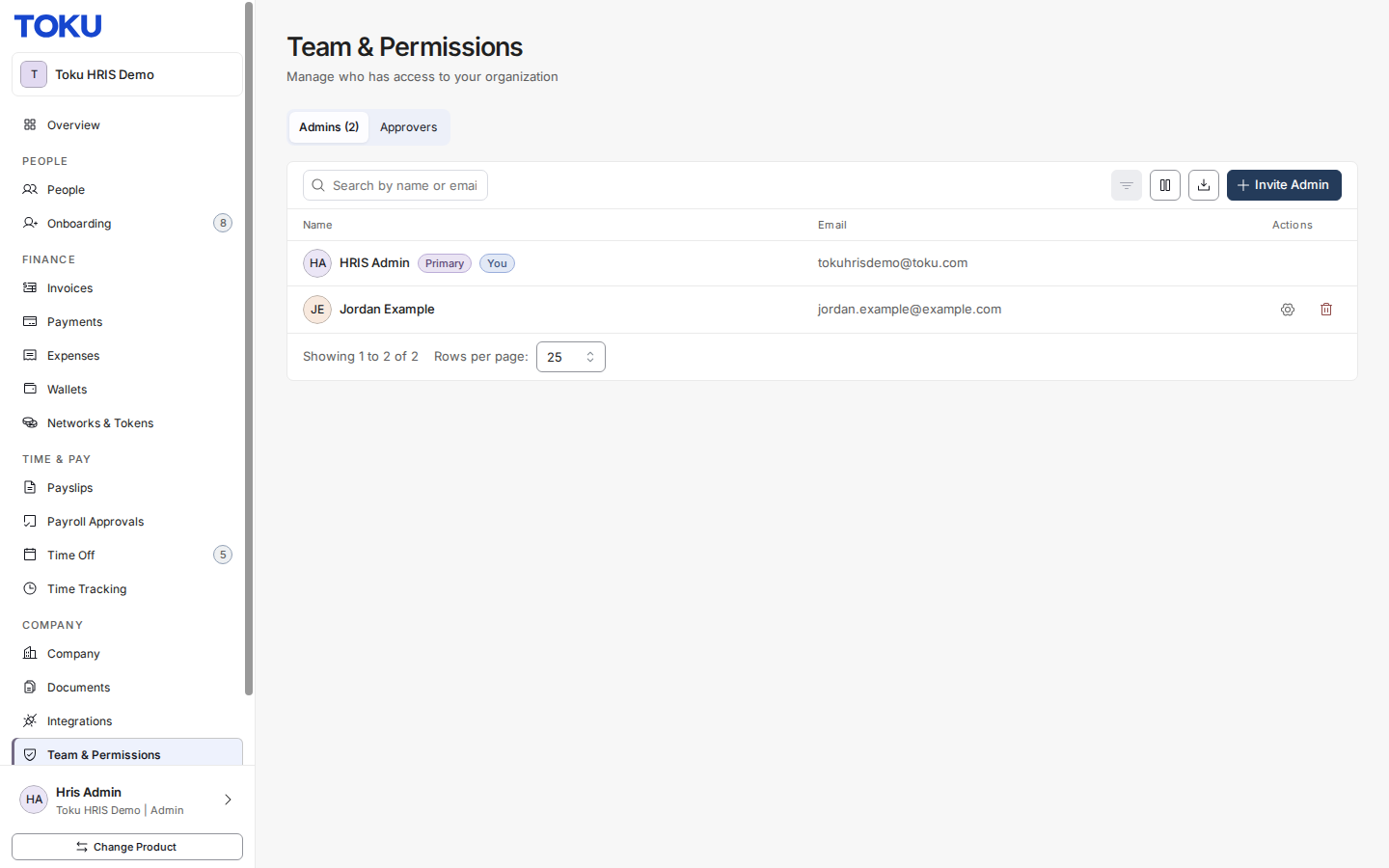
- Select the Invite Admin button to add a new administrator.
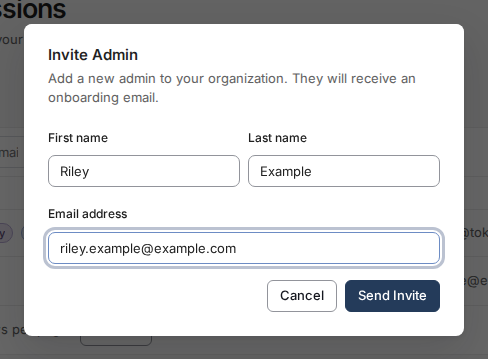
- Enter the new administrator's First name, Last name, and Email address, then select Send Invite.
Good to know
- The new administrator appears in the Team & Permissions list right away.
- New administrators start with Full Access to your organization's pages. You can fine-tune what each administrator can see or edit at any time with Manage permissions (the gear icon next to their name) - see How to Edit an Administrator's Page Permissions.
- To remove an administrator's access completely, select Remove (the trash icon) next to their name.
⚠️ Administrators can view employee and pay information for your organization. Only add people who should have this level of access.
Still stuck?
You can email [email protected] to reach our support team. Please include your email address, organization name, and a description of what happened. Screenshots and videos are always welcome to speed up the troubleshooting process. Feel free to reach out any time for further assistance.