
 3 MIN READ
 UPDATED NOV 4, 2026
📘 For organization administrators on Toku. Last updated November 4, 2026.
Manage the page access levels for any administrator in your organization.
Before you start
- Open Team & Permissions in the left-hand menu - it shows all admins in your organization.
- You need Full Access to Team & Permissions to edit any admin's permissions (admins with lower access cannot modify permissions).
- You cannot edit your own permissions; another admin must make those changes.
Edit an administrator's permissions
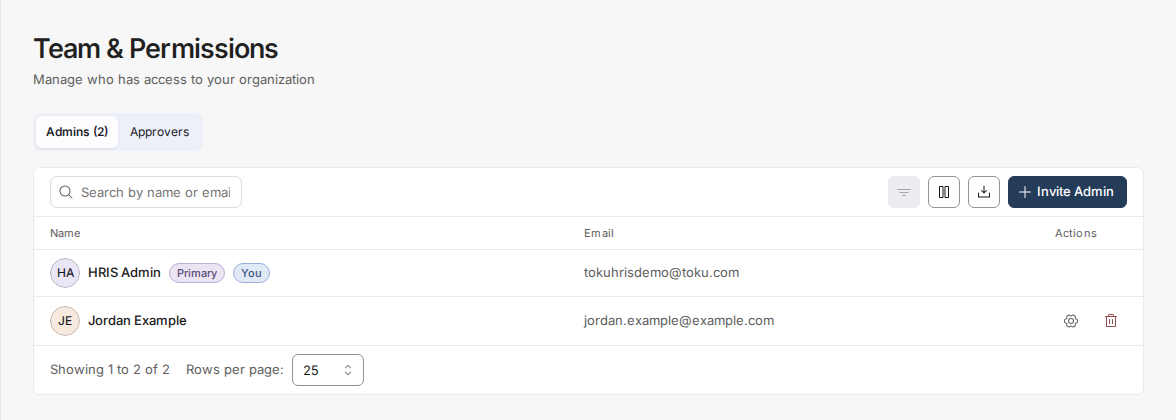
- On the Team & Permissions page, find the administrator whose access you want to change. Click the Manage permissions (gear) icon on their row.
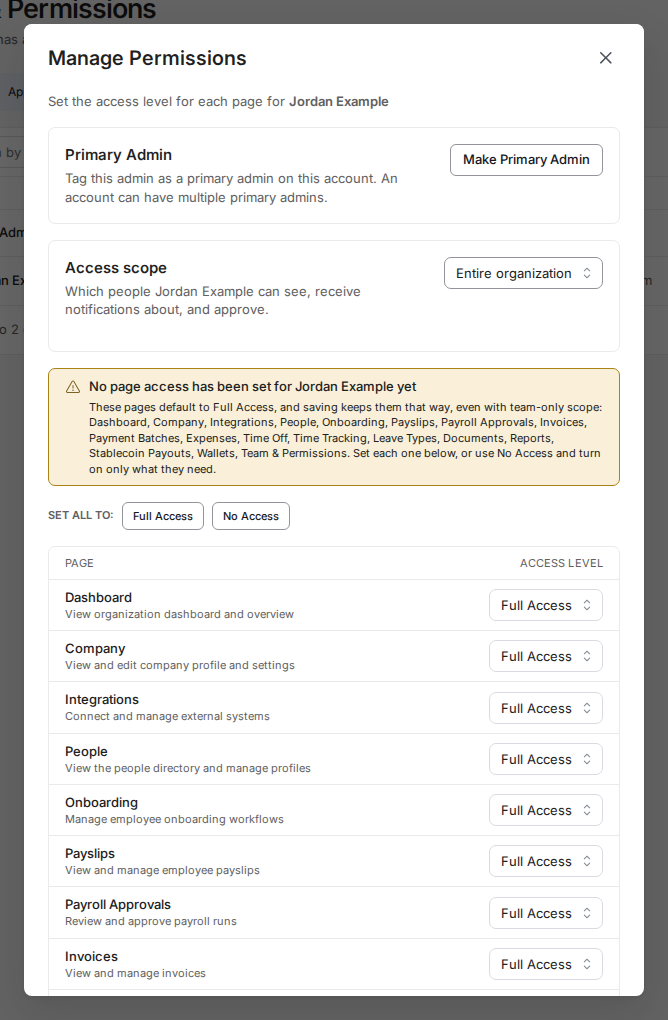
- A window opens showing permission levels for each area (e.g., Reports, People, Invoices). Adjust any permission to Full Access, View Only, or No Access.
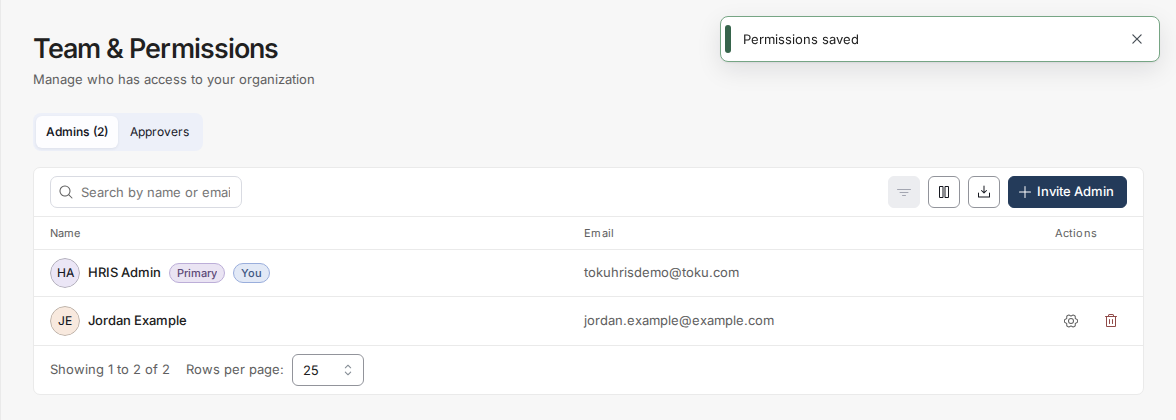
- Click Save Permissions to apply the changes. A toast reading Permissions saved confirms the update.
- After saving, return to the Team & Permissions page to confirm the administrator's access level has been updated.
Limit an administrator to their own team
Use Access scope when an administrator, such as a manager, should only see the people who report to them.
- In the Manage Permissions window, set Access scope to Their team only.
- If the window says the administrator has no direct reports, click Manage direct reports and add the people who report to them.
- Set each page to the level they need. A page that has never been set shows Full Access, and saving keeps it at Full Access. The window lists those pages in a warning until you set them. To start from nothing, click No Access next to SET ALL TO, then turn on only the pages they need, for example Time Off and Expenses.
- Click Save Permissions.
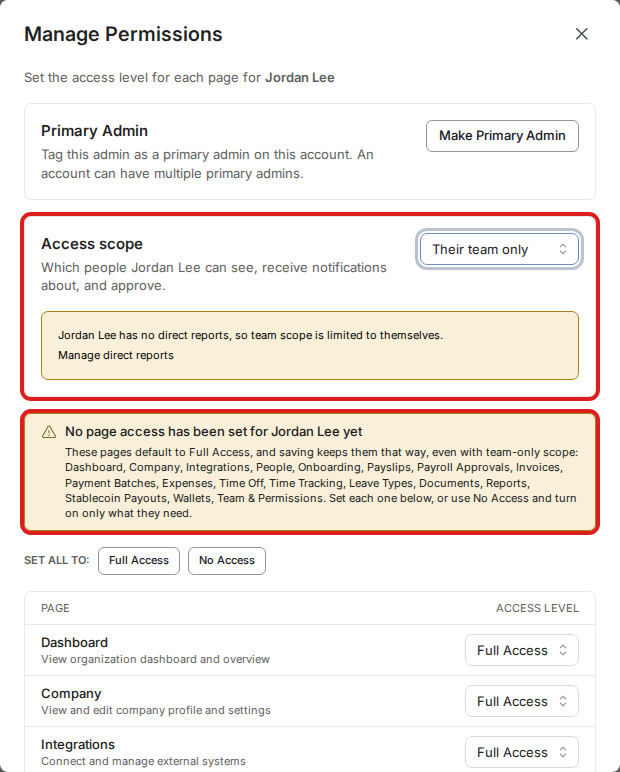
With team scope, the administrator sees only their direct reports on every page they can open, including Payslips. Everyone else's records stay hidden.
Good to know
- Removing an administrator from your organization requires a separate action - the Remove (trash) icon on an admin's row only applies to non-primary admins.
- At least one administrator must always retain Full Access to Team & Permissions; saves that would lock everyone out are automatically rejected.
- Permission changes take effect immediately after you save.
- Networks & Tokens follows Wallets and Stablecoin Payouts until you set it. If you haven’t set it for an administrator, they get the lower of their Wallets and Stablecoin Payouts levels. For example, an administrator with No Access to Wallets won’t see Networks & Tokens until you give it a level.
⚠️ The primary admin's permissions can't be changed by anyone else. The Manage Permissions window opens for their row, but saving is blocked.
Still stuck?
You can email [email protected] to reach our support team. Please include your email address, organization name, and a description of what happened. Screenshots and videos are always welcome to speed up the troubleshooting process. Feel free to reach out any time for further assistance.