2 MIN READ
 UPDATED OCT 29, 2026
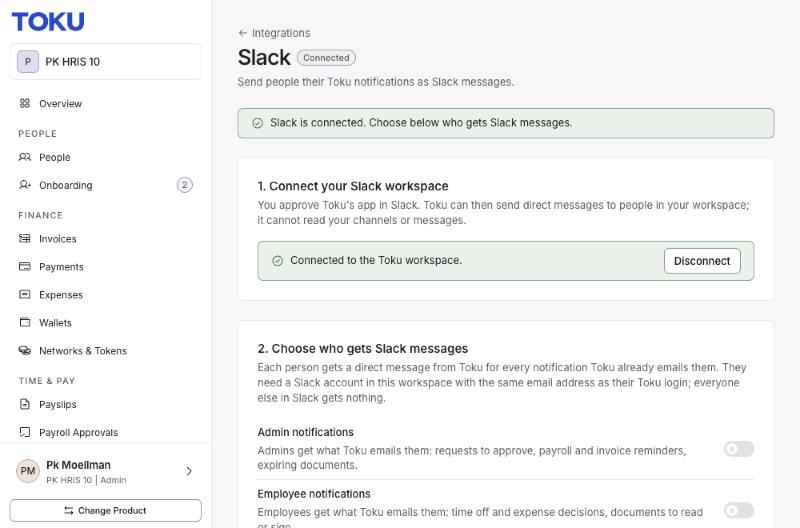
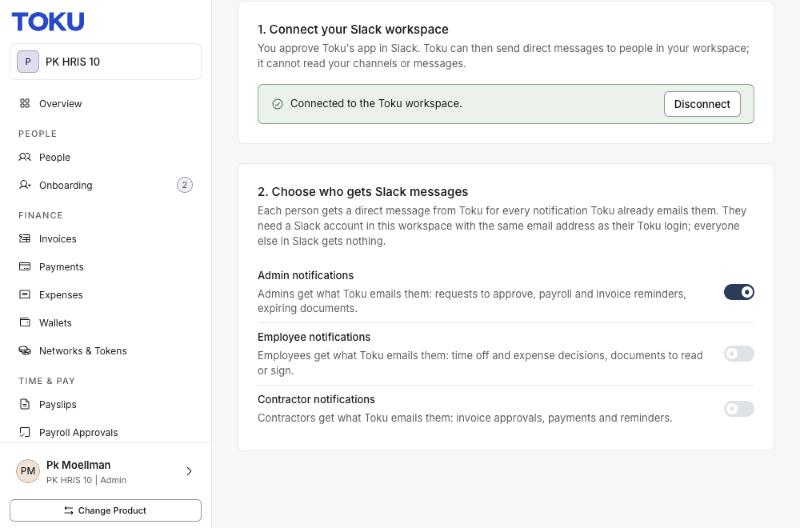
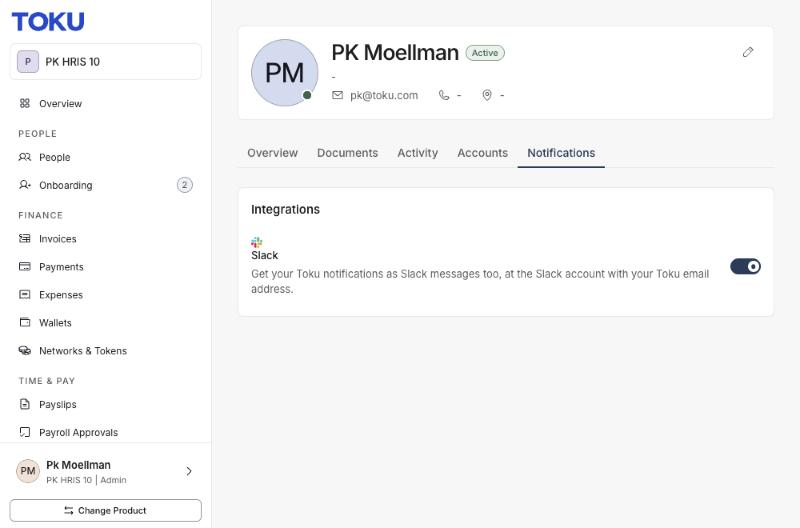
INTERNAL ONLY - Work in progress. Updated October 29, 2026. Slack notifications are not being announced as live to customers yet. Our current estimate for app publication is around 10 - 12 weeks; this is a planning estimate, not a confirmed launch date. We will let Bluefyn know as soon as it is live. The screenshots below show the pre-release setup in the PK HRIS 10 demo organization, captured October 28, 2026. They do not mean Bluefyn has been enabled. For internal preparation by company administrators and Toku users. Connect your Slack workspace to receive copies of Toku notification emails as direct messages, with a link back to Toku. Before you start • Ask your Toku contact to enable Slack for your organization if the Slack card is missing. • You need a company administrator account with access to Integrations and permission to install the app in your Slack workspace. • Each recipient’s Slack email must match their Toku login email. Connect your workspace
- In Toku, open Integrations, then Slack.
- Select Connect Slack and choose the correct workspace.
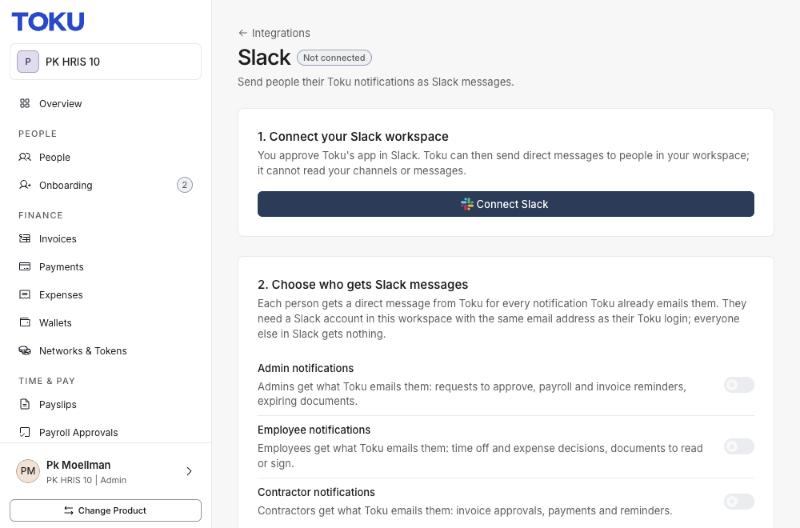
- Review Slack’s permission screen and approve the Toku app. You return to Toku and see the connected workspace.
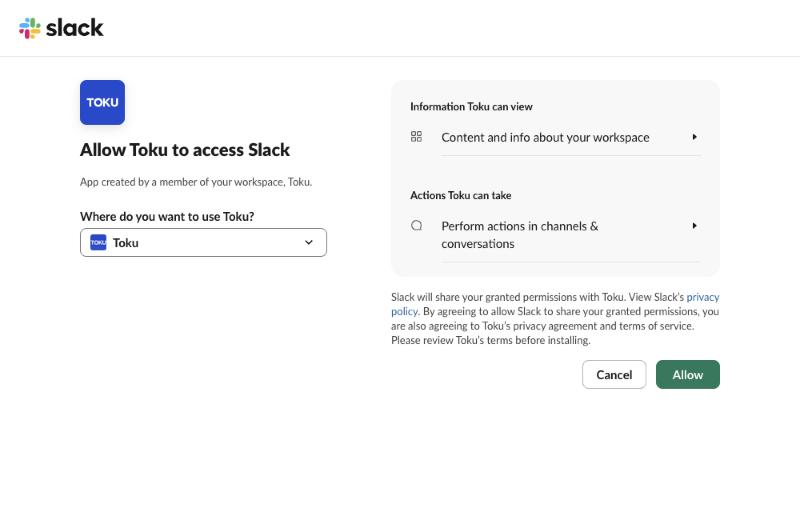
- Turn on the groups you want: Admin notifications, Employee notifications and/or Contractor notifications. All three start off, so connecting alone does not send messages. What you receive Slack mirrors eligible notification emails that Toku already sends. It does not add new payment alerts or send messages into a shared channel. Sign-in links, password resets, invitations and verification codes are excluded. Messages follow the email schedule. HRIS notification digests are daily at 08:00 UTC by default, so a Slack notification may arrive with the digest rather than immediately after an event. Email delivery continues as usual. Manage your own notifications Open Profile → Notifications → Integrations → Slack to turn Slack notifications off for yourself. A company admin can change the recipient groups or disconnect the workspace from Integrations → Slack. Not seeing a message? • Check that the correct workspace is connected and your recipient group is on. • Confirm that your Slack email matches your Toku login and your personal Slack switch is on. • Check whether the notification email has been sent yet. Slack follows that email’s timing. • Contact [email protected] if the Slack card is missing or messages still do not arrive.