
 5 MIN READ
 UPDATED OCT 30, 2026
📘 For organization administrators on Toku. Last updated October 30, 2026.
Set the date a change to someone's record takes effect, see what is waiting to be applied, and cancel a scheduled change before it lands.
Before you start
- You need administrator access to your organization on Toku. Sign in at app.toku.com.
- Every change an administrator makes on a person's profile asks when it should take effect, before anything is saved.
- People editing their own record are not asked for a date. Their changes save at once, as they always have.
Choose when a change takes effect
- Open People in the left-hand menu and select the person's name to open their profile.
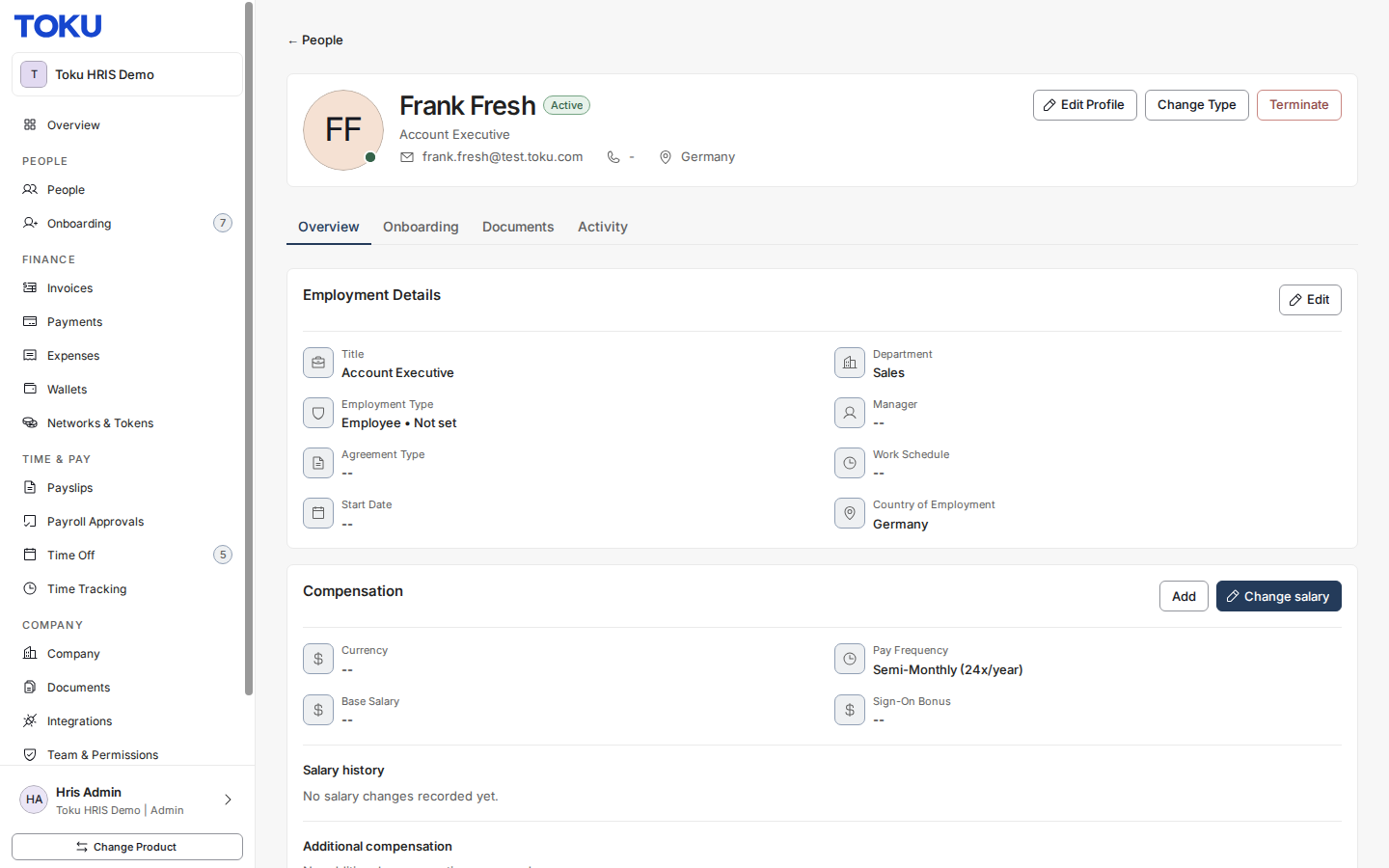
- Find the section you want to change, select Edit, and enter the new value. The card stays in edit mode, with Cancel and Submit in its header.

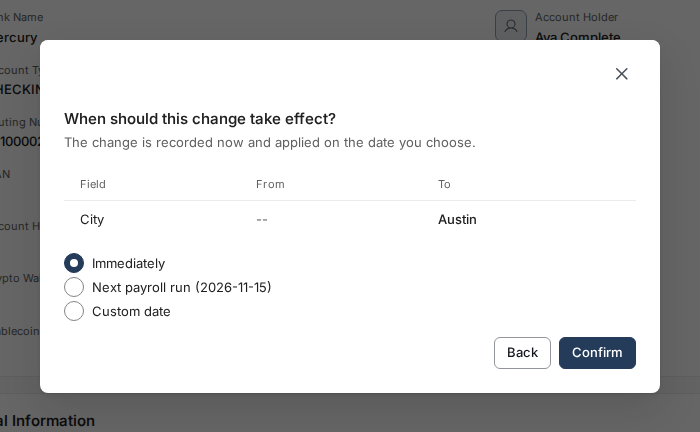
- Select Submit. Nothing is saved yet - a window opens, headed When should this change take effect?, listing every field you changed with its old and new value.
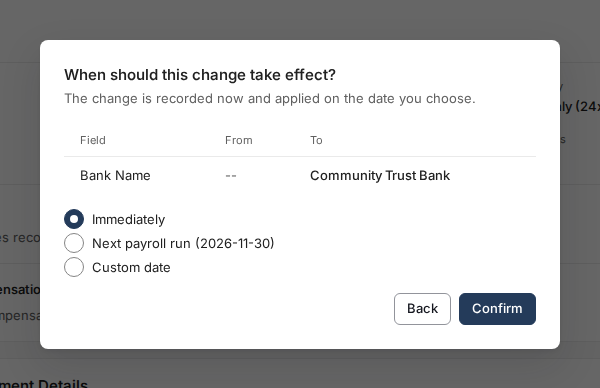
- Choose one of the three options. Immediately is already selected. Next payroll run shows the date beside it and is offered only when a payroll date is available. Custom date opens an Effective Date field.
- Select Confirm to save. Back returns you to the form with your edit still in place.
Schedule a change for a future date
- On the timing window, choose Custom date and enter the day the change should take effect.
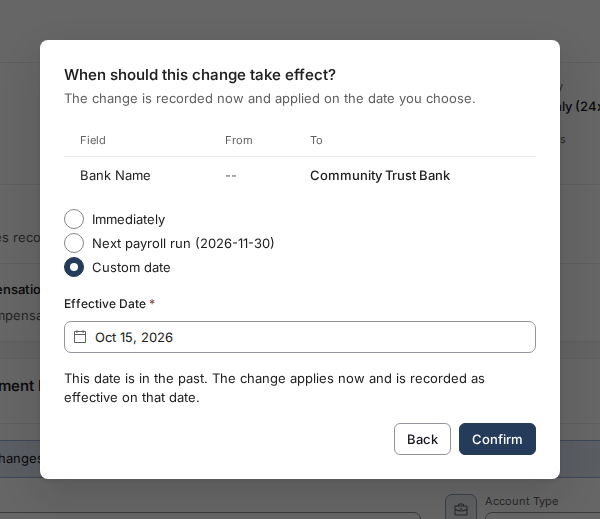
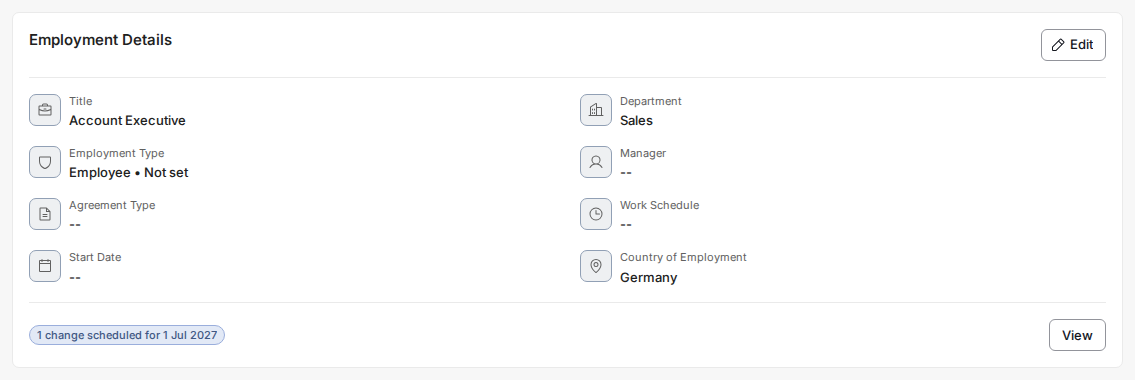
- Select Confirm. The card returns to read mode still showing the old value, with a summary line such as "1 change scheduled for 15 Jan 2027" and a View button.

Save a change that opens its own window
Some sections open a window instead of editing in place - Edit Employment Details, Personal Information, Emergency Contact, Work Authorization, and Change Type. The timing step appears inside that same window when you submit.
- Open the section, change what you need, and select Submit.
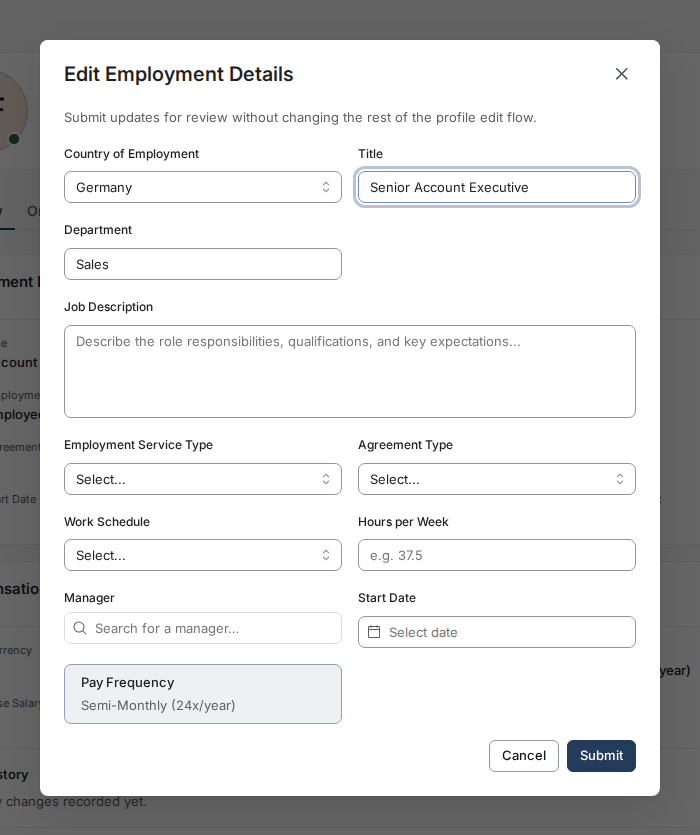
- Choose when the change takes effect. When this pay period's cut-off has passed, the step adds "The cutoff for this pay period has passed. This change will be included in the next upcoming payroll run for this country." and holds Confirm until you tick "I understand this change will apply to the next payroll run, not the current one."
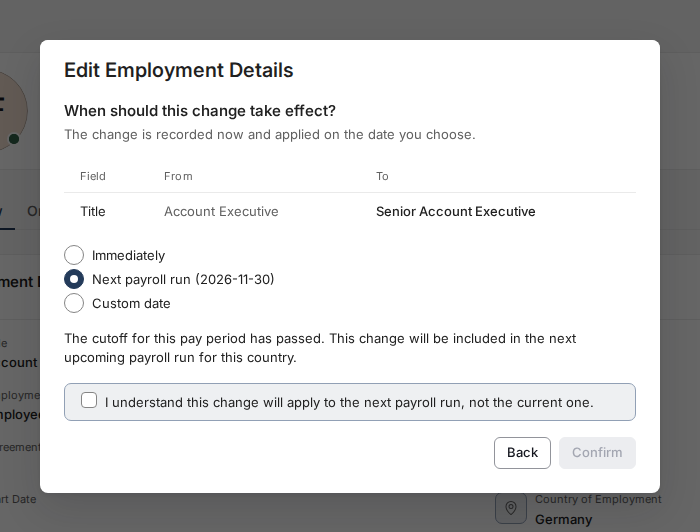
- The same step appears for Personal Information, Emergency Contact and Work Authorization. Back returns to the form with your edit intact.
See and cancel what is scheduled
- On the person's profile, read the summary line at the foot of each section card. "Changes pending approval" means a change is with Toku for review; "2 changes scheduled" means changes are recorded and waiting for their date.
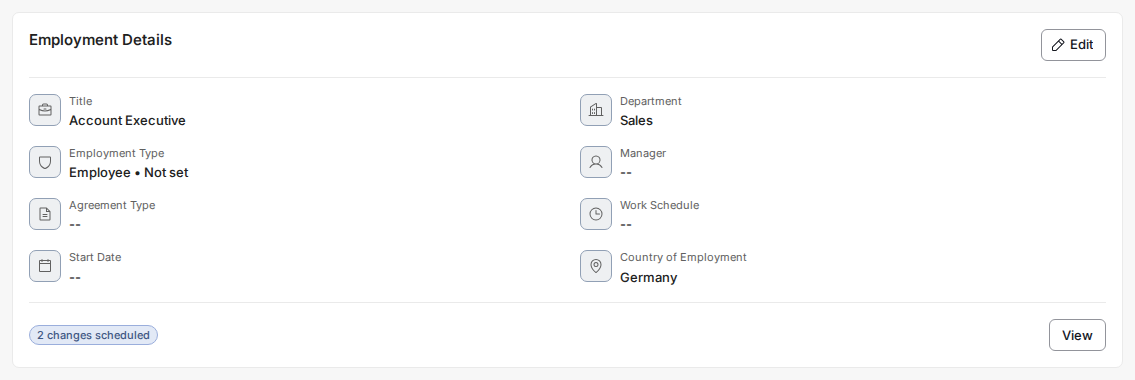
- Select View. The Upcoming changes window groups that card's open changes by date, labels each one Scheduled (or Pending approval while Toku reviews it), and shows the field, its old and new value, and who asked for it.
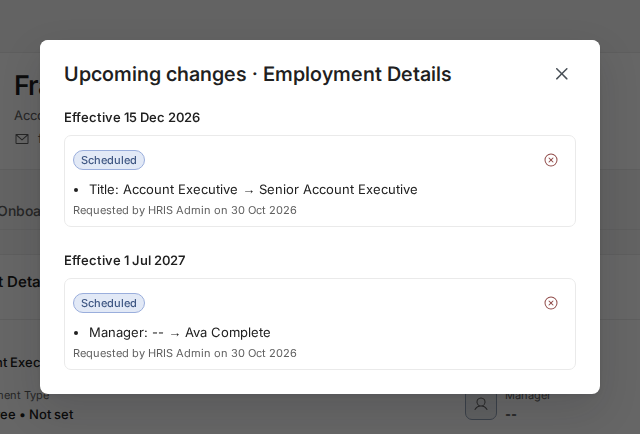
- Select the red cancel icon on a row to withdraw that change. The row disappears and the card's summary line updates to match.
Set a date for reporting lines
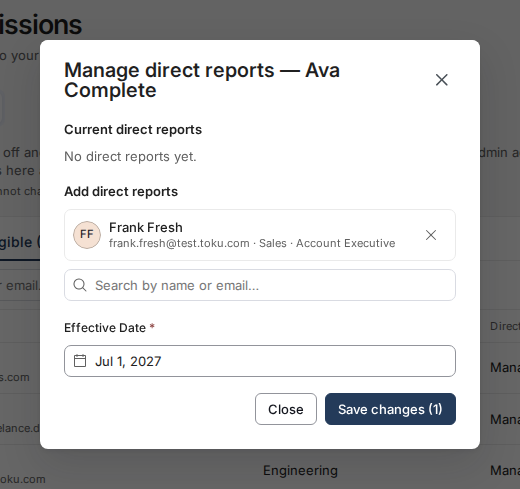
- Open Team & Permissions in the left-hand menu, select the Approvers tab, then All eligible, and select Manage reports beside the person who will manage them.
- Search for each person to add, set Effective Date — it starts on today's date - and select Save changes. A date must be filled in before the button works.
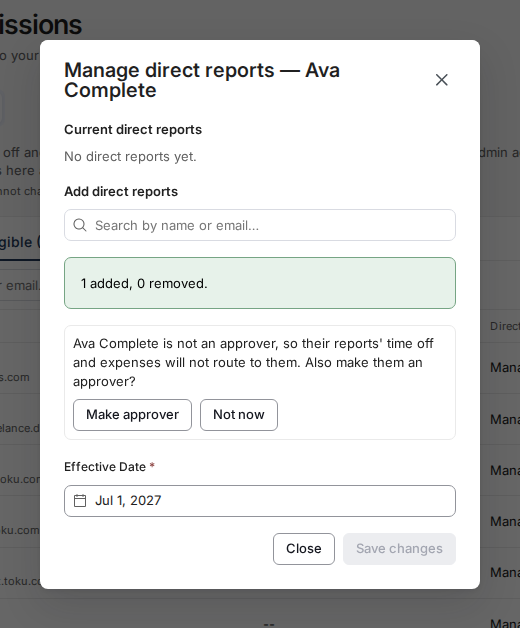
- The window confirms what it recorded. If the new manager cannot yet approve time off and expenses, it offers Make approver or Not now.
Good to know
- A scheduled change is not applied until its date arrives. The profile keeps showing the old value until then, and nobody needs to approve it again.
- Submitting a newer change to a field that already has one scheduled replaces the earlier one. The step warns you first, in the form "Replaces the change to Bank Name scheduled for 2027-01-15."
- A date in the past applies the change now and records it as effective on that date.
- A change that needs Toku review still goes for review. The card shows "Changes pending approval" until it has been reviewed.
- Tax Information records the date you choose, but the change itself applies at once.
- Terminations, additional compensation and benefits changes are not asked for a date here. They carry their own dates in their own forms.
- An administrator can cancel a scheduled change. So can the person who submitted it about their own record.
⚠️ A change dated after this pay period's cut-off is paid in the next payroll run, not the current one. The timing step says so and holds Confirm until you acknowledge it.
Still stuck?
Email [email protected] with your organization name, the person's name, and the date you were trying to set. Screenshots are always welcome and speed things up.