
 3 MIN READ
 UPDATED OCT 30, 2026
📘 For organization administrators and employees on Toku. Last updated October 30, 2026.
Every list of documents in Toku shows where each one has reached in its signing journey, so you can see who still owes a signature without opening DocuSign.
Where the status appears
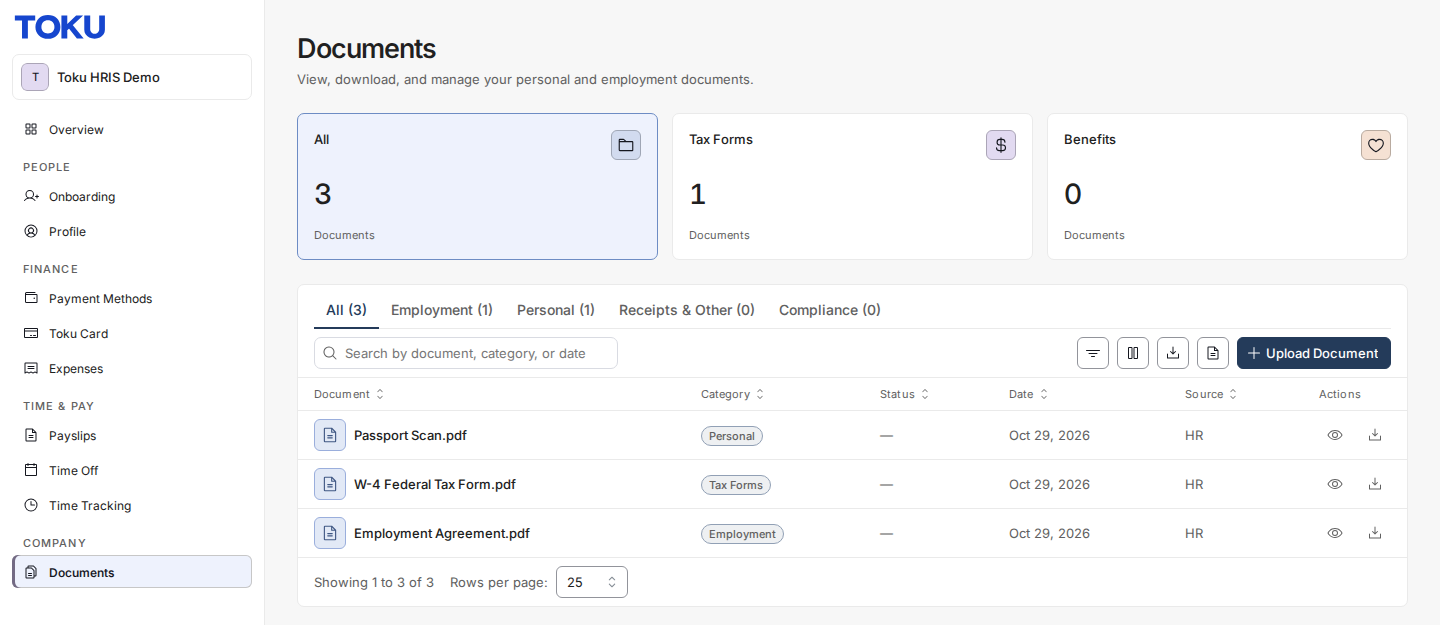
- Your own Documents page, at Documents in the left-hand menu. Each row has a Status column.
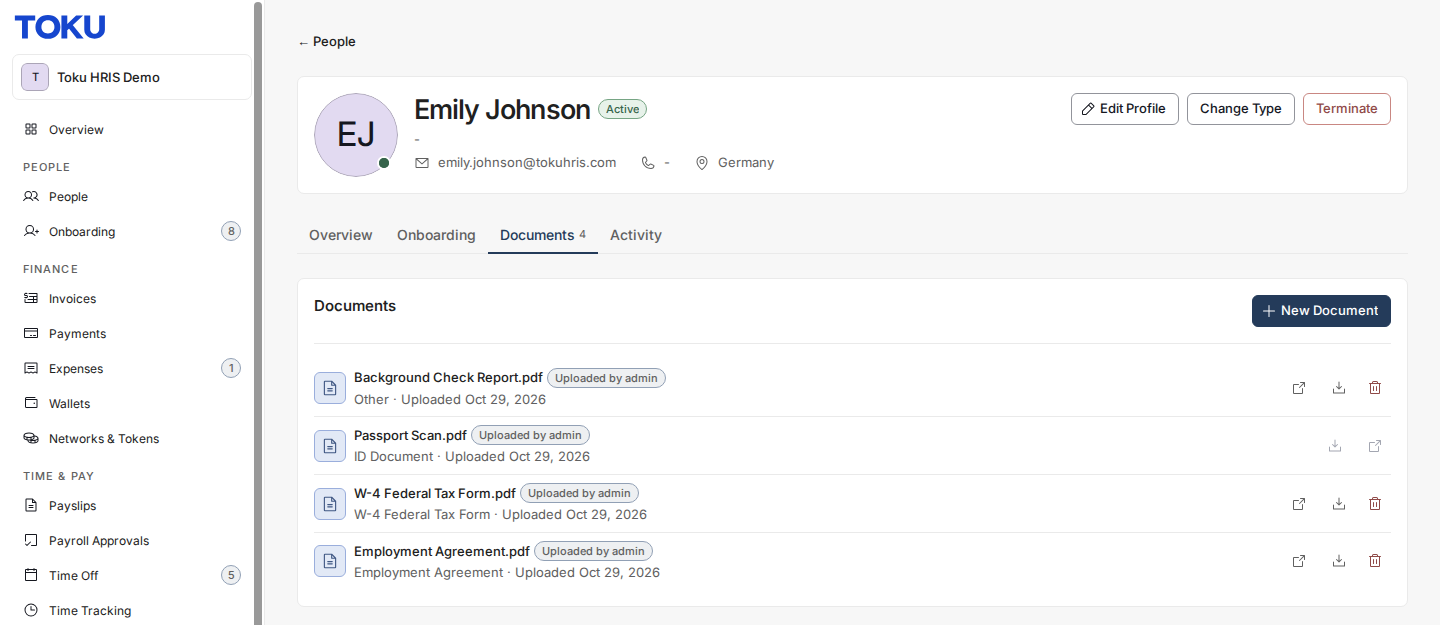
- A person's profile, on their Documents tab. The status sits as a badge beside the document's name.
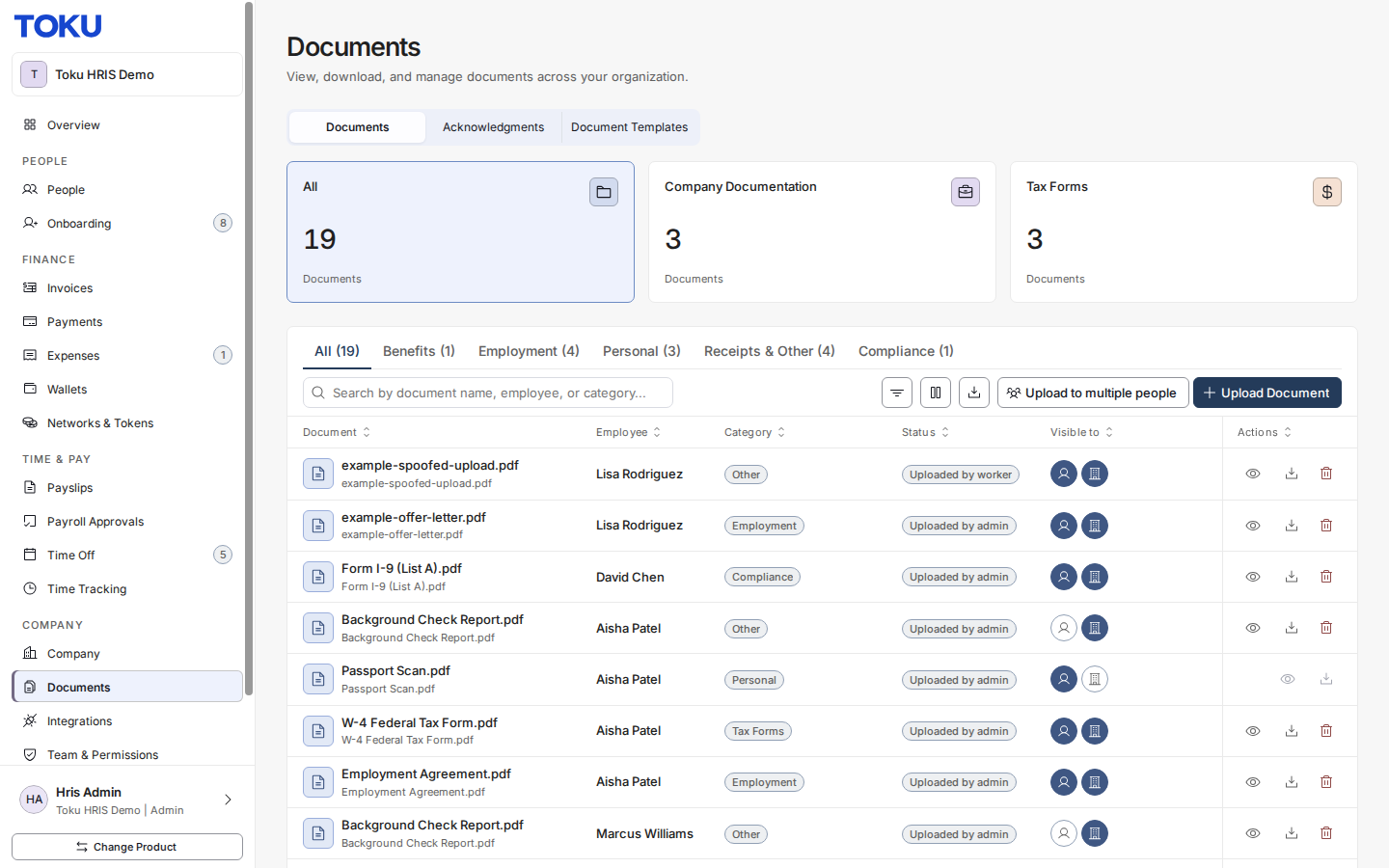
- The organization-wide Documents page, which administrators reach from the left-hand menu. Each row has a Status column here too.
What each status means
| Status | What it means |
|---|---|
| Not sent | Prepared but not yet sent for signature. |
| Awaiting signature | Sent for signature, and the worker has not signed yet. |
| Awaiting countersignature | The worker has signed. Waiting on the countersigner. |
| Finalizing | Everyone has signed. The signed copy is being filed and will appear here shortly. |
| Signed | Fully signed. The signed copy is filed here. |
| Delivered | Delivered for the record. This document needs no signature. |
| Declined | A signer declined to sign this document. |
| Cancelled | This send did not complete. |
| Expired | DocuSign cancelled this send because it passed its expiry date without being signed. It can be sent again. |
| Superseded | Replaced by a newer version of this document. |
Hovering over a status badge shows the same explanation on screen.
Sort and search by status
On both Documents pages the status lives in its own Status column, where you can sort by it, or type a status like Signed into the search box. Selecting the column heading groups everything at the same stage together, which is the quickest way to see who still owes you a signature.
Documents that show no status
Files that were uploaded rather than sent for signature, a passport scan or an ID document for example, have no signature to track. They show a dash on your own Documents page. On the organization-wide Documents page and on a person's Documents tab, administrators see where the file came from instead, such as Uploaded by admin or Uploaded by worker.
Good to know
- Awaiting countersignature is not a problem. It means the worker has done their part and the document is sitting with whoever signs on the company's side.
- Finalizing is the brief gap between the last signature and the filed copy. The row moves to Signed once the signed PDF has been attached to it.
- A voided send leaves the list. When an administrator cancels (voids) a send, the document no longer appears on the Documents pages. Cancelled now means only a send that did not complete, and Expired a send DocuSign cancelled at its expiry date.
- A status that lags behind DocuSign corrects itself. Toku re-checks outstanding documents against DocuSign on a schedule, so if everyone has signed but Toku has not caught up yet, it resolves without anyone having to do anything.
Still stuck?
You can email [email protected] to reach our support team. Please include your email address, organization name, the name of the document, and what status Toku shows next to what DocuSign shows. Screenshots are always welcome to speed up the troubleshooting process.