
 8 MIN READ
 UPDATED OCT 30, 2026
📣 Audience: all Toku users · Customer-facing · Last updated October 30, 2026 for the move to app.toku.com.
Who this is for and what you'll accomplish
This guide is for everyone who signs in to Toku - people who are employed or paid through Toku, people who receive token grants, and administrators who manage a company's team. Two-factor authentication (2FA) adds a second step to signing in: after your password, you enter a 6-digit code from an app on your phone. By the end of this guide you will know how to turn on 2FA, why some screens ask for it even when you can already sign in, and how to fix the most common code problems without waiting on support.
Before you start
Have these ready:
- The website address: app.toku.com — type this into your browser's address bar. This replaced tga.app.toku.com in August 2026 and is the only Toku address these steps use. There are no product tabs to pick at sign-in any more: enter your email, select Continue, then your password.
- Your Toku email and password: the same ones you use to sign in today. If your password is not accepted, read Logging in to Toku: which website and which password to use first.
- A smartphone with a free authenticator app installed. Any of these work: Google Authenticator, Microsoft Authenticator, Authy, or 1Password. Install one from your phone's app store before you begin.
What 2FA is
Two-factor authentication means signing in takes two things instead of one: something you know (your password) and something you have (your phone). After you type your password, Toku asks for a 6-digit code. That code lives in an authenticator app on your phone and changes every 30 seconds, so even someone who learns your password cannot get in without your phone.
You set 2FA up once. Your authenticator app then keeps a "Toku" entry that shows a fresh 6-digit code whenever you need it. Toku never sends this code by text message or email - it only ever comes from your authenticator app.
Setting up 2FA for the first time
You turn on 2FA from one of two places, depending on how you use Toku:
- If your company requires 2FA to sign in, Toku shows the setup screen automatically right after you enter your password on the second step of sign-in - you cannot miss it.
- Otherwise, you turn it on yourself from your account's security settings: open My Profile from the left menu and, in the Security section, select Set up next to Two-factor authentication. This opens the same setup steps.
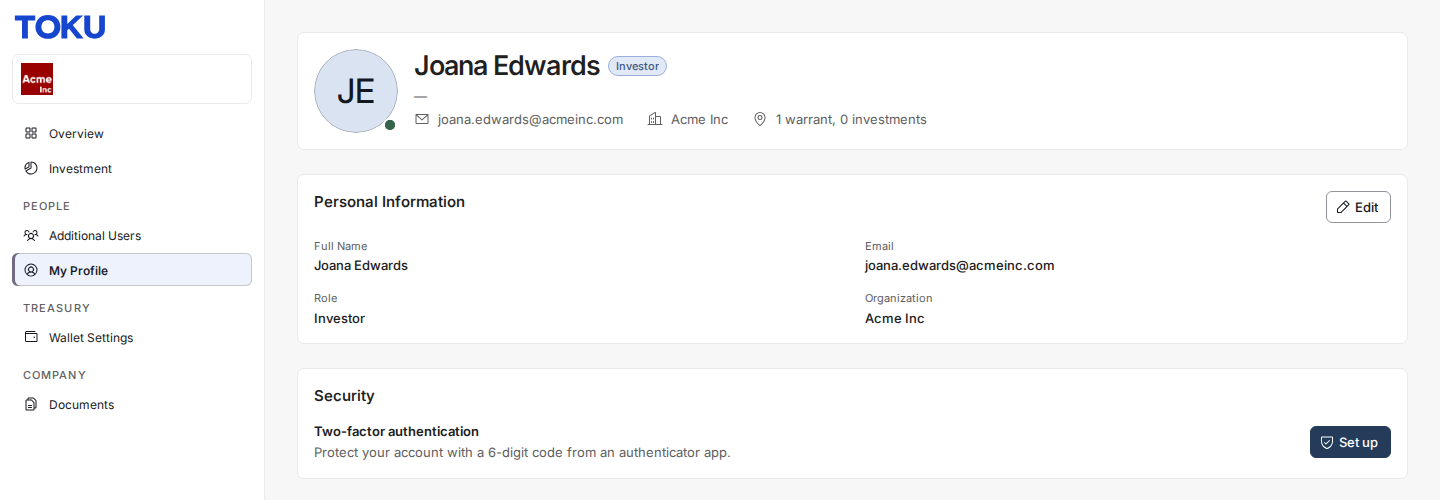
Either way the steps are the same.
Step 1 - Choose and open your authenticator app. Toku does not pick an app for you: any authenticator app works, including Google Authenticator, Microsoft Authenticator, Authy, and 1Password. If you do not already have one, install it now, then continue. If you see something different, make sure you started 2FA setup either from the sign-in screen (right after your password) or from your account's security settings.
Step 2 - Scan the QR code. The Set up two-factor authentication screen shows a square black-and-white QR code. Open your authenticator app, choose its "add" or "+" option, pick "Scan a QR code", and point your phone's camera at the code on your screen. Your app adds a new "Toku" entry that immediately starts showing a 6-digit code. If your phone cannot scan, select Trouble scanning? Use a text code under the QR code to show a code you can type into your app by hand.
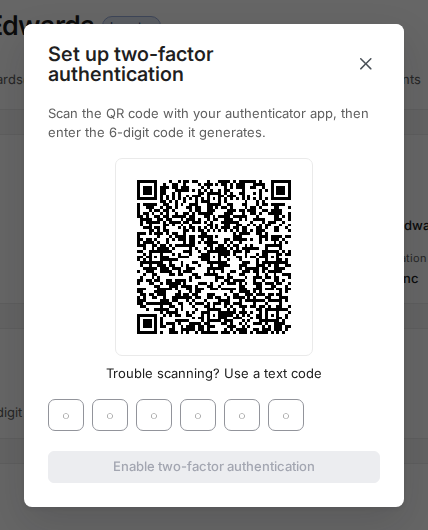
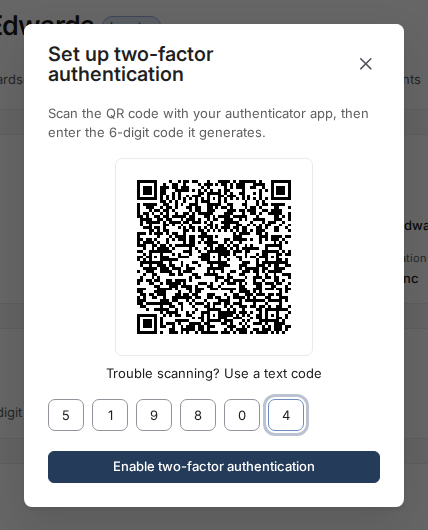
Step 3 - Enter your first code. Below the QR code there are six single boxes. Type the 6-digit code your authenticator app is showing for the new "Toku" entry, then select Enable two-factor authentication. Codes change every 30 seconds, so if the code rolls over while you are typing, just enter the new one. If the code is correct, Toku moves you to the recovery-key step. If it is not, you see "That code didn't work" - see Fixing invalid code errors below.
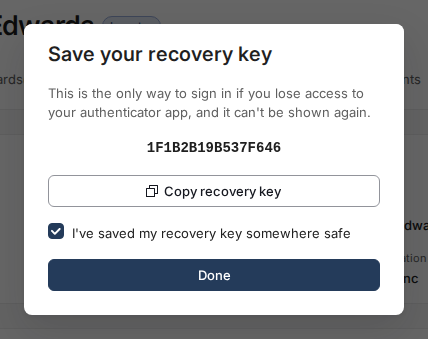
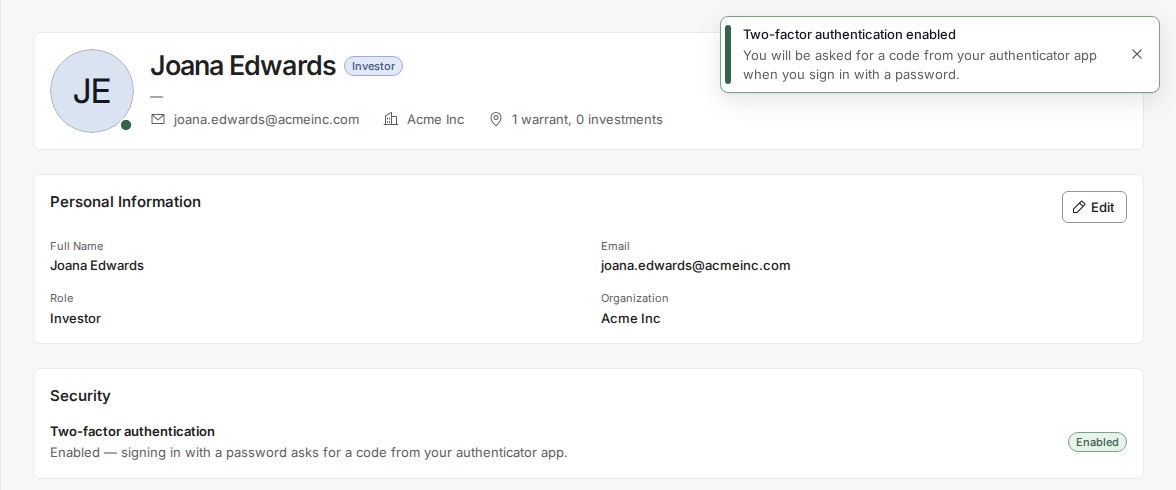
Step 4 - Save your recovery key. Toku shows a one-time recovery key on the Save your recovery key screen, with a warning to store it somewhere safe. This key is how you get back in if you ever lose your phone. Select Copy recovery key, paste it into a password manager or another safe place, tick I've saved my recovery key somewhere safe, then select Continue (or Done if you started from My Profile). You should see the message "Two-factor authentication enabled". From now on, signing in will ask for a code from your authenticator app.
Why some actions say you need 2FA even though you can log in
There are two separate things, and it helps to keep them apart:
- Your organization requiring 2FA — a company-wide rule set by your administrator.
- Your own enrollment — whether you personally have finished the setup steps above. You can be signed in normally and still not be enrolled. When that happens, most of Toku works, but certain protected actions - such as adding a payout wallet - stop and show a message like: "Your organization requires two-factor authentication, but it isn't set up on your account yet. Please enable 2FA in your account security settings, then come back here to add your wallet."
This is not an error. It means the action is protected and you simply have not enrolled yet. Follow Setting up 2FA for the first time above, finish all four steps, then return to what you were doing.
Fixing invalid code errors
A code being rejected almost always means one of a few ordinary things - not a broken account.
- "That code didn't work" while setting up (Step 3): you are entering a code that does not match the QR code you just scanned. Make sure you are reading the newest "Toku" entry in your app, and enter the code before its 30-second timer runs out. During setup you get a limited number of tries; if you run out, close and reopen the setup and scan the QR code again.
- "Invalid code" while signing in: the code is read from your app but Toku will not accept it. You have up to five tries; the screen counts them down - for example "Invalid code. Attempt 1/5 - 4 attempts remaining." After five failed tries you see "No attempts remaining, please login again" and start the sign-in over.
- More than one "Toku" entry in your app: after the platform upgrade, some people ended up with two or more "Toku" entries in their authenticator app. Old entries produce codes that will never be accepted. Use only the most recent entry. Do not delete entries or re-enroll unless Toku support tells you to - deleting the wrong one can lock you out.
- Codes rejected because of phone clock drift: authenticator codes depend on your phone's clock being accurate to the second. If your phone's time is even slightly off, every code will be rejected even though it looks right. Turn on your phone's automatic "Set time automatically" / network-time setting (Google Authenticator also has a built-in "Time correction for codes" option), then try again.
- "Too many failed attempts. Please wait 15 minutes before trying again": Toku has paused new attempts for your safety. Wait 15 minutes and try again - do not keep retrying, as that only extends the wait.
When and how to ask for a 2FA reset
Reset 2FA when you have genuinely lost access to your codes - for example your phone was lost, replaced, or wiped and you no longer have the "Toku" entry.
- If you saved your recovery key: on the sign-in code screen, select "Can't access your authenticator app? Reset two-factor authentication". On the Reset Multi-Factor Authentication screen, enter the 16-digit recovery key you saved during setup and select Verify Code. Toku clears the old setup and walks you through enrolling again with a fresh QR code.
- If you do not have your recovery key: select Contact support on that same screen, or email Toku support, and ask for a 2FA reset. A support-initiated reset switches off your current 2FA: your old authenticator entry stops producing valid codes, and the next time you sign in you set 2FA up fresh - a new QR code, a new "Toku" entry, and a new recovery key. Important: after any reset, always scan the NEW QR code Toku shows you. A common mistake is to reset 2FA and then enter a code from the OLD "Toku" entry, which can never work. If your app still shows the old entry after you re-enroll, keep only the newest one.
Still stuck?
Email Toku support and include:
- The email address you sign in with.
- Your organization's name.
- What you were doing when 2FA blocked you (for example "signing in" or "adding a wallet"), and the exact message on screen.
- A screenshot of the screen or error. If your password itself is being rejected before any 2FA step, start with Logging in to Toku: which website and which password to use.