
 4 MIN READ
 UPDATED OCT 30, 2026
ℹ️ This guide replaces the API key that lets Toku initiate payouts from your Anchorage vault. It takes about 15 to 30 minutes, plus the time your team needs to approve the new API key. Payouts through Toku pause from step 2 until step 6.
Before you start
- Who you need: someone who manages your organization's payment integrations in Toku, and the Anchorage users who can create and approve API keys (your quorum).
- When: pick a time when no Toku payouts are in progress.
- No private keys involved: Toku generates the key pair and only shows you the public key to register with Anchorage. Never share private keys, seed phrases or passwords with anyone, including Toku.
Steps
- Open the Anchorage integration in Toku. Go to Admin Integrations (or Settings → Integrations) and, under Payment Integrations, select the Anchorage Digital card. Write down the vault shown in 3. Grants vault and the route in 5. Default route.
- Remove the current connection. Select Delete integration and confirm Delete Anchorage integration?. Your payout routes are kept.
- Create a new key pair. Select the Anchorage Digital card again. In 1. Signing key pair, select Generate key pair and copy the public key.
- Create a new API key in Anchorage. In the Anchorage Client Dashboard, go to API keys → Create API key.

Give the replacement a recognizable name and select the permission group used for Toku.
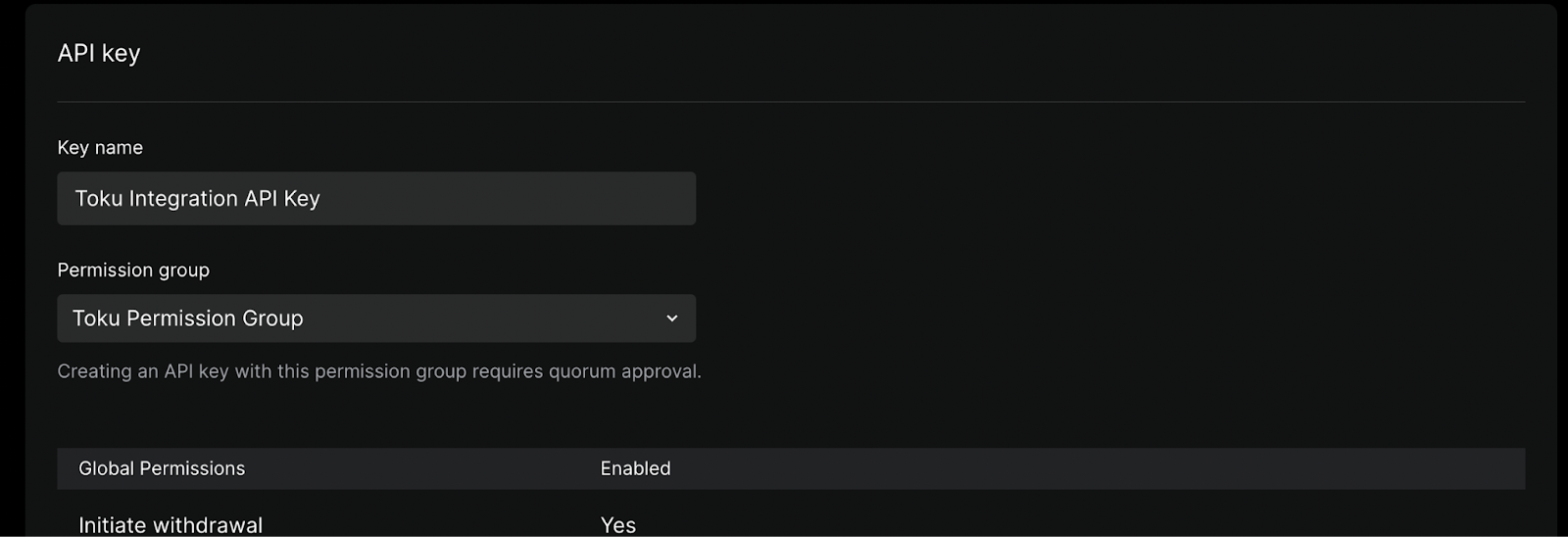
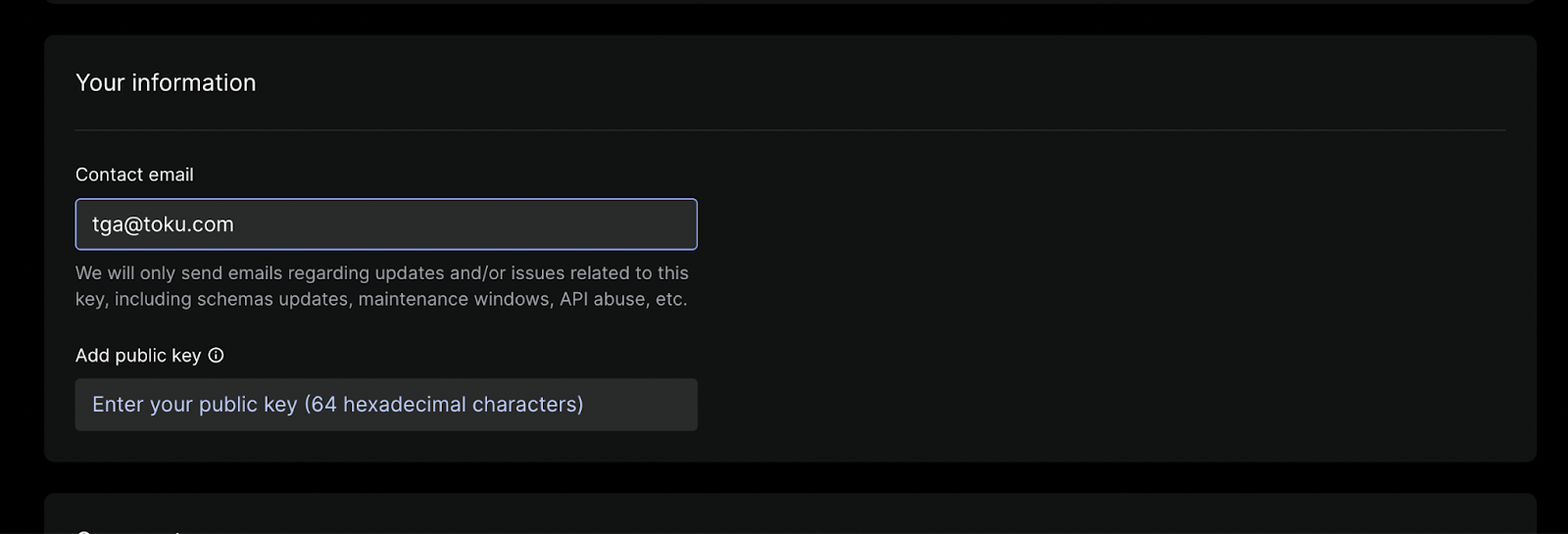
- Register the public key from step 3.
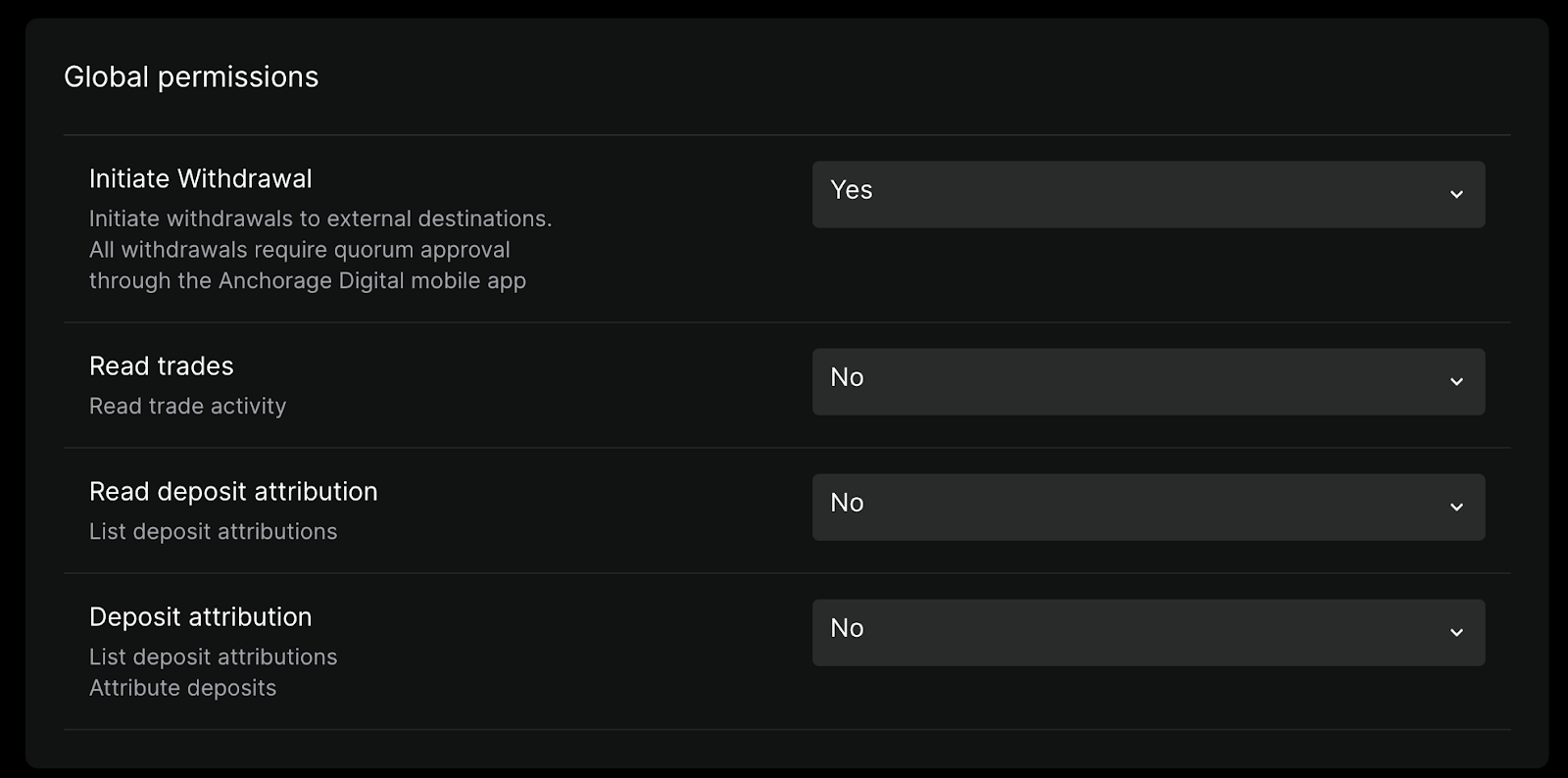
- Give the key access only to the vault Toku pays from, with permission to view it and initiate withdrawals.
- If your account lets you restrict the key to IP addresses, allow
34.121.147.189,34.170.123.38,143.198.239.226, and146.190.145.238(Toku's servers). Add the two new addresses before October 26, 2026. Keep the existing addresses and any other currently approved entries until Toku confirms they can be removed. - Complete your approval quorum and copy the new API key.
- Connect the new API key in Toku. In 2. API key, paste the key and select Verify & save key. Toku checks the key with Anchorage before saving it. Please paste the key into Toku yourself rather than sending it to anyone.
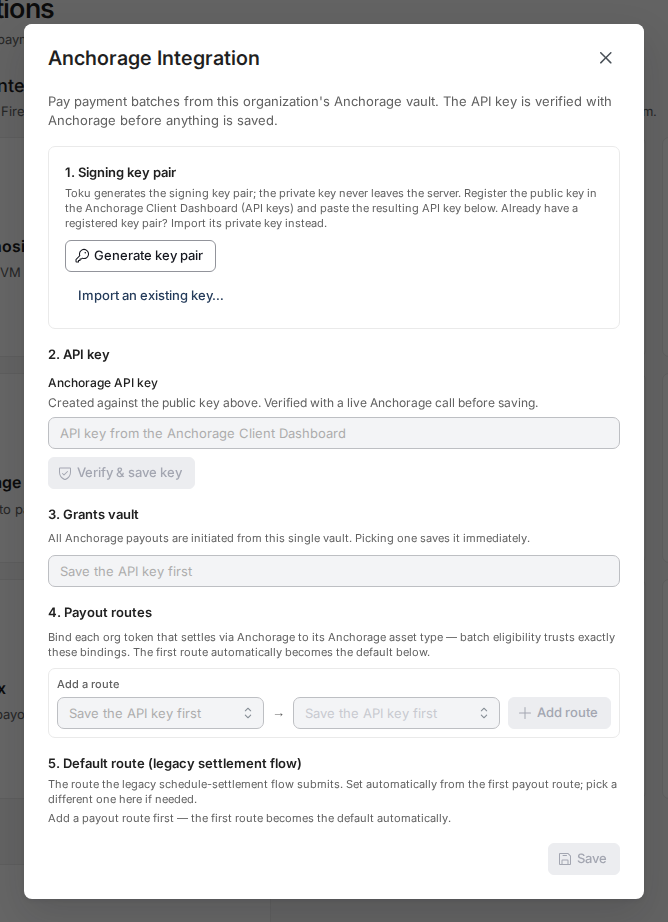
- Restore your settings. In 3. Grants vault, select the same vault as before (it saves as soon as you select it). Check that 4. Payout routes are still listed and 5. Default route is set.
- Check that it works. Your next payout (or a small test payout) is initiated from Anchorage and appears for your approval.
- Revoke the old API key in Anchorage. In the Client Dashboard, under API keys, revoke the previous Toku key.
Troubleshooting
- Verify & save key fails: make sure the API key was created with the public key from step 3 and has been fully approved. Don't generate another key pair: its public key wouldn't match the API key you just created.
- Toku can't find your vault: make sure the new API key has access to that vault.
- Questions: contact your Toku account manager.
Can't pause payouts? Advanced option: import your own key pair
Use this only if your security team is comfortable generating and handling an Ed25519 private key.
- On a secure device, generate a new Ed25519 key pair.
- In Anchorage, register the public key and create and approve a new API key, while the current key keeps working.
- In Toku, in 1. Signing key pair, select Import an existing key…, paste the private key and select Import key. This replaces the current key, and the old one stops working immediately.
- Straight away, in 2. API key, paste the new API key and select Verify & save new key.
- Revoke the old API key in Anchorage, then delete the private key file from your device.