
 3 MIN READ
 UPDATED OCT 30, 2026
📘 For employees and contractors on Toku. Last updated October 30, 2026.
Get a signed letter proving you work here - for a bank, a landlord, or an immigration office - right from your Documents page.
Before you start
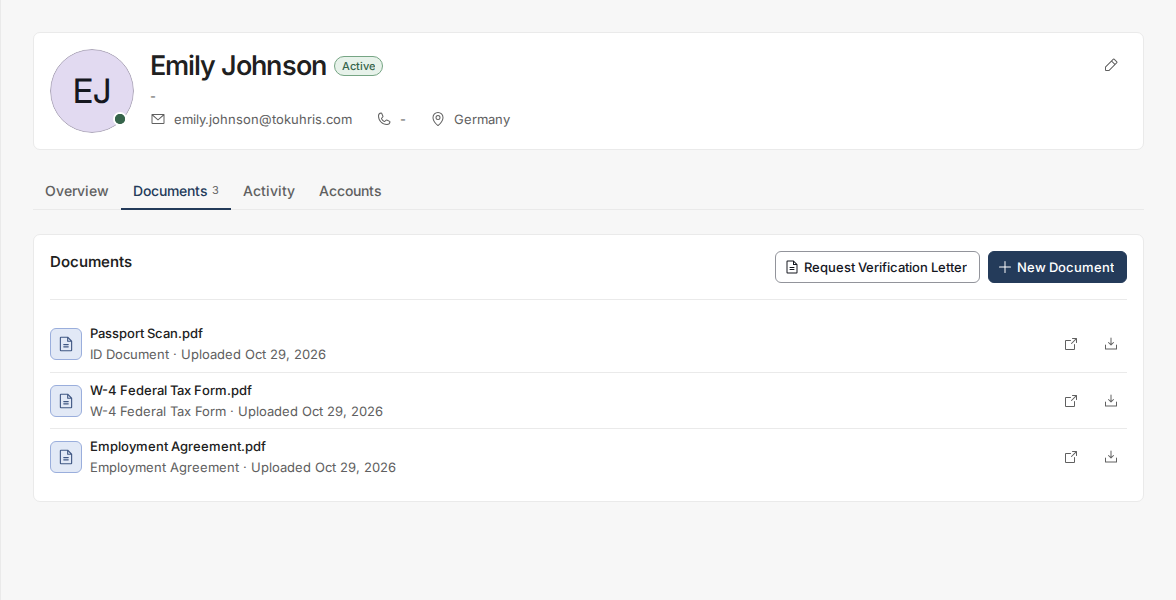
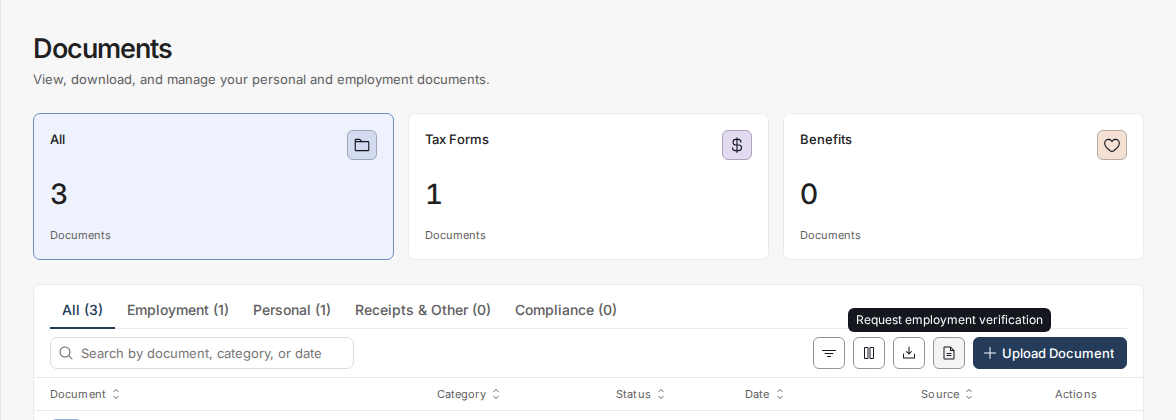
- The button lives in Documents — either the Documents tab on your own profile, or the standalone Documents page in the left-hand menu. Look for Request Verification Letter on your profile, or the Request employment verification icon (a document icon next to Upload Document) on the standalone page - the same window opens either way.
- You can only request a letter for yourself. There is no way to request one on someone else's behalf.
- Nothing needs signing - the letter is already signed when it's generated.
Request your letter
- Log in at
app.toku.com. - Open Documents and select Request Verification Letter (or the Request employment verification icon on the standalone Documents page).
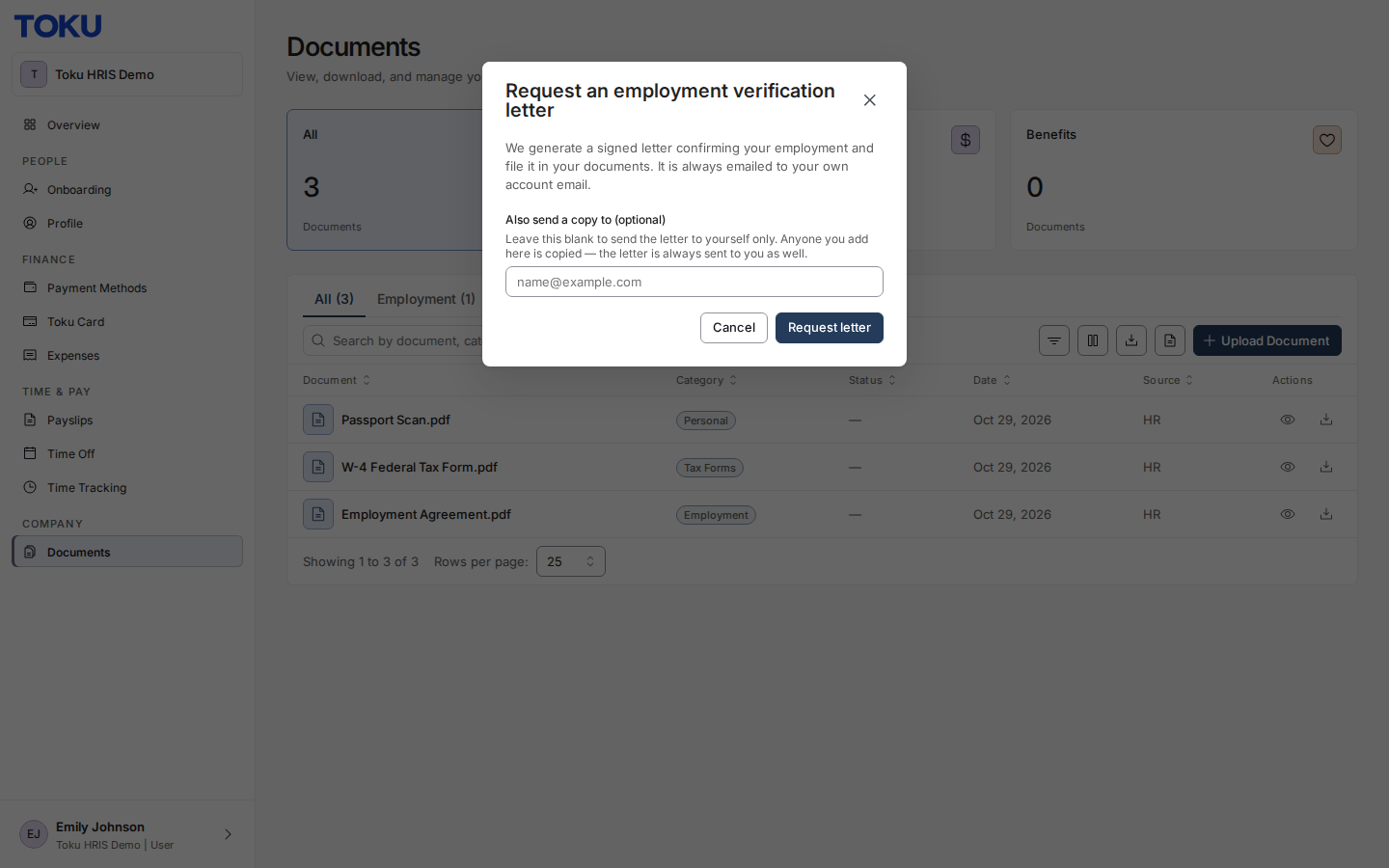
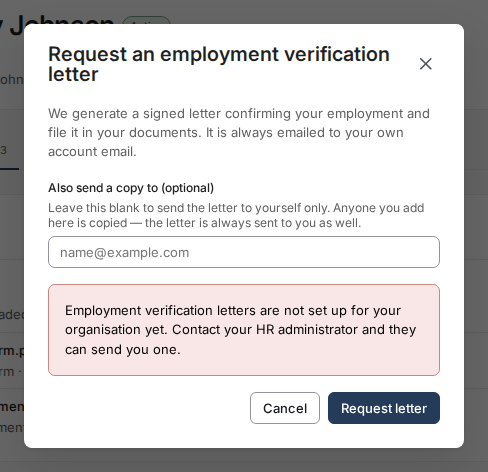
- If someone else needs a copy - a bank, a landlord, an immigration adviser - enter their email under Also send a copy to (optional). Leave it blank to send the letter to yourself only. Select Request letter.
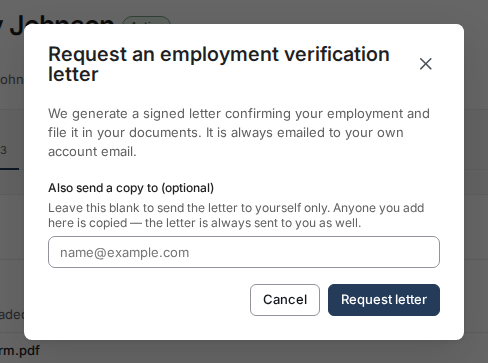
Your letter is generated right away, filed to your Documents, and emailed to you. Employees and contractors each get the correct version of the letter automatically. If you added an address, a copy goes there too - you always keep your own copy as well.
If it says your letter isn't set up
If your organization hasn't configured a verification letter yet, you'll see a message telling you to contact your HR administrator. They can send you one directly, and set up the letter so the button works going forward.
Good to know
- Every request creates a fresh letter, dated the day you ask - request a new one any time someone needs current proof, rather than reusing an old copy.
- There's a daily limit on how many letters you can request. If you reach it, try again the next day.
- If you've left the company, you won't be able to request a letter yourself. Contact your HR administrator - they can send you one covering your actual dates of employment.
Still stuck?
You can email [email protected] to reach our support team. Please include your email address, organization name, and a description of what happened. Screenshots and videos are always welcome to speed up the troubleshooting process. Feel free to reach out any time for further assistance.