
 5 MIN READ
 UPDATED OCT 30, 2026
📘 For organization administrators on Toku. Last updated October 30, 2026.
Record a bonus, stipend, or other additional payment in a token instead of a fiat currency - and, for a fiat payment, note the token your organization actually settles it in.
Employee pre-funding: For EOR, PEO, and payroll-only employees, additional payments over $5,000 USD require pre-funding. Whenever pre-funding is required, including termination or severance payments, submit complete changes and payment details in Toku by the 10th. Toku reviews those submissions and sends invoices on the 11th or next business day. Full funds must be received and cleared by the 14th for that month's payroll consideration. Funding received after the 14th moves the additional payment to the next eligible regular payroll cycle. Earlier cycle cutoffs still apply. Contractor deadlines are separate. See Additional Compensation Changes Over $5,000: Prefunding Approval.
Before you start
- You need administrator access to your organization on Toku.
- The team member is already added to your organization, and you know the payment amount, payment type, and effective date.
- To pay in a token, your organization needs at least one token set up. If none are set up yet, the Token field reads: “No tokens are set up for this organization yet. Add one under Company → Networks & Tokens, then it can be selected here.”
Add a payment in a token
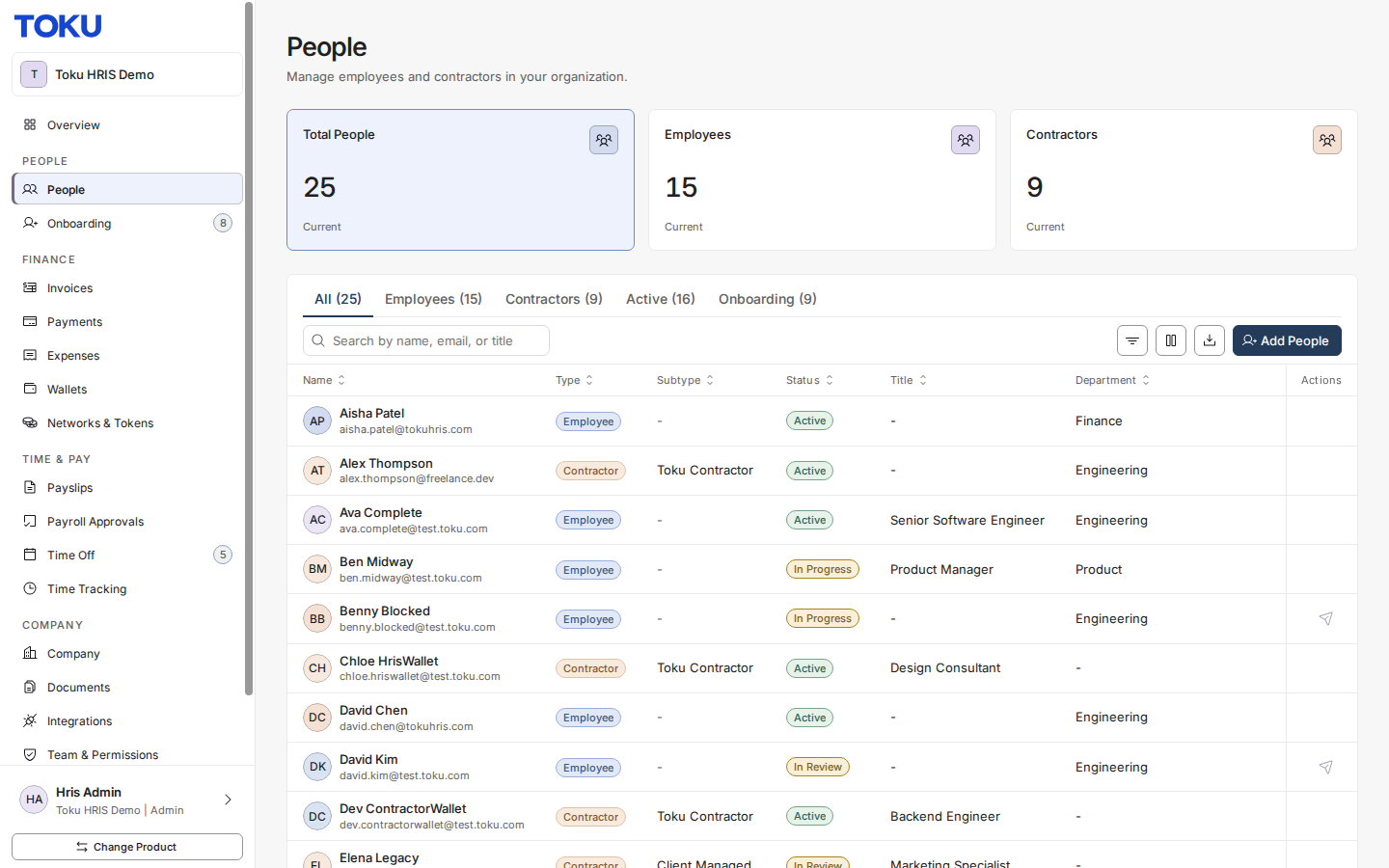
- Open People in the left-hand menu and select the person’s name to open their profile.
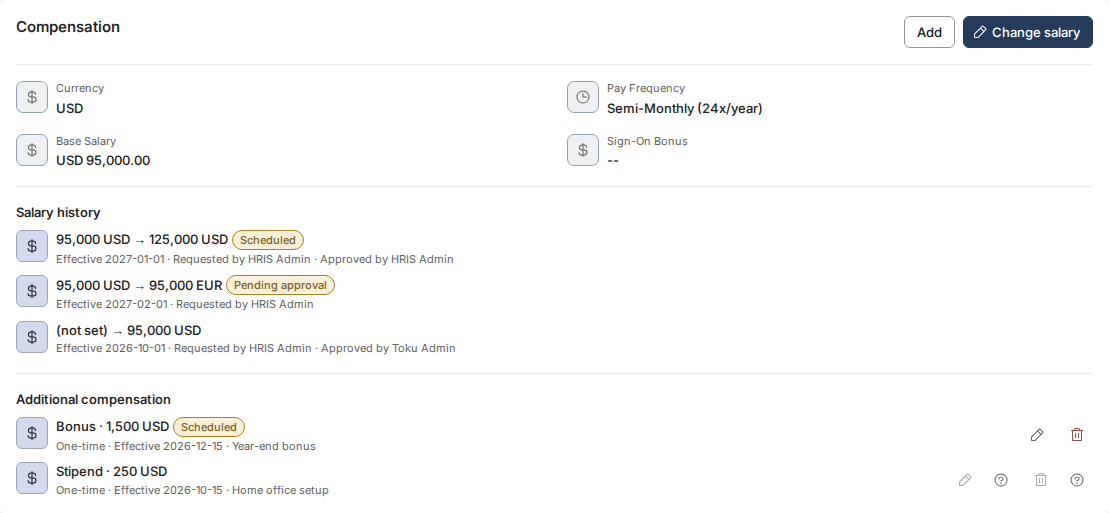
- In the Compensation section of the profile, select Add. The Add Additional Compensation window opens.
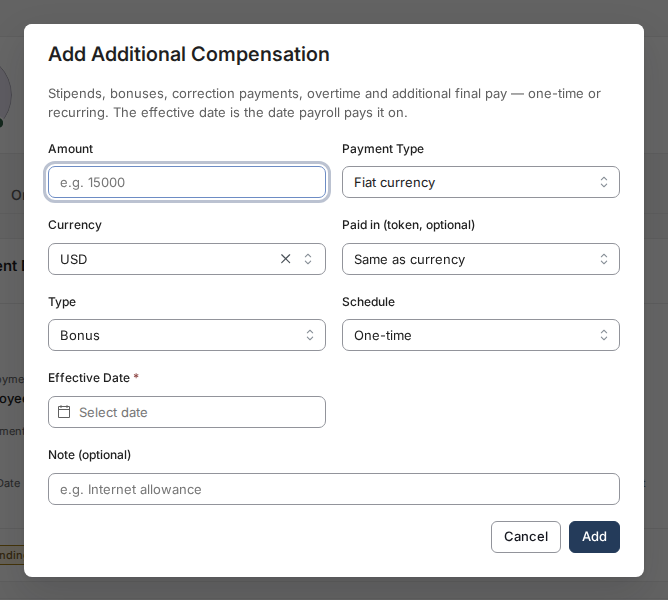
- In the Amount box, type the payment amount.
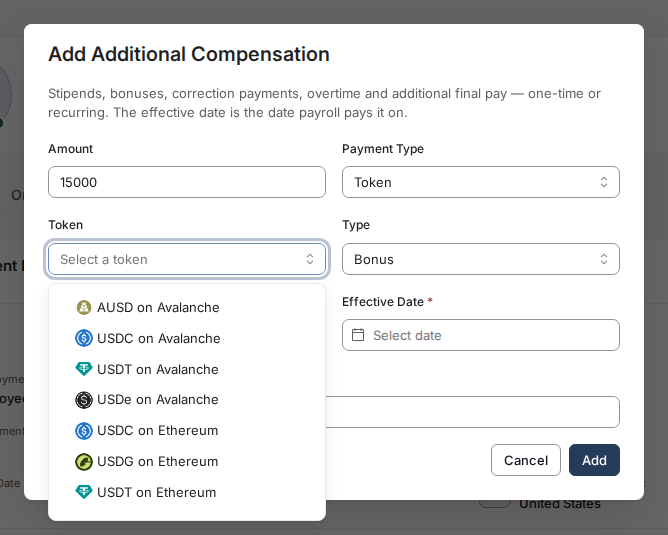
- Set Payment Type to Token. The Currency field is replaced by a Token field.
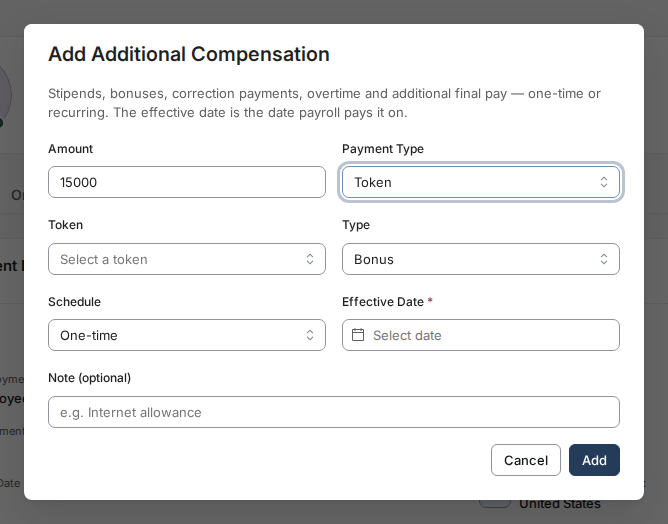
- Select the token from the Token list. Each option shows the token’s symbol together with its network, for example USDC on Ethereum.
- Choose the Type - Stipend, Bonus, Correction Payment, Overtime, or Additional Final Pay - and the Schedule, One-time or Recurring. If you choose Recurring, a required Frequency field appears; select Weekly, Bi-Weekly, Semi-Monthly, Monthly, Quarterly, or Annually.
- Enter the required Effective Date. It records when the entry should take effect, but review and payroll cutoffs still apply: a pending token entry cannot take effect before approval, and a missed cutoff can move payment to the next eligible cycle. Add a Note if it is useful.
- Select Add. A confirmation reads “Additional compensation added.” That confirms submission, not approval. A token-denominated entry is always sent to Toku for review, so it appears in Compensation as a pending row - for example, “Bonus · 15,000 USDC on Ethereum” - with an amber Pending approval badge and no Edit or Remove buttons. It can take effect only after approval and no earlier than its effective date; the payroll cutoff still controls the payment cycle.

Add a fiat payment settled in a token
Some payments remain denominated in fiat while your organization settles them in a token - for example, a USD bonus released as USDC on Ethereum. Toku uses the fiat amount to calculate net pay and tax withholding; the employer releases the token directly. This is different from setting Payment Type to Token.
- Follow the same steps above, but leave Payment Type set to Fiat currency and pick the Currency as usual.
- Select the Paid in (token, optional) field and choose the token your organization will pay this amount in. It defaults to Same as currency, meaning no separate token is recorded.
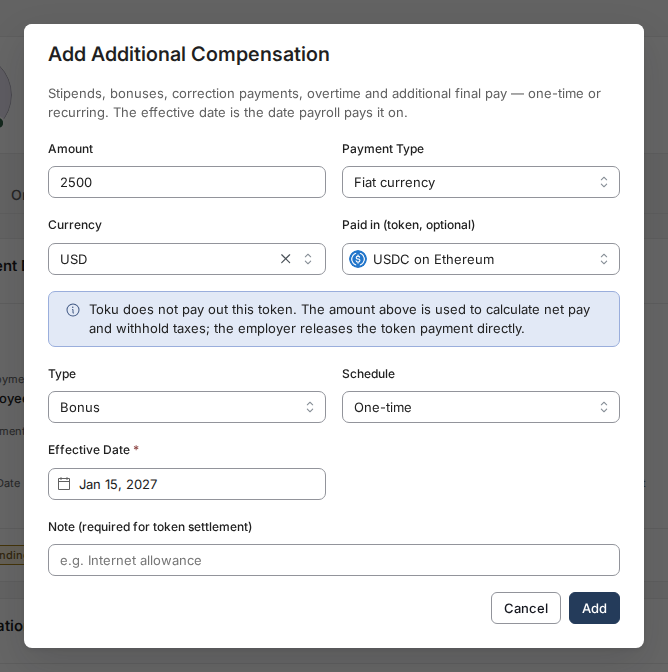
- Once you pick a settlement token, Toku shows this reminder: “Toku does not pay out this token. The amount above is used to calculate net pay and withhold taxes; the employer releases the token payment directly.”
- A Note is required once a settlement token is selected. Type one, then select Add. The entry remains denominated in fiat, and its detail line names the separate settlement asset - for example, “Paid in USDC on Ethereum.”

Good to know
- Switching Payment Type resets the denomination fields: the Token selection is cleared; switching back to Fiat currency sets Currency to USD; and any Paid in token selection is cleared.
- A token-denominated entry is always sent to Toku for review. A fiat additional-compensation entry is also held when its USD value is 5,000 or more, or when Toku cannot value the request safely; a successfully valued fiat entry below USD 5,000 does not require review.
- The Paid in (token) field only appears on a fiat entry. A token entry is already denominated in its selected token, so it cannot also carry a separate settlement asset.
- If a token entry’s network hasn’t been resolved - for example, an older entry recorded before this feature existed - it shows with a “ - network not set” label, for example “DYDX - network not set,” until someone selects a token for it.
Still stuck?
You can email [email protected] to reach our support team. Please include your email address, organization name, the employee’s name, and exactly what you entered - amount, payment type, and the currency or token.