
 7 MIN READ
 UPDATED OCT 30, 2026
📣 Audience: all Toku users · Customer-facing · Last verified August 18, 2026 against the live platform.
Who this is for and what you'll accomplish
This guide is for everyone who signs in to Toku - people who are employed or paid through Toku, people who receive token grants, and administrators who manage a company's team. By the end, you will know which website to go to, how the two-step sign-in works, and which password to use. You will also know exactly what to do if your sign-in is not accepted.
⚠️ The address and the sign-in page changed in August 2026. Toku is now at app.toku.com, and the old Token Grants / Stablecoin Payroll / Employment tabs are gone. If you remember picking a tab, that was the old page.
Before you start
Have these three things ready:
- The website address: app.toku.com — you will type this into your browser's address bar. This replaces tga.app.toku.com and any older Toku website.
- Your email address: the exact email address that received your Toku invitation. Depending on how you were invited, this could be your work email or your personal email.
- Your password: the same password you already use. Passwords carried over unchanged in the August 2026 upgrade - if it worked before, it works now. If you are not sure, you can reset it; that is covered in "If your password is rejected" below.
Go to the right website
Step 1 - Open your web browser, click the address bar at the top, type app.toku.com and press Enter. The page takes a second or two to load. You should see the blue Toku logo, the heading Welcome back, and a single Email box.
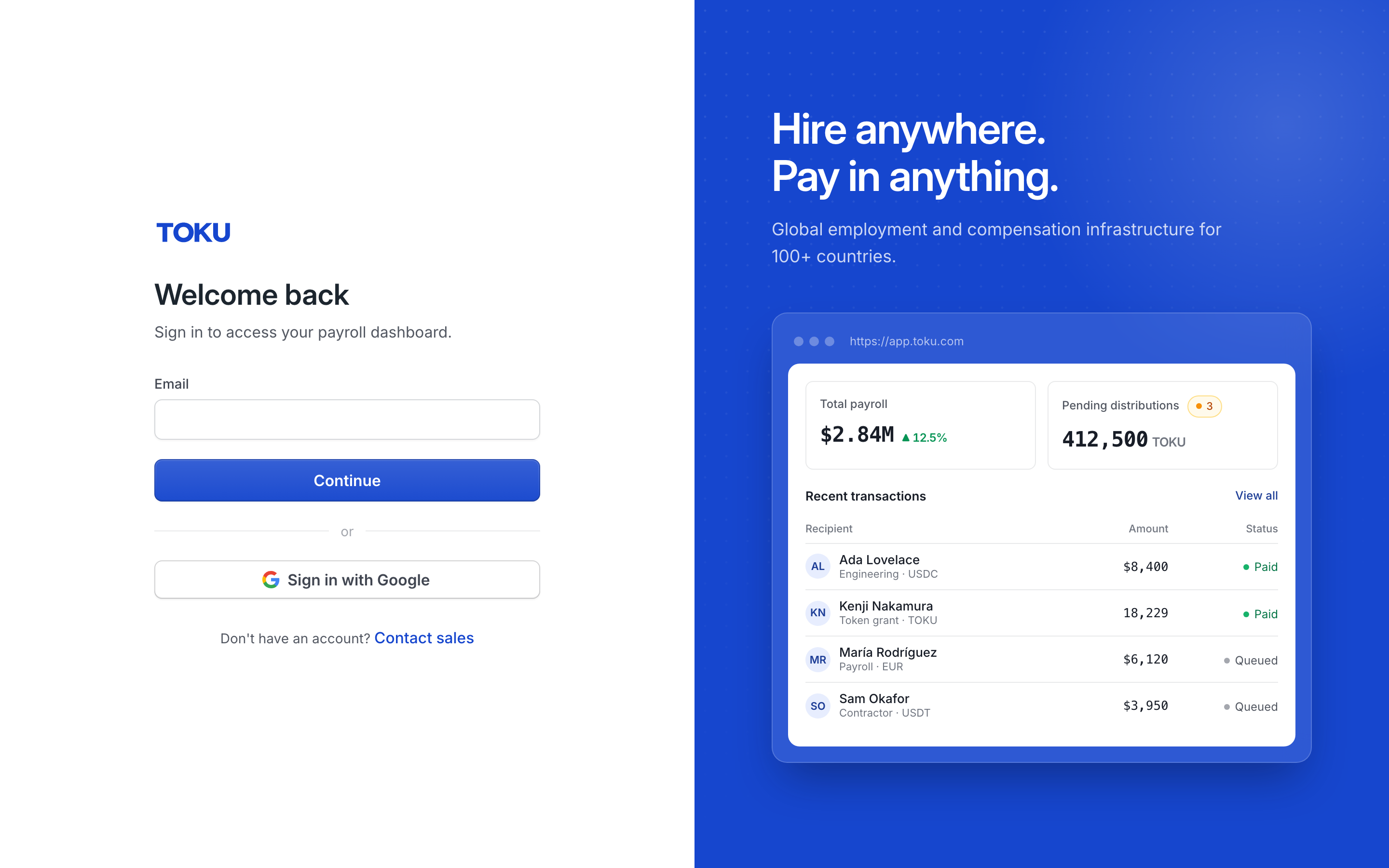
If you see something different - three tabs, or a heading reading "Log In to Toku" - you have landed on the old website through an old bookmark, an old email link, or a search result. Delete what is in the address bar, type app.toku.com again, and press Enter. Once you see Welcome back, bookmark it so you always come back to the right place.
There are no tabs any more
You no longer pick a Token Grants, Stablecoin Payroll, or Employment tab before signing in. Everyone signs in on the same page, and Toku sends you to the right product afterwards. If you use more than one Toku product, you can switch between them at any time without signing out - see How to Switch Between Products.
Sign in
Step 2 - Click the box labeled "Email", type your email address, then click Continue. Use the exact email address that received your Toku invitation. Watch out for typos and extra spaces, and make sure you are not mixing up your work and personal email.
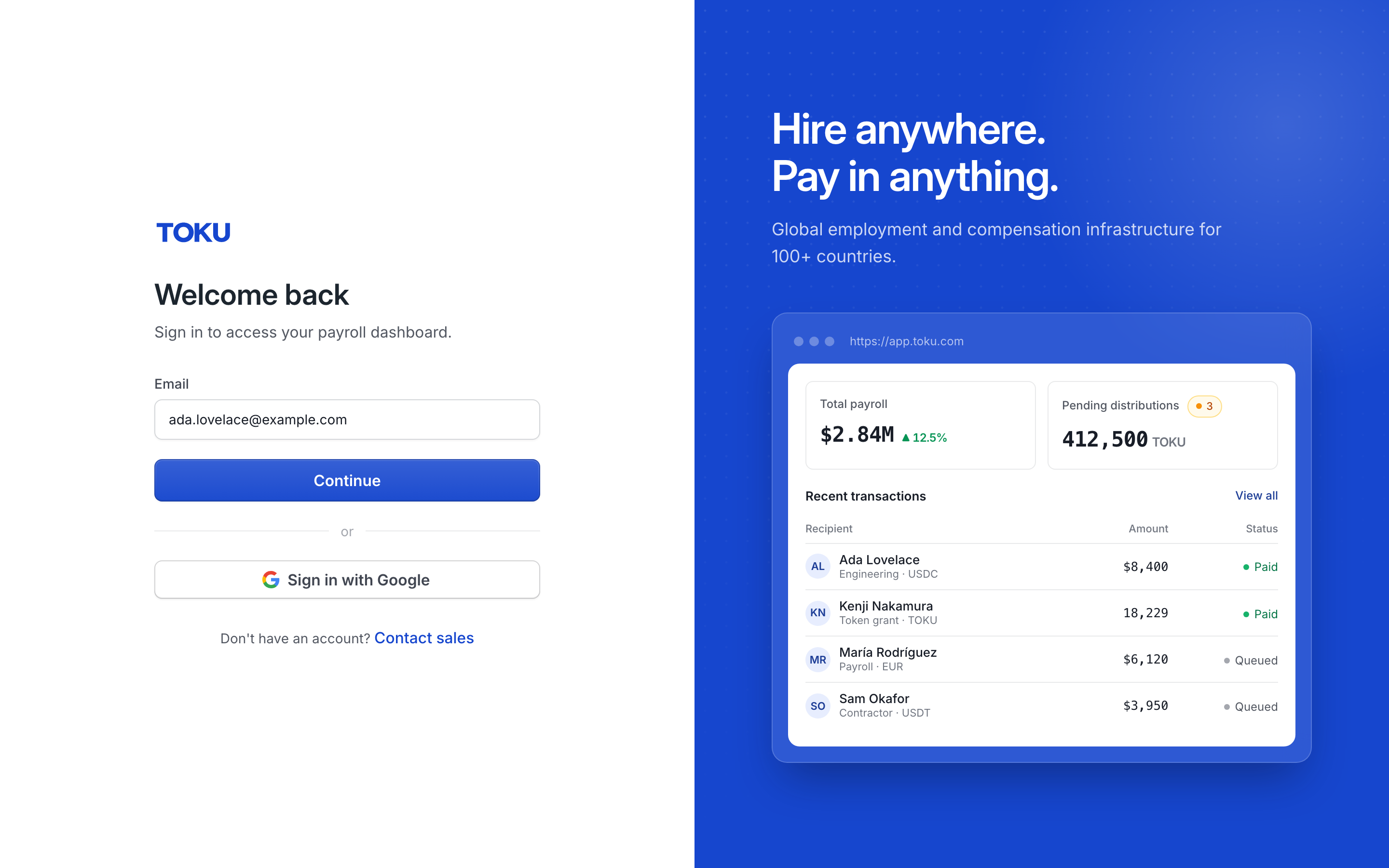
Step 3 - The page changes to the password step. Type your password and click the blue "Sign in" button. The letters appear as dots so nobody nearby can read them. To double-check what you typed, click the eye symbol at the right end of the box. Tick Remember me if you want Toku to remember your email address on this device - it never stores your password.
If you started on the wrong account, click Use a different email to go back to the email step without reloading the page.
Two ways to skip the password entirely:
- Sign in with Google — if your Toku email is a Google account, click this on the first screen. You do not have to enter your email first. Use the same Google account as the address that was invited to Toku.
- A one-time sign-in link by email — enter your email, click Continue, then choose the option to email you a sign-in link. The link lasts one hour and can only be used once; requesting a new one cancels the previous link. What success looks like: within a few seconds the form disappears. You then land on one of two screens: a role picker asking you to choose how to continue (covered next), or your Toku home screen right away.
Choosing your role
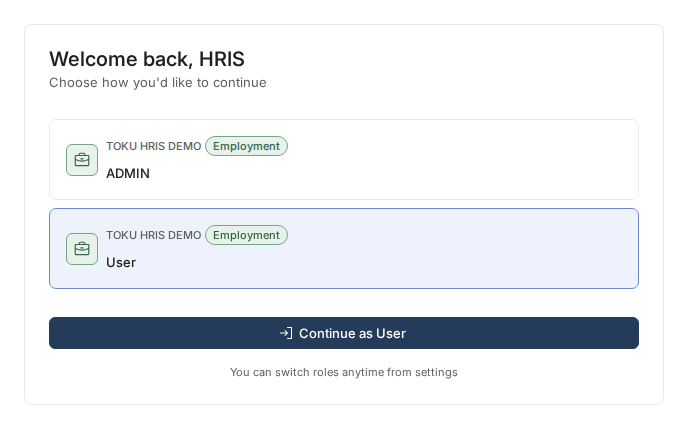
Some people see a screen asking them to choose how you'd like to continue, with a short list of choices. Seeing this screen means your email address has more than one role in Toku - most often because you both manage a company's team and are yourself employed or paid through it. Each choice shows the organization's name and the role:
- ADMIN — the management view. Pick this to run your organization: manage the team, approve requests, and change settings.
- User — the personal view. Pick this to see your own information: your payslips, documents, and time off. Step 4 - Click the choice you need, then click the dark blue "Continue as" button below the list. The button's wording follows your selection, so if you picked User it reads "Continue as User". This choice is not permanent - you can switch roles any time with Change Product at the bottom of the left-hand menu.
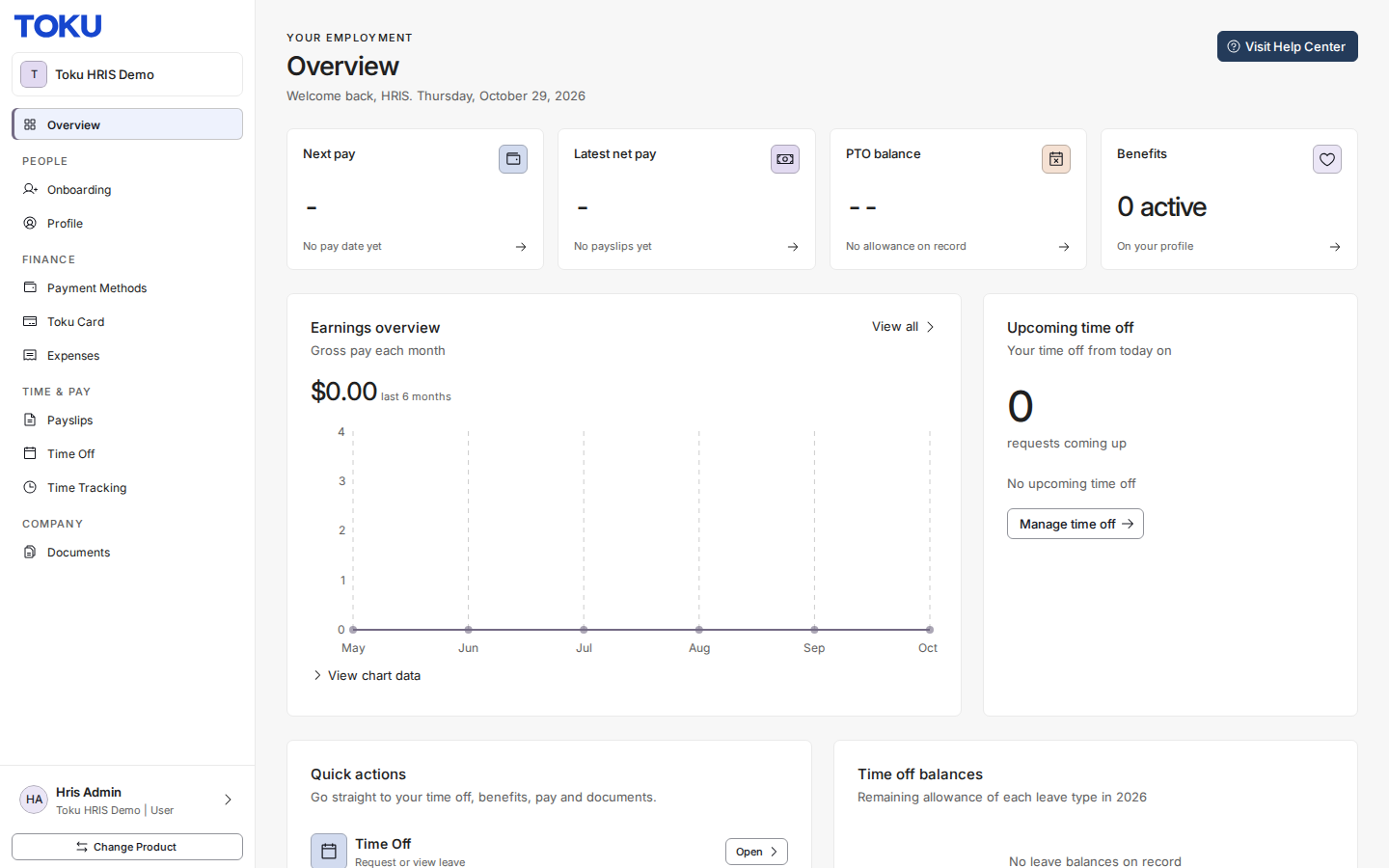
Step 5 - You land on your Toku home screen. This can take a few seconds to load. Check the upper-left corner: it shows your organization's name, which confirms you are signed in to the right place.
If you never see the role picker, that is normal - it only appears for people with more than one role. Everyone else goes straight to their home screen.
If your password is rejected
If Toku tells you it could not sign you in, it did not recognize that combination of email address and password. For your security the message does not say which of the two was wrong. Your account is almost never broken when this happens - work through the checks below in order.
Check 1 - Is the email address exactly right? Compare it letter by letter with the email address that received your Toku invitation, and check for extra spaces.
Check 2 - Are you on the new address? Confirm the address bar reads app.toku.com. An old bookmark can land you somewhere that will never accept your details.
Check 3 - Reset your password. Click Forgot password? on the password step. A page headed Forgot password? opens; type your email address and click Send reset link.
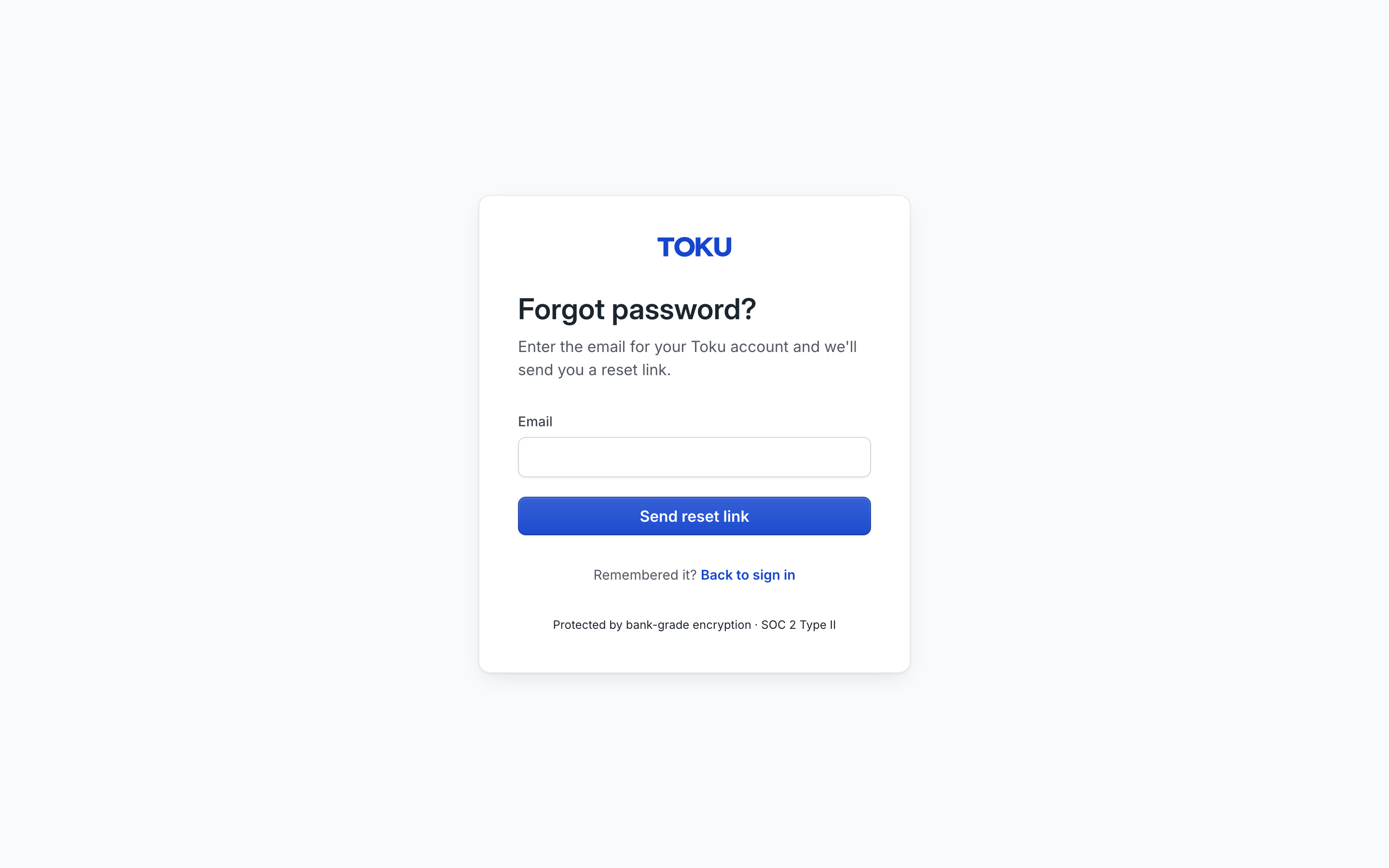
Toku then sends reset instructions to that address. The email can take a few minutes to arrive - check your spam folder if you do not see it. Follow the link to choose a new password, then sign in with it. Back to sign in underneath takes you back to the sign-in page.
Other common problems:
- The page is stuck loading. Close the tab and open a private (incognito) window, go to app.toku.com, and sign in there. If that works, clear your regular browser's cache and cookies and try again normally.
- Google lets you through but Toku does not. You are probably signed in to a different Google account than the one invited. Sign out of Google, or use a private window and pick the right account.
- Your sign-in link says it expired. Links last one hour and work once. Request a new one and use the most recent email.
- You are asked for a two-factor authentication code and it is not working. See the article "Setting up and troubleshooting two-factor authentication" for step-by-step help.
Still stuck?
Email Toku support and include these three things, which let the team find the problem quickly:
- The email address you are trying to sign in with.
- Which sign-in method you used (password, Sign in with Google, or an emailed sign-in link).
- A screenshot of the screen or error message you see. For two-factor authentication problems, mention them in your message and see the article "Setting up and troubleshooting two-factor authentication".