
 9 MIN READ
 UPDATED OCT 30, 2026
⚠️ Contractor invoice and payment deadlines: late action means late payment
- Contractors: submit invoices by the 19th of each month. A saved draft is not a submitted invoice.
- Admins: approve invoices by the 21st of each month. Submission alone does not authorize payment.
- Funding: Toku must receive cleared funds 4 - 5 business days before payout. Initiating a transfer or sending proof of payment does not meet the deadline.
- Standard monthly payout: the last day of the month, provided submission, approval, and funding deadlines are met. Late submission, approval, or funding will delay payment. Every day of delay pushes payment back by at least one day. A missed payment cycle can cause a longer delay; the invoice due date is not a guarantee of payment.
Automation does not remove these deadlines. Earlier published holiday deadlines take precedence; see Toku: 2026 End-of-Year Payroll & Payment Guide.
📘 Audience: contributors paid by bank transfer · Customer-facing · Last updated 2026-10-30.
Who this is for and what you'll accomplish
This guide is for anyone who is paid through Toku by bank transfer - employees and contractors alike. By the end, your bank account details will be saved in Toku so your payouts arrive in the right account, and you will know how to check and correct those details later. No prior experience with Toku is needed.
Before you start
- You need a Toku account for the Employment platform. Your organization sends the invitation email; if you never received one, ask your organization's people team.
- Have your bank details in front of you, exactly as your bank records them: the account holder name, the account number, and your country's local bank codes (explained below).
- Sign in at https://app.toku.com. If you are unsure which website or password to use, read "Logging in to Toku: which website and which password to use" first.
- If your country requires a proof document (for example a bank book photo in Japan), have a clear photo or PDF of it ready on the device you are using.
Where bank details live
Toku collects bank details in one form, reachable from two places depending on where you are in the process.
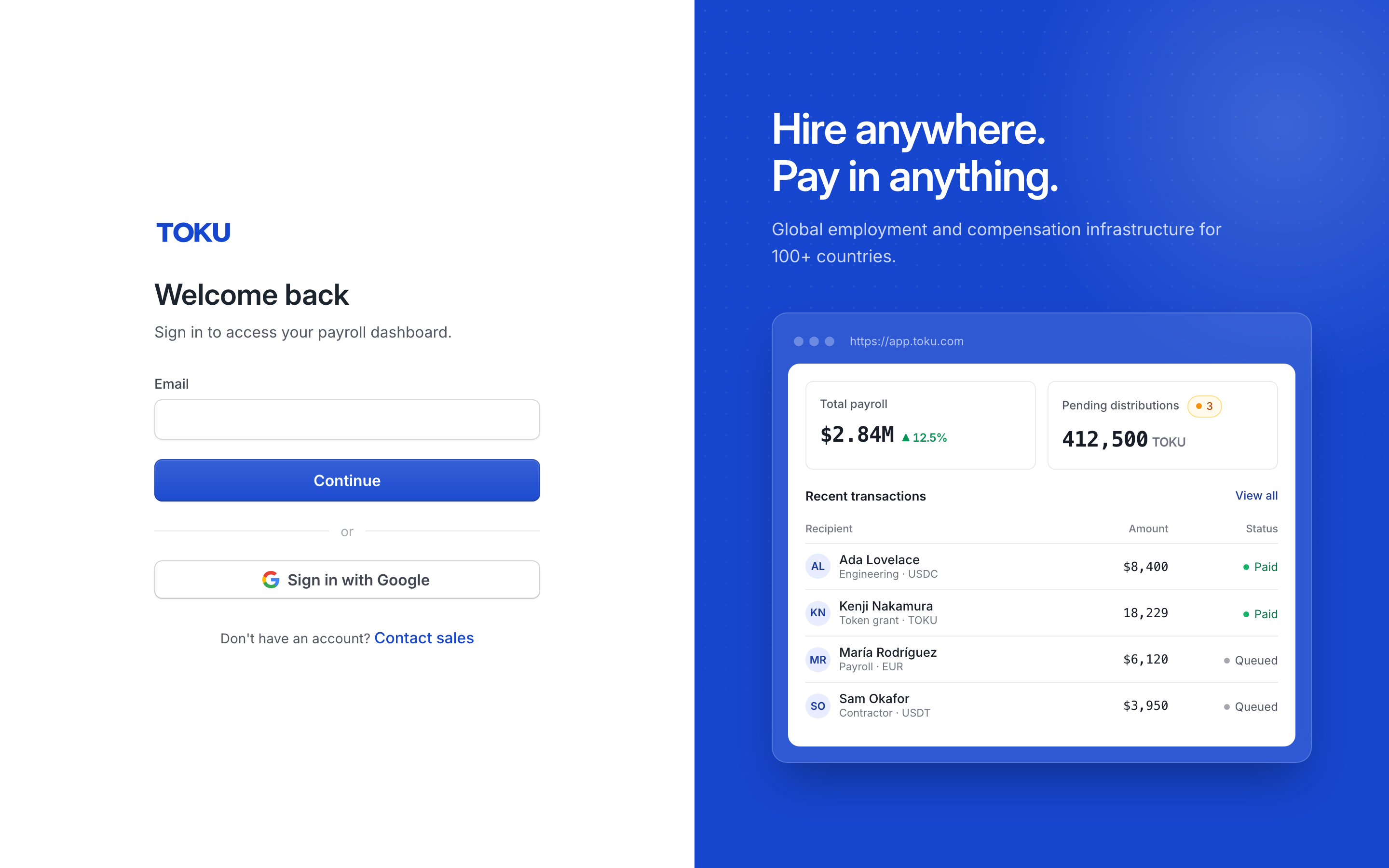
- Open https://app.toku.com in your browser. You see a page headed Welcome back with a single Email box - there are no product tabs to choose any more. This address replaced tga.app.toku.com in August 2026.
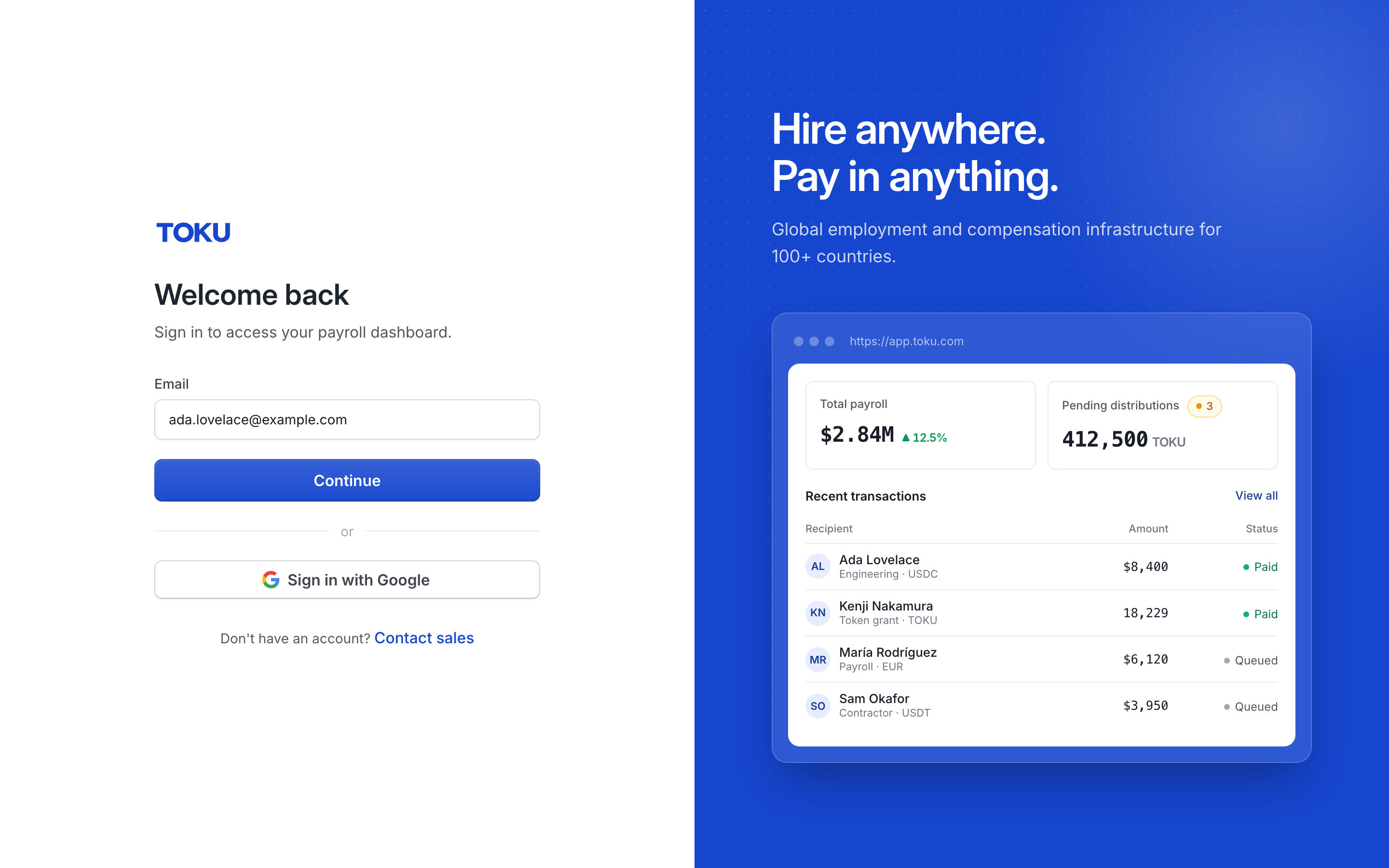
- Type your work email into the Email box and select Continue, then type your password and select the blue Sign in button. Within a few seconds you land on your dashboard. If a screen lists more than one role, choose your employee or contractor profile. If sign-in is refused, re-check the email and password - for security the message does not say which was wrong.
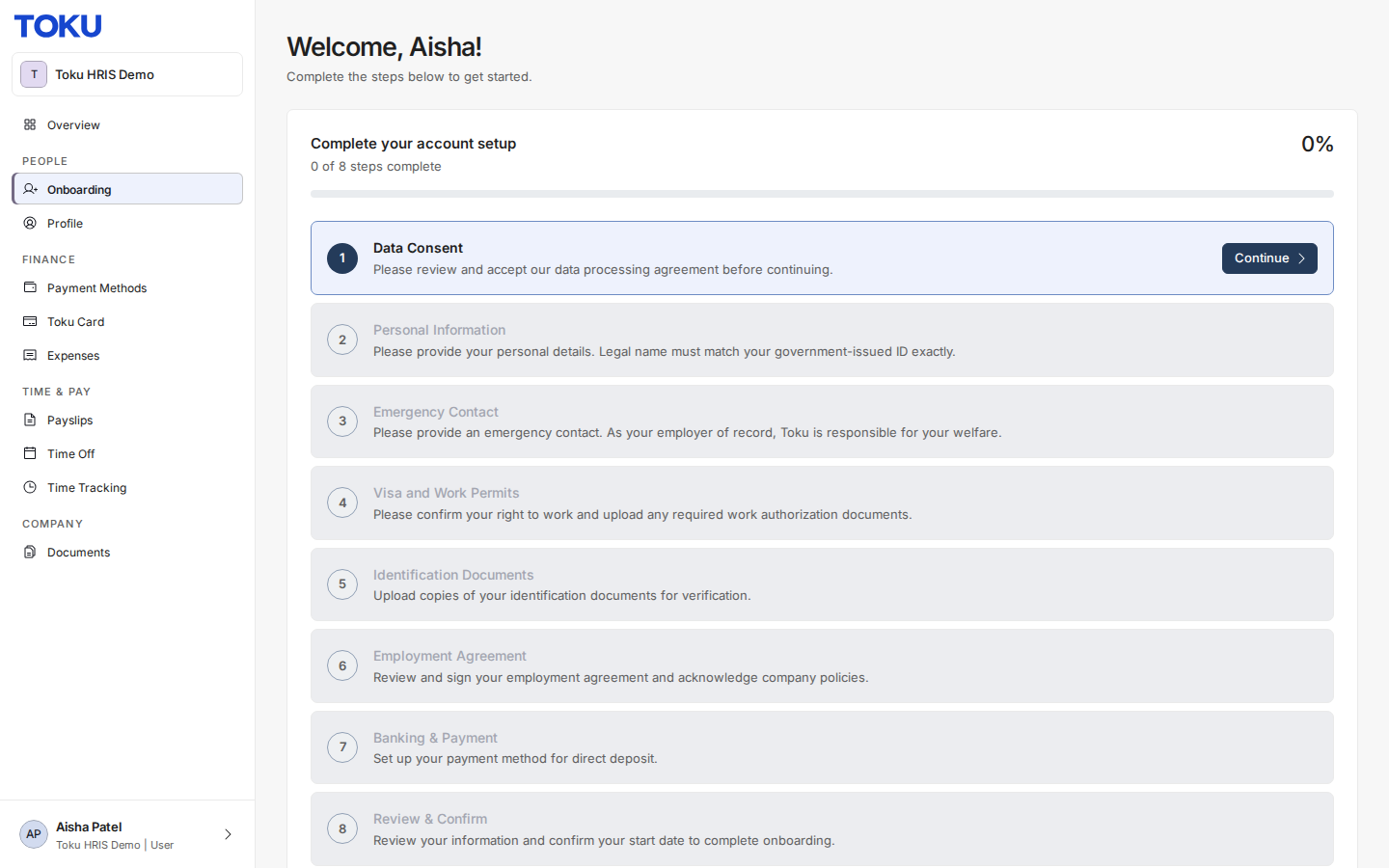
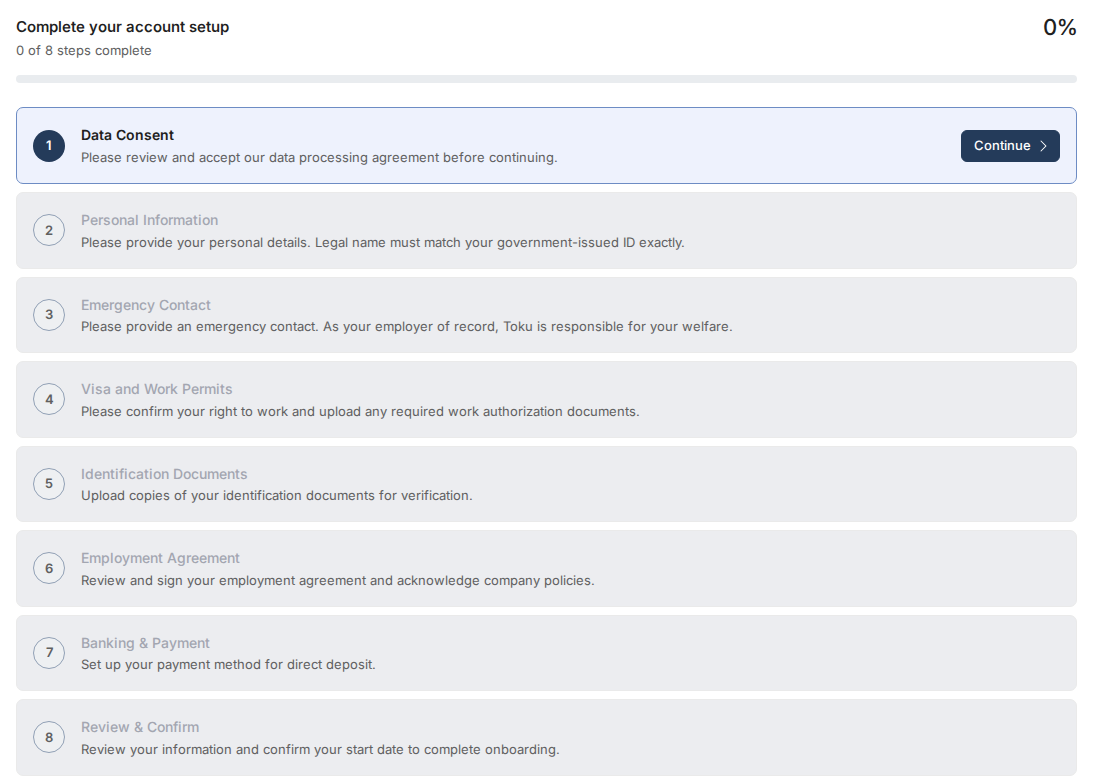
- If you are still completing your account setup, select Onboarding in the left-hand menu. Your setup checklist opens, and bank details are collected in the step named Banking & Payment, near the end of the list. Steps unlock in order, so Banking & Payment stays greyed out until you finish the steps before it.
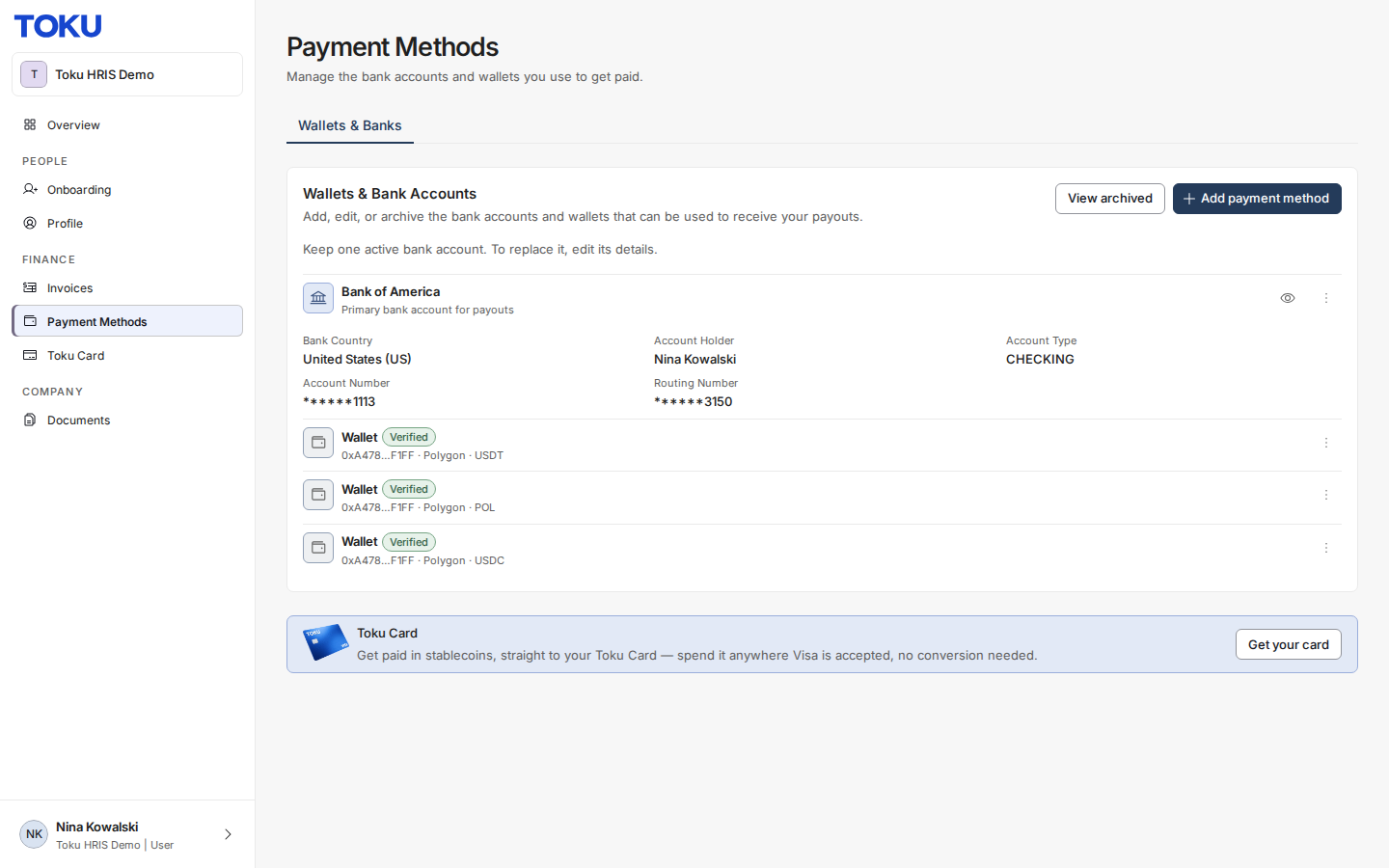
- If you have already finished onboarding, select Payment Methods in the left-hand menu instead. Your saved bank account lives here, under the Wallets & Banks tab. The rest of this guide covers both routes.
Filling the form for your country
- On the Onboarding checklist, find the Banking & Payment row. When it is your current step it is highlighted with a Continue button on the right - select Continue. If the row is greyed out with no button, complete the earlier steps first; if you cannot, contact support (see "Still stuck?" below).
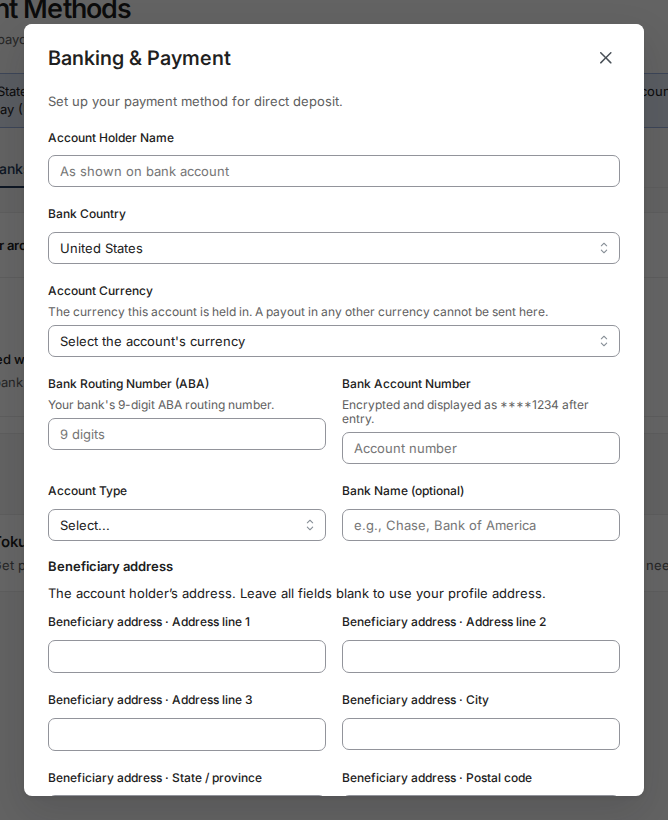
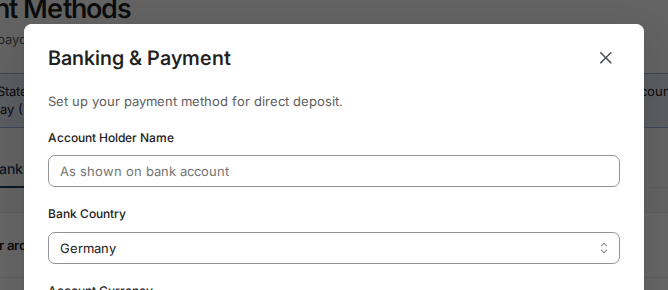
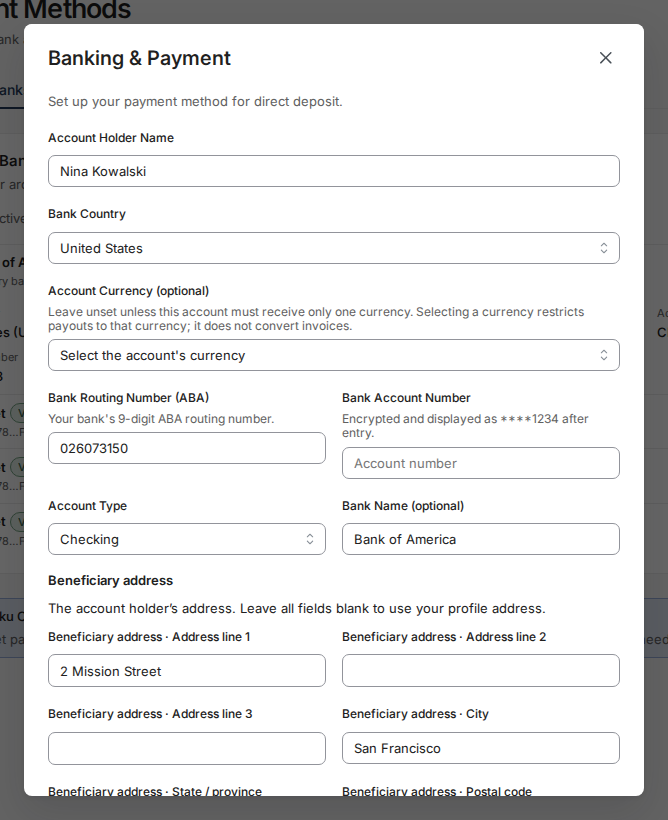
- A window titled Banking & Payment opens with the subtitle "Set up your payment method for direct deposit." The first box is always Account Holder Name. The boxes below it depend on your bank's country (if a Bank Country box is shown, pick that first), because every banking system routes money with different codes. Toku shows only the fields your country's banks need, with the local names your bank uses. For example: the United States asks for a 9-digit Bank Routing Number (ABA) (shown in this screenshot), the United Kingdom asks for a 6-digit Sort Code, India asks for an 11-character IFSC Code, most of Europe asks for an IBAN plus a BIC / SWIFT Code, Mexico asks for an 18-digit CLABE, Canada asks for Transit and Institution numbers, and Japan and much of Asia-Pacific ask for a Bank Code, Branch Code, and Account Number. Copy each value exactly as your bank shows it - every field has a short hint underneath describing the expected format, and if a value is the wrong length or shape you will see a red error message under that box after you try to save.
Name matching - the top failure cause
The single most common reason a bank transfer fails is a mismatch between the Account Holder Name you type and the name your bank has on file. Banks compare the two and can reject or return the payment when they differ.
- In Account Holder Name, type your name letter for letter as it appears on your bank statement or bank book - the placeholder text "As shown on bank account" is meant literally. Then fill in the remaining fields and select Save & Continue in the bottom-right corner (the button says Save when you add the account from Payment Methods). On success the window closes, the Banking & Payment row shows a check mark, and your completion percentage increases. If the window stays open, look for a red message under the field that needs fixing.
Before you save, check for these frequent mistakes:
- Nicknames or short forms. "Bob Smith" fails when the bank has "Robert Smith". Use your full legal name as the bank records it.
- Wrong or missing characters. Middle names, hyphens, apostrophes, and accents must match what the bank has. If your bank drops accents (for example "Jose" instead of "José"), do the same here.
- Someone else's account. Payouts must go to an account in your own name. A spouse's, parent's, or friend's account will be rejected, even with their permission.
Country-specific document uploads
In some countries, banks or payroll rules require a document that proves the account details, and the Banking & Payment window shows an extra upload field at the bottom of the same form:
- Japan — a required Bank Book / Statement Photo: a photo of your bank book (tsūchō) or a recent statement showing your account details. This is required because Japanese banks reject transfers when the account holder name does not exactly match their registered name, and the document is used to verify the name before payroll runs.
- India — an optional Cancelled Cheque Photo: a photo of a cancelled cheque showing your account holder name and account details. Accepted formats are PDF, PNG, and JPEG, with a maximum size of 10 MB per file. After a successful upload the file name appears next to the field; if the file is too large or the wrong type, a red message appears under the field and the file is not attached. If your country is not listed above and you see no upload field, nothing is missing - most countries do not require one.
Checking and editing saved details
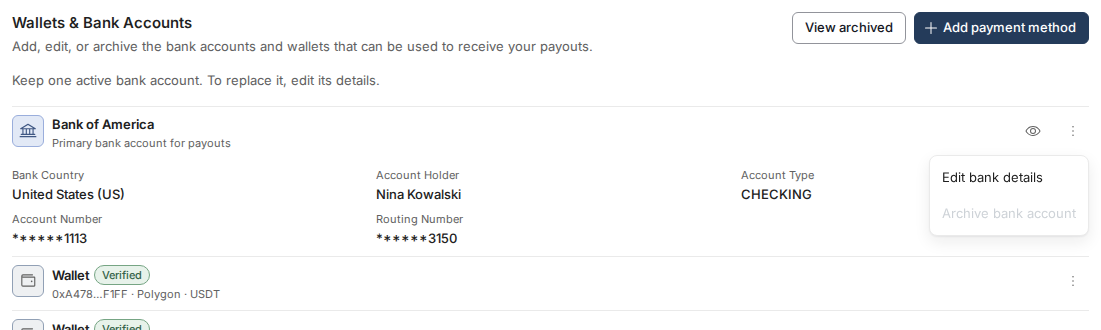
- Select Payment Methods in the left-hand menu, then select the Wallets & Banks tab under the "Payment Methods" heading. Your saved bank account appears as a card showing the bank name, the account type, and your codes - sensitive values such as the account number are hidden and shown only as their last digits. If the card is missing, your bank details have not been saved yet: go back to the "Where bank details live" section above.
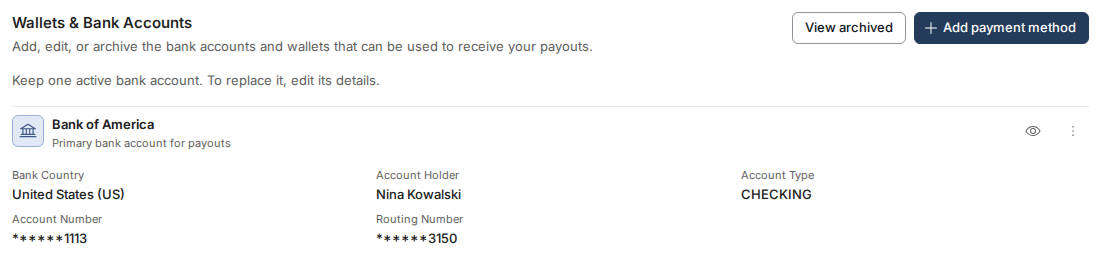
- Select the three-dot menu button at the far right of the bank account card. A small menu opens with Edit bank details — select it.
- A Banking & Payment window opens with your current saved details filled in. Update the boxes you need to change - saved sensitive values are stored encrypted, so re-enter the full account number if you are changing it - then select Save in the bottom-right corner. On success the window closes and the card refreshes with the new values. If the window stays open, a red message under a field tells you what to correct. Changes apply to future payouts; a payment already in progress is not redirected.
Still stuck?
Email [email protected] and include:
- Your full name and the name of your organization.
- The country your bank account is in.
- Which page you were on (Onboarding - Banking & Payment or Payment Methods - Wallets & Banks).
- A screenshot of the screen, including any red error message. Do not include your full account number in the email - the last 4 digits are enough.
- If a payout already failed: the date you expected it and the name on the receiving account. Related guides in this collection: "Logging in to Toku: which website and which password to use" and "Setting up and troubleshooting two-factor authentication (2FA)".