
 1 MIN READ
 UPDATED OCT 30, 2026
At the end of each period (weekly for manual entry, monthly for Autopilot), you sign your timesheet. Signing is the legally meaningful step: it turns the records into your own declaration of the time you worked, which is what labour law asks for.
How to sign
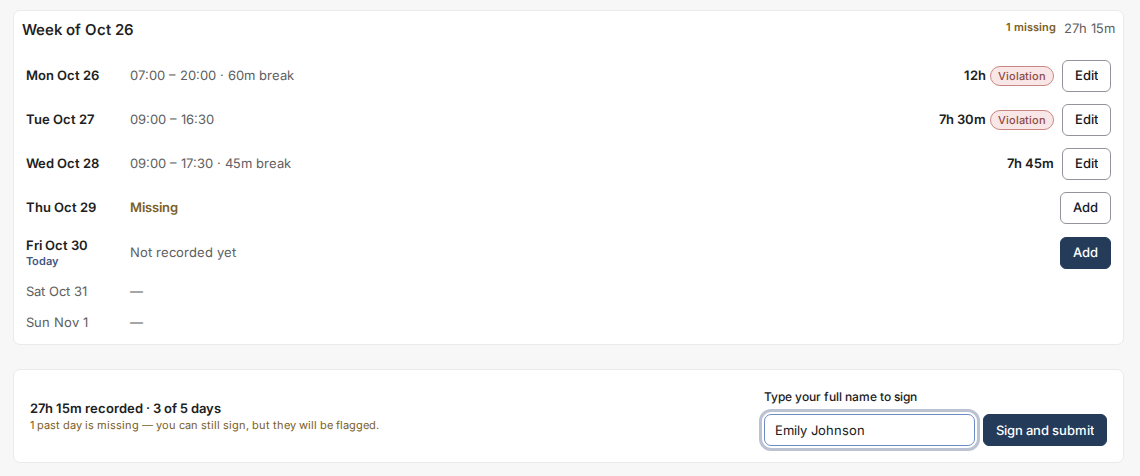
- Open Time Tracking. The bar at the bottom of the page shows your progress - hours recorded and days covered.
- Type your full name in the signature field. Typing your name is your signature; Toku stores the name exactly as typed, with the time and network address.
- Click Sign and submit. Your timesheet goes to your admin for approval, and its status changes to Awaiting approval.
Good to know:
- You can sign with missing days. The bar tells you how many past days have no entry; they are flagged to your admin rather than blocking you.
- Only you can sign. No admin - not even Toku - can sign a timesheet in your name.
- Autopilot employees: your days are generated from your work schedule. Review them, correct anything that does not match reality (a correction marks the day as manually edited), then sign the month.
- Once signed, the period locks. If you spot a mistake after signing, ask your admin to return it to you.
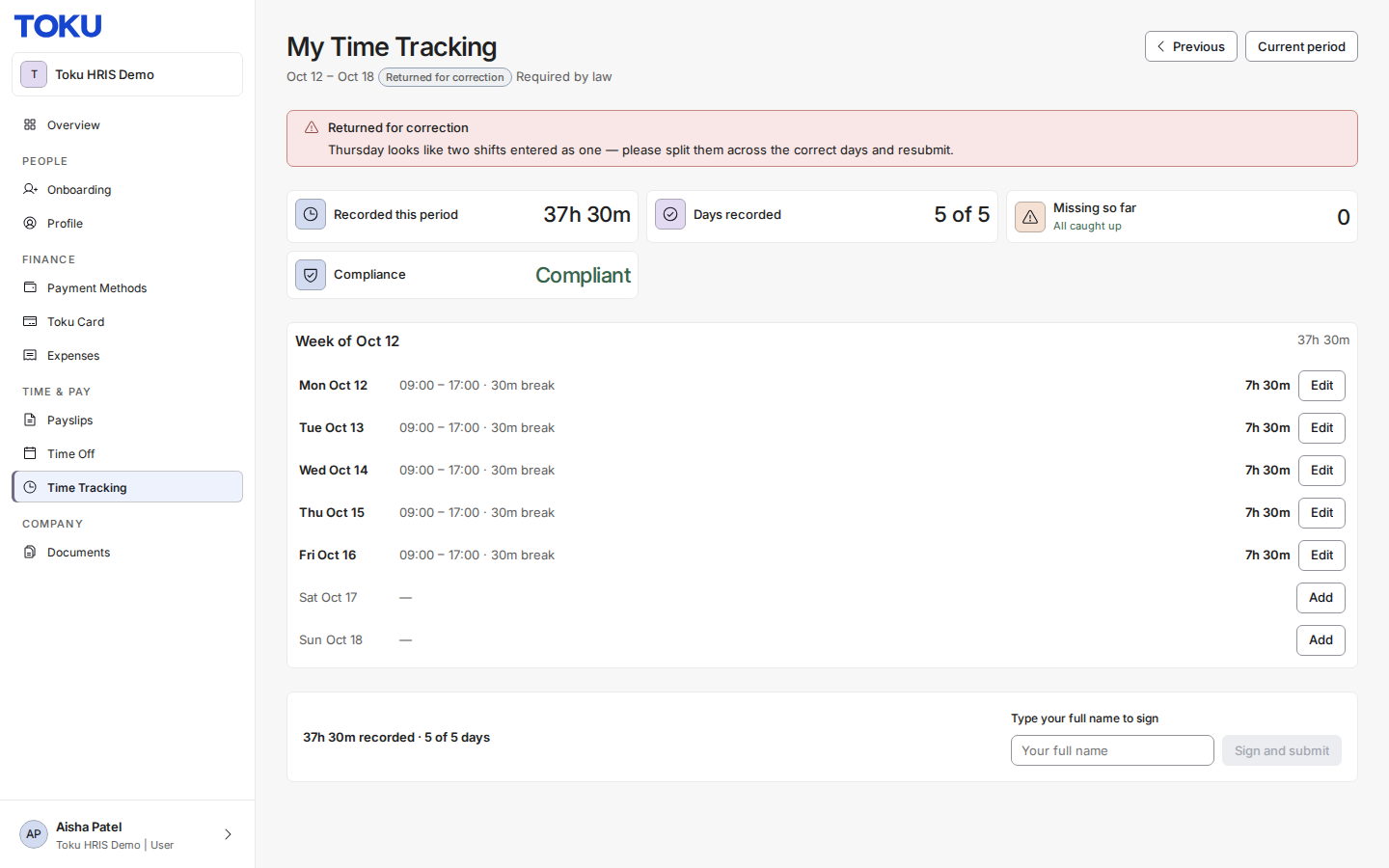
If your timesheet is returned for correction
If your admin finds a problem, they reject the timesheet with a reason. It comes back to you unlocked, with the reason shown at the top of the page. Fix the affected days and sign again.
Questions not covered here? Email [email protected].