
 14 MIN READ
 UPDATED OCT 30, 2026
⚠️ Contractor invoice and payment deadlines: late action means late payment
- Contractors: submit invoices by the 19th of each month. A saved draft is not a submitted invoice.
- Admins: approve invoices by the 21st of each month. Submission alone does not authorize payment.
- Funding: Toku must receive cleared funds 4 - 5 business days before payout. Initiating a transfer or sending proof of payment does not meet the deadline.
- Standard monthly payout: the last day of the month, provided submission, approval, and funding deadlines are met. Late submission, approval, or funding will delay payment. Every day of delay pushes payment back by at least one day. A missed payment cycle can cause a longer delay; the invoice due date is not a guarantee of payment.
Automation does not remove these deadlines. Earlier published holiday deadlines take precedence; see Toku: 2026 End-of-Year Payroll & Payment Guide.
📘 For organization administrators on Toku. Last updated October 30, 2026.
Access, review, and approve contractor invoices for payment, or edit and reject them if corrections are needed. You can also raise an invoice yourself, on a contractor's behalf - including a reimbursement for an expense they have already paid.
Before you start
- You need administrator access to your organization account.
- Toku sets invoice due dates from submission timing. Submit on or before the 19th for the last day of the same month; submit from the 20th onward for the last day of the next month. A draft has no due date.
Access contractor invoices
- Sign in to Toku at app.toku.com. Select Invoices under Finance in the left menu to open the invoice review page.
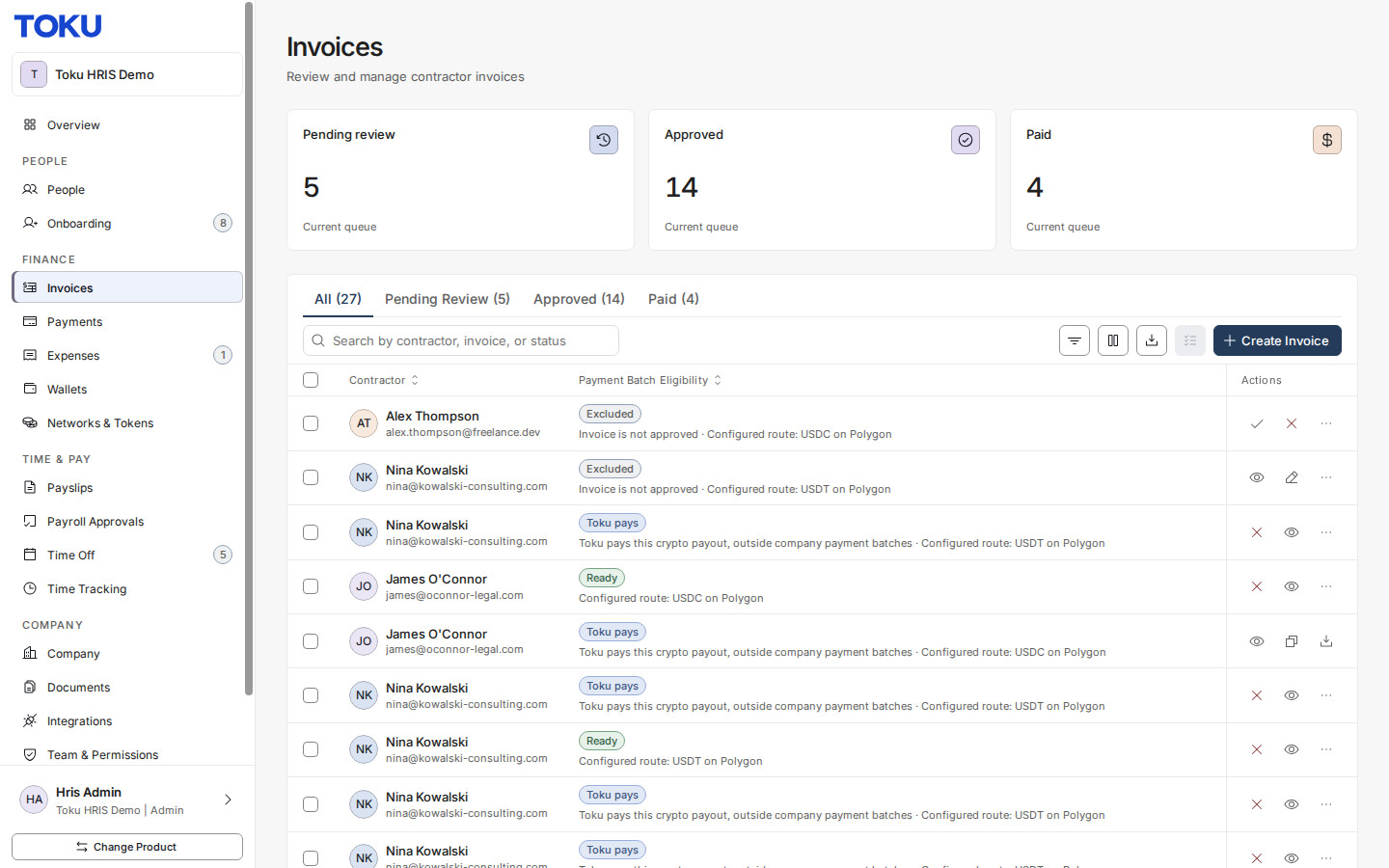
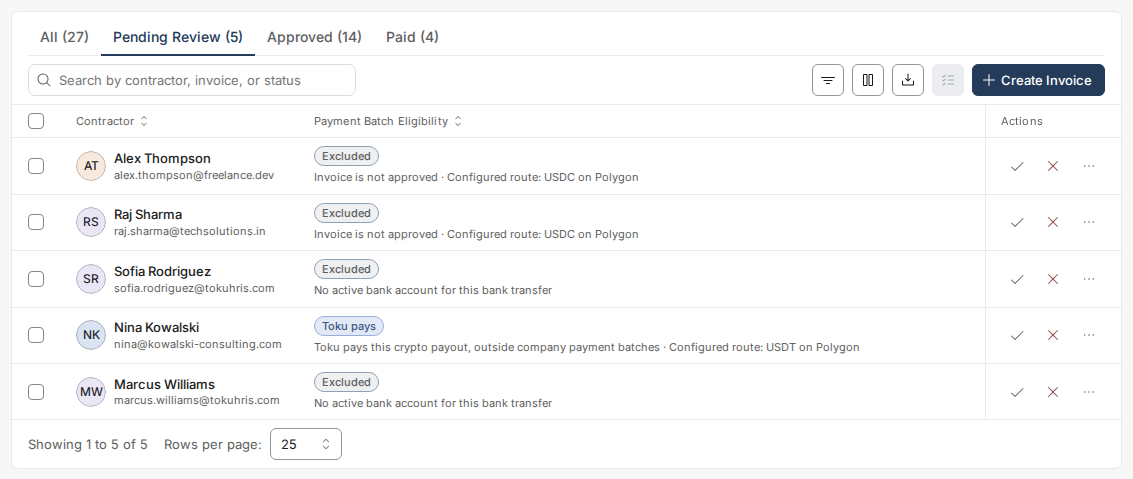
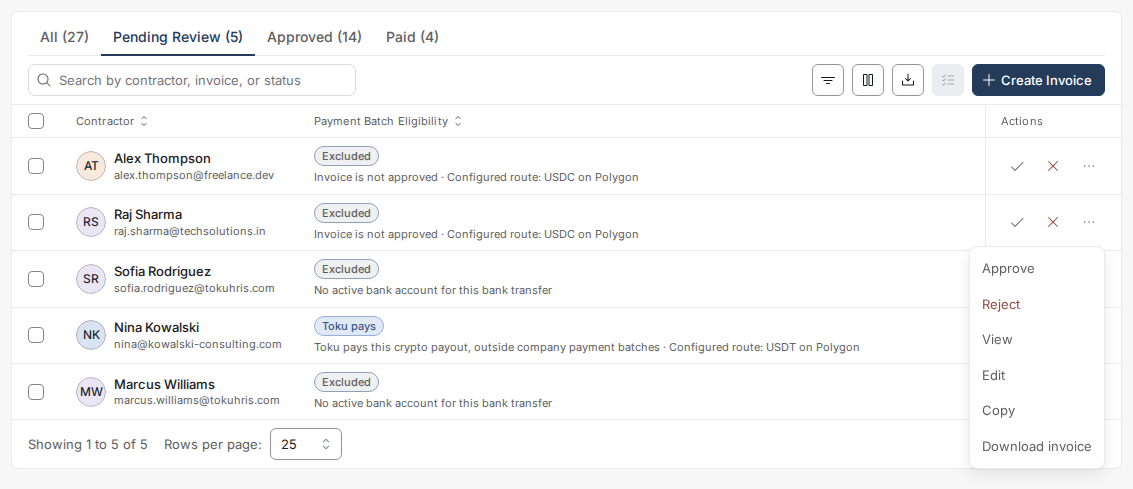
- Use the Pending Review tab to see only the invoices waiting for your decision.
Create an invoice on behalf of a contractor
Sometimes it is quicker to raise the invoice yourself - a contractor who cannot get to it before your cut-off, or an expense you already agreed to repay. Create Invoice on the Invoices page does this, and it can raise either a normal service invoice or a reimbursement.
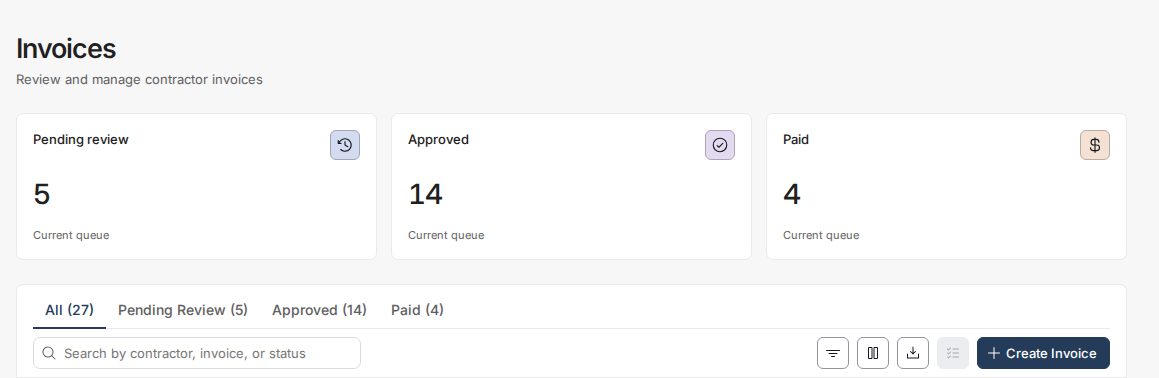
- On the Invoices page, click Create Invoice. The window is titled Create Invoice and reads "Create an invoice on behalf of a contractor."
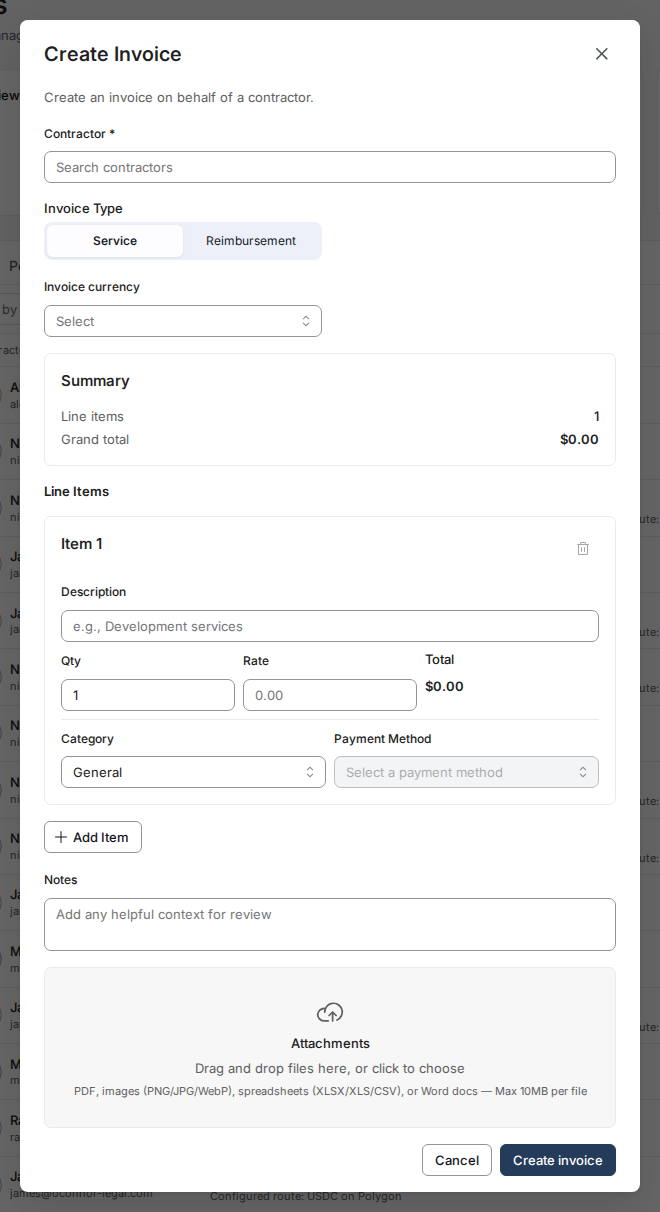
- In Contractor, start typing the person's name and pick them from the list. The list offers your active contractors, and anyone whose contract ended in the last 30 days, shown with the note Terminated - invoice grace period. This is the person the invoice belongs to and who gets paid.
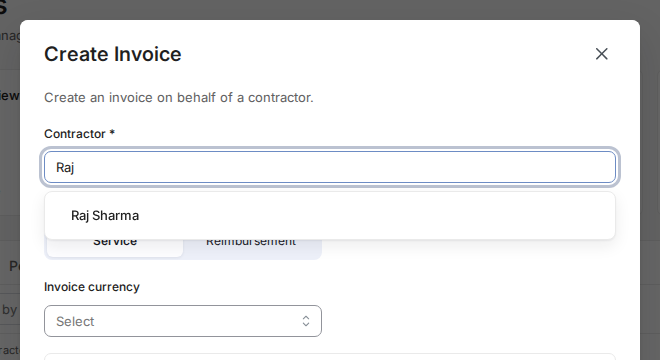
- Choose the Invoice Type. Leave it on Service for ordinary work under the contract. Choose Reimbursement when the contractor paid for something and you are paying them back.
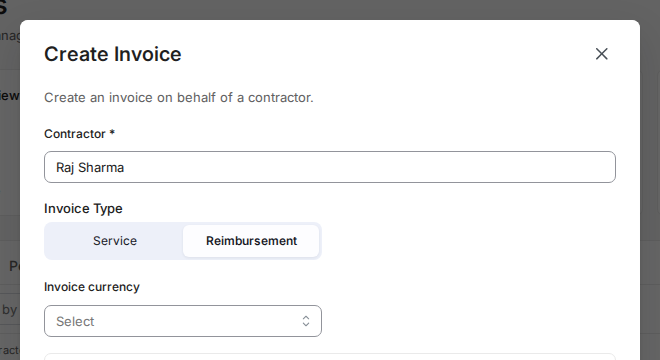
- Fill in the invoice currency, then the line items - description, quantity, rate, category and payment method. The payment method list comes from the contractor's own bank account or wallet.
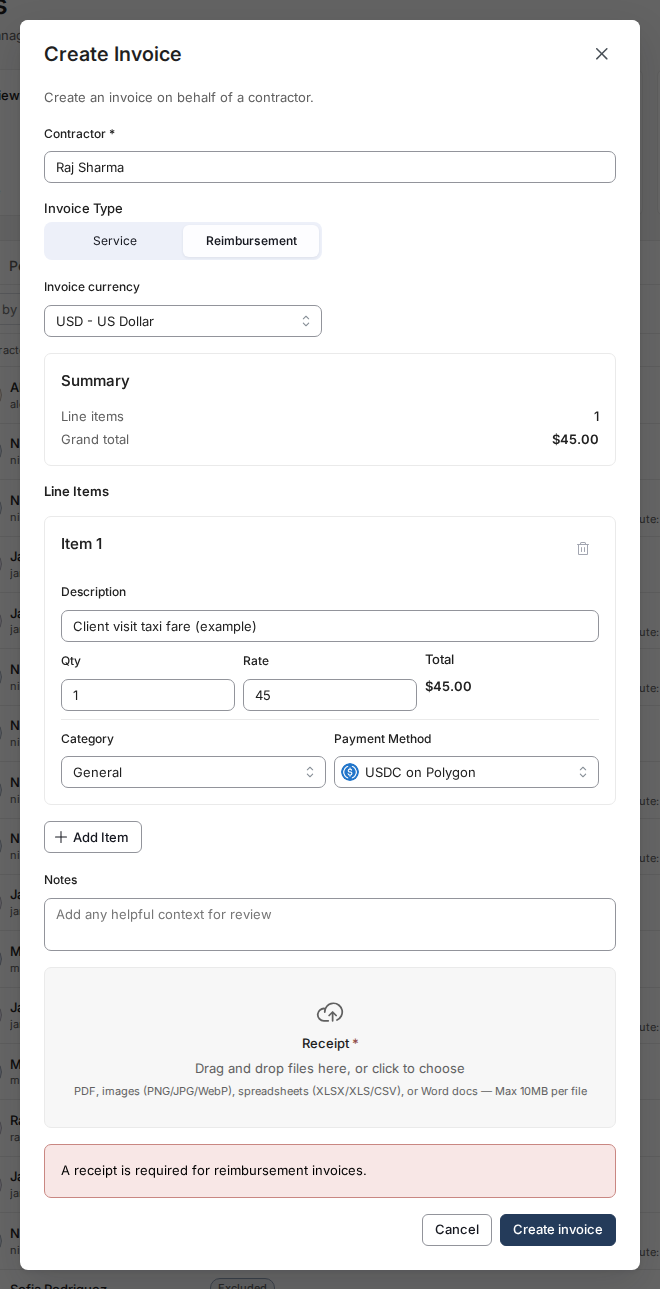
- For a reimbursement, attach the receipt. The section is marked Receipt with an asterisk once you switch the type, and you cannot submit without one.
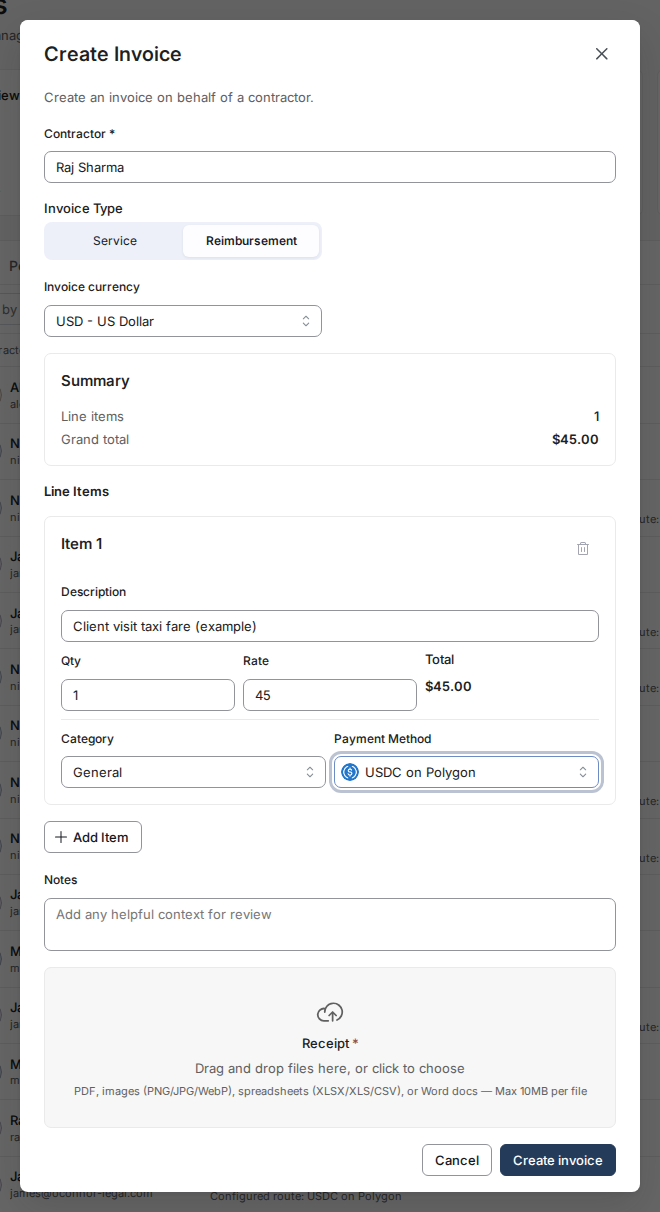
- Click Create invoice. The invoice appears in the list in Pending Review, exactly as if the contractor had submitted it - it still needs an approval, even if your organization normally approves contractor invoices automatically.
📎 A reimbursement will not submit without a receipt. Leave it off and the window shows "A receipt is required for reimbursement invoices." and stops. This is the same rule contractors get on their own form.
Good to know when invoicing on someone's behalf
- A contract that ended more than 30 days ago can no longer be invoiced. Someone terminated within the last 30 days still appears in the Contractor list, marked Terminated - invoice grace period, so you can raise a final invoice for work they already did. Past 30 days they drop out of the list, and the server refuses the invoice if the list is bypassed. Their existing invoices are not affected: you can still view, edit, or reject those. If a person you expected is missing from the list, check their status on your People page; if you believe they are wrongly missing, contact [email protected].
- If the payment method list is empty, the window says "No payment methods available for this contractor" and stops you with "Select a payment method for each line item." That contractor has not added a bank account or wallet yet - they need to do that before you can invoice on their behalf.
- You choose the type only when creating. Editing an invoice, or copying one, keeps whatever type it was created with - there is no Invoice Type control in those windows, and a copy of a reimbursement is still a reimbursement.
- Switching contractor clears any file you attached. That is deliberate: a receipt belonging to one contractor must never end up on another contractor's invoice, where they could open it.
Review invoice details
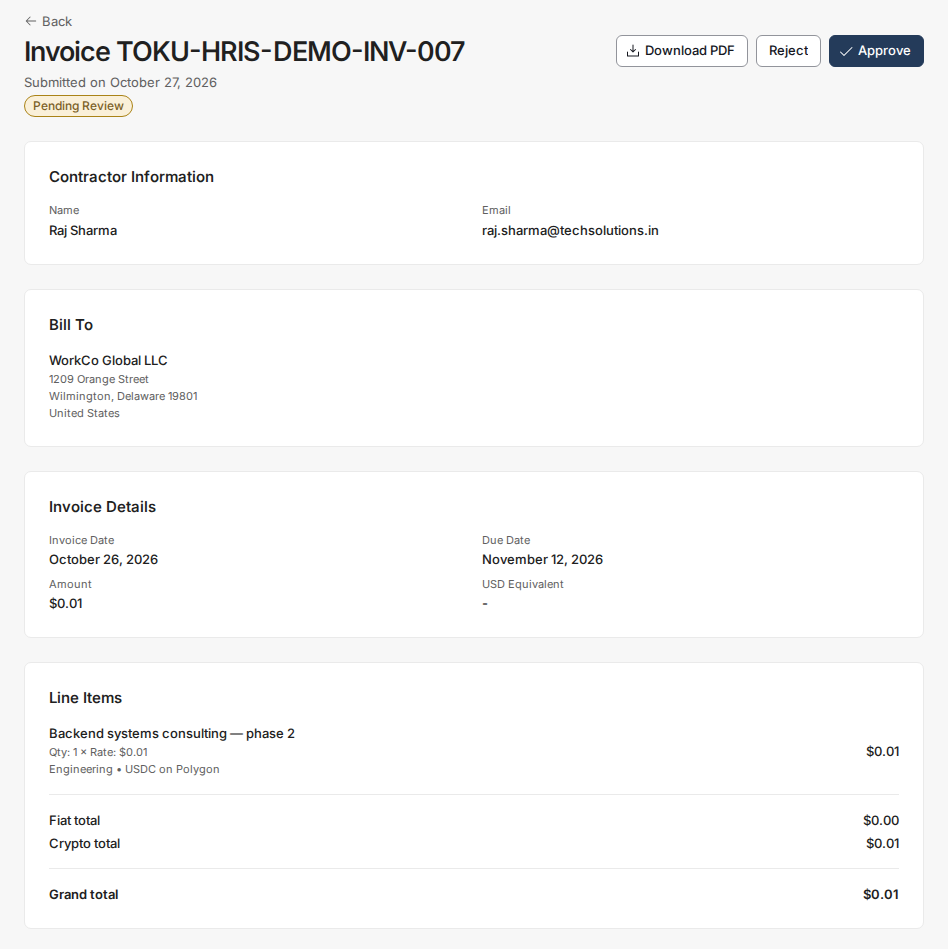
- Find the contractor's invoice in the list and click the eye icon in the Actions column (on a Pending Review row, open the ··· menu and choose View) to view the full details, including the amount, currency, and invoice number.
Approve an invoice
- If the invoice is correct, click the check mark in the Actions column, or select the invoice's checkbox, click the Bulk actions button at the top right of the list and choose Approve.
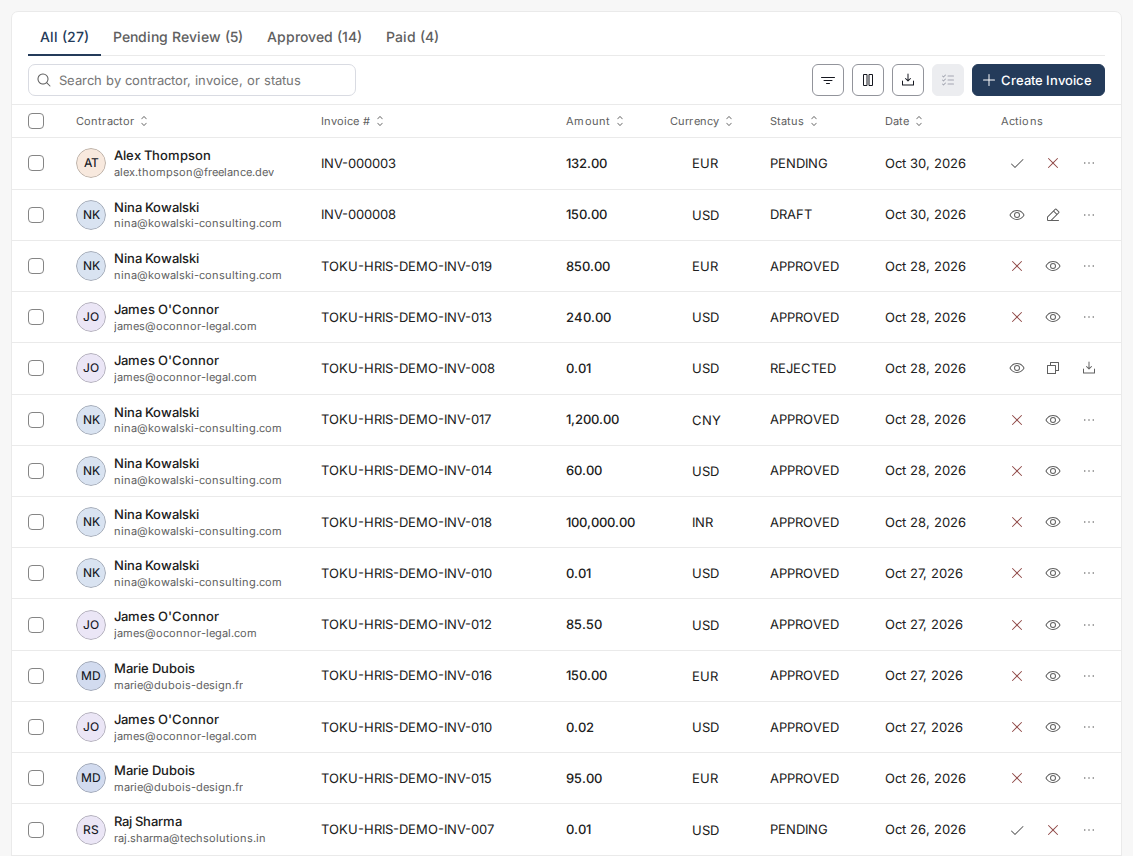
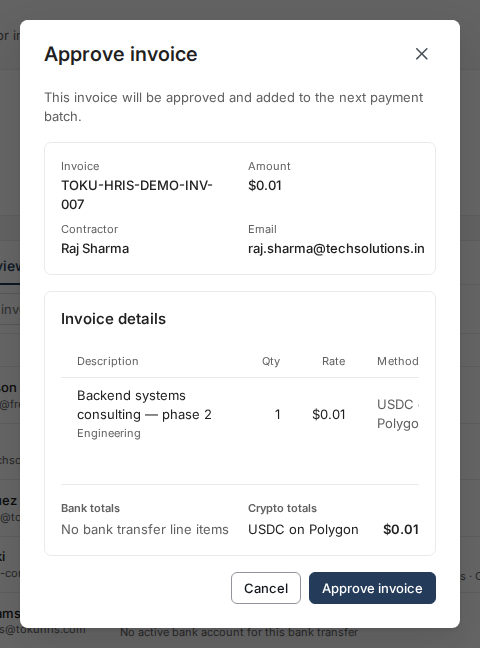
- Confirm when prompted. Once approved, the invoice can no longer be edited - Edit no longer appears for that row, because an approved invoice cannot be changed in place. To correct one, reject it with the red X and then copy it. See "Reverse an approval" below.
Edit an invoice
- You can only edit an invoice while it is in Draft or Pending Review status, before you approve it - Edit appears only on those rows (the pencil icon on Draft rows, or in the ··· menu on Pending Review rows). If the auto-calculated or contractor-submitted amount needs adjustment, choose Edit to modify the invoice amount or details.
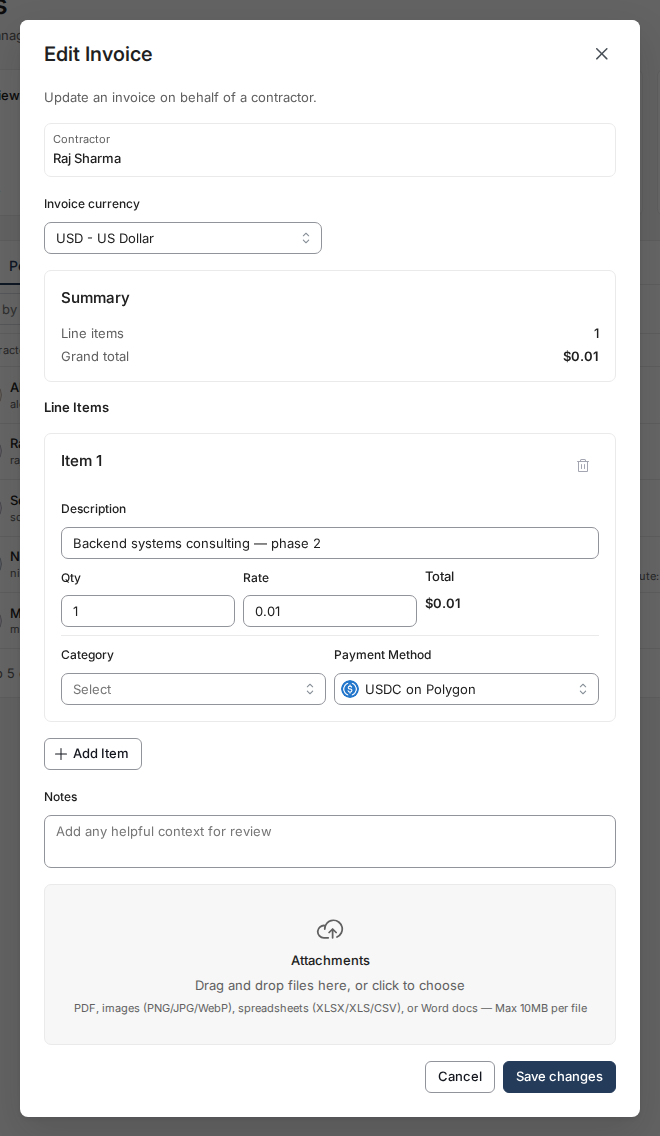
- Click Save changes, then click the check mark to approve the invoice. This is faster than rejecting it and waiting for the contractor to resubmit.
- Your edit is recorded on the invoice itself. Open the invoice (the eye icon in the Actions column, or View in the ··· menu) and scroll to Audit history: the change is listed as Edited by admin, with your name under it and the date and time you saved it.

What the Audit history shows
Every invoice you open as an administrator ends with an Audit history card. It lists what has happened to that one invoice, newest first, and each row shows what was done, who did it, and when. Contractors do not see this card on their own copy of the invoice.
The rows you may see are:
- Submitted by contractor — the contractor submitted the invoice.
- Edited by admin — an administrator changed the invoice before it was approved.
- Approved by admin — an administrator approved it.
- Auto-approved — your organization approves contractor invoices automatically and this one met the rule.
- Auto-generated — Toku raised the invoice for a contractor on an automatic invoicing schedule.
- Rejected by admin — an administrator rejected it.
- Override-rejected by admin — an administrator reversed an approval and rejected the invoice.
- Due date changed by Toku admin — Toku moved the invoice's due date at your request. Rows that nobody performed by hand - an automatic approval, an automatically generated invoice - read by System instead of a person's name. A rejection or an override also shows the reason that was entered, in quotation marks.
🕓 Older edits still read "Submitted by contractor". Before 11 September 2026 an administrator's edit was recorded with the contractor's submission label, so an invoice edited before that date still shows the old wording. Existing rows were not relabelled. The name shown under the row was always the person who actually made the change, including on those older rows.
Reverse an approval
- If you approved an invoice by mistake, find it on the Approved tab and click the red X in the Actions column. Hovering it reads "Override approval and reject", which is how you tell it apart from an ordinary rejection. You no longer need to open the invoice first. The X only appears while no payment has been initiated for that invoice.
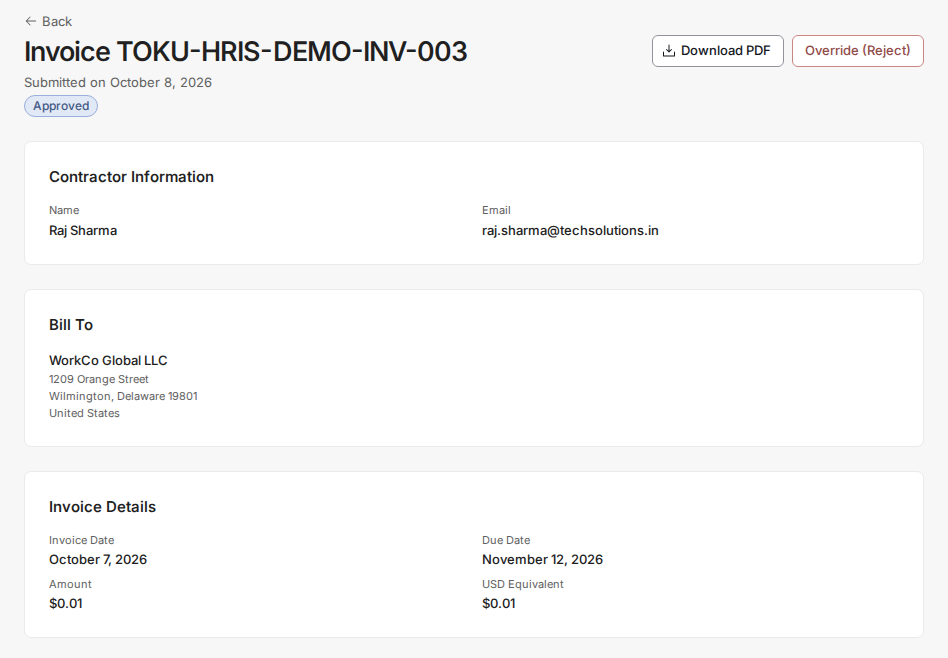
- The window is titled Override approval - reject invoice and warns that this is destructive. Check the invoice, amount and contractor it lists, enter a reason, and click Override and reject. The invoice moves to Rejected status, exactly like a normal rejection. Rather than asking the contractor to retype it, use Copy to rebuild the corrected invoice yourself - see Copy an invoice below.
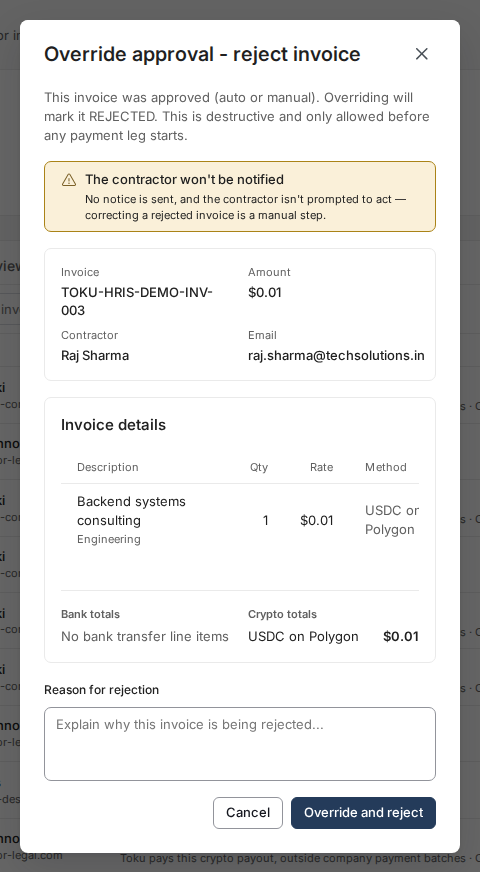
💡 Once a payment leg has started for an invoice, Override (Reject) is no longer available and the approval is final.
Copy an invoice
Every invoice row has a Copy action, whatever its status: a copy icon on rejected and paid rows, or Copy in the row's ··· menu. It opens a new invoice for the same contractor, prefilled from the one you copied, so you can rebuild a corrected invoice - or repeat a recurring one - without retyping the line items.
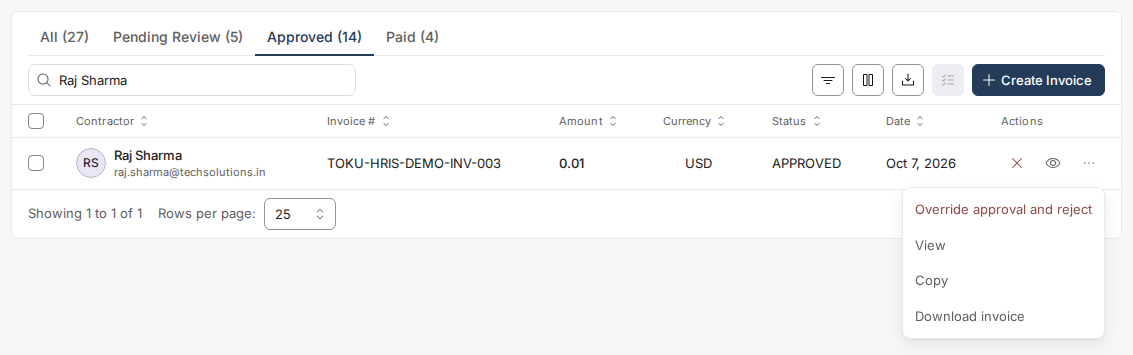
- Find the invoice you want to base the new one on and click the copy icon in the Actions column, or open the ··· menu and choose Copy.
- The Copy Invoice window opens with the contractor, currency, line items and payment method already filled in. Change whatever needs to change.
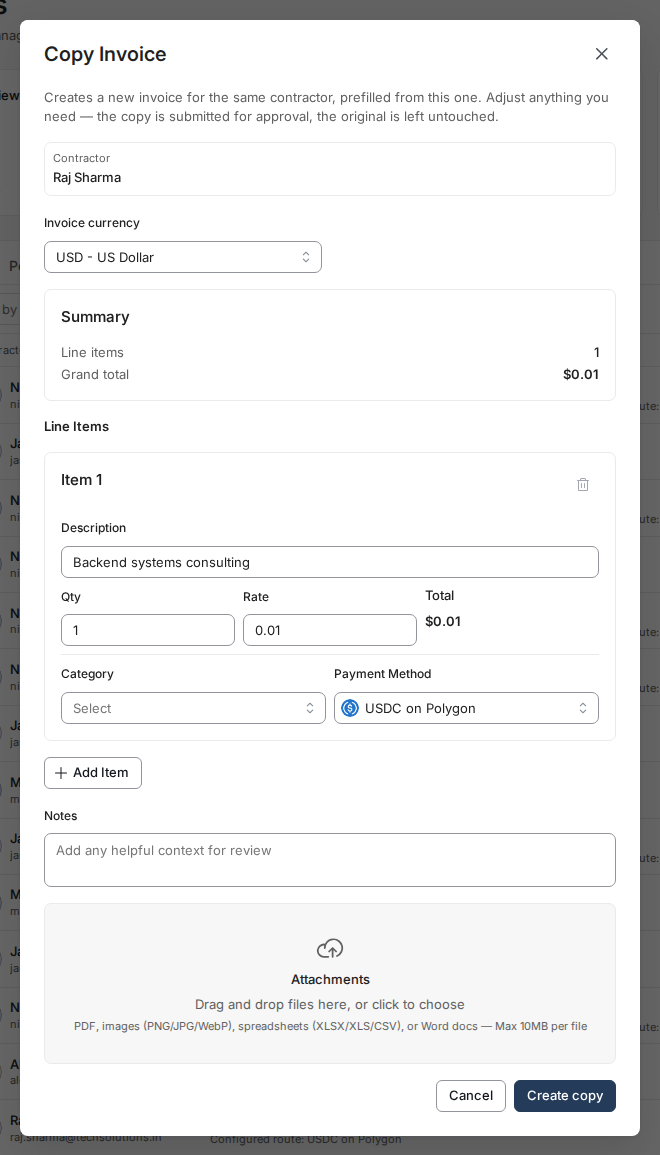
- Click Create copy. The copy is submitted for approval as a new Pending Review invoice, and the invoice you copied is left exactly as it was.
👤 A copy always stays with the same contractor. The contractor is shown as plain text with no search box - a copy is a correction of that person's invoice, not a way to move it to someone else. A copy also keeps the original's type: copy a reimbursement and you get a reimbursement.
Correcting an approved invoice
These two actions are one workflow. An approved invoice cannot be edited in place, so the way to fix one is to reject it and copy it:
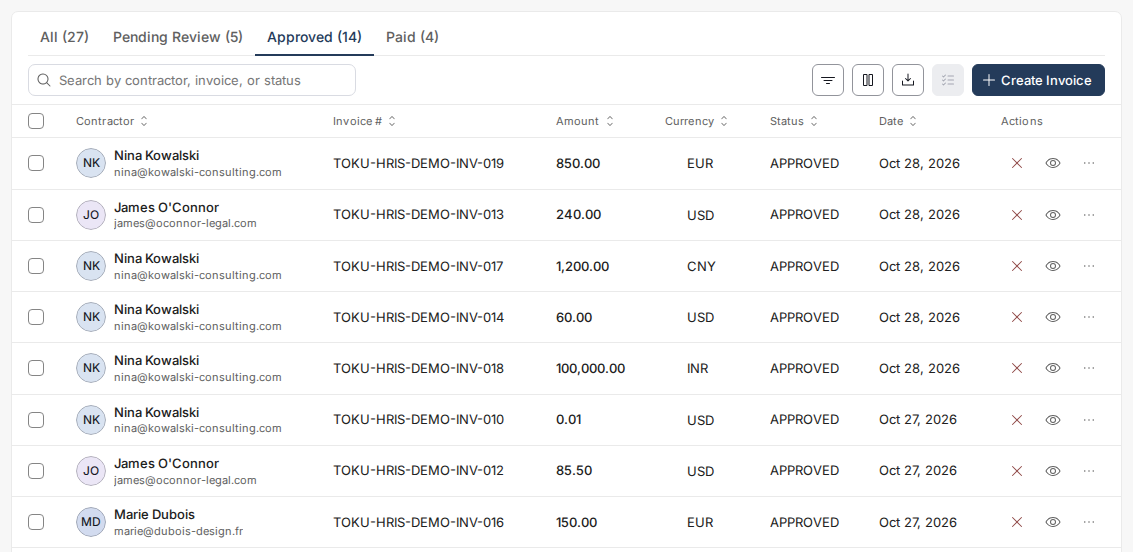
- Click the red X on the approved invoice and confirm the override, giving a reason.
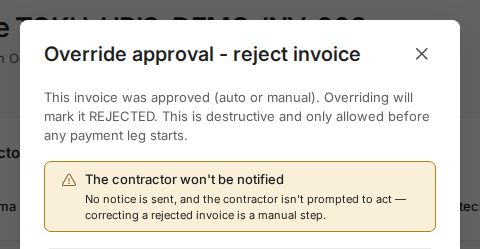
- Click the copy icon on that same invoice, correct the details, and submit. The contractor does not have to raise a new invoice themselves.
- If the red X is missing from an approved invoice, a payment leg has already started for it. At that point the approval is final and the invoice cannot be reversed - contact [email protected].
Reject an invoice
- If the invoice is significantly incorrect or missing information, select the red X in the Actions column, or select the invoice's checkbox, click Bulk actions and choose Reject. Toku does not send the contractor a notice, so contact them yourself. Rejected invoices cannot be resubmitted; the contractor must create a new, corrected invoice.
Understand submission timing and due dates
| Submission timing | System due date | Product behavior |
|---|---|---|
| On or before the 19th | Last day of the same month | Toku sets the due date when the invoice is submitted |
| From the 20th onward | Last day of the next month | A draft remains without a due date until submission |
Good to know
- Once you confirm an approval, the invoice cannot be edited. If you approved one in error, click the red X on its row to override the approval and reject it, then use Copy to raise the corrected invoice - this only works before any payment has started. If payment has already started, the approval is final; contact [email protected].
- When you review an invoice, the exchange rate reflects the invoice currency and payout token. If they are the exact same token - for example, USDT paid in USDT - Toku applies an exact 1:1 rate, performs no conversion, and pays the invoiced token amount in full. Different currencies use the normal market-rate path unless the organization has the USD stablecoin peg described below.
- If your organization wants USD and supported USD-pegged stablecoins - for example, USD paid in USDT or USDC paid in USDT - to use an exact 1:1 rate instead of the live market rate, ask your Toku account team to enable the USD stablecoin peg for your organization.
- Editing a Pending Review invoice before you approve it is faster than rejecting it and waiting for the contractor to resubmit - use Edit for minor corrections.
- You do not set an invoice's due date, and neither does the contractor. Toku sets the due date for you, from the monthly submission deadline. Submit on or before the 19th of the month and the invoice is due on the last day of that same month. Submit from the 20th onwards and it moves to the last day of the next month. A draft that has not been submitted has no due date at all. If a due date genuinely needs to move, email [email protected] - only Toku can change one.
Still stuck?
You can email [email protected] to reach our support team. Please include your email address, organization name, and a description of what happened. Screenshots and videos are always welcome to speed up the troubleshooting process. Feel free to reach out any time for further assistance.